Generally, users find it ideal to reboot the system whenever they face any issues with the Windows System or their computer. We observed the same mentality in the case of remote desktop service. For example, we find people rebooting the Windows Server to apply the changes they made to the RDP. It can be a solution to fix the issue, but you can also save time by restarting only the RDP service.
There are three different ways to restart your remote desktop service.
Option - 1: Restart via Services Console
You can restart the RDP service from the Windows services console. This is an easy method, and we have mentioned the steps for it here.
1. Log in to your Windows VPS.
2. Go to "Run" and type services.msc.
3. Search for Remote Desktop Services.
4. Right-click on Remote Desktop Services, and an option to restart it will appear. Click on Restart, and it will restart your service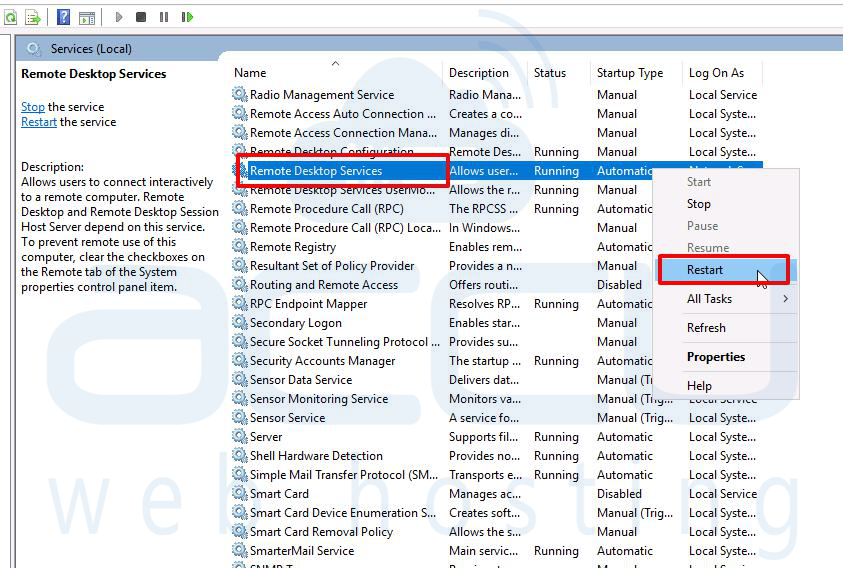
Option - 2: Using Task Manager
If you can't access the Services console, you can restart the Windows server through Task Manager. Here are the steps to restart the RDP service using Task Manager.
1. Log in to your Windows VPS.
2. Right-click on your VPS taskbar and click on Task Manager. 
3. Please search for the term service and right-click on it. Here, you will see an option to restart the service.
Option - 3: Using PowerShell
PowerShell can also be used to restart the RDP service. Here are the steps to restart the RDP service through PowerShell.
1. Log in to your Windows VPS.
2. Click on the start button and search for Powershell.
3. Right-click on it and run it using administrator. 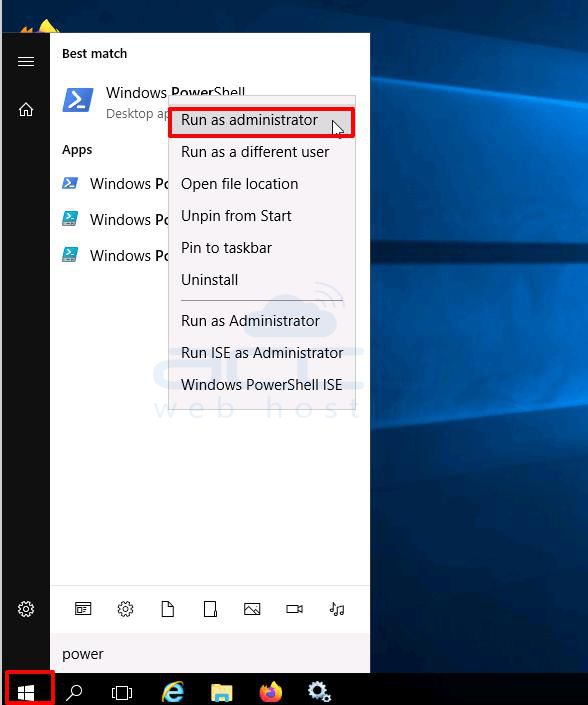
4. Run any of the below commands.
Restart-Service -Force -Name "TermService"
OR
Restart-Service -Force -DisplayName "Remote Desktop Services"
