
By default, MySQL only accepts local connections for security reasons. However, there are times when you may need to allow a remote machine to connect to your MySQL database—for example, when accessing MySQL from an application hosted on a different server.
This article explains how to enable and secure remote MySQL connections in Linux in three major steps.
Step 1 – Edit MySQL Configuration File
Open the MySQL configuration file using a text editor such as nano.
# sudo nano /etc/mysql/mysql.conf.d/mysqld.cnf
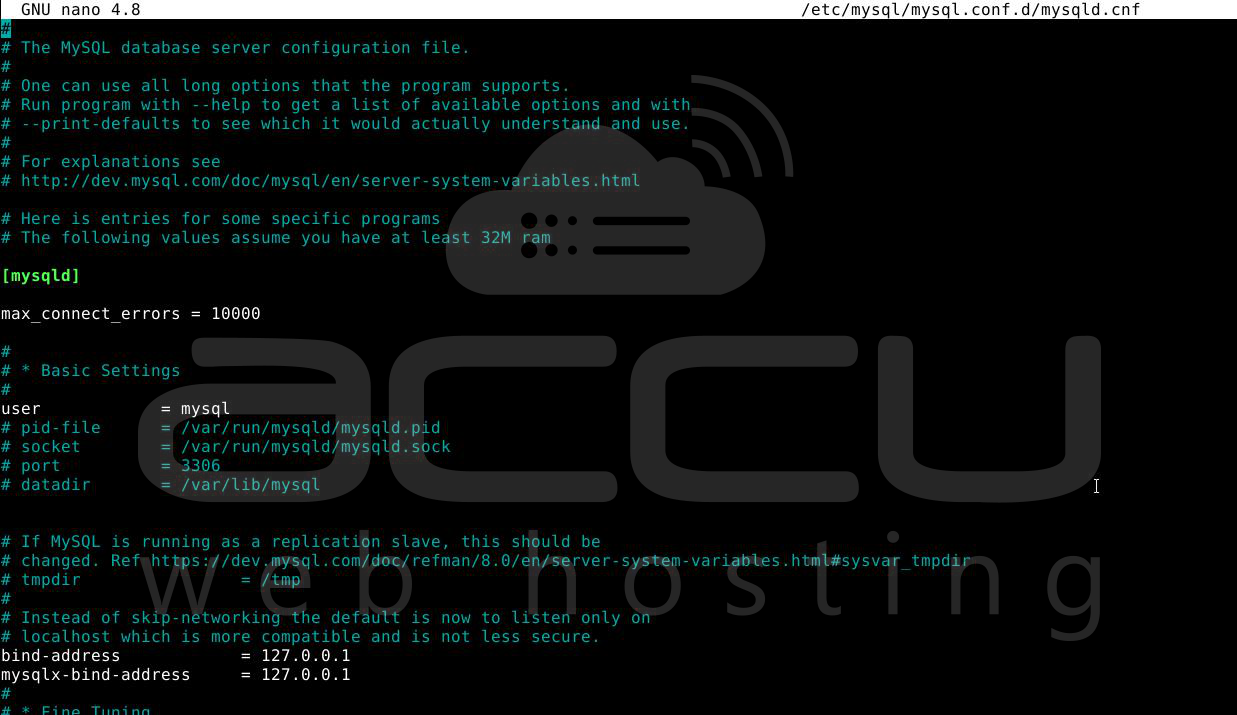
Note: The config file location may vary depending on your MySQL version.
Locate the line: bind-address = 127.0.0.1
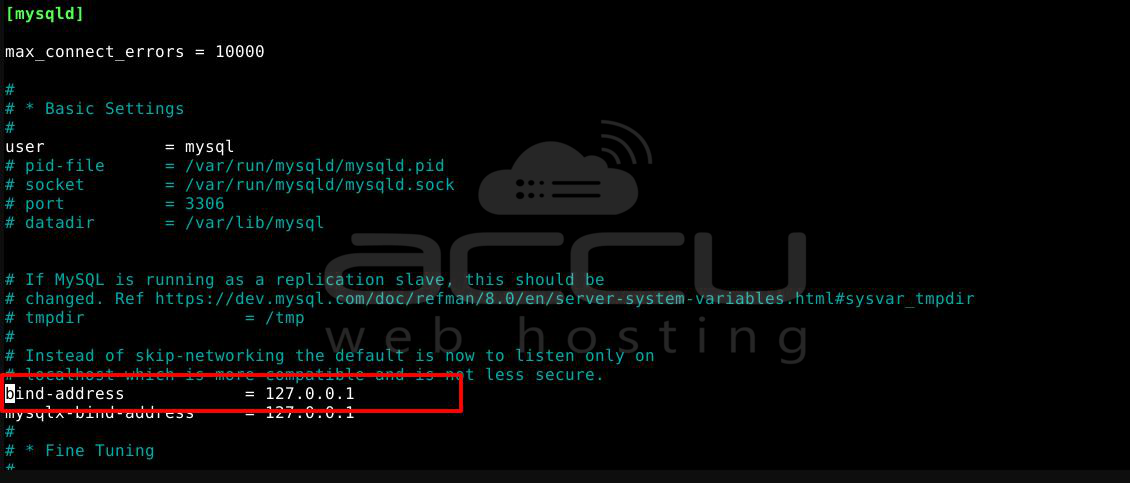
Change it to the public IP of your MySQL server or to 0.0.0.0 to allow connections from all IPs (not recommended for production without firewall restrictions).
bind-address = 0.0.0.0
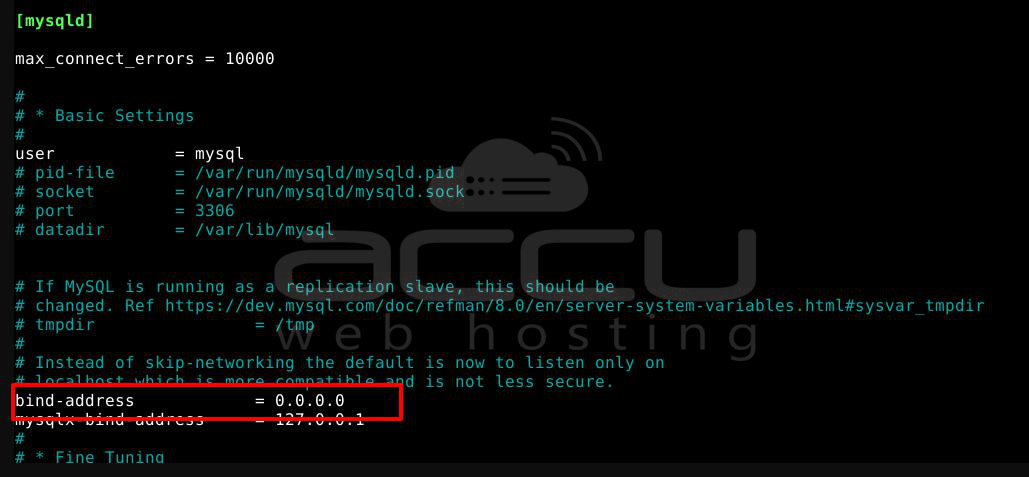
Save the file and exit the editor.
Restart the MySQL service to apply changes:
# sudo systemctl restart mysql
Step 2 – Configure Firewall to Allow Remote Connections
Using UFW (Debian/Ubuntu):
Run the following command to allow access on port 3306 from a specific remote IP:
# sudo ufw allow from <remote_ip_address> to any port 3306

Using firewalld (CentOS/RHEL)
Create a new zone and reload the firewall:
# sudo firewall-cmd --new-zone=mysqlaccess --permanent
# sudo firewall-cmd --reload

Add source and open port 3306:
# sudo firewall-cmd --permanent --zone=mysqlaccess --add-source=<remote_ip_address>
# sudo firewall-cmd --permanent --zone=mysqlaccess --add-port=3306/tcp
# sudo firewall-cmd --reload

Using iptables
Allow all incoming traffic on port 3306:
# sudo iptables -A INPUT -p tcp --dport 3306 -j ACCEPT

OR allow only a specific IP:
# sudo iptables -A INPUT -p tcp -s <remote_ip_address> --dport 3306 -j ACCEPT

Save iptables rules:
# sudo netfilter-persistent save
# sudo netfilter-persistent reload
or
# sudo service iptables save
Step 3 – Connect to MySQL Remotely
Use the following command from your remote server:
# mysql -u <username> -h <mysql_server_ip> -p
- -u <username>: MySQL user
- -h <mysql_server_ip>: Hostname or IP of the MySQL server
- -p: Will prompt for password
If the connection is successful, you’ll see:
Connection to <mysql_server_ip> 3306 port [tcp/mysql] succeeded!
Conclusion:
By following these steps, you have successfully allowed remote MySQL access on your Linux VPS. Ensure that remote access is granted only to trusted IPs and that your MySQL users have strong passwords. Always test your connection after configuration and verify your firewall settings for security.


