
When managing a Linux-based web server, it is often necessary to check which PHP and Apache modules are currently installed. This helps in troubleshooting, ensuring compatibility with applications like WordPress, Laravel, etc., and verifying module installations.
This article explains how to check the installed Apache and PHP modules, along with the PHP version, using simple terminal commands.
Step-by-Step Instructions
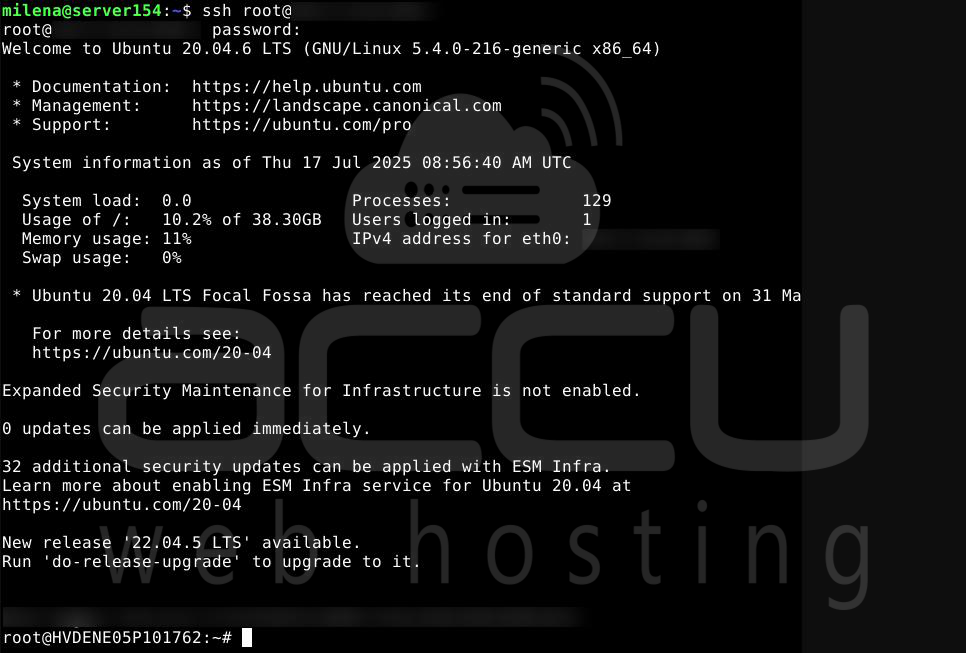
Step 1. Log in via SSH
Use an SSH client (e.g., PuTTY or Terminal) to log in to your Linux VPS as a root or sudo-enabled user.
# ssh username@your_server_ip
Step 2. Check Installed Apache Modules
Run the following command to list all active Apache modules:
# apachectl -M
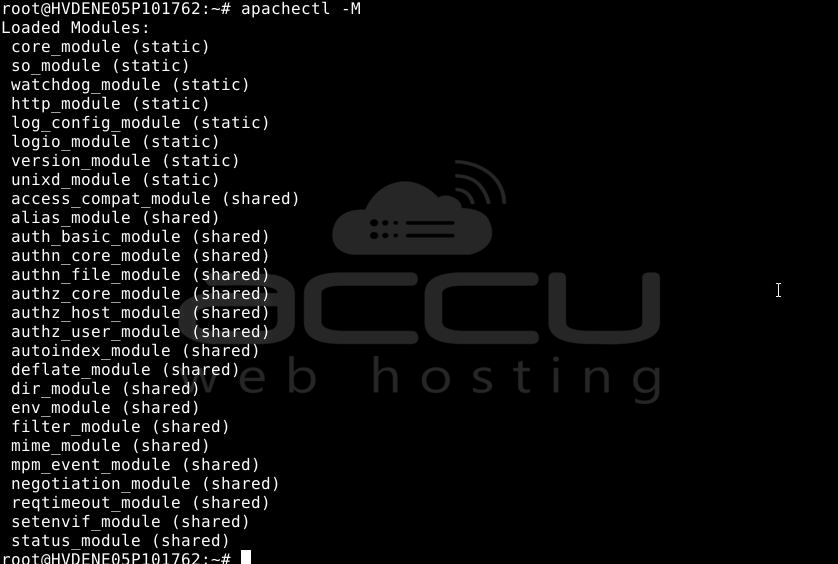
This will output a list of currently loaded Apache modules.
Step 3. Check Installed PHP Modules
To list all available PHP modules, execute:
# php -m

Step 4. Check PHP Version
To verify the current PHP version installed:
# php -v

Conclusion:
Using the commands provided above, you can quickly check the installed PHP and Apache modules on your Linux server. Keeping track of these modules helps in diagnosing server-side issues and configuring software environments appropriately.


