
When hosting websites on IIS, you may sometimes encounter HTTP Error 401.3 - Unauthorized. This error typically indicates that the user lacks the necessary permissions to access a file or directory on the server. Unlike authentication errors (where login credentials are incorrect), this error is related to file system permissions (Access Control Lists, or ACLs) or encryption settings.
If permissions for critical IIS or application files are missing or misconfigured, IIS will block access to the requested resource.
You may get the below message in or IIS logs or your browser console -
HTTP Error 401.3 - Unauthorized
You do not have permission to view this directory or page because of the access control list (ACL)
configuration or encryption settings for this resource on the web server.
Common Causes
- Missing permissions for Authenticated Users on critical .NET framework directories, such as:
%windir%\Microsoft.NET\Framework64\v4.0.30319 - Incorrect permissions on website files inside wwwroot or the custom application directory.
- ASP.NET or IIS modules are missing access to the required DLL files.
- Misconfigured or overridden IIS application pool identity that does not have the required file system rights.
Resolution
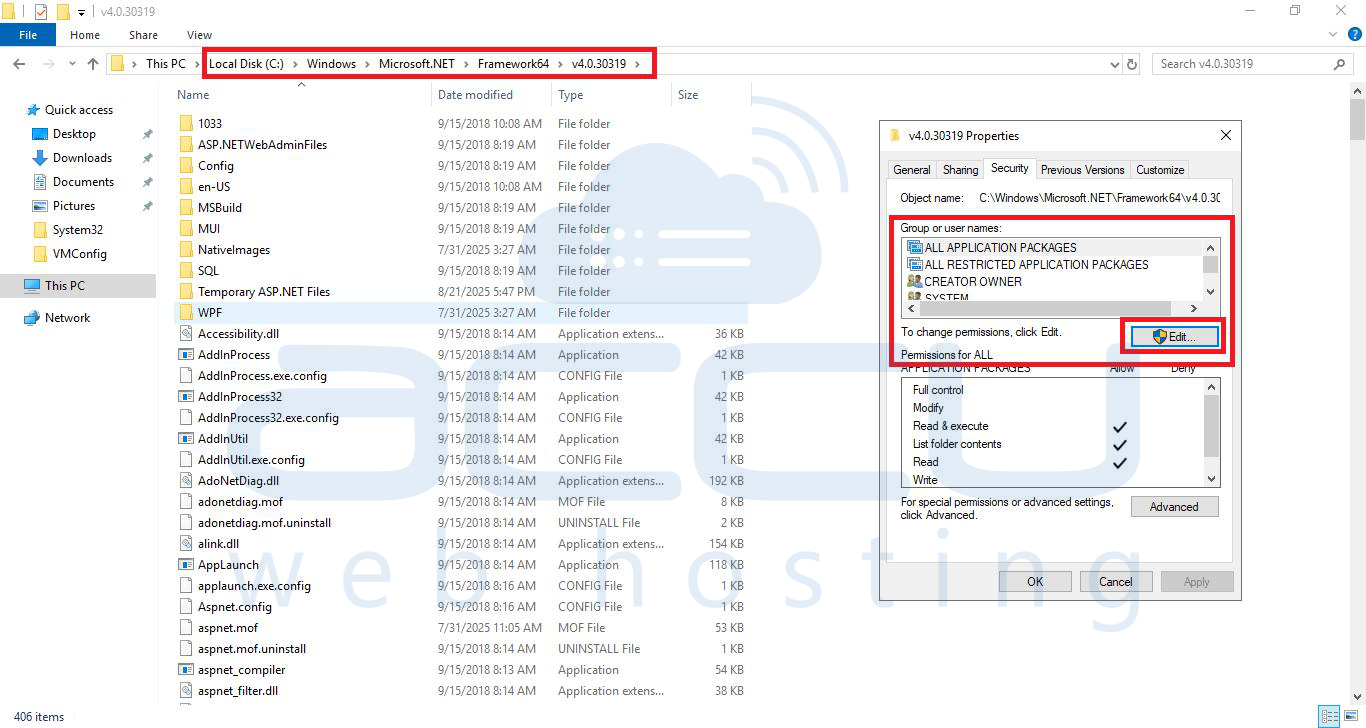
1. Check Framework Folder Permissions
Go to: C:\Windows\Microsoft.NET\Framework64\v4.0.30319
Right-click → Properties → Security tab.
Ensure Authenticated Users have Read & Execute permissions.
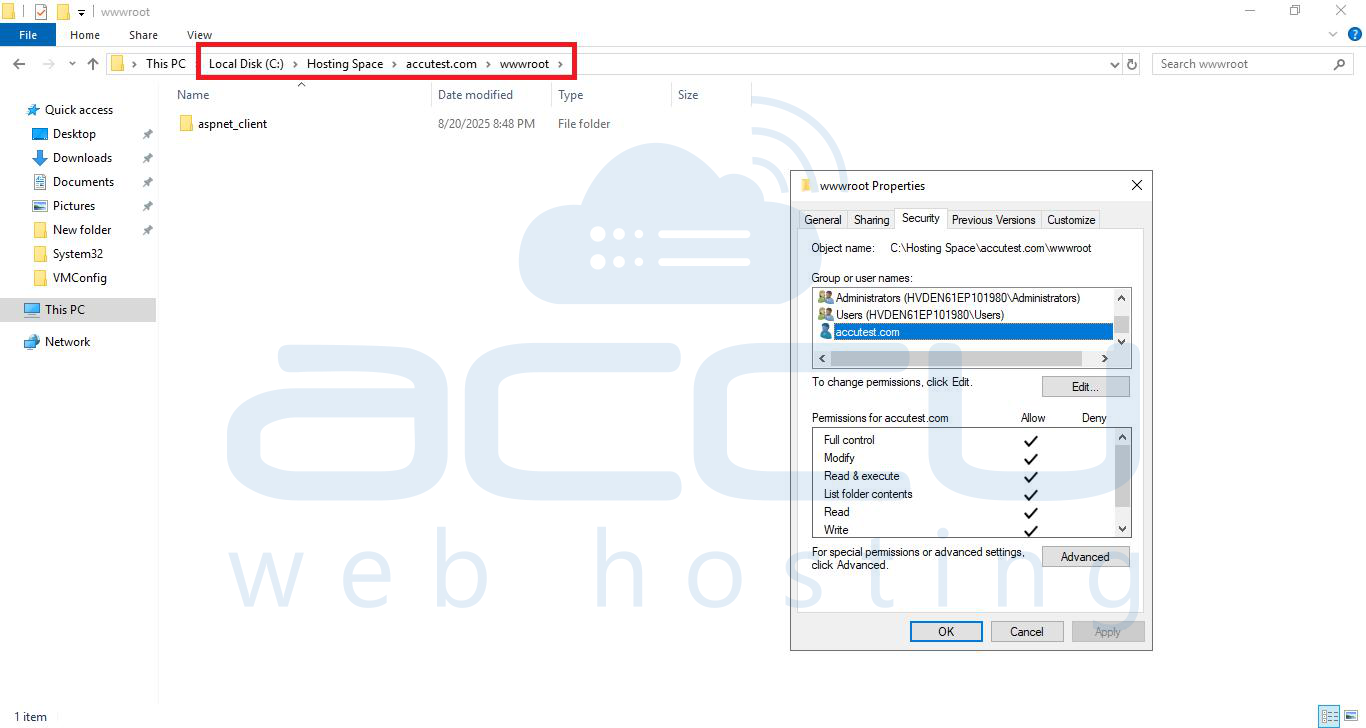
2. Check Website Folder Permissions
Browse to your site folder (e.g., C:\inetpub\wwwroot ).
Right-click → Properties → Security.
Confirm that IIS_IUSRS and Authenticated Users have proper access.
If your site needs uploads or writes, grant Modify permission as required.

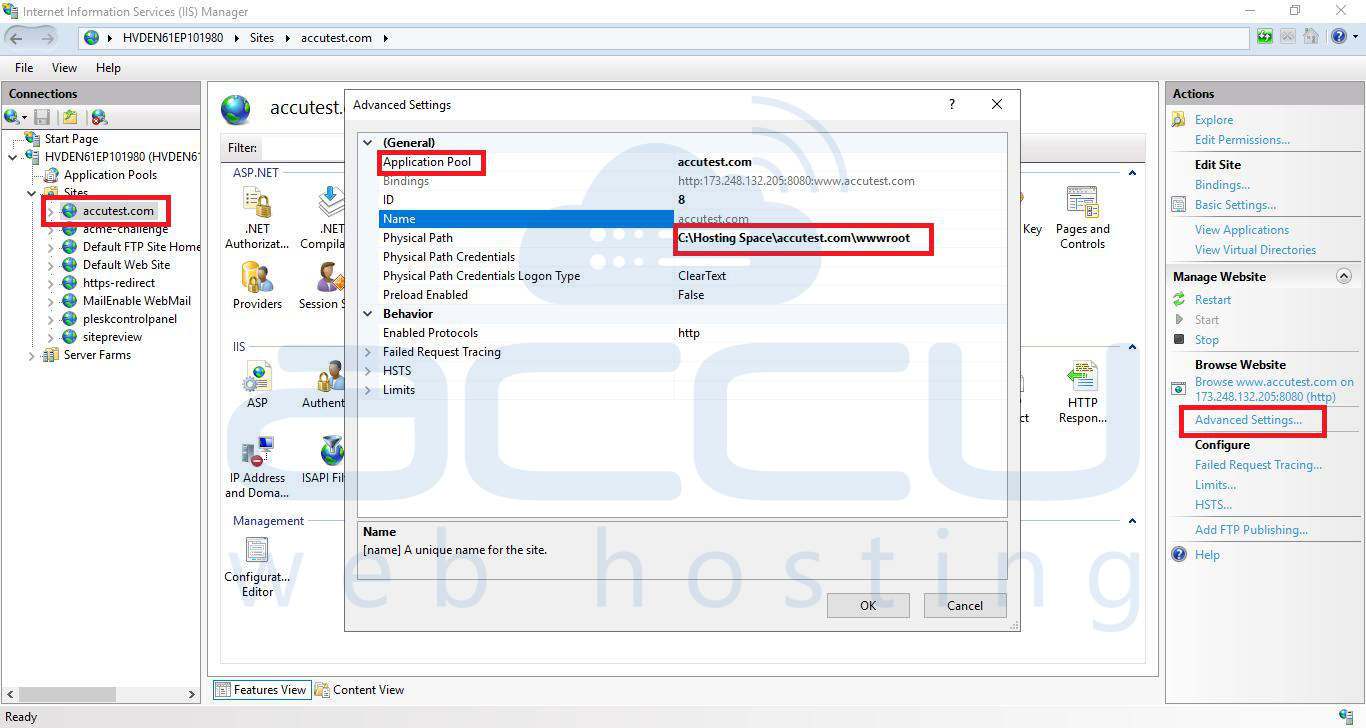
3. Verify Application Pool Identity
Open IIS Manager → select your site → Advanced Settings.
Check the Application Pool Identity being used.
Make sure that the account has at least Read & Execute access to your site folder.
4. Reset Permissions if Needed
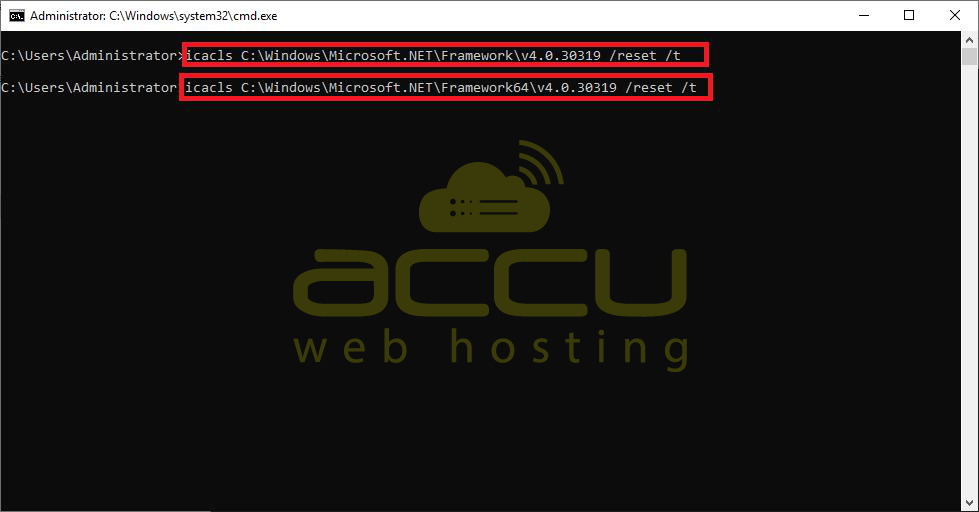
If permissions are corrupted, reset them to default with these commands:
# icacls C:\Windows\Microsoft.NET\Framework64\v4.0.30319 /reset /t
# icacls C:\Windows\Microsoft.NET\Framework\v4.0.30319 /reset /t
5. Restart IIS
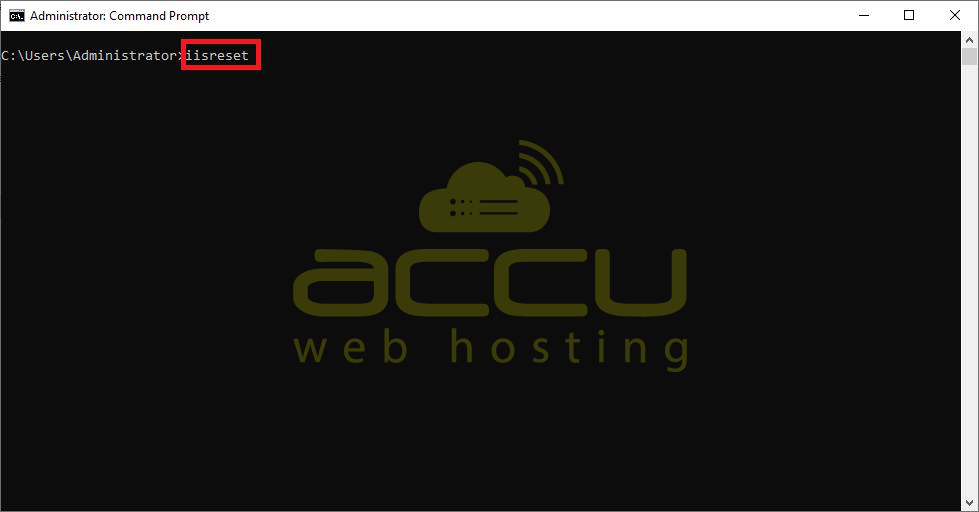
Finally, restart IIS to apply changes from the Command Prompt:
# iisreset
Conclusion:
By ensuring Authenticated Users, IIS_IUSRS, and your application pool identity all have the correct permissions on both the Framework directory and your website root folder, you can resolve the 401.3 Unauthorized error. Resetting permissions and restarting IIS often clears up lingering access issues.


