
Following are the steps to modify the host file in Windows 7, MacOS, and Ubuntu.
Windows 7:
Note: You can also use these steps to modify the host file in Windows 8/10 as well.
1. Press Windows+R to open Run.
2. Enter the Below Command to open the host file in notepad.
notepad c:\windows\system32\drivers\etc\hosts
3. Modify the required line and save your changes.
Ubuntu:
We will use the nano editor to modify the host file in Ubuntu. You can use your favorite editor. You can find the host file in the path /etc/ folder. We logged in as the root user here. You can use sudo if you are not logged in with the root user.
1. Hit the below command.
# nano /etc/hosts
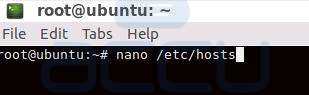
2. Modify the Required line and save your settings by the ctr+x Button. Press Y to complete & save changes.

Mac OS X:
You will find the host file in MAC OS on the same path as we see in Ubuntu.
1. Open a GUI Text Editor.
2. Access the file in the /etc/ folder using the below command.
# vim /etc/hosts
3. Modify your changes and save the Host file.


