
The RC4 (Rivest Cipher 4) algorithm was once widely used for encrypting network traffic. However, years of research have shown that RC4 is broken — attackers can exploit its predictable patterns to steal sensitive information.
Microsoft officially recommends disabling RC4 and instead relying on TLS with AES-based ciphers. This ensures stronger encryption, better compliance, and protection against downgrade attacks.
Disabling RC4 is quick, effective, and recommended by Microsoft itself. In this guide, we’ll walk you through step-by-step instructions to disable RC4 across Windows Server versions (2008 up to 2022), ensuring your system is hardened with stronger protocols like TLS 1.2 and TLS 1.3.
Why Disable RC4 Ciphers?
- Weak Security → RC4 has known vulnerabilities (Bar Mitzvah attack, BEAST, Lucky 13).
- Compliance → PCI DSS, HIPAA, and modern standards reject RC4.
- Future-proofing → Modern clients and browsers already block RC4.
- Better Performance → AES provides stronger and more efficient encryption.
Step-by-Step Guide: Disable RC4 on Windows Server
Step 1: Open Registry Editor
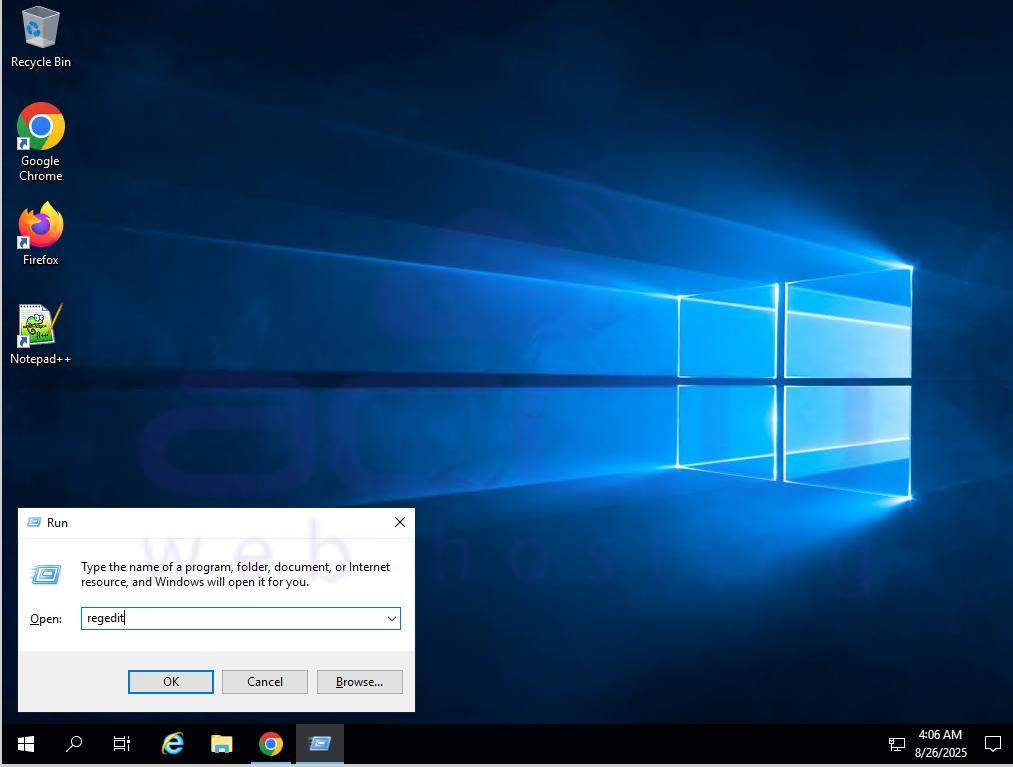
Log in to your Windows Server with Admin rights. Click Start >> Run.
In Run, open the Registry with the regedit command.
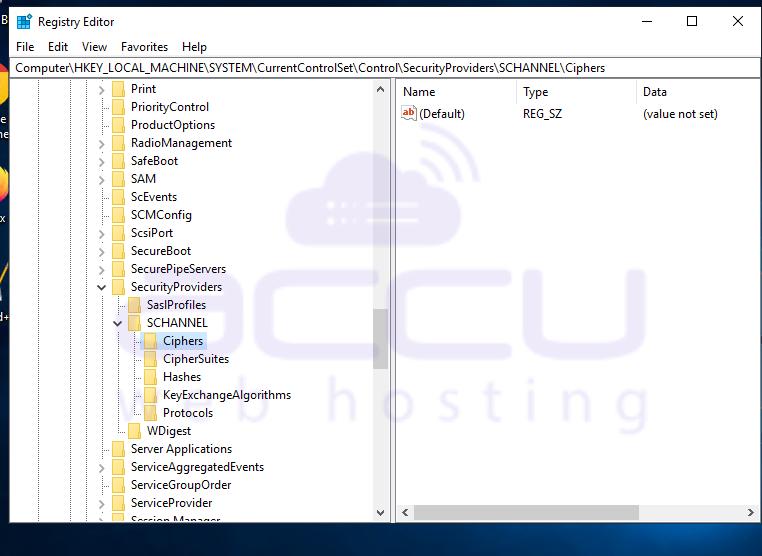
Step 2: Navigate to SCHANNEL Ciphers
HKEY_LOCAL_MACHINE\SYSTEM\CurrentControlSet\Control\SecurityProviders\SCHANNEL\Ciphers
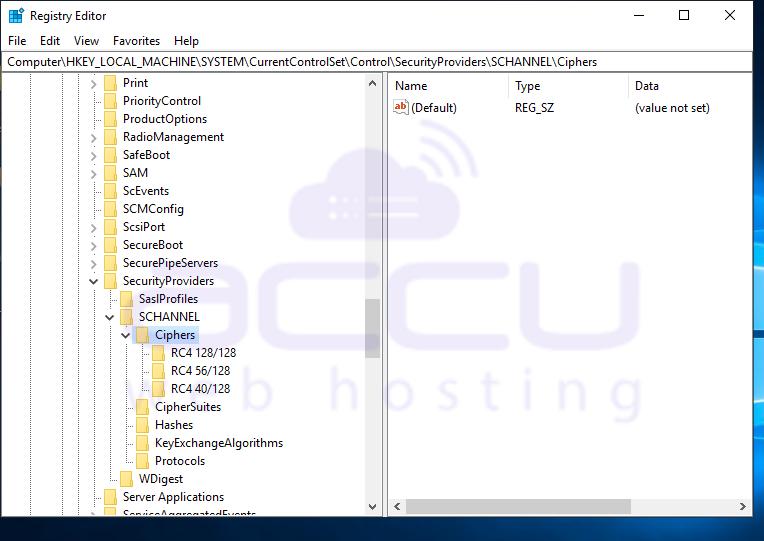
Step 3: Create RC4 Keys
Inside the Ciphers folder, create the following subkeys:
- RC4 128/128
- RC4 56/128
- RC4 40/128
Step 4: Disable RC4 Values
Right Click on the RC4 128/128 >> New >> Click on DWORD(32-bit)Value.
Rename the New Value #1 to Enabled.
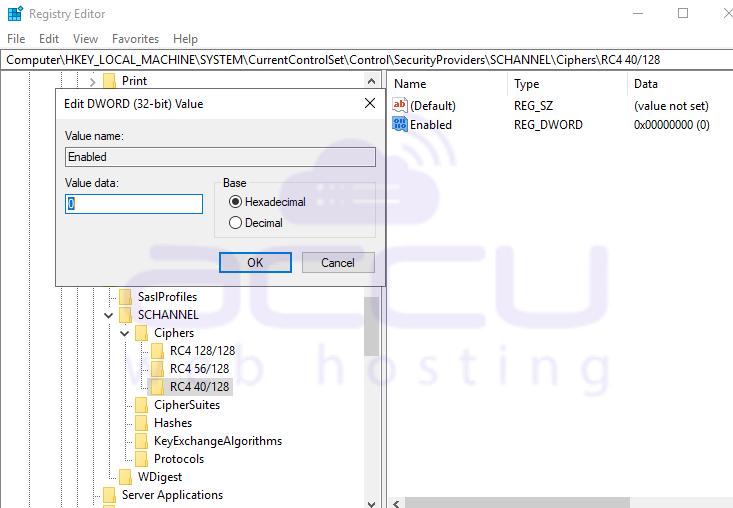
Repeat step no. 4 for Cipher RC4 40/128 and RC4 56/128.
Step 5: Restart the Server
Reboot for changes to take effect.
Important: After disabling RC4, your server will no longer connect to clients that require it. Always test compatibility before rolling out to production.


