
Changing your Windows VPS Administrator password helps keep your server secure and under your control. Whether you’ve forgotten it, want to update it for safety, or share it with another trusted user, you can easily change it from the Windows VPS Management Portal
Note: We provide the VPS management panel in Denver (USA), New York (USA), London (UK), Frankfurt (Germany), and Hyderabad (India).
Follow these steps to do so.
Step 1: Log in to your Windows VPS Management Portal URL:
For the Denver location: https://denvercp.accu15.com/
For New-York, London, Frankfurt, and Hyderabad locations: https://globalcp.accu15.com/
Step 2: Log in to your VPS management panel.
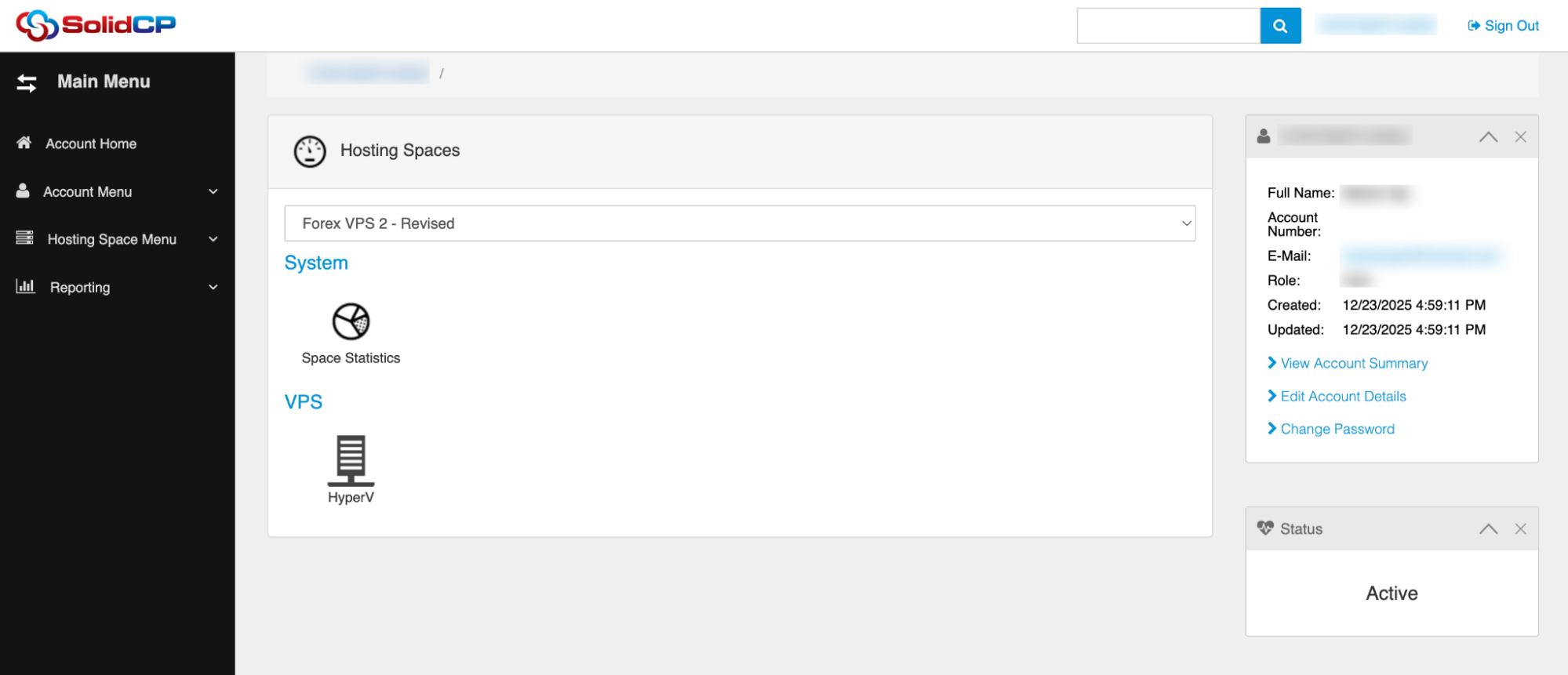
Step 3: Click on the HyperV as per the screen capture.
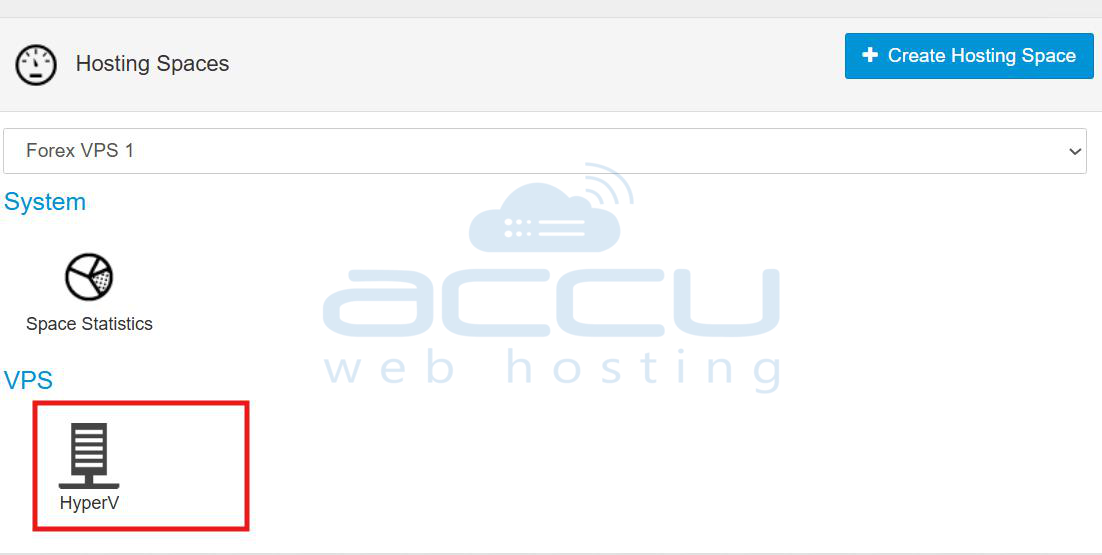
Step 4: Click on your VPS Hostname.

Step 5: Click on the Configuration tab.
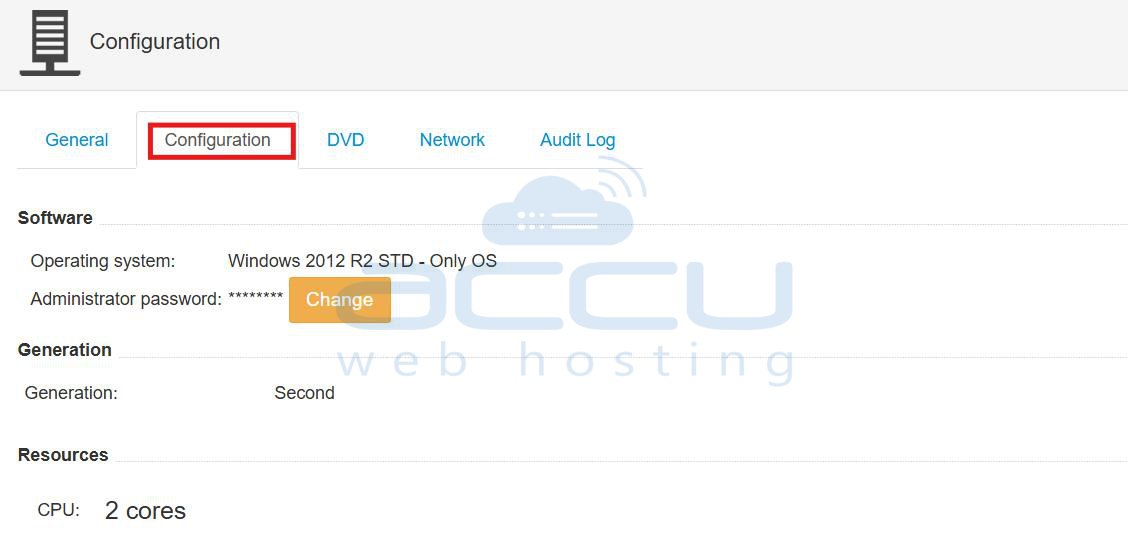
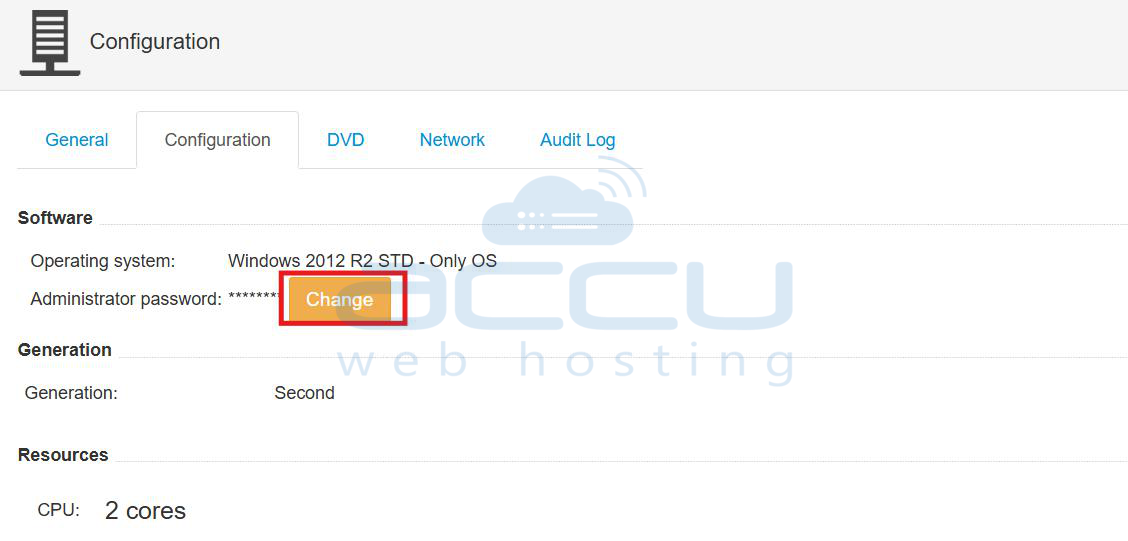
Step 6: Click on the Change button to change your VPS Administrator Password.
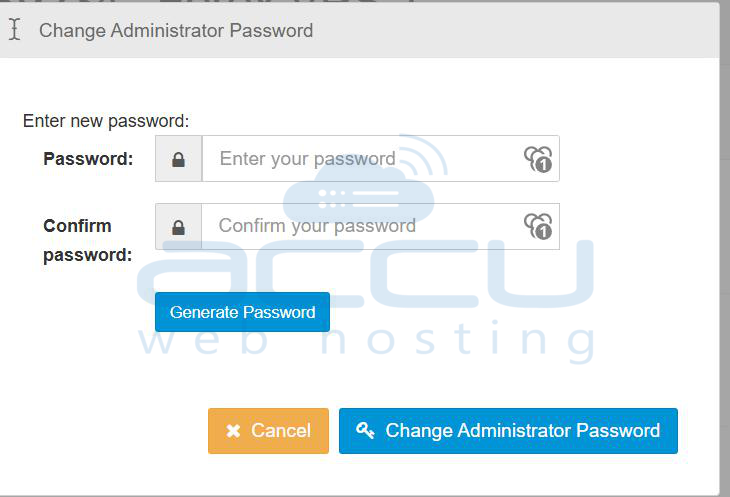
Step 7: Enter the new Password and confirm the Password. Also, save the same Password in your notepad on the local system as well. and hit the Change Password Button.
Step 8: You will see the Administrator Password has been changed in Green Belt. It will take a few Minutes to change the Password.
Step 9: Verify by logging in to the VPS using the new Password.
In this way, you can change the VPS administrator password from the Windows VPS Management Portal if your VPS is located in Denver (USA), New York (USA), London (UK), Frankfurt (Germany), or Hyderabad (India).


