
You can connect the Windows server using RDP with 2 users at the same time. We required a Remote Desktop License to access the server with more than 2 users at the same time. If you have more than 2 users in your organization and need to connect via RDP, you require a Remote Desktop License on Windows 2012/2016.
We can provide the CAL License on our Denver DataCenter. It will be an SPLA (Microsoft Services Provider License Agreement) for your VPS/Dedicated server. Except for this DC Location, you can purchase the Remote Desktop License directly from the Microsoft Store. Microsoft will provide you with the license key to activate the Client Access License (CAL).
The following are the steps to install and activate the Remote Desktop service and Licensing.
Step 1: Log in to your Windows Server and click on the Start Button.
Step 2: Open the Server Manager >> Click on Add Roles and Features. 
Step 3: Select Role-based or Feature-based Installation and click Next. 
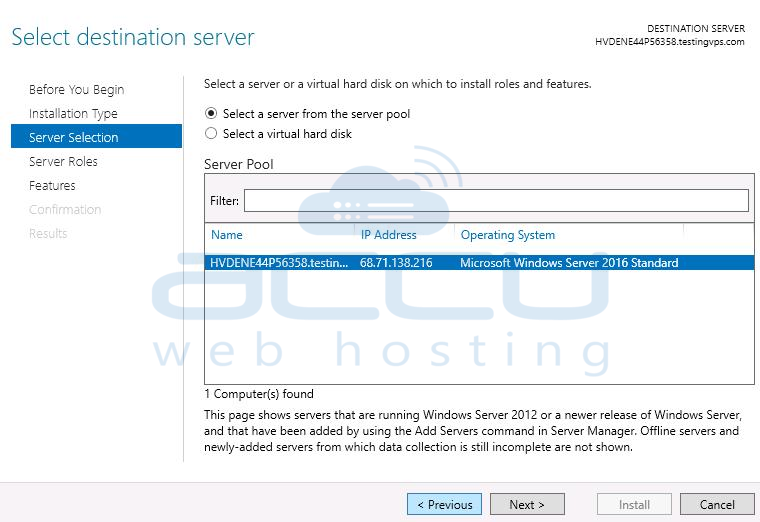
Step 4: Tick the Remote Desktop Service and click Next. Don't select anything from Features. 
Step 5: On the Role service, select the Remote Desktop Licensing and Remote Desktop Session Host and click Next. 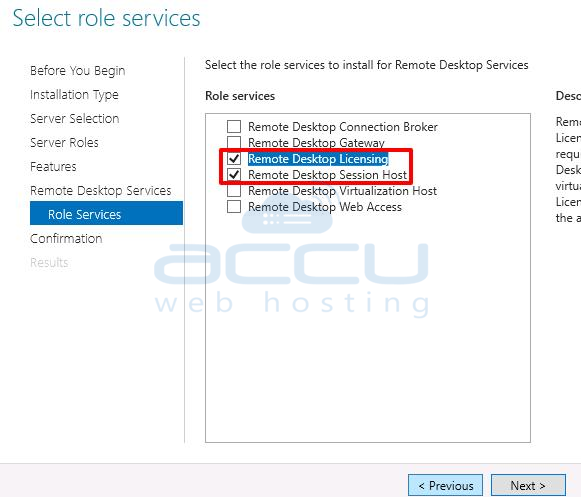
Step 6: Tick the Restart the Destination Server and press the Install button.
We are now done with the Remote Desktop Service and Licensing Installation. Let us move forward to activate the Remote Desktop License.
Step 1: Click on Start Button >> Administrative tools >> Remote Desktop Services >> Remote Desktop Licensing Manager.
Step 2: Right-click on your server name and select Activate Server.
Step 3: Keep the Automatic connection as it is and click on Next.
Step 4: Enter the Required Details and Click Next.
Step 5: Tick the Start Install License Wizard Now and Click Next.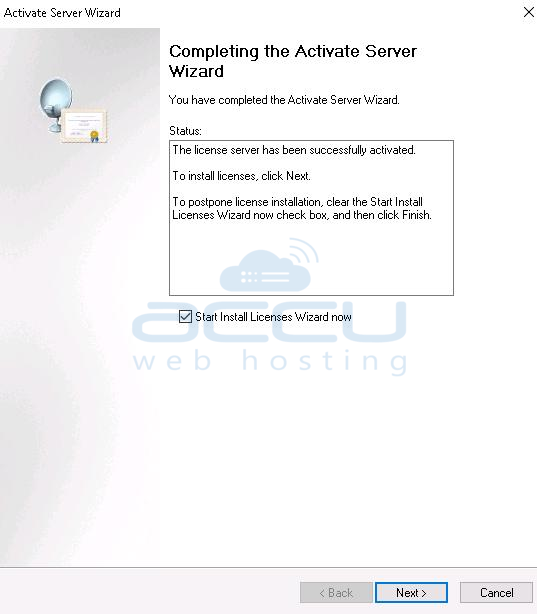
Step 6: On the License Programme, choose your purchased License. If you have purchased the License directly from Microsoft, you need to choose the Retail Purchase. Web Host Provider will select the Service Provider License Agreement and click Next. 
Step 7: At License Code Activation, Enter the received License Key and click the Add button. Click Next and Finish the Installation. 
Your added License Key will be shown on the License Manager Dashboard

Now, we need to make changes to the Server Group Policy.
Step 1: Open the Run and enter gpedit.msc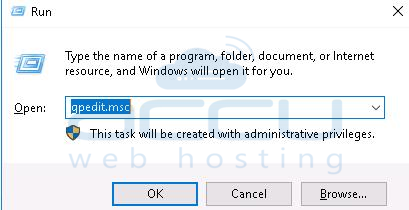
Step 2: Go to Local computer Policy>> Computer Configuration >> Administrative Templates >> Windows Components >> Remote Desktop Services >>Remote Desktop Session Host >> Licensing
Step 3: Right-click and edit the "Use the specified RD license servers" >> click Enable >> Enter License server name >> Hit Apply.
Step 4: Copy the Server name from the License Manager and copy/paste it into the License Server Name.
Step 5: Right-click and edit the Set the Remote Desktop Licensing Mode >> Click Enable. License Mode >> Per User >> Hit Apply and Ok button. 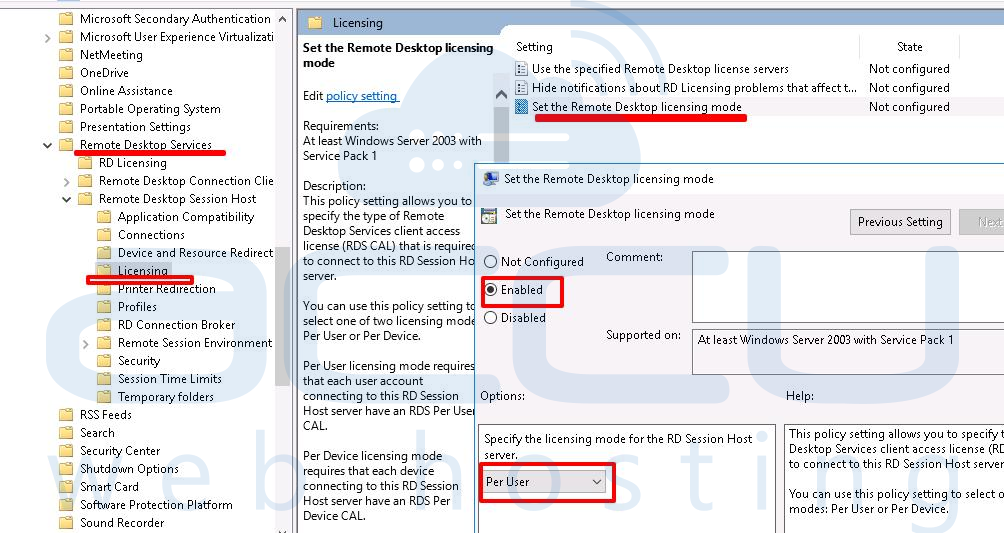
Step 6: Restart the Remote Desktop Licensing service from the Services.


