
WordPress redirecting to the wp-admin/install.php page is a common issue that usually indicates a problem with your database connection or configuration.
This guide provides a structured approach to diagnose and resolve this problem efficiently.
Common Causes of wp-admin/install.php Redirection
- Missing or misconfigured wp-config.php file
- Incorrect database connection details
- Incorrect site URL or home values in the database
- Corrupted database tables
- Issues after migrating or restoring WordPress
Step 1: Verify the wp-config.php File
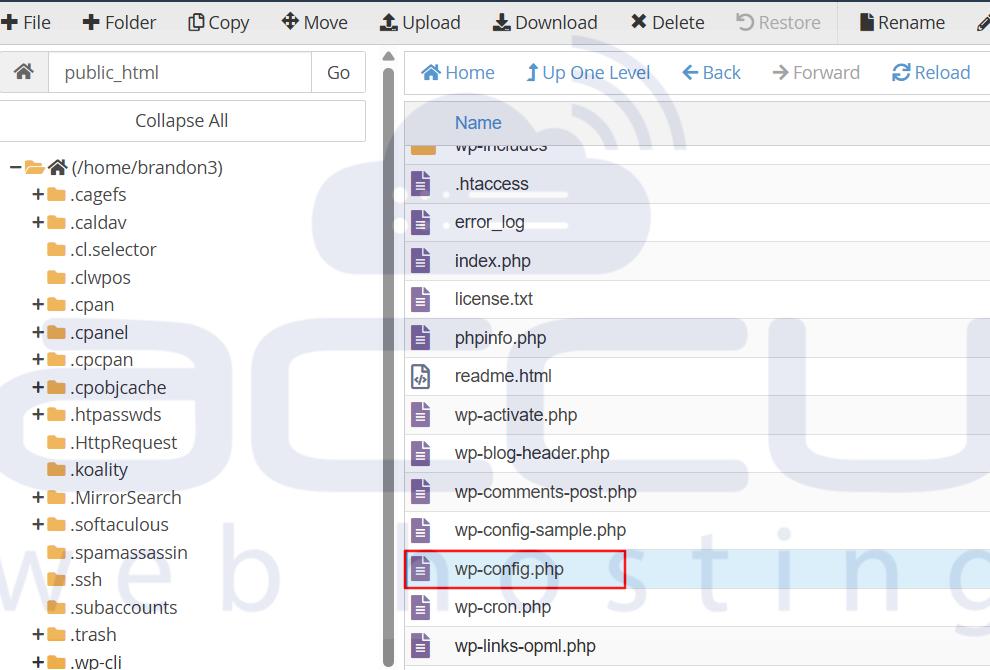
The wp-config.php file is essential for WordPress to connect to your database.
- Access your WordPress files via FTP, cPanel, or your hosting file manager.
- Ensure wp-config.php exists in the root directory.
- Confirm that the file name is correct, without typos or extra extensions (e.g., .txt).
If this file is missing or incorrectly named, WordPress cannot connect to the database, causing the redirect.
Step 2: Check Database Connection Details
Incorrect database credentials or table prefixes are a common cause of this issue.
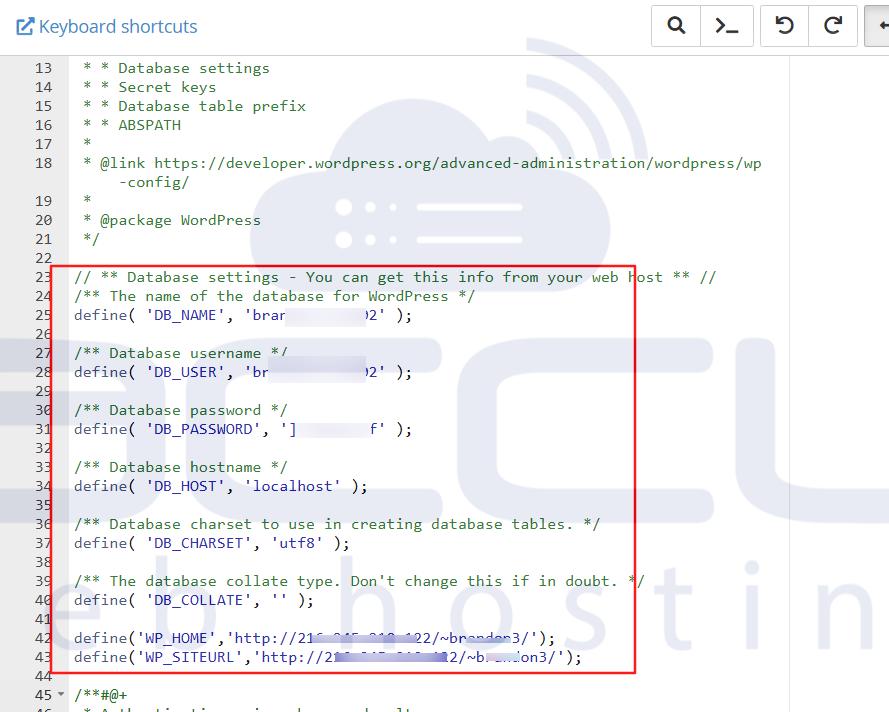
- Open wp-config.php in a text editor.
- Verify the following:
- DB_NAME – Your database name
- DB_USER – Your database username
- DB_PASSWORD – Your database password
- DB_HOST – Usually localhost, but confirm with your host
- DB_NAME – Your database name
- Ensure the table prefix ($table_prefix) matches the prefix in your database tables exactly, as it is case-sensitive.
Incorrect details here will prevent WordPress from connecting to your database properly.
Step 3: Update the wp_options Table
If your domain or site URL has changed, WordPress may redirect incorrectly.
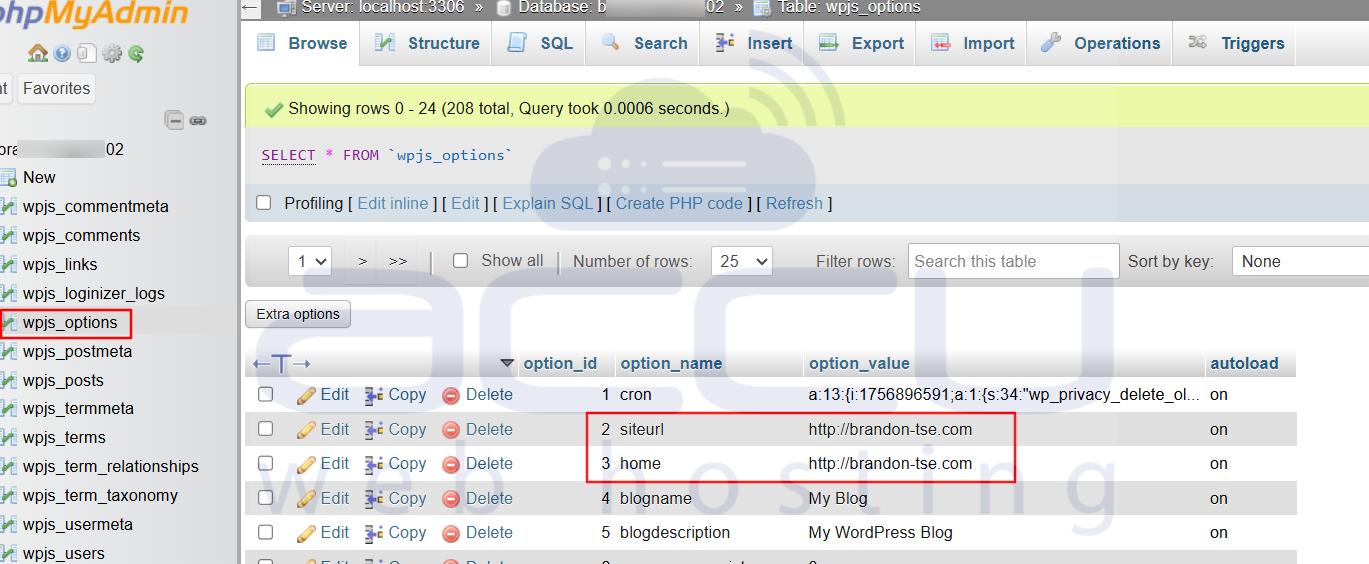
- Access your database using phpMyAdmin or a similar tool.
- Open the wp_options table.
- Check and update the siteurl and homeurl fields if necessary:
Make sure both values reflect your current domain accurately.
Step 4: Repair Database Tables
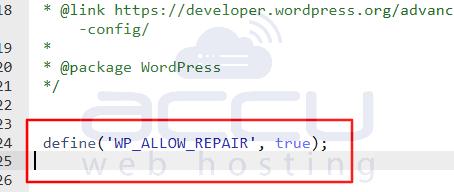
Corrupted database tables can also trigger the redirect. WordPress offers a built-in method to repair tables: Add the following line to your wp-config.php file:
- define('WP_ALLOW_REPAIR', true);
- Visit http://yourdomain.com/wp-admin/maint/repair.php to repair and optimize the database.
- Remove the line from wp-config.php after the repair is complete.
For a detailed guide, refer to How to Repair MySQL Database from cPanel or phpMyAdmin.
Step 5: Restore the WordPress Database
If none of the above solutions work, restoring your WordPress database from a recent backup may resolve the issue.
- Use your hosting provider’s backup and restore options.
- Contact your web host to restore the database if necessary.
Regular backups are crucial to prevent data loss and minimize downtime.
Notes:
Always ensure backups are up-to-date before making changes.
Check file permissions for WordPress directories if issues persist.
Monitor error logs to identify hidden issues.
By following these steps, you can resolve the wp-admin/install.php redirection issue and restore your WordPress website efficiently.


