
On Windows VPS hosting, some websites may stop working if they rely on IIS URL Rewrite rules and the server is not configured correctly.
One common cause is that the website’s Application Pool is running in Classic mode instead of Integrated mode, which is required for proper URL Rewrite functionality in IIS.
Switching the Application Pool to Integrated mode usually resolves this issue.
Here are the practical Steps you can follow:
Step 1: Open IIS Manager
Search and Press Enter to open Internet Information Services (IIS) Manager.
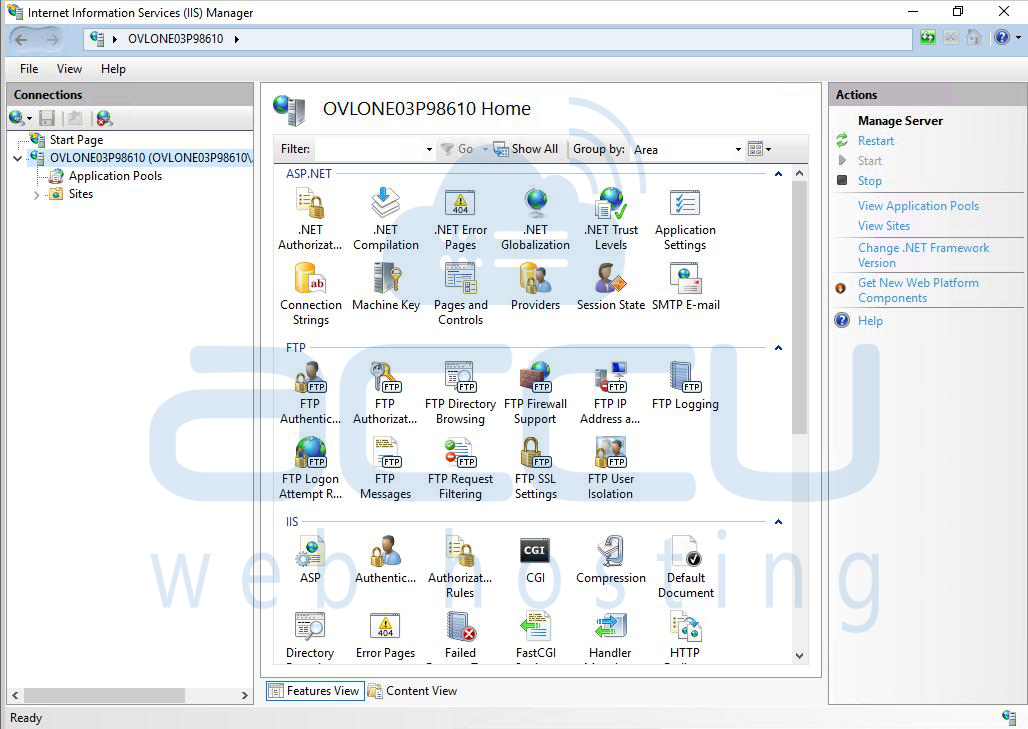
Step 2: Locate the Website
In the Connections panel, click the server name to expand it. Expand Sites. Select the website experiencing the rewrite issue.
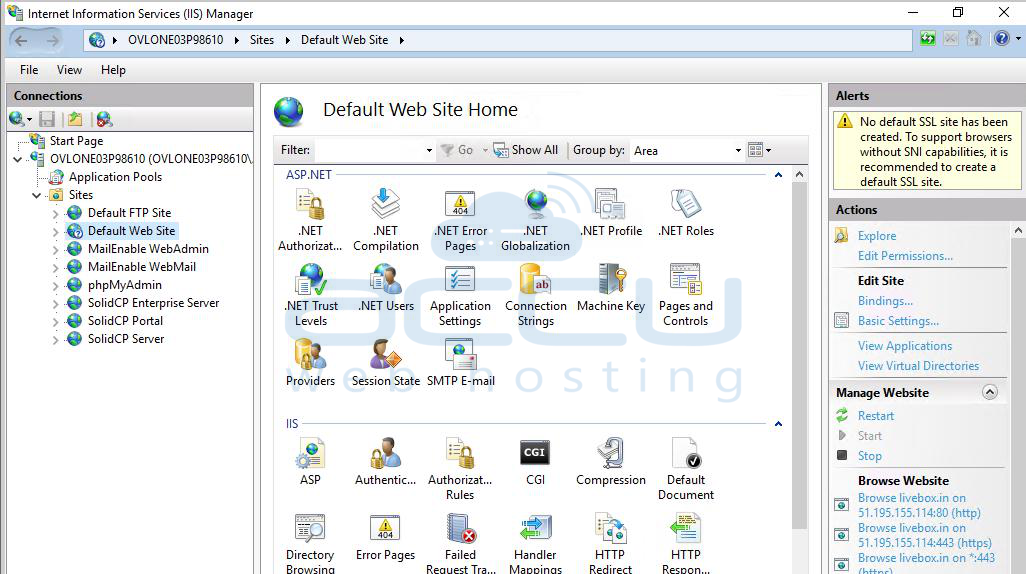
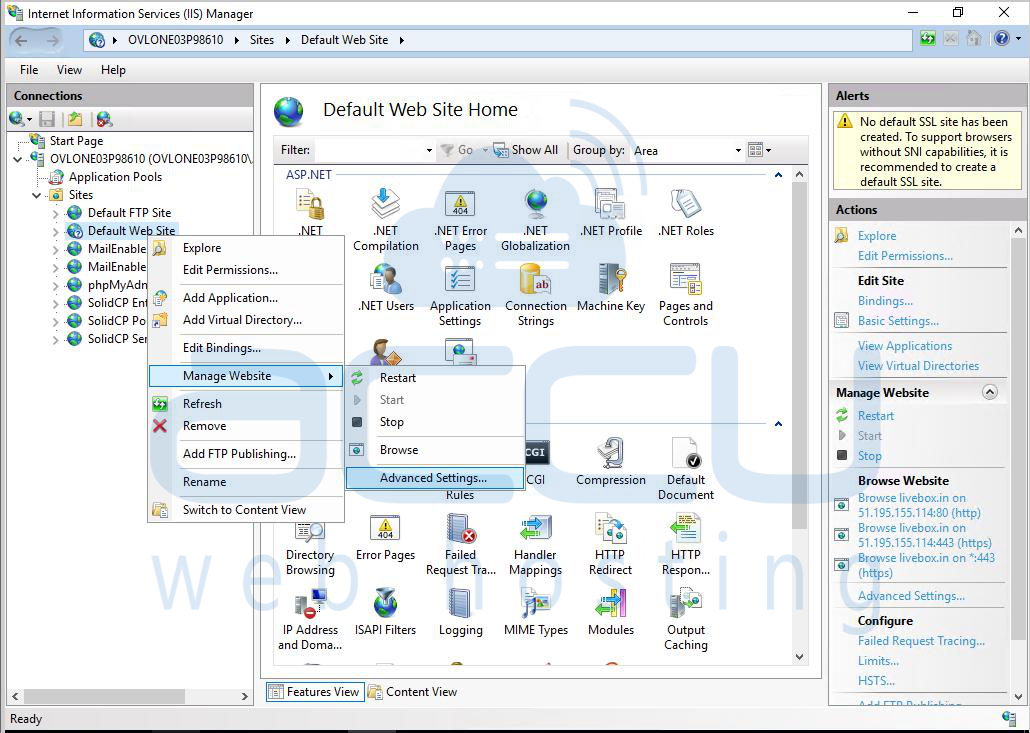
Step 3: Open Advanced Settings
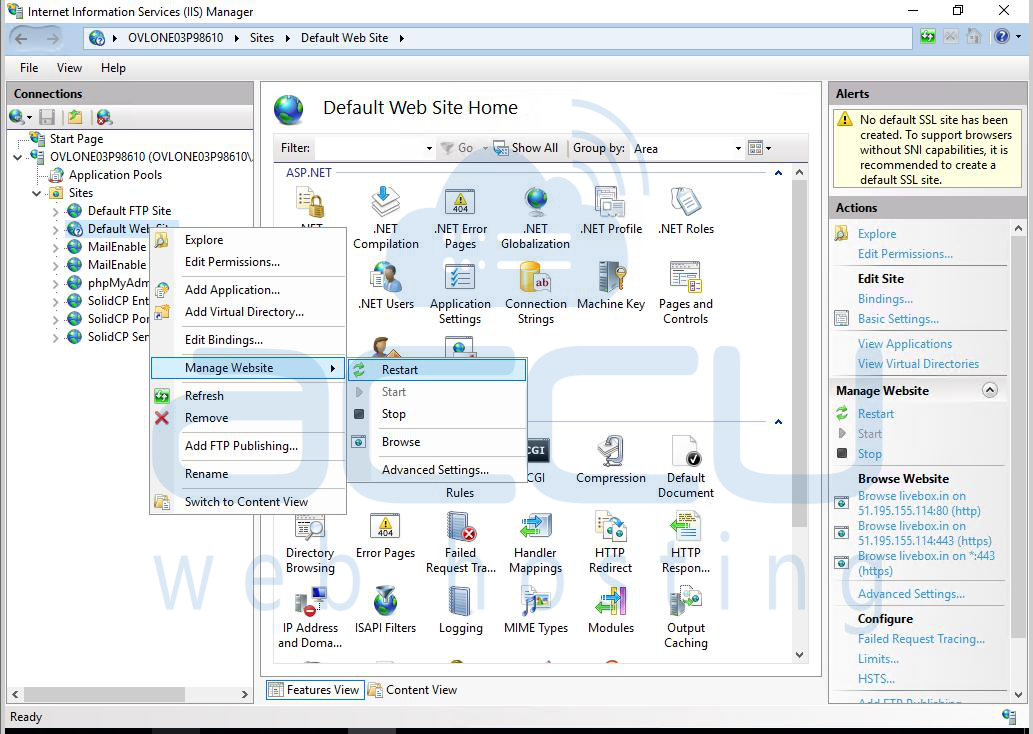
Right-click on the website name.
Select Manage Website → Advanced Settings.
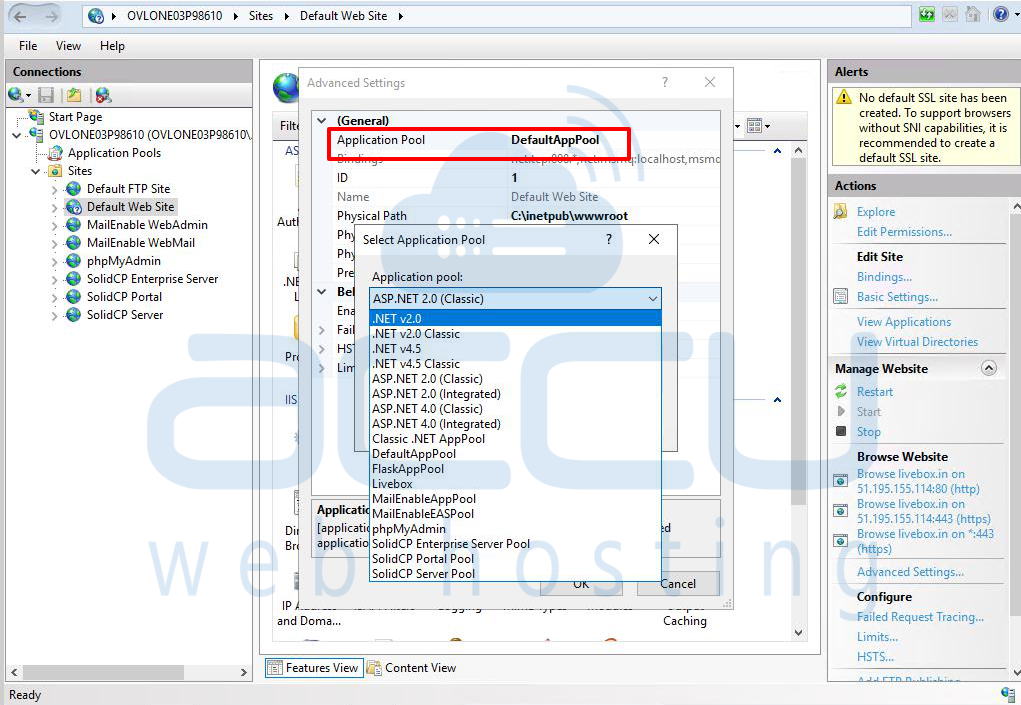
Step 4: Change Application Pool to Integrated Mode
In Advanced Settings, locate the Application Pool field.
Click the field and then click the … button or dropdown arrow.
Choose an Integrated mode application pool (e.g., DefaultAppPool if it is set to Integrated). Click OK.
Step 5: Restart the Website
Right-click the website. Select Manage Website → Restart.
Conclusion:
If your Windows VPS websites that use URL Rewrite fail to load properly, switching their Application Pool to Integrated mode can often fix the issue.


