
You can export an SSL certificate from your Windows VPS or Dedicated server if you want to move it to another server or keep a backup copy. This process generates a .pfx file that contains the SSL certificate along with its private key
The following are the steps to export an SSL Certificate from the Windows Server:
Step 1: Open IIS Manager
Click on Start → Administrative Tools → Internet Information Services (IIS) Manager.
Step 2: Go to Server Certificates
In the Connections Panel, select your server. Double-click on the Server Certificates option in the middle pane.

Step 3: Select the Certificate
You will have a list of the SSL certificates hosted on the Server. Select the certificate that you want to export, right-click on it, and select Export Option. OR you can directly click on the Export link from the Actions panel.
Step 4: Export the Certificate
Now, you will see the Export Certificate dialog box. In the Export to text box, write the name of the file with full path where you want to save your .pfx file, or you can also click on the (…) button and navigate to the path and assign a filename for exporting. 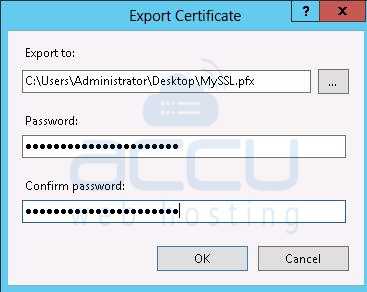
Step 5: Assign a Password
In the Password text box, write a password, and in the Confirm password text box, retype the password and click the OK button.
Notes:
- Keep this password in a secure place, because when you import this certificate into another server, you will need it.
- Screen captures are taken from IIS8. IIS7 users will also get the same interface with a slight difference.
- These steps can only be performed if you have Administrator access to your Windows VPS/Dedicated Server.
By following the above steps, you can successfully export your SSL certificate along with its private key into a .pfx file. This file can then be imported into another server or kept as a secure backup.


