
In Microsoft SQL Server, database states describe the current condition or operational status of a database. In simple terms, a database state shows what SQL Server is currently doing with that database, for example, if it’s online and running, restoring from backup, or needs repair. Common SQL Server database states include:
- ONLINE – The database is active and fully accessible.
- OFFLINE – The database is manually taken offline and cannot be accessed.
- RESTORING – The database is being restored from a backup and is not yet usable.
- RECOVERING – SQL Server is recovering the database after a restart or crash; it will soon be online or marked suspect.
- RECOVERY_PENDING – SQL Server knows recovery is needed but cannot start it due to missing files or other issues.
- SUSPECT – The database failed to recover because of corruption or serious errors.
Steps to Fix MS SQL Server Database in Recovery Pending Mode
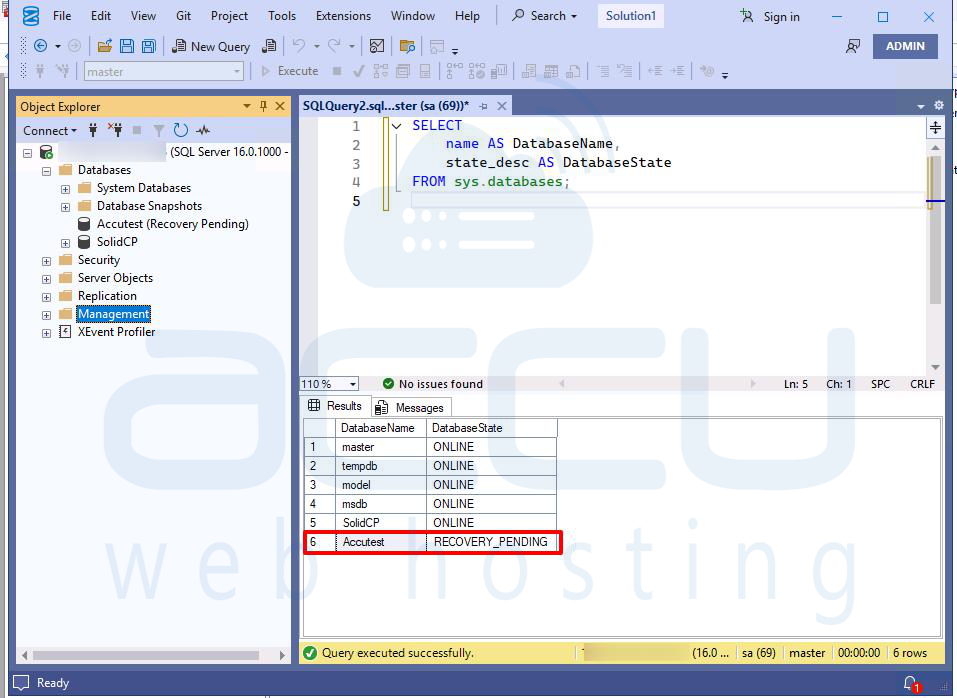
When an MS SQL Server database is in Recovery Pending mode, it means SQL Server is unable to start the recovery process for the database. Run the following command in a new query window to check the database state in Microsoft SQL Server:
SELECT
name AS DatabaseName,
state_desc AS DatabaseState
FROM sys.databases;
This query lists all databases along with their current state, such as ONLINE, OFFLINE, RECOVERING, SUSPECT, etc.
1. Check the SQL Server Error Log
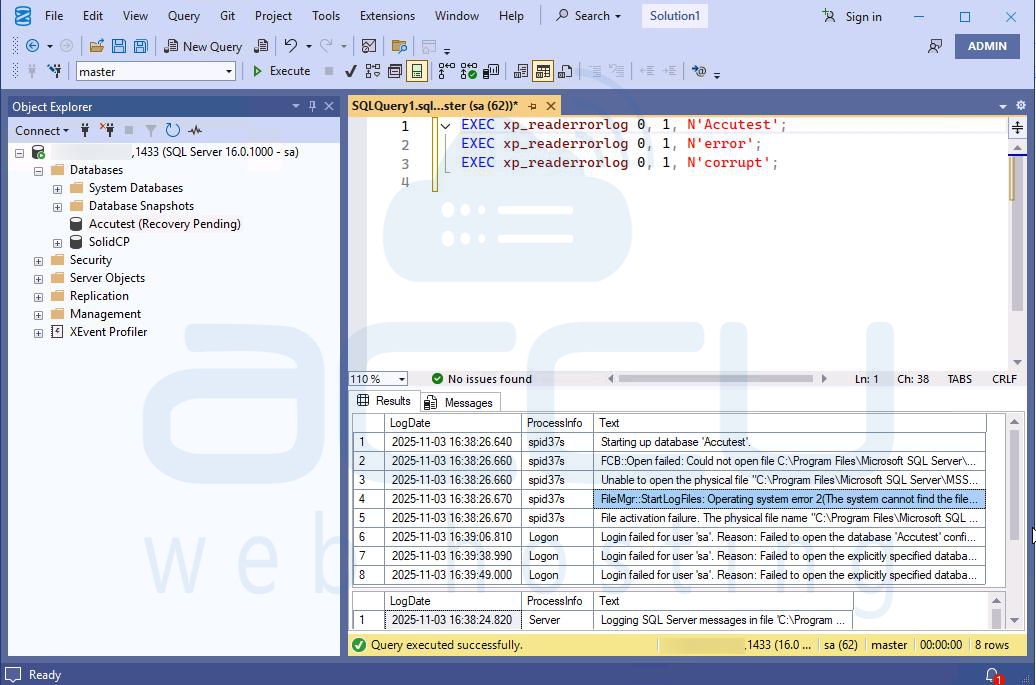
First, check the SQL Server error log for any specific errors that indicate the root cause of the problem. The error log might provide insights into what went wrong. You can find the error log via SQL Server Management Studio (SSMS) or by checking the log file directly on the server.
To view the error log in SSMS:
- Open SQL Server Management Studio (SSMS) and connect to your server.
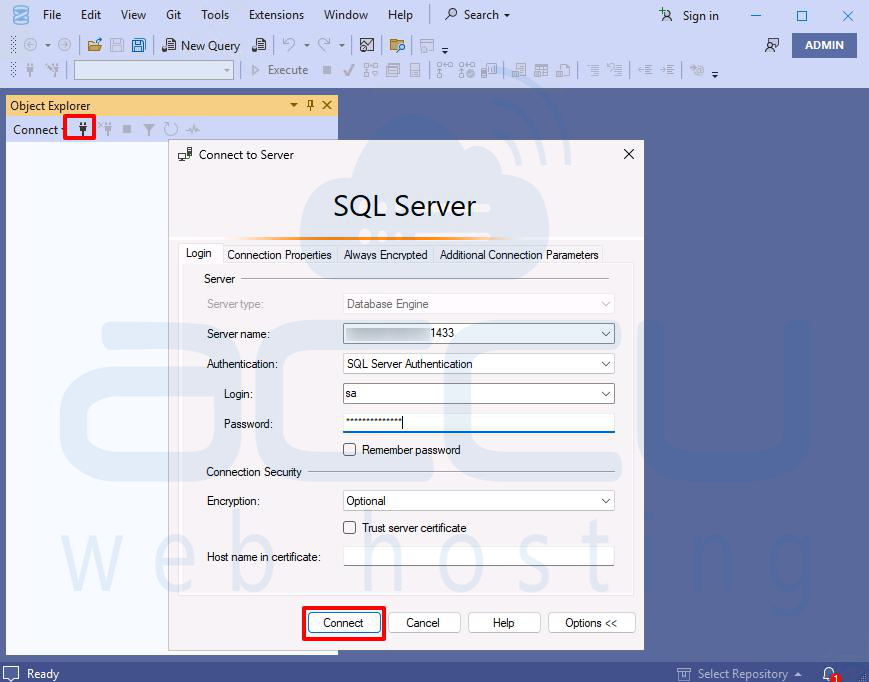
- In the Object Explorer, expand Management and then expand SQL Server Logs.
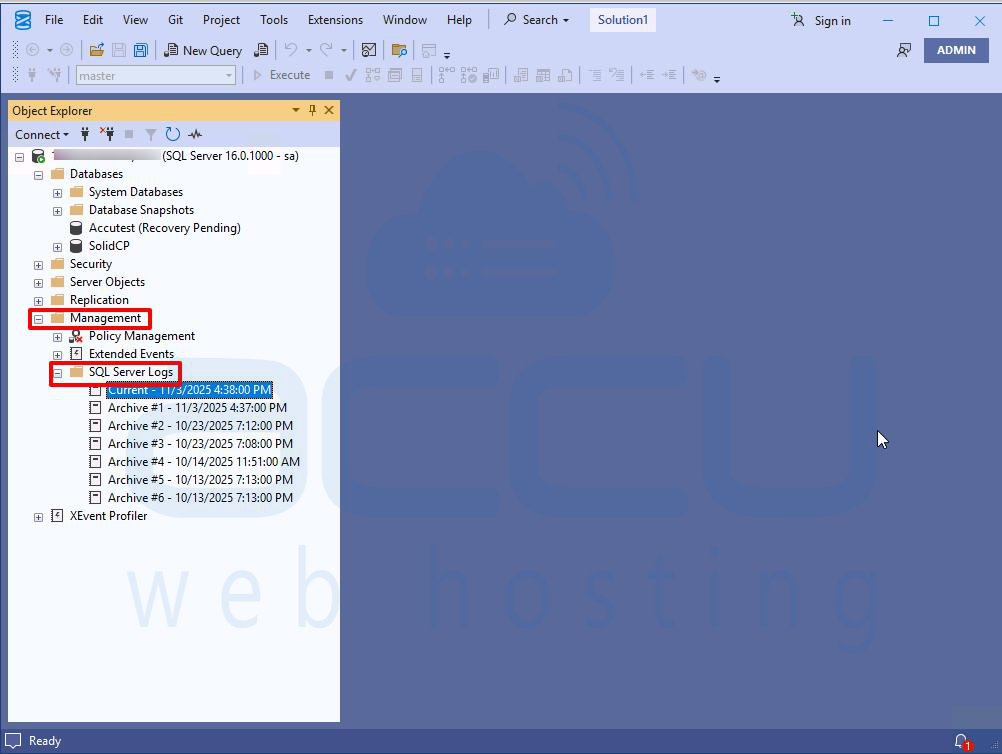
- Look for any entries under the "SQL Server Logs" or "SQL Error Log" that might indicate issues with the database.
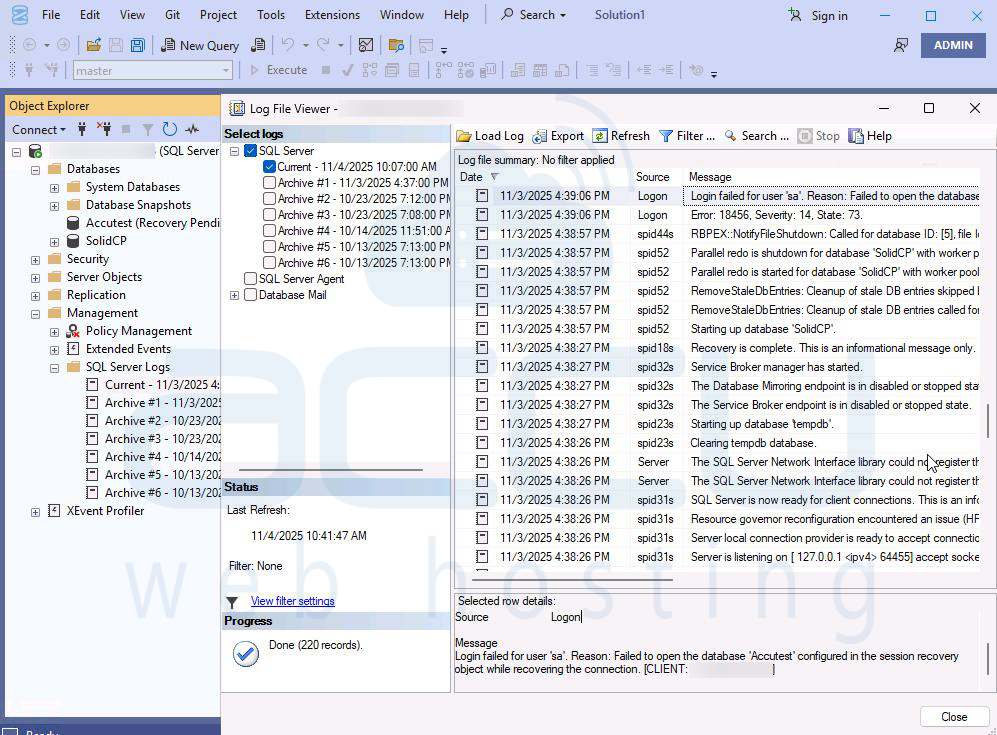
Alternatively, use the following SQL query to check the error logs:
EXEC xp_readerrorlog 0, 1, N'YourDatabaseName';
EXEC xp_readerrorlog 0, 1, N'error';
EXEC xp_readerrorlog 0, 1, N'corrupt';
2. Ensure Database Files Exist
Make sure that the database's .mdf (primary data file) and .ldf (transaction log file) exist and are accessible. If the transaction log file is missing, the database cannot be recovered properly.
You can use this query to check if the database files are correctly associated with the database:
USE master;
GO
SELECT name, physical_name, state_desc
FROM sys.database_files
WHERE database_id = DB_ID('YourDatabaseName');
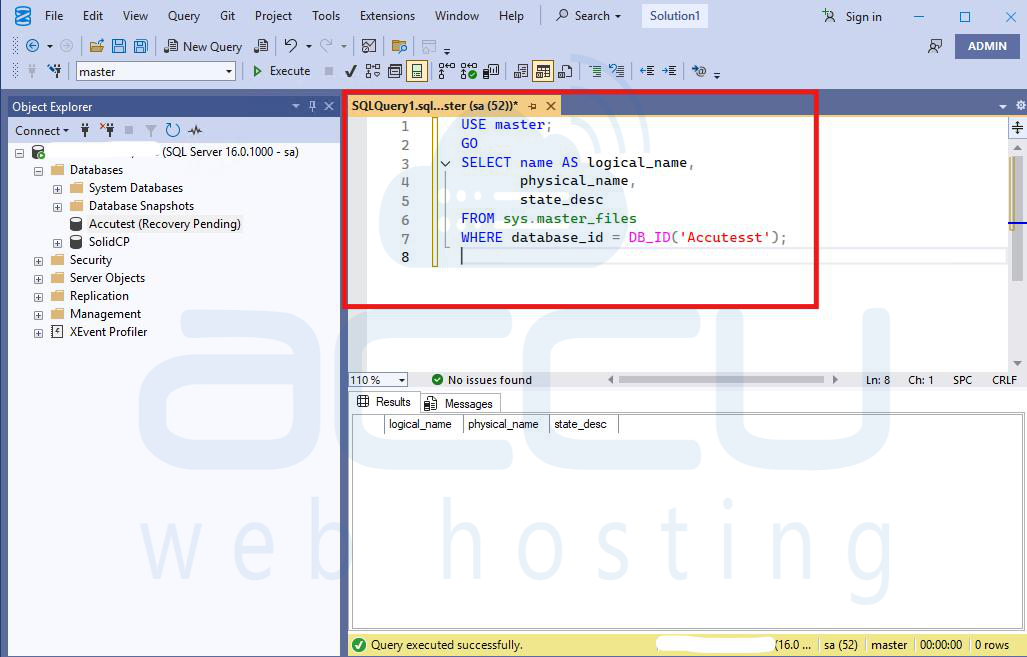
If the .ldf file is missing, you may need to restore it or recreate it.
3. Set Database to Emergency Mode (If Corruption Exists)
If you suspect the database is corrupt, you can set the database to EMERGENCY mode to allow access. In emergency mode, the database is set to a single-user mode and can be accessed for troubleshooting and repair.
ALTER DATABASE YourDatabaseName SET EMERGENCY;

4. Run DBCC CHECKDB to Fix Corruption
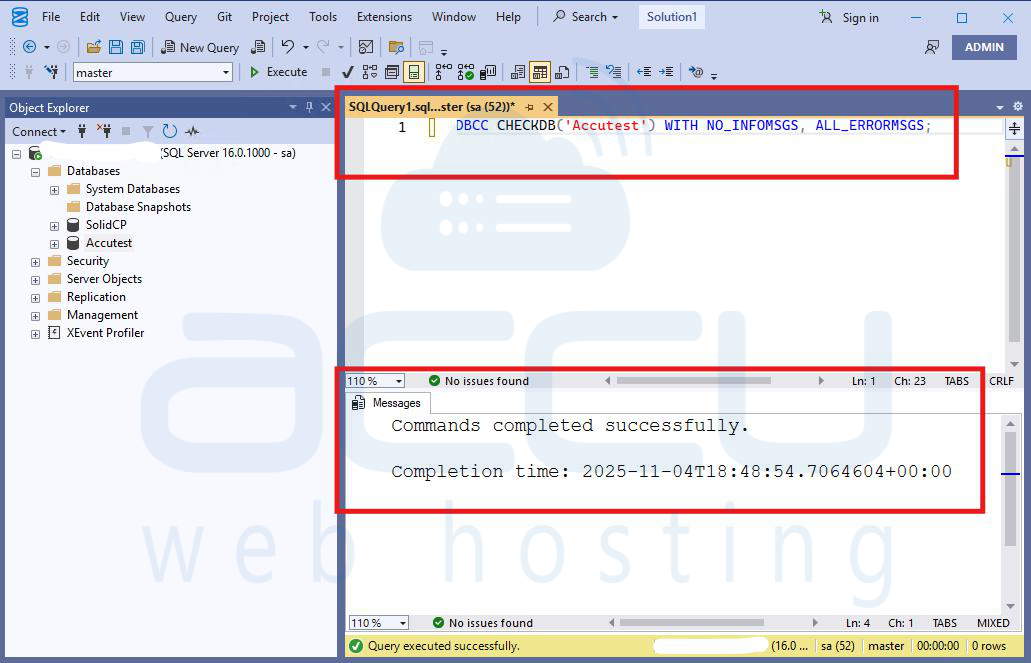
If corruption is suspected, you can run the DBCC CHECKDB command to check and repair the database:
DBCC CHECKDB('YourDatabaseName') WITH NO_INFOMSGS, ALL_ERRORMSGS;
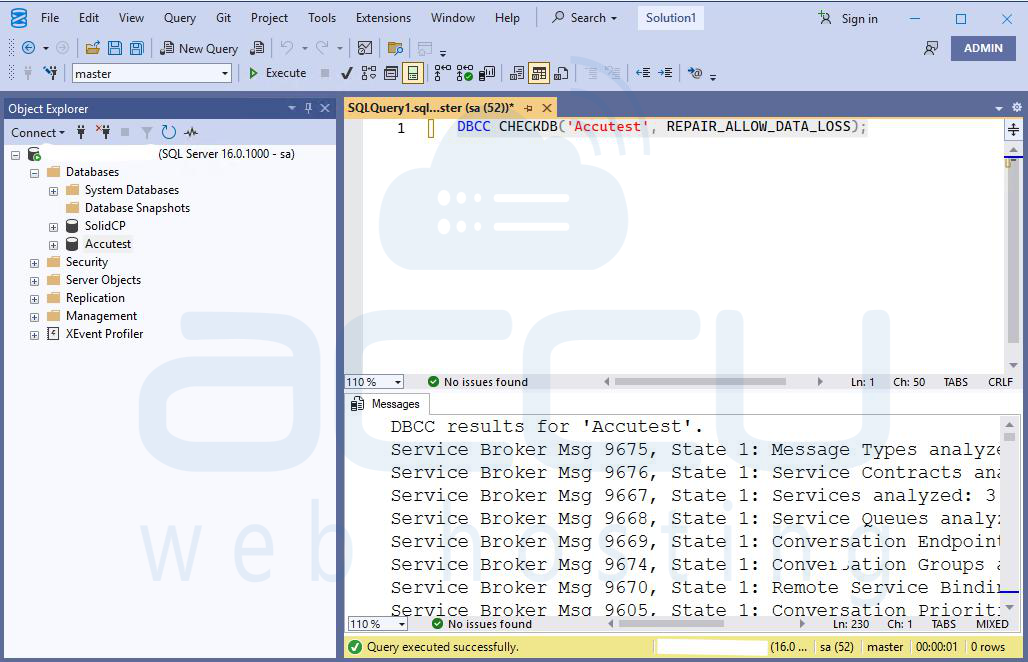
If there are issues, you can run it with the repair options:
DBCC CHECKDB('YourDatabaseName', REPAIR_ALLOW_DATA_LOSS);
5. Take the Database Out of Recovery Pending Mode
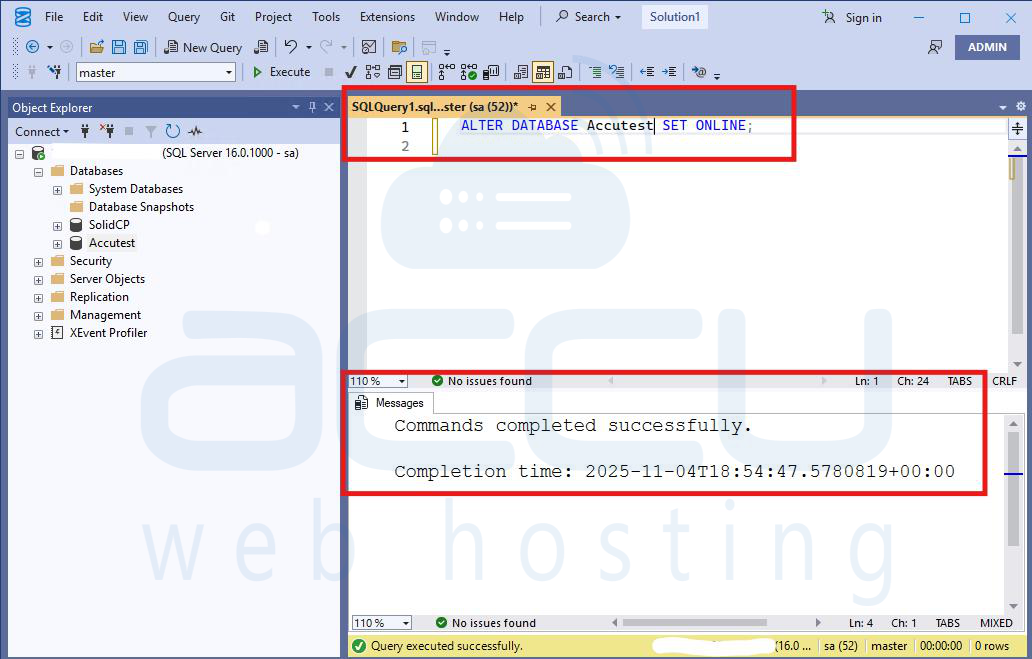
Once the database is fixed, take it out of Recovery Pending mode by setting the database to Online. If the recovery process is stuck, this command might trigger the database recovery:
ALTER DATABASE YourDatabaseName SET ONLINE;
6. Restore from Backup (If Needed)
If the above methods do not resolve the issue, and if there are signs of severe corruption or missing files, you may need to restore the database from a backup.
7. Reattach the Database (If Log File is Missing)
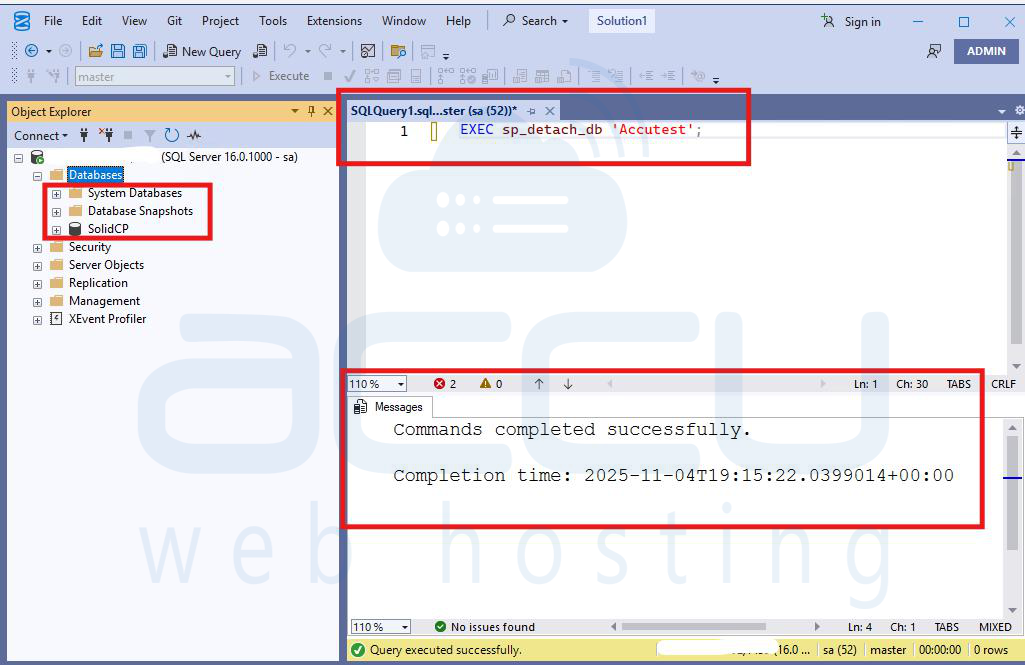
If the database is in Recovery Pending mode due to a missing log file, you can try reattaching the database. This is especially useful if the .mdf file is intact, but the .ldf file is corrupted or missing.
Detach the database: EXEC sp_detach_db 'YourDatabaseName';
Reattach the database without the log file:
EXEC sp_attach_single_file_db
@dbname = 'YourDatabaseName',
@physname = 'D:\Data\YourDatabaseFile.mdf';
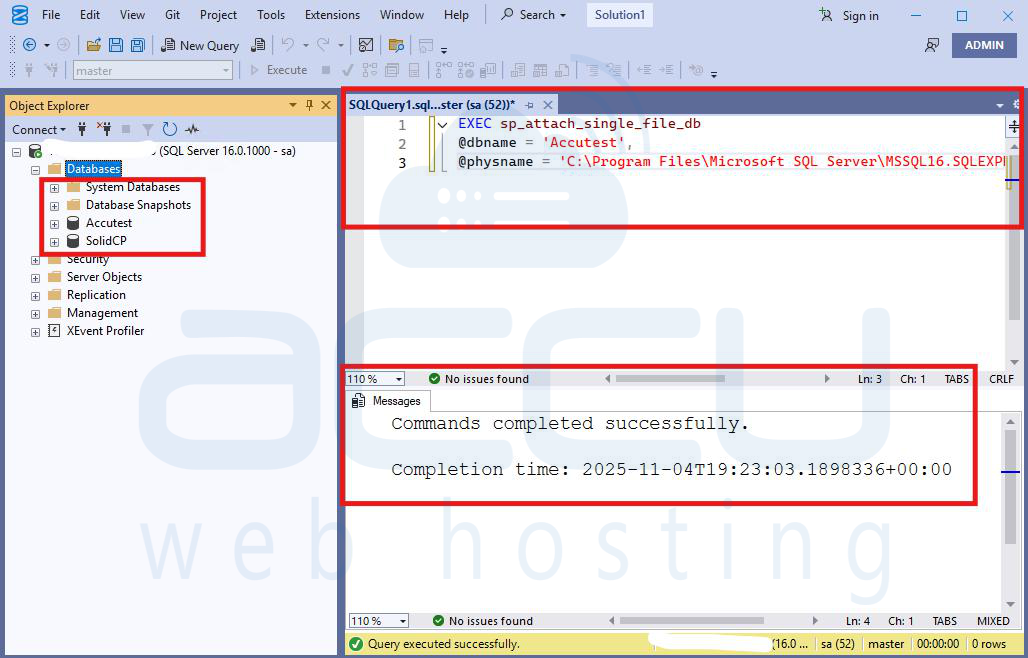
This will create a new log file.
Conclusion
The Recovery Pending state in Microsoft SQL Server indicates that the database cannot start its recovery process, usually due to missing or inaccessible files, corruption, or improper shutdown. It is a warning that the database needs attention before it can be brought online. By following the outlined steps, you can bring the database back to a stable, ONLINE state.


