
Sometimes we forget to include alt text, and manually typing it out for each image is time-consuming. With AI technology, you can automatically create descriptive, SEO-friendly alt text in WordPress, saving time while enhancing accessibility and search visibility.
What are the Benefits of Using AI for Generating Image Alt Text?
With AI tools, you can easily automate the generation of image Alt text directly from your WordPress dashboard.
1. Improves SEO
AI-generated alt text often includes relevant keywords, helping your images rank better in search results.
2. Enhances Accessibility
Descriptive alt text makes your site more accessible to screen readers, improving the experience for visually impaired users.
3. Consistency Across Content
AI ensures uniformity in tone and style, avoiding gaps or vague descriptions.
4. Suitable for Large Websites
Perfect for eCommerce or media-heavy blogs—generate alt text for thousands of images quickly.
Steps to Automatically Generate Image Alt Text in WordPress Using AI?
Method 1: Using Alt Text AI
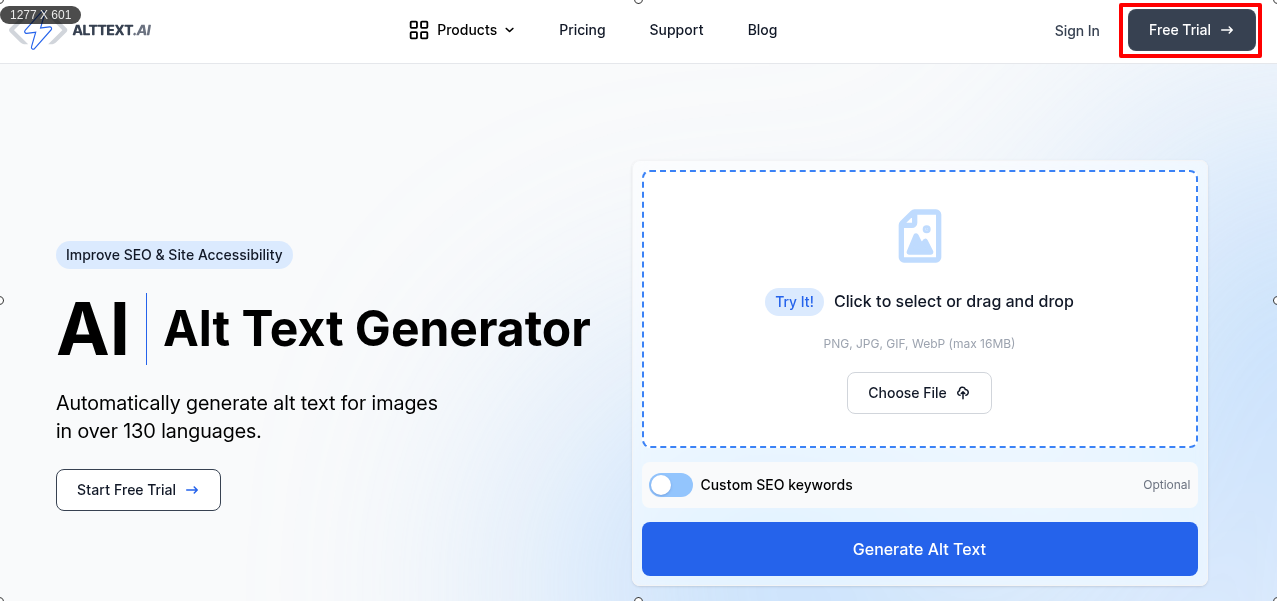
1. First, visit the AltText.ai website and click the Free Trial button.
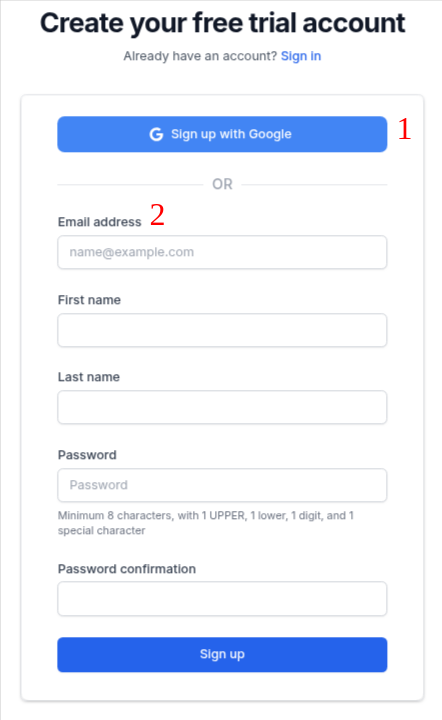
2. Start by creating your free AltText.ai account using your name, email address, and password, or sign up with Google.
3. Click Sign Up to access your dashboard.
4. It will create your free account and redirect you to a dashboard.
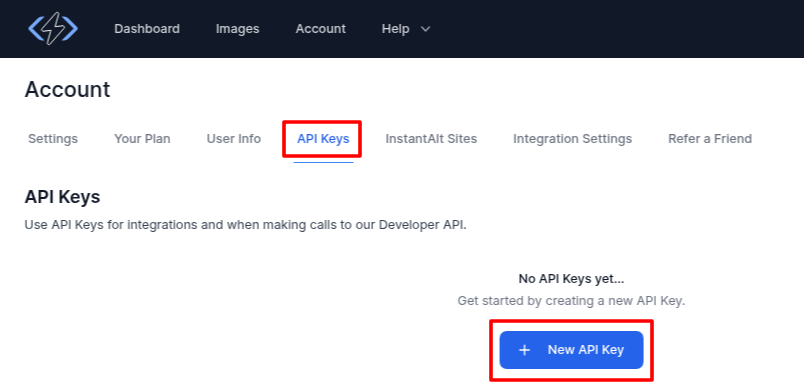
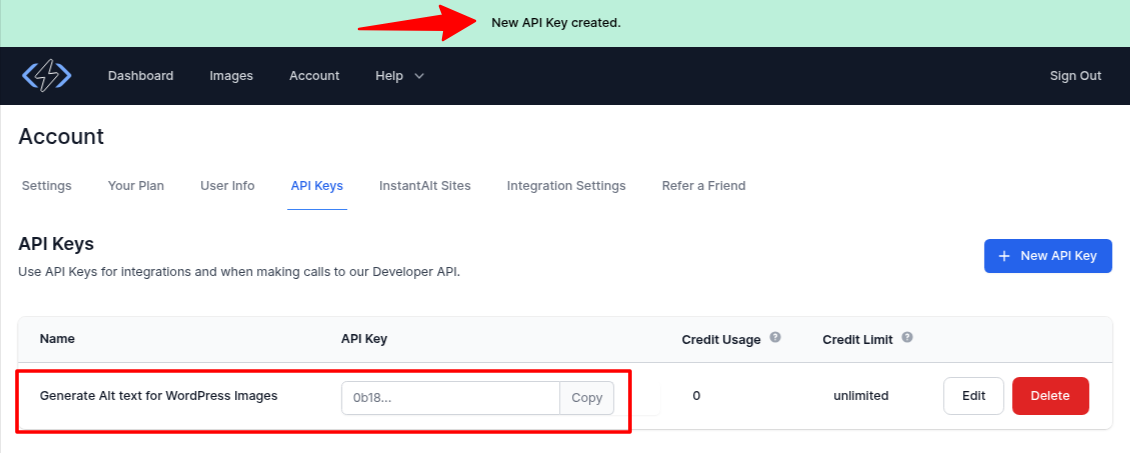
5. Head over to the Account > API Keys section.
6. Click + New API Key.
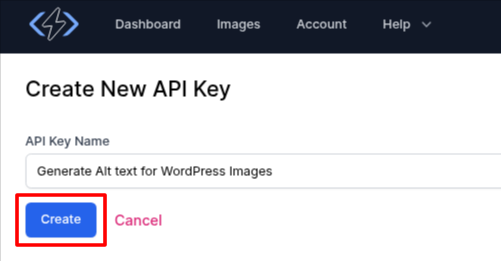
7. Add a name in the API Key Name option and click on Create.
8. It will automatically generate an API key for you; copy it and store it. We will use it later.
9. Next, log in to your WordPress dashboard.
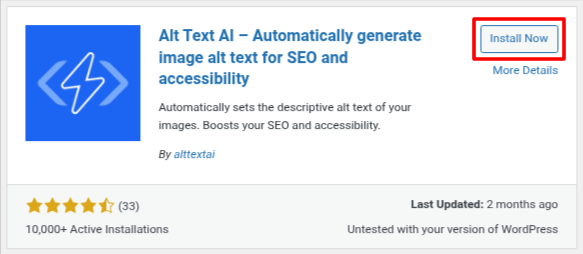
10. Navigate to the Plugins > Add New Plugin.
11. Search for the Alt Text AI plugin, install it, and activate it.
12. Go to the AltText.ai > Settings.
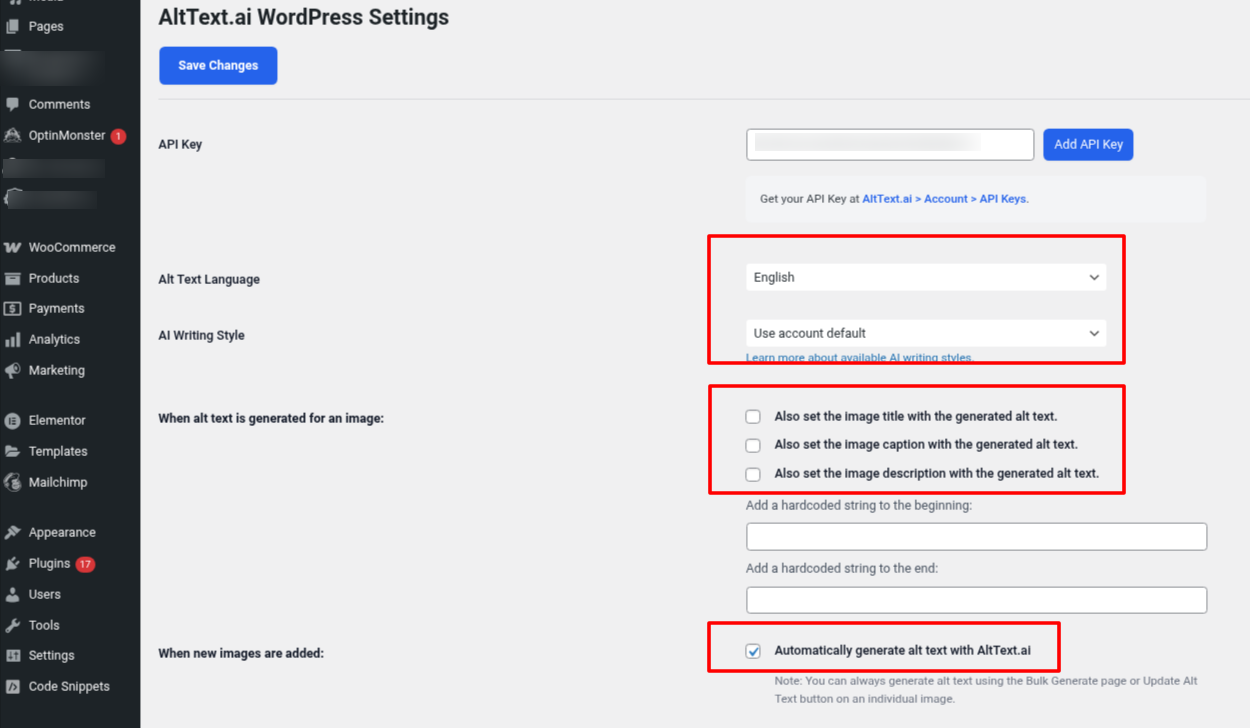
13. Paste your previously copied API key, and choose your preferred language and writing style (elaborate, concise, standard, terse, and matter-of-fact).
You can ask AltText.ai to create image titles, captions, and descriptions, too. Just tick those options under the “When alt text is generated for an image” section.
Then, turn on the option that says “Automatically generate alt text with AltText.ai” so it adds alt text every time you upload an image.
Scroll down and turn on the option that says “Generate alt text using focus keyphrases, if present” to let the AI use your SEO keywords in the alt text.
To make this work, you’ll need to add a focus keyword using an SEO plugin (RankMath, AIOSEO).
If you haven’t added any, you can also check the box that says “Use post title as keywords” so the tool will use your post’s title instead.

14. Click on Save Changes (you can set other options as well as your choice).
Next, go to the block editor and add an image using the Image block.
When the media upload screen appears, click the "Update Alt Text" button. If you want to include SEO keywords, just check the "Add SEO Keywords" option.
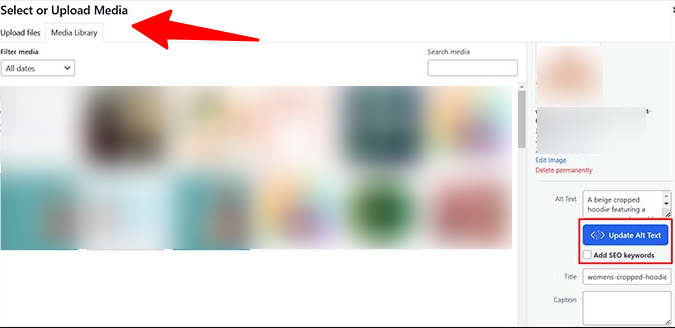
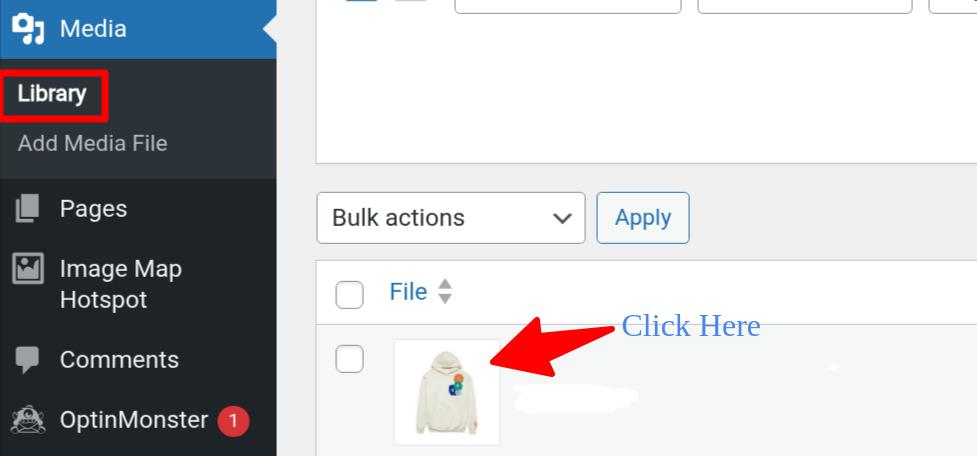
You can also add alt text to images you've already uploaded. To do so, go to the Media Library and click on the image.
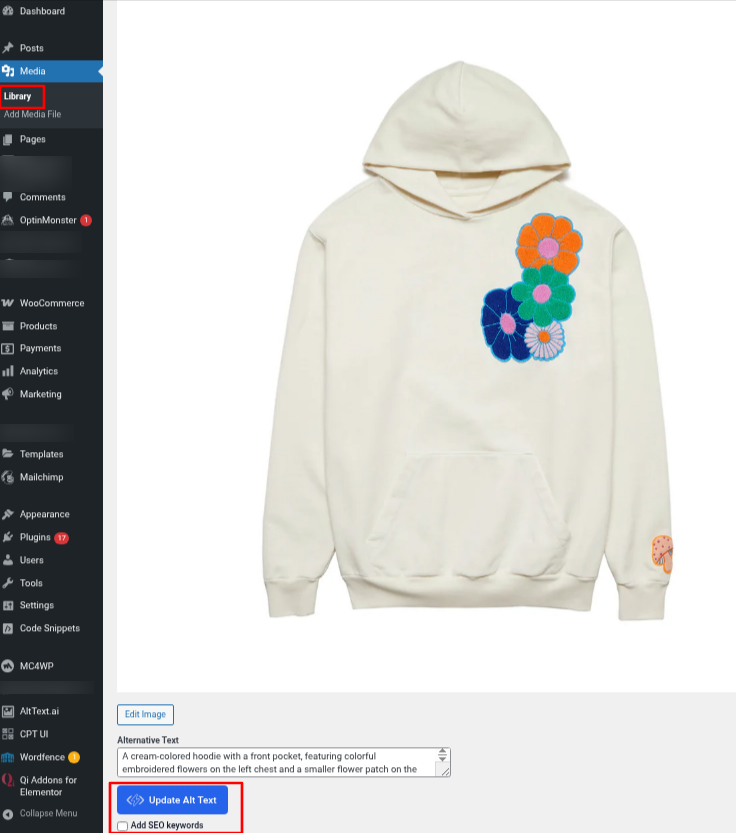
In the Attachment details panel, check the "Add SEO Keywords" box and enter your keywords.
Then, click the "Update Alt Text" button to generate the alt text.
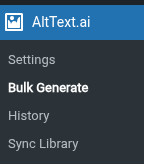
The plugin also lets you create alt text for many images at once. Just go to AltText.ai » Bulk Generate from your WordPress dashboard.
At the top, you'll see how many images you have and how many still need alt text. Then, scroll down to continue.
If you want to replace old alt text with new ones, check the ‘Include images that already have alt text’ box.
To update only the images used in your posts, check the ‘Only process images that are attached to posts’ option.
After setting your preferences, click the ‘Generate Alt Text’ button. Depending on the number of images you have, the tool will take 3–5 minutes to finish.
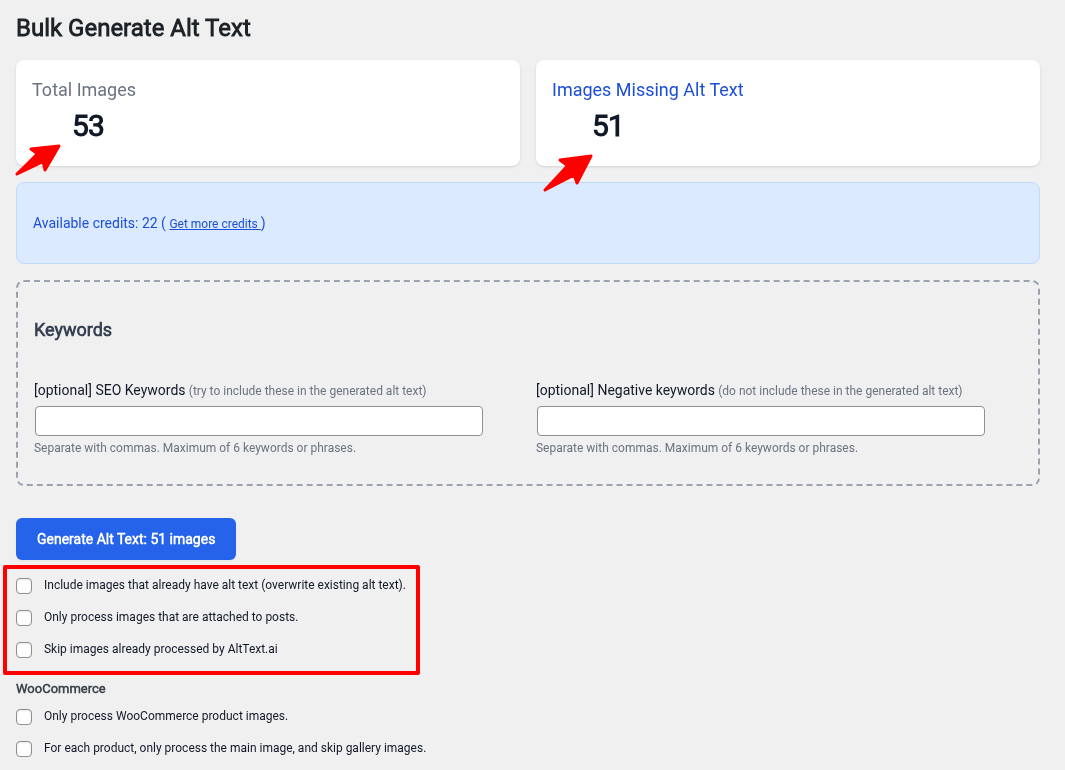
It will also show you your available credit for the free plan to generate alt text.
Once done, click ‘Done’ to return to the Bulk Generate page.
Method 2: Using AI for SEO Plugin
This plugin works right inside your WordPress site and doesn’t require any extra tools.
1. Log in to your WordPress dashboard.
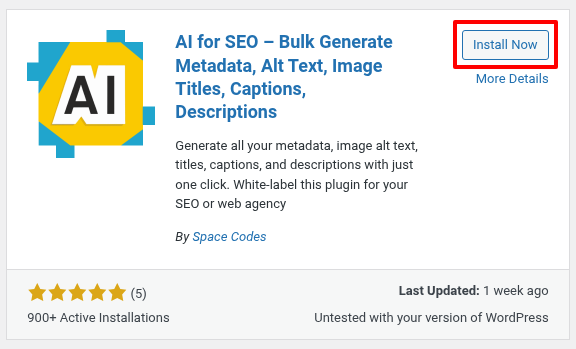
2. Search for AI for SEO inside Plugins > Add New Plugin.
3. Click on Install Now, then activate it.
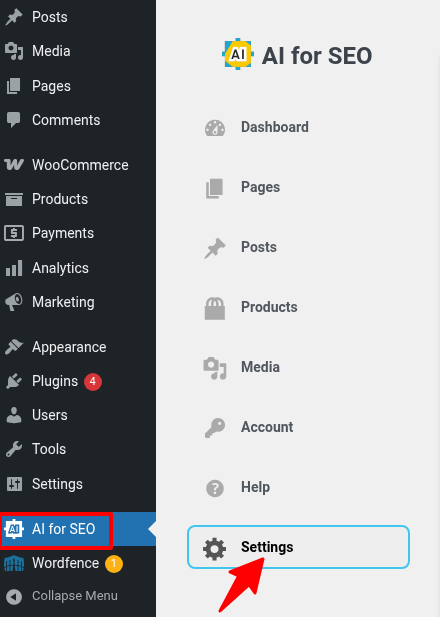
4. After the activation, navigate to your dashboard's AI for SEO menu and choose Settings from the left menubar.
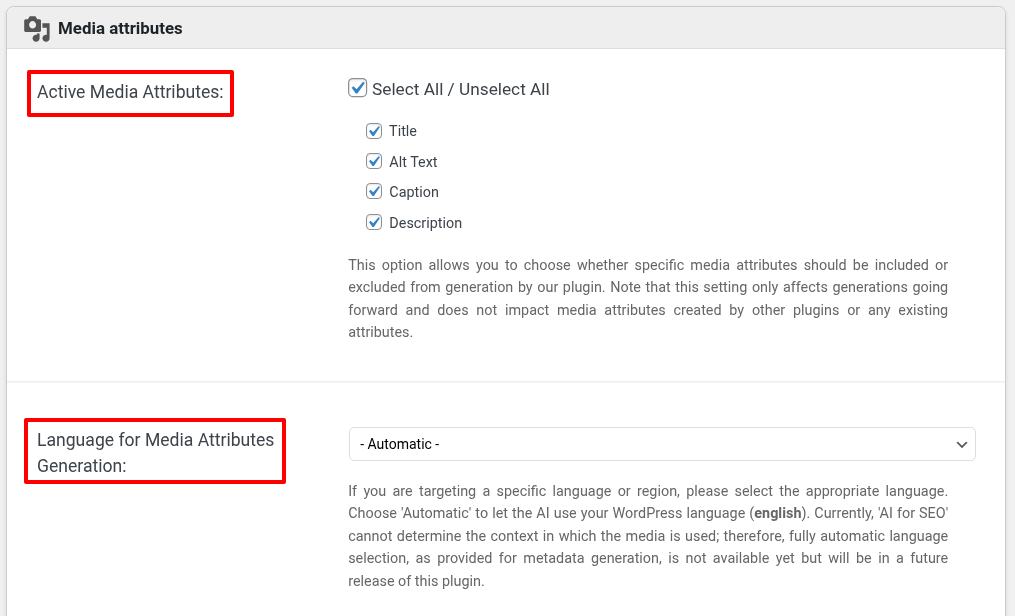
5. Scroll to Media Attributes. Check the boxes for what you want AI to generate (alt text, title, caption, description).
6. Choose your preferred language from the dropdown.
7. Click on Save Changes.
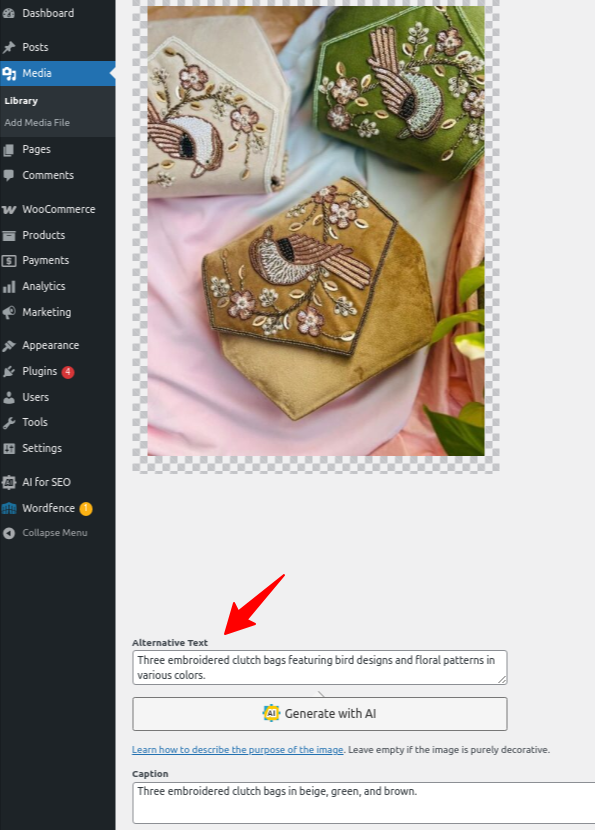
8. Go to Media > Library and select an image.
9. This will open the Attachment Details window. Under the title, caption, alt text, and description fields, click the “Generate With AI” button.
10. The plugin will then create text that matches your image.
If you’re not satisfied with the result, just click “Generate With AI” again to see new suggestions until you find one you like.
Method 3: Using RankMath SEO Plugin
Before you start, make sure the Content AI module is turned on, and then connect the RankMath SEO plugin with your WordPress dashboard.
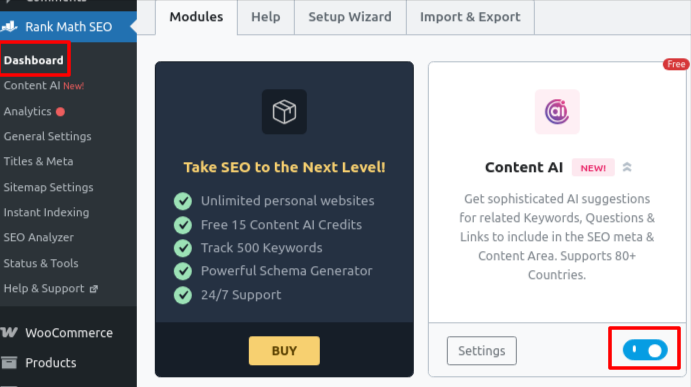
Option 1: From Page/Post Editor (While Uploading Image)
- Go to the Post or Page and click on Add Post.
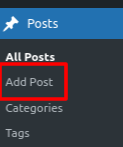
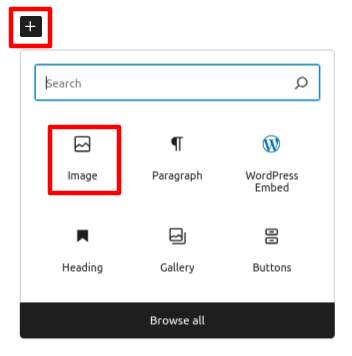
- It will redirect you to a new block editor. Here, click on the + icon and image option.
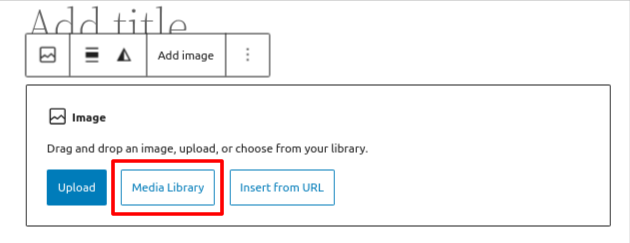
- Upload an image using the WordPress Media Library inside your post or page.
- Select the image you want.
- On the right, next to the Alt Text field, click the “Generate Alt” button.
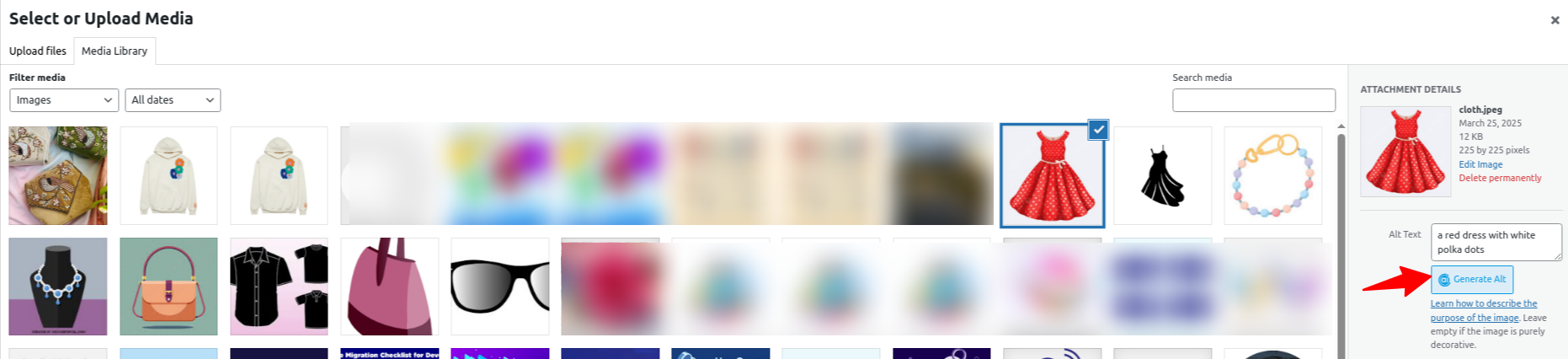
- Content AI will instantly create a suitable alt text for your image.
- Click Select to insert the image into your post.
Option 2: For Images Already in Your Post/Page
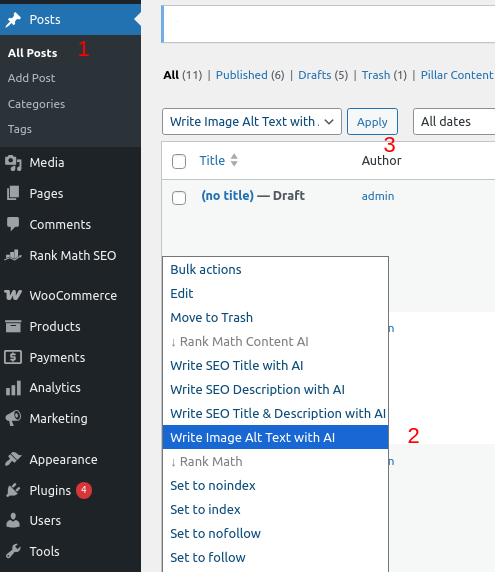
- Go to the Pages or Posts section in your WordPress dashboard.
- Select the posts or pages where you want to add alt text by ticking the checkboxes.
- In the Bulk actions dropdown, choose “Write Image Alt Text with AI.”
- Click the Apply button to start the process.
Additional Option: Use Ahrefs' Free Image Alt Text Generator
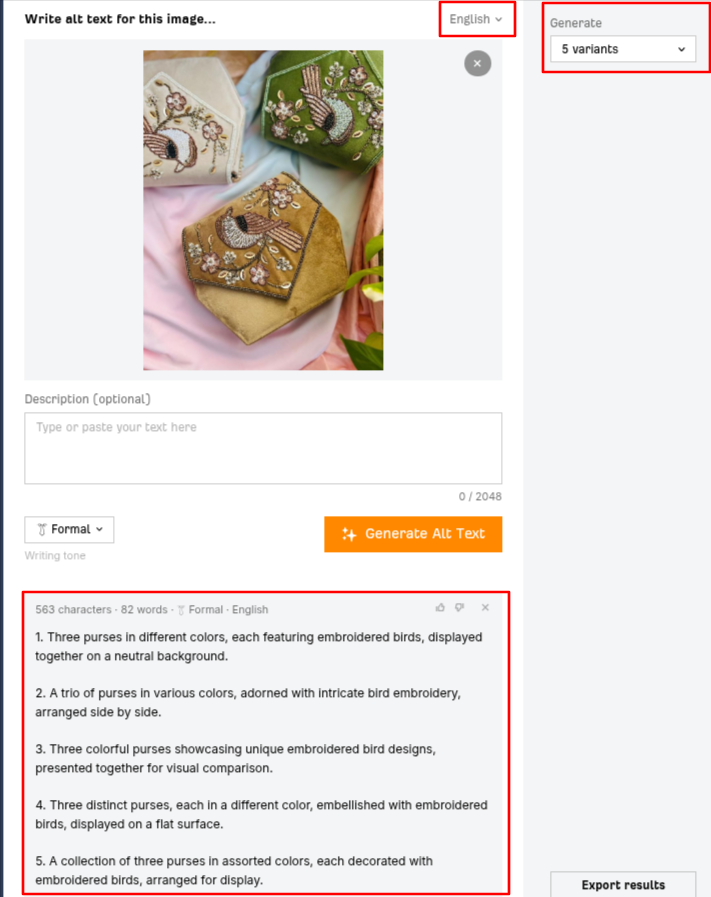
If you want a free and quick solution to creating alt text without having to install a plugin, you can try Ahrefs' Image Alt Text Generator.
It's a browser-based tool where you can upload an image, and the AI will instantly generate five different alt text options for you to choose from. Plus, it supports multiple languages, so you can create alt text that matches your website's language.
While it doesn’t work directly inside the WordPress dashboard, it’s a handy alternative when you need just a few alt texts.
With the help of plugins or free tools, you can quickly enhance your website's images and boost overall performance.
Before installing any WordPress plugin, it's recommended to check user reviews and ensure compatibility with your WordPress version.


