
What is the WordPress Theme Editor?
The WordPress Theme Editor is a built-in tool that allows you to edit the code of your active theme directly from the WordPress dashboard. It lets you manage theme files, such as header.php and footer.php, and customize your site’s appearance and functionality.
Where is the Theme File Editor?
If you’re using a modern block theme, the Editor under the Appearance menu opens the Site Editor, replacing the old theme file editor.
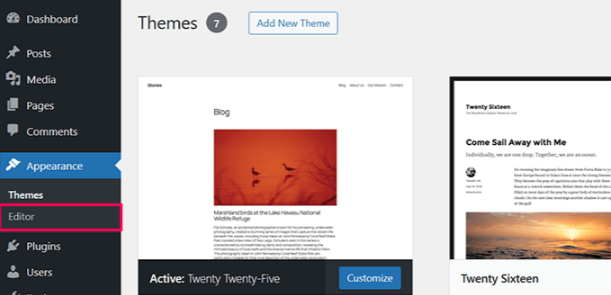
The core WordPress team made this change to prevent confusion between two editors with similar names but different functions.
The theme file editor has been relocated to the Tools menu to address this.
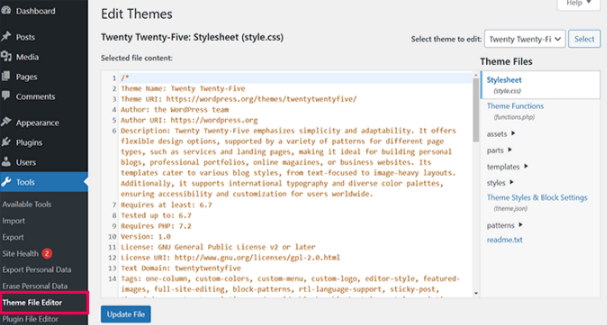
In some cases, the theme file editor may not appear at all. This is typically caused by a security plugin or a setting in your wp-config.php file that has disabled it.
These measures are often implemented to prevent accidental changes or to protect your site from vulnerabilities.
How to Fix Missing Theme File Editor in WordPress Admin
Theme File Editor in Block Themes
If you're using a block theme, the theme file editor is no longer found under the Appearance menu. WordPress has relocated it to the Tools menu to align with the new block theme structure.
To access it, log in to your WordPress admin dashboard and go to Tools > Theme File Editor from the left sidebar.
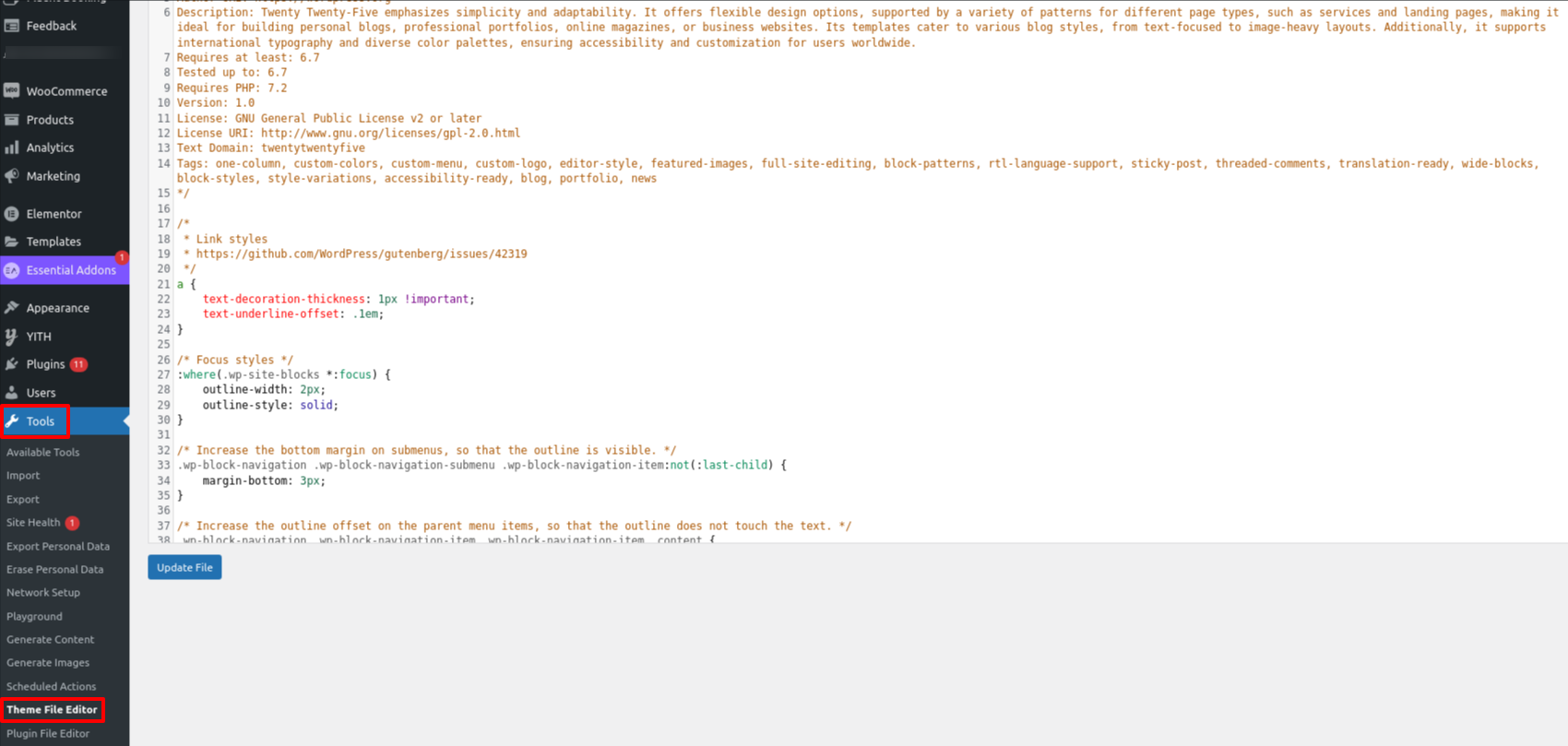
If the editor isn’t in the Tools menu, don’t worry. We’ll guide you through other possible reasons it's missing and how to fix them.
When the Theme File Editor is Disabled
The theme file editor may not appear because a WordPress security plugin or manual configuration has intentionally disabled it.
This is often done to protect your site from accidental edits or potential security risks. It’s a common issue we've encountered while troubleshooting, and the fix is usually simple.
If you have a security plugin like Sucuri installed, go to Sucuri Security > Settings in your WordPress admin dashboard to check and re-enable the editor.
Go to the 'Hardening' tab and look for the option labeled 'Disable Plugin and Theme Editor.' If it’s enabled, click the 'Revert Hardening' button to turn it off.
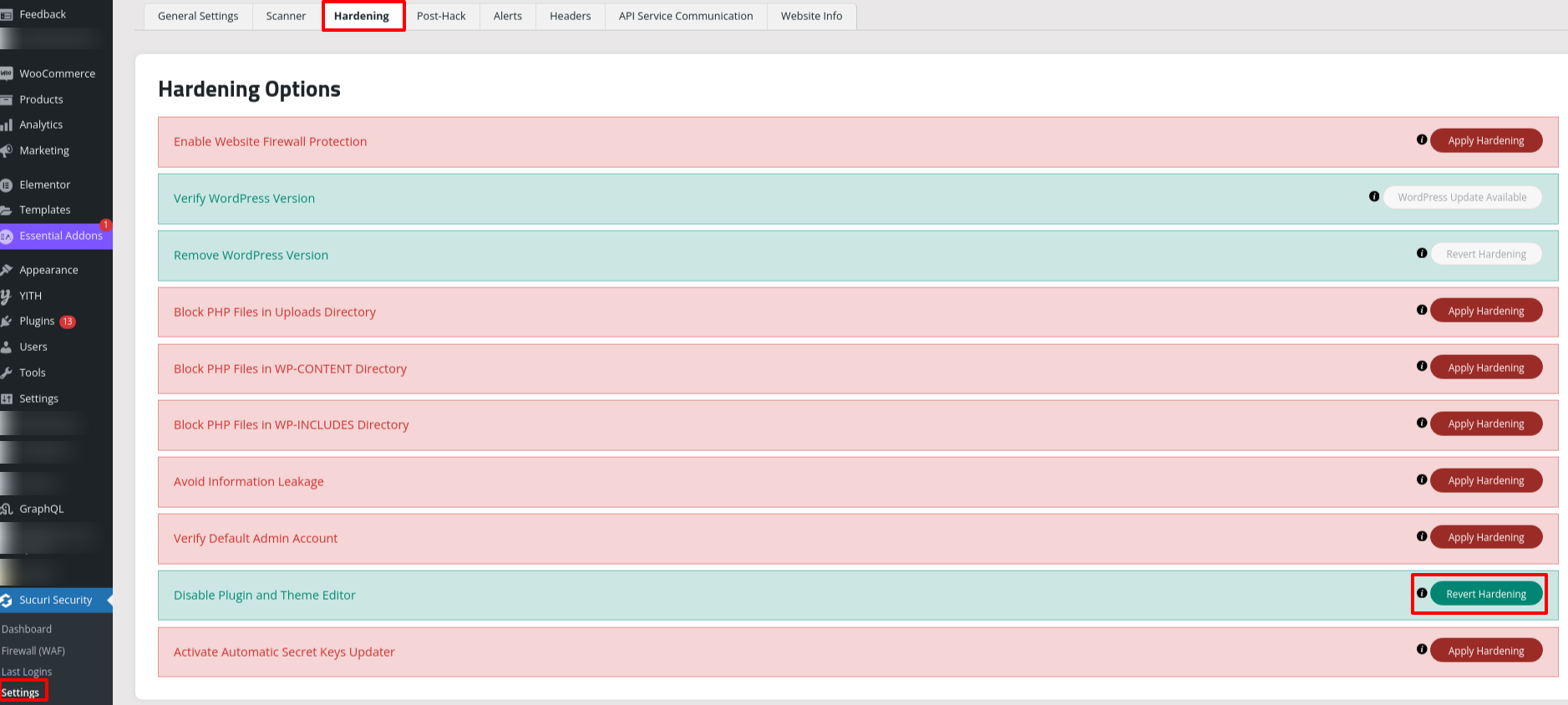
Reload your WordPress admin dashboard, and the theme file editor should now be visible.
Update wp-config.php file
If it’s still missing, the issue might be with your wp-config.php file.
To fix this, access your website files through an FTP client or your hosting control panel’s File Manager.
Here, I am using cPanel.
1. Log into your cPanel account.
2. Go to Files > File Manager.
3. Inside public_html, find the wp-config.php file.
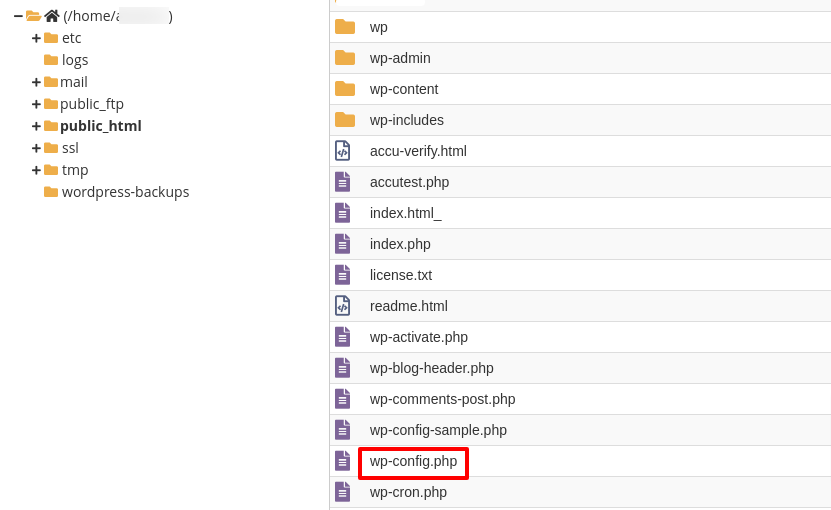
4. Search the below line.
define('DISALLOW_FILE_EDIT', true);
5. If you find this line, either delete it or change its value from true to false.
6. Click on the Save Changes button and upload the updated file back to your server.
7. After that, refresh your WordPress admin dashboard to check if the editor has been restored.
Why Editing Theme Files Directly Isn’t Recommended
The theme file editor can be useful, but many users accidentally break their websites by editing theme files directly. Even a small mistake in the code can cause critical errors, making your site unreachable.
Another drawback is that any changes made directly to theme files will be overwritten when the theme is updated, potentially erasing your customizations and causing unnecessary frustration.
Security is also a key concern. If the editor is left enabled, it can become a target for malicious actors who gain access to your WordPress admin, allowing them to alter your files.


