
The Roundcube webmail client is widely used due to its user-friendly interface and extensive feature set. However, users may occasionally encounter the "Server Error (Internal Error)" message in email communication. This guide provides a systematic approach to troubleshooting and resolving this issue, ensuring a seamless email experience.
Understanding the Root Causes
Roundcube's "Server Error (Internal Error)" message can be caused by various factors. It is crucial to identify the root cause to apply the appropriate resolution effectively. Some common causes include:
Server Configuration Issues
-
Incorrect file permissions or ownership settings
-
Misconfigured PHP settings or extensions
-
Outdated or incompatible software versions
Database Connectivity Problems
-
Incorrect database credentials or connection settings
-
Database server downtime or maintenance
-
Corrupted or inconsistent database data
Environmental Factors
-
Insufficient server resources (memory, disk space, etc.)
-
Network connectivity issues or firewall restrictions
-
Conflicting third-party plugins or extensions
Initial Troubleshooting Steps
Before delving into advanced troubleshooting techniques, it is recommended to perform some initial checks and basic steps to eliminate common issues:
-
Clear Browser Cache and Cookies: Clearing the browser cache and cookies can often resolve temporary glitches or conflicts.

-
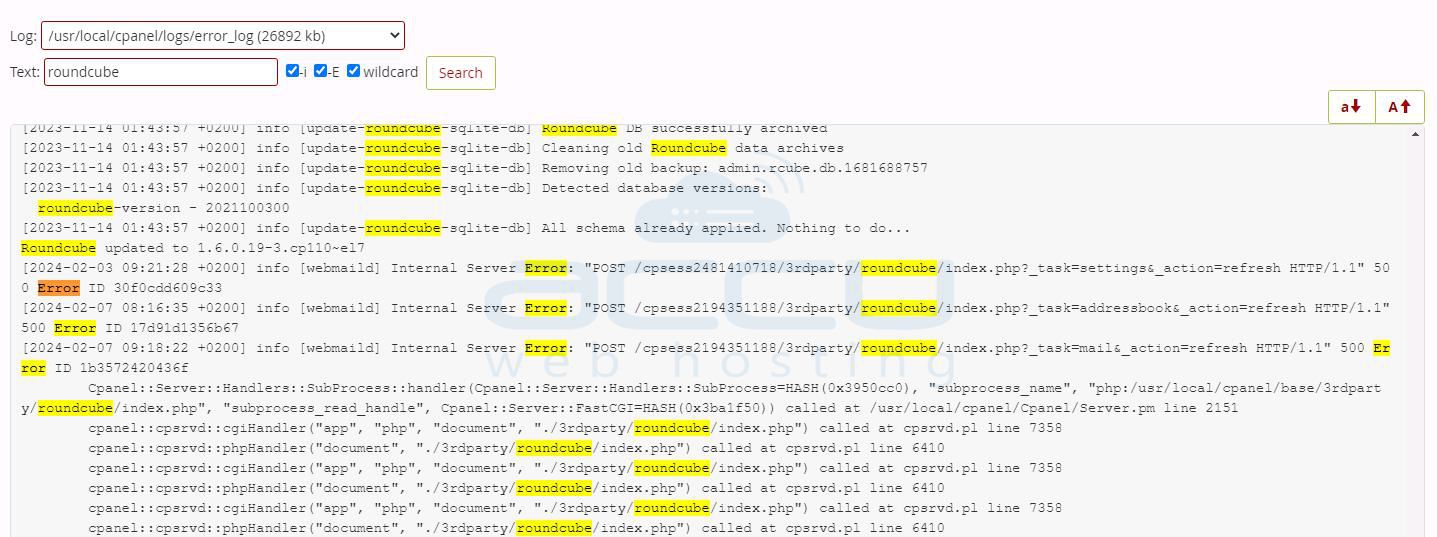
Check Server Logs: Examine the server logs (Apache, PHP, and Roundcube logs) for any error messages or clues related to the issue.
-
Verify File Permissions: Ensure that the Roundcube files and directories have the correct permissions set, typically 644 for files and 755 for directories.

-
Update Roundcube and Dependencies: Update Roundcube and its dependencies (PHP, Apache, MySQL, etc.) to the latest stable versions to address potential compatibility issues or security vulnerabilities.
-
Disable Third-Party Plugins: If you have installed any third-party plugins or extensions, try temporarily disabling them to see if they are causing conflicts.
Resolving Server Configuration Issues
If the initial troubleshooting steps do not resolve the issue, it is time to investigate and address potential server configuration problems.
Verifying PHP Settings
Roundcube relies heavily on PHP, and incorrect settings can lead to errors. Follow these steps to verify and adjust PHP settings:
-
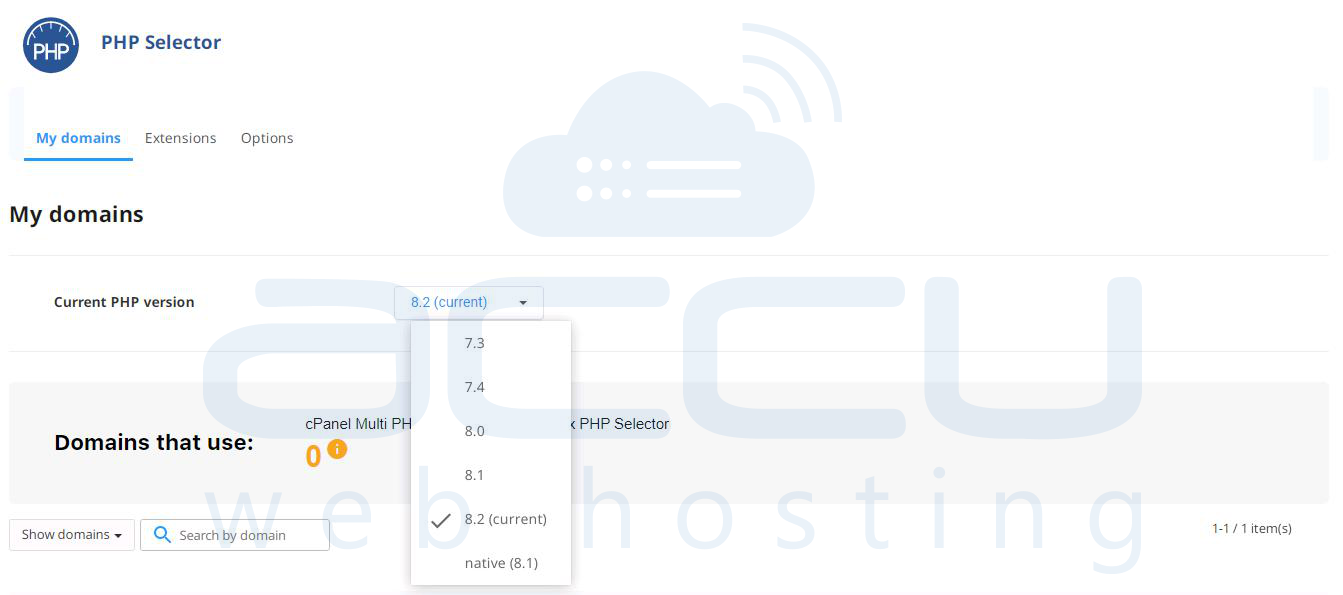
Check PHP Version: Ensure you are running a supported PHP version (PHP 7.4 or later).
-
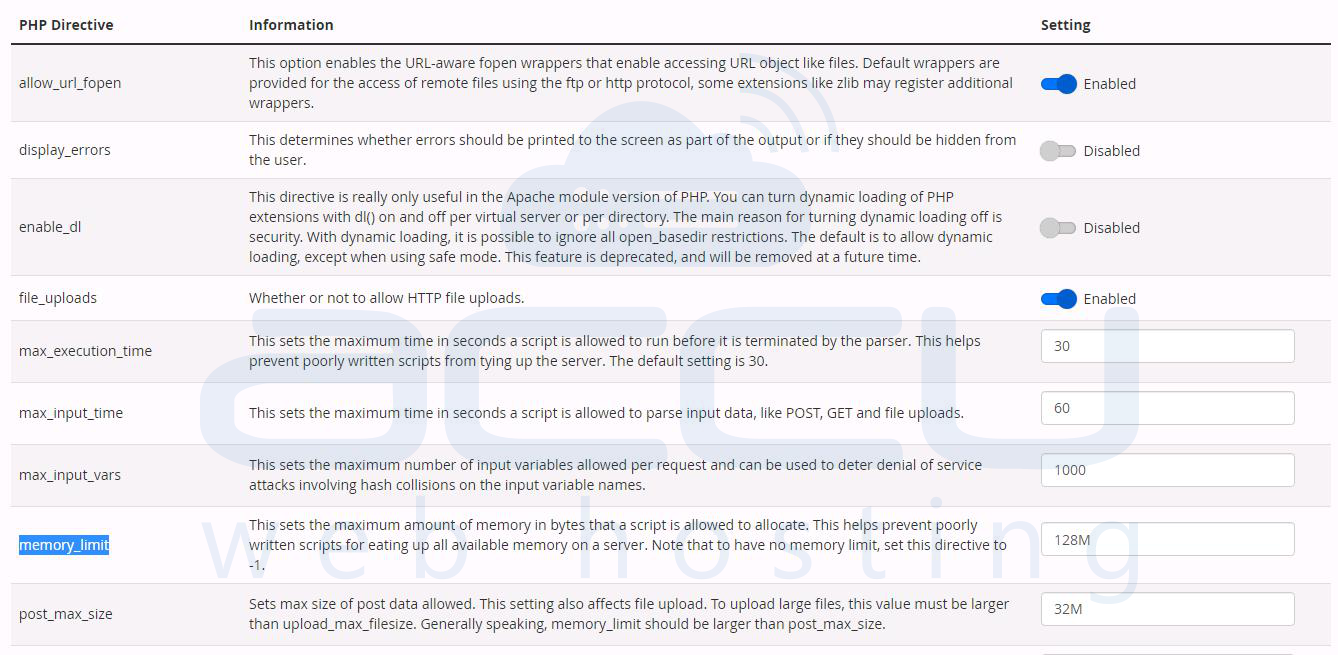
Increase PHP Memory Limit: Roundcube may require a higher PHP memory limit, especially when handling large attachments or mailboxes. To this end, increase the memory_limit setting in the php.ini file to at least 128M or higher.
-
Enable Required PHP Extensions: Roundcube requires specific PHP extensions to be enabled, such as mbstring, iconv, intl, json, xml, filter, hash, session, ctype, and zlib. Ensure these extensions are enabled in the php.ini file.

-
Adjust PHP Execution Time: If you experience timeouts, increase the max_execution_time setting in the php.ini file to a higher value (e.g., 300 seconds or more).
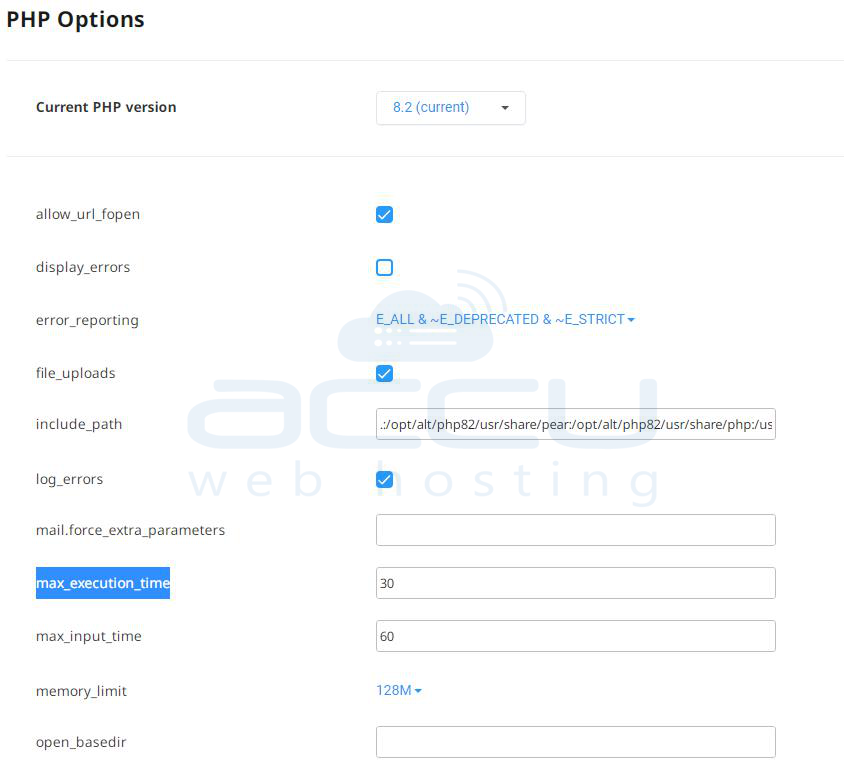
-
Restart PHP and Web Server: After making changes to the php.ini file, restart the PHP and web server (e.g., Apache or Nginx) services for the changes to take effect.
Optimizing Server Resources
Insufficient server resources, such as memory or disk space, can also contribute to the "Server Error (Internal Error)" message in Roundcube. Consider the following steps to optimize server resources:
Increasing Server Memory
-
Monitor Memory Usage: Use system monitoring tools or commands (e.g., top, htop, or free on Linux) to monitor the memory usage of the web server, PHP, and database processes.
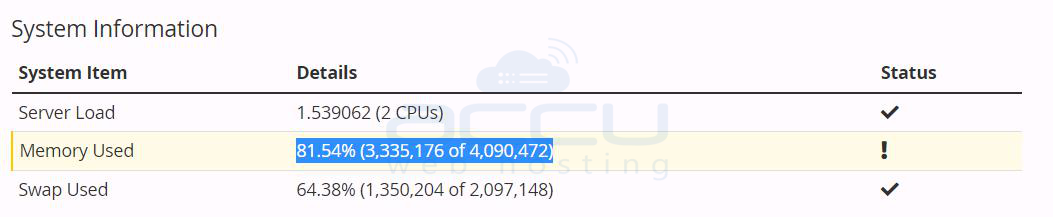
-
Increase Server Memory Allocation: If the available memory is consistently low, consider increasing the server's memory allocation or upgrading to a server with more RAM.
-
Adjust PHP Memory Limit: Increasing the PHP memory limit (memory_limit setting in php.ini) can help prevent out-of-memory errors, especially when handling large attachments or mailboxes.
Managing Disk Space
-
Check Disk Space Usage: Monitor the available disk space on the server, particularly the partition or directory where Roundcube and its logs are stored.
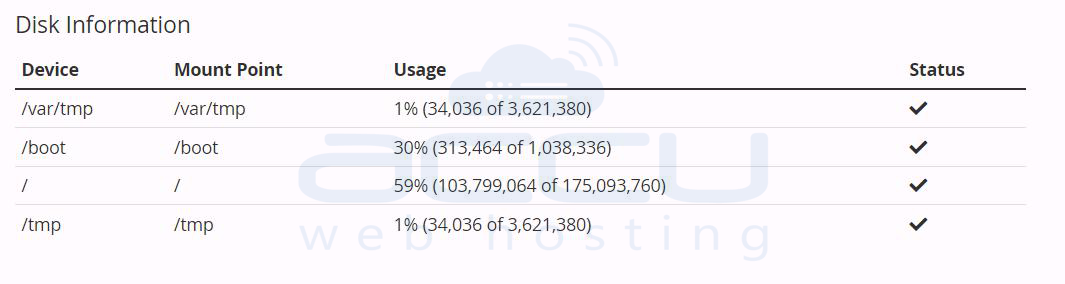
-
Clear Temporary Files and Logs: To free up disk space, regularly clear temporary files, cached data, and log files. Roundcube provides utilities or commands for clearing caches and logs.
Seeking Professional Assistance
Suppose the "Server Error (Internal Error)" message persists after exhausting the troubleshooting steps outlined in this guide. In that case, it may be advisable to seek professional assistance from experienced system administrators or the Hosting support team.
Conclusion
Resolving the "Server Error (Internal Error)" message in Roundcube can be a challenging task, as the underlying causes can vary from server configurations to database connectivity issues and resource constraints. By following the troubleshooting steps outlined in this guide, you can systematically identify and address the root causes, ensuring a smooth and reliable email experience.
