
When a website suddenly slows down, there could be many reasons. Checking the current requests being handled by the server can help determine what's causing the problem.
In the Internet Information Services (IIS) Manager, there's a tool called Worker Processes. It keeps track of all the worker processes running on the server. This tool shows details like the name of the application pool, the process ID, whether it's running or not, how much CPU it's using, and memory usage.
There's also a feature called View Current Requests, which shows you all the requests currently handled by a worker process. It gives you details like the web address being requested, the IP address of the client making the request, what part of the server is handling the request, and how long the request has been going on. This can help you figure out if there's a specific request causing the slowdown.
Stеps to Enablе Viеw Currеnt Rеquеsts in IIS
To turn on the "View Current Requests" feature in the Worker Processes section of Internet Information Services (IIS), you must first enable the Request Monitor feature. Here are the steps:
Step 1: Open the Server Manager tool on your Windows server. It is usually located in the Start menu or the administrative tools section.

Step 2: In Server Manager, go to the "Manage" menu at the top-right corner. Choose "Add Roles and Features" from the dropdown.

Step 3: Click "Next" to start the Add Roles and Features Wizard.
Step 4: Select the correct server in the Server Pool, then click "Next."
Step 5: Choose "Role-based or feature-based installation" and click "Next."
Step 6: Select your server again and click "Next."

Step 7: In the "Server Roles" section, find and select "Web Server (IIS)." Click "Next."
Step 8: Expand the "Health and Diagnostics" section within the "Web Server (IIS)" role. Check the box next to "Request Monitor."

Step 9: Click "Next" to proceed.
Step 10: Review your choices on the "Confirm installation selections" page. If everything's okay, click "Install."

Step 11: Wait for the installation to finish. When it's done, you'll see a summary. Click "Close" to exit the wizard.
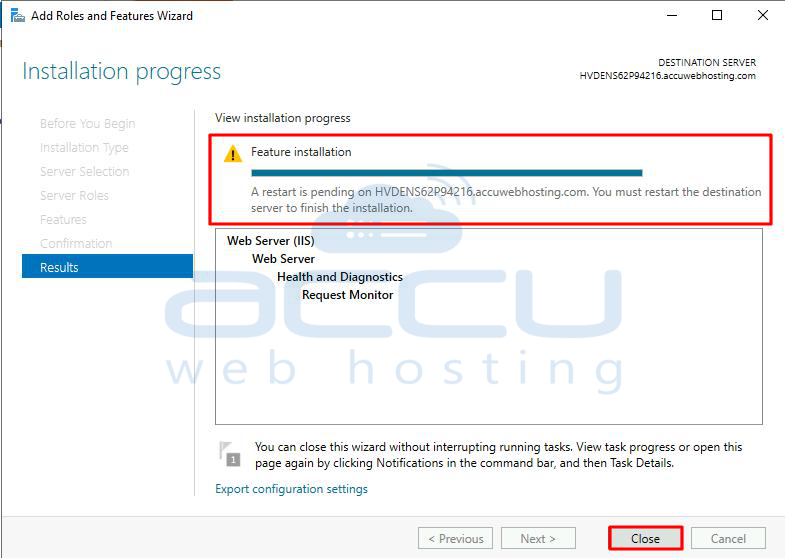
After these steps, Request Monitor will be turned on, and you can use it to monitor incoming requests and check server performance.
Once the Rеquеst Monitor fеaturе is еnablеd, you can procееd to use thе Viеw Currеnt Rеquеsts within IIS Managеr.
Steps to view the current requests of the specific Worker Process in IIS
Here's how to see the current requests of a specific Worker Process in IIS:
Step 1: Open Internet Information Services (IIS) Manager from the Start menu or by searching in administrative tools.
Step 2: In the IIS Manager interface, find and select your web server from the connections pane on the left-hand side.
Step 3: In the "Web Server Home" Features view, look under the "IIS" section and select the "Worker Processes" feature. Click to open it.

Step 4: From the list of displayed worker processes, find the one you want to see current requests for. Click on it to select it.
Step 5: Click "View Current Requests" in the Actions pane on the right-hand side of the IIS Manager window.

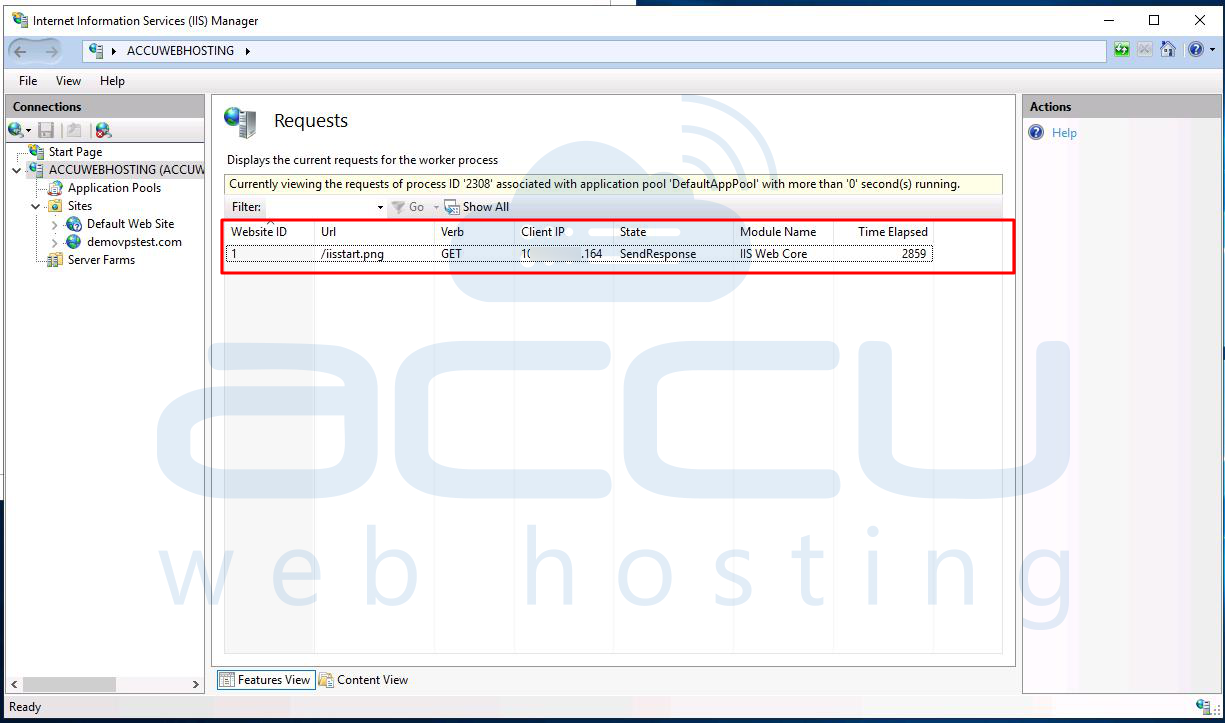
When you click "View Current Requests," you'll see a detailed list of the current requests running within the selected worker process. This list includes important information like the URL, Client IP, Pipeline Module State, Module Name, and Time Elapsed for each request.
Analyzing this data helps administrators investigate performance issues, identify potential problems, and take necessary actions to optimize server performance.
Conclusion:
In conclusion, viewing the current requests of a specific Worker Process in IIS can be done through a few simple steps in the Internet Information Services (IIS) Manager. By accessing the "Worker Processes" feature and selecting the desired worker process, administrators can utilize the "View Current Requests" action to obtain a detailed list of ongoing requests.
This information, including critical data such as URLs, Client IPs, and processing times, enables administrators to monitor server performance, identify potential issues, and take necessary actions to ensure optimal server operation.


