
Joomla is an open-source content management system (CMS) that allows you to build and manage websites and online applications. It is written in PHP and uses a MySQL database to store content. Joomla is known for its flexibility, extensibility, and ease of use, making it a popular choice for a wide range of websites, from personal blogs to complex business websites.
If you encounter an error when accessing the Joomla administrator page after installing it through Softaculous, there could be various reasons behind the issue. Here are some steps you can take to troubleshoot and resolve the problem:
1. Check the URL:
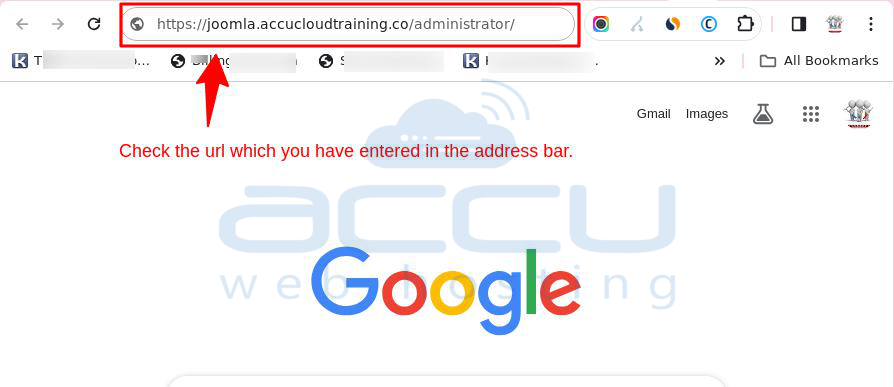
Ensure that you are using the correct URL to access the Joomla administrator page. It typically looks like: http://yourdomain.com/administrator. Double-check the URL for typos and make sure it matches the installation path.
2. Clear Browser Cache:
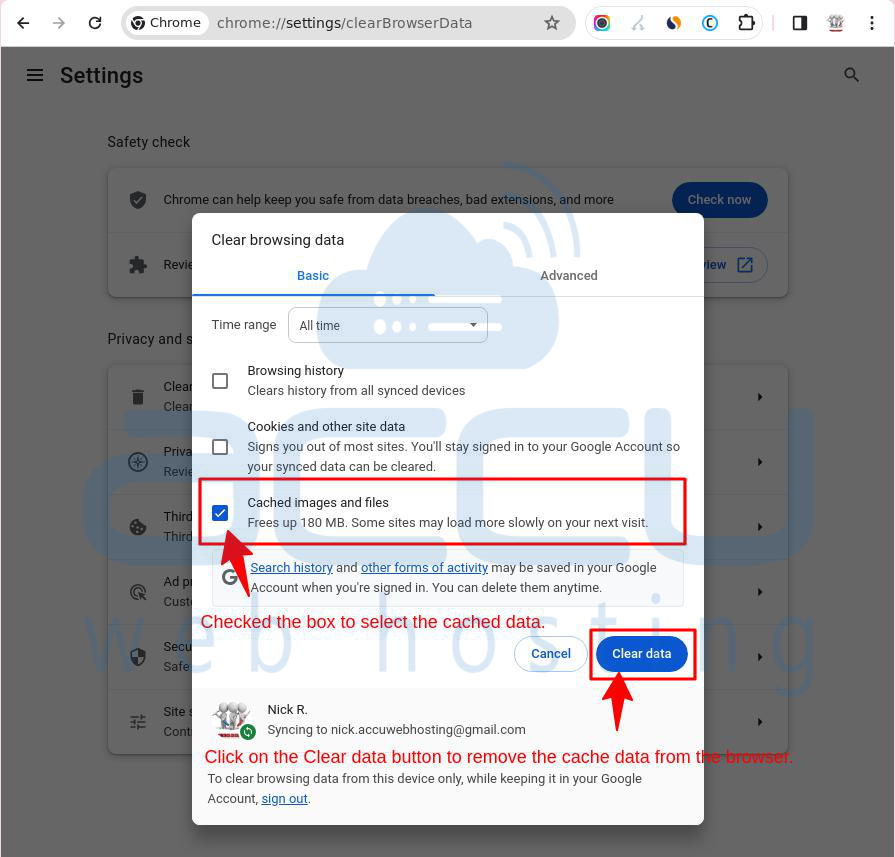
Clear your browser cache to eliminate the possibility of cached data causing the issue. Cached files may sometimes interfere with the proper loading of the administrator page.
To clear the cache in Google Chrome, click the three dots in the top-right, go to "More tools," and select "Clear browsing data." Choose the time range, check "Cached images and files," and click "Clear data." Restart Chrome for the changes to take effect.
3. Check File and Folder Permissions:
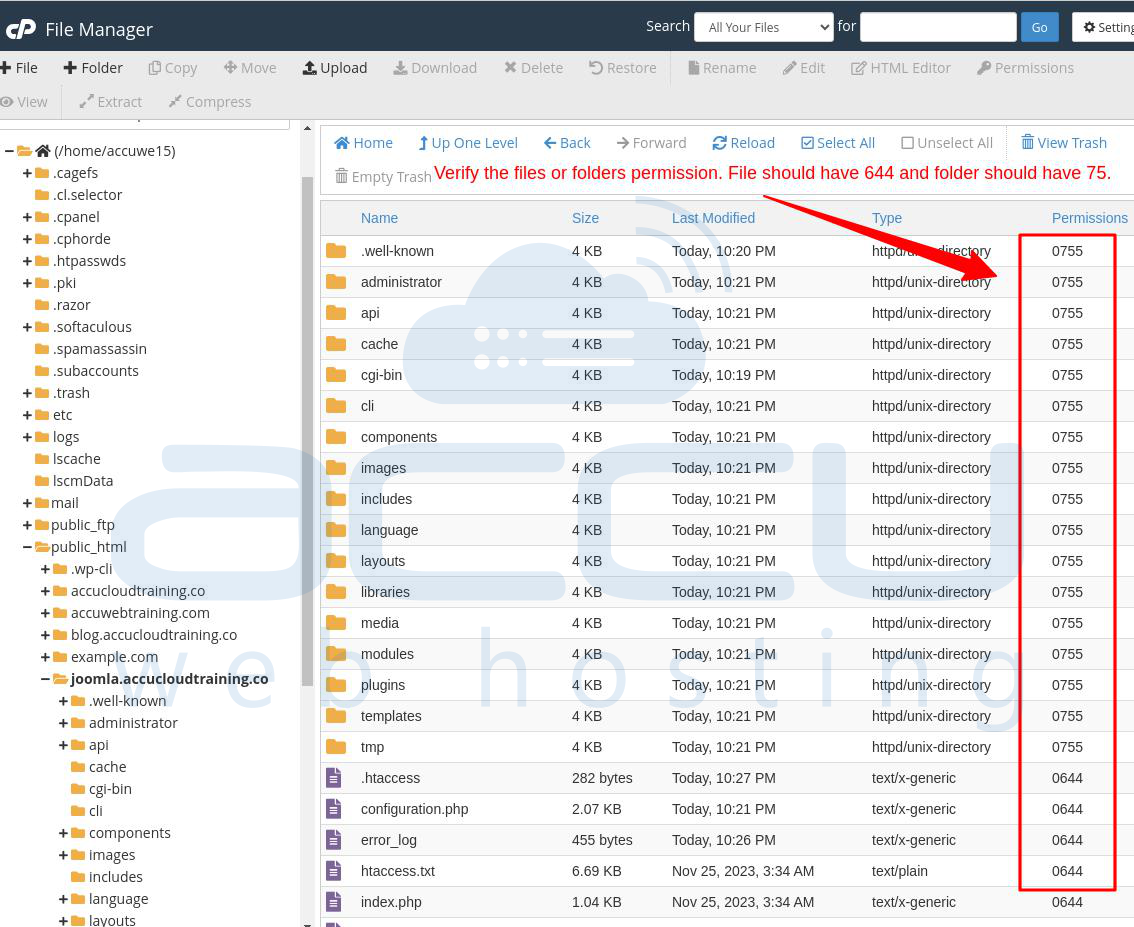
Verify that the file and folder permissions are set correctly. Softaculous usually sets the appropriate permissions during installation, but it's worth checking. Ensure that directories have 755 permissions and files have 644 permissions.
To check file and folder permissions in cPanel, log in to cPanel, navigate to the "File Manager," locate the file or folder, right-click, and choose "Change Permissions." Verify and adjust permissions as needed.
4. Check for .htaccess Issues:
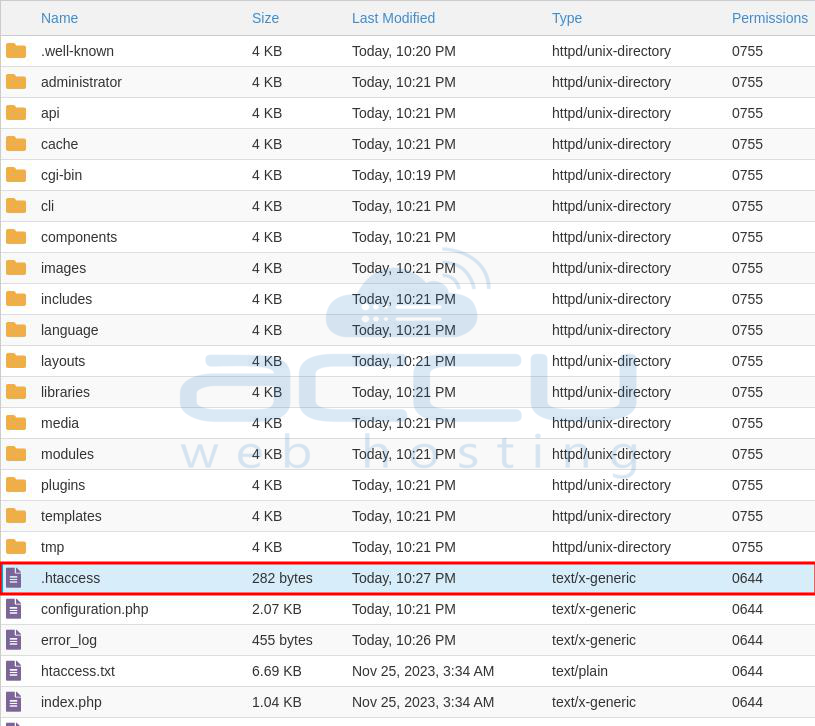
Examine the .htaccess file in the Joomla root directory for any rules that might be causing problems. Comment out suspicious lines or temporarily replace the file with a default Joomla .htaccess file to see if it resolves the issue.
5. Verify Database Configuration:
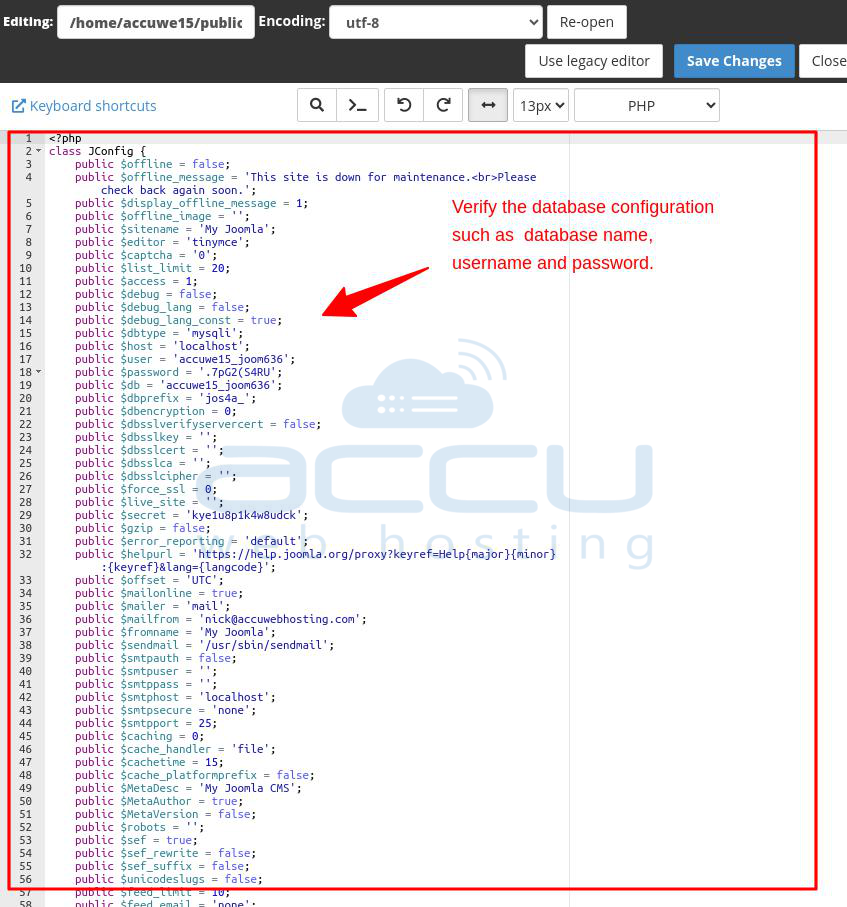
Ensure that the database configuration in the configuration.php file is correct. Check the database host, username, password, and database name. Any discrepancies here could prevent the administrator page from loading.
Log in to cPanel. Go to "File Manager" and find the Joomla installation. Locate "configuration.php" file. Right-click, choose "Code Edit." Check database details under $db settings. Confirm database name, username, password, and host. Save changes if needed.
6. Review PHP Version and Settings:
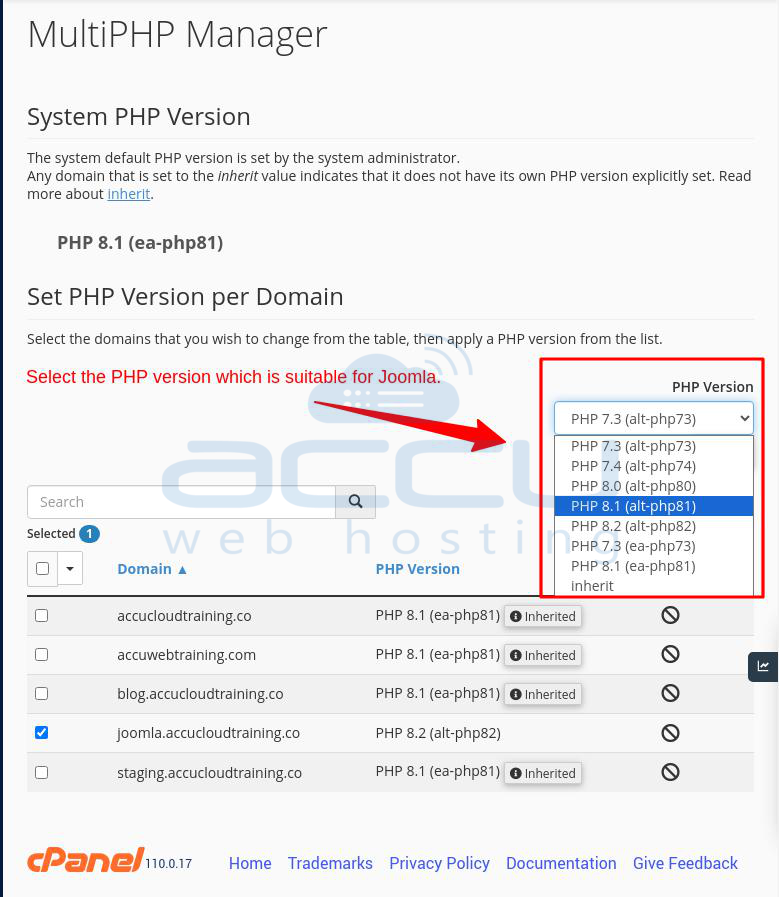
Confirm that your hosting environment meets Joomla's requirements. Check that you are using a supported version of PHP and that the necessary PHP extensions are enabled.
Log in to cPanel. Locate "PHP Selector" or "MultiPHP Manager." Check the current PHP version. Adjust PHP version if needed. Review and modify PHP settings if available. Save changes if applicable.
7. Error Logs:
Check the error logs on your server for any relevant error messages. This information can provide insights into the specific issue causing the administrator page error.
Log in to cPanel. Navigate to the "File Manager." Locate your Joomla installation directory. Look for a file named "error_log" or similar. Right-click and choose "Code Edit" to view errors.

8. Reinstall Joomla:
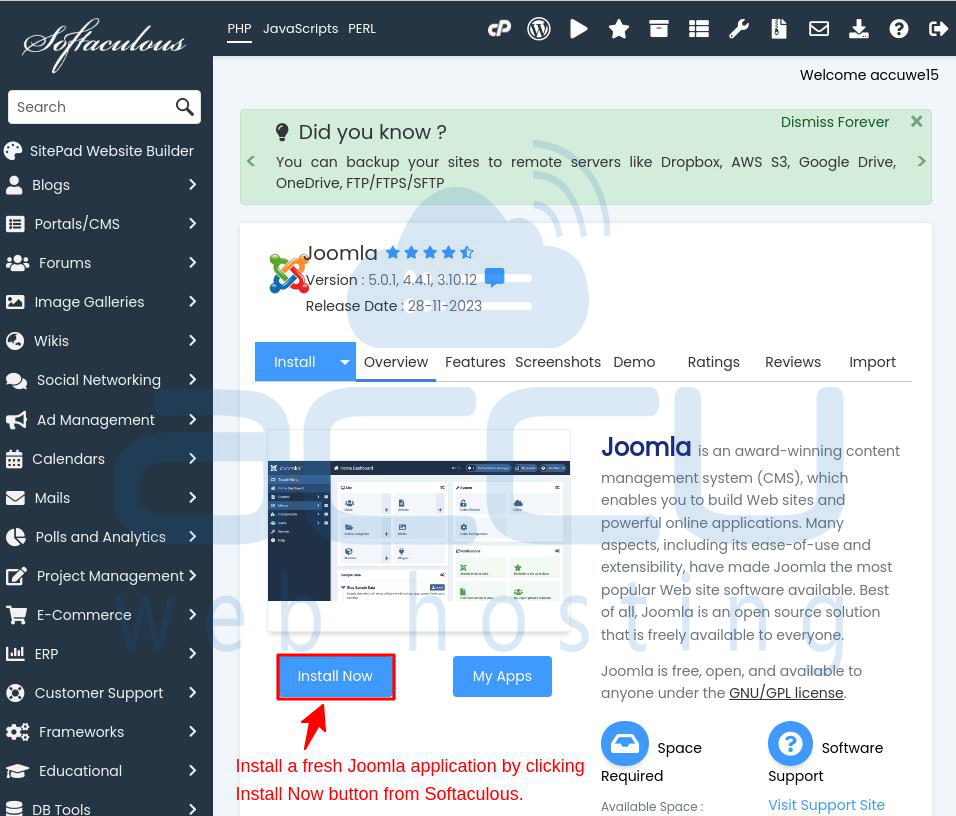
If the issue persists and you can't identify the problem, consider reinstalling Joomla through Softaculous. Sometimes, the installation may have encountered issues that can be resolved with a fresh installation.
Log in to cPanel. Find and click on "Softaculous Apps Installer." Search for "Joomla" and click on it. Select "Install Now." Fill in site details, admin credentials, and other settings. Click "Install." Wait for the installation to complete. Access your Joomla site via the provided URL.
9. Contact Hosting Support (AccuWebhosting - If your hosting service provider is Accuwebhosting):
If all else fails, reach out to your hosting provider's support. They can assist you in identifying and resolving server-related issues that may be causing the error.
Remember to back up your website before making any significant changes or reinstallations. This ensures that you can restore your site to a working state if anything goes wrong during the troubleshooting process.
Conclusion:
In conclusion, encountering an error after installing Joomla through Softaculous and trying to access the Joomla administrator page can be a common issue with various potential causes. This situation often requires a systematic approach to troubleshooting. By checking factors such as URL accuracy, clearing browser cache, verifying file and folder permissions, reviewing the .htaccess file, confirming database configurations, and addressing PHP version compatibility, users can identify and resolve the issue.
Overall, understanding and addressing these potential issues step by step can lead to a successful resolution, allowing users to fully enjoy the features and benefits of their Joomla-powered websites.


