
WordPress, a widely used content management system (CMS), is renowned for powering countless websites and blogs globally. To maintain peak performance, security, and access to the latest features, regular updates are crucial. In this guide, we'll provide essential steps to update your WordPress version. Whether you're a seasoned user or new to WordPress, this information is vital for safeguarding your website and staying current in the dynamic digital realm.
Why You Should Keep Your Site Up-to-Date with the Latest WordPress Version:
For security, functionality, compatibility, features, and bug fixes, updating your WordPress site to the most recent version is important.
Moreover, there are additional advantages to updating WordPress:
Security: Newer versions frequently come with security updates to protect your website from errors and unauthorized access attempts.
Performance: Updates can make your site faster and perform better overall, giving users a better experience.
Compatibility: It reduces conflicts by ensuring that your website functions without any difficulties with the newest themes and plugins.
Features: You get the ability to use updated features and upgrades that increase the functioning of your website.
Bug fixes: Updates address faults and errors from the past, avoiding future issues.
Actions to Perform Before WordPress Update:
Making a complete backup of your WordPress site is recommended before updating WordPress.
A full WordPress backup includes all your site's data: database, media, plugins, themes, configuration files, and core files. This step is essential in case you have to restore your site at a later time. After securing the backup remotely.
Updating your WordPress website is quite easy. Here's a step-by-step guide to help you through it:
1) Update WordPress Automatically:
WordPress will automatically update your website with minor updates that focus on maintenance and stability by default.
updating WordPress automatically can also be configured using the wp-config.php file, which gives you more control over the process. Here are the steps to set up automatic updates using the wp-config.php file:
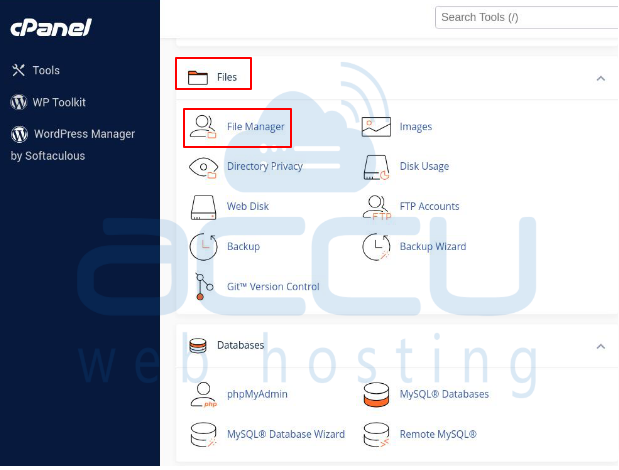
Step 1: Login into your cPanel account.
Step 2: Go to the File Manager under the Files section.
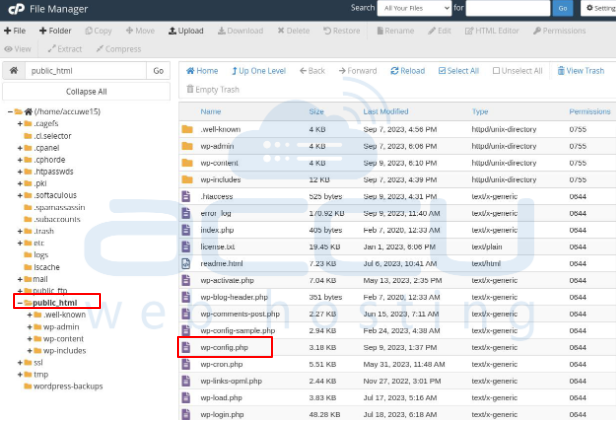
Step 3: Locate the public_html folder, scroll down, and choose the wp-config.php file.
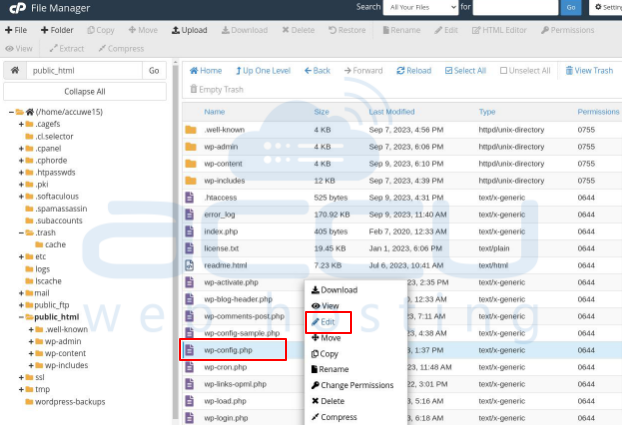
Step 4: Next, right-click on it and choose the "Edit" option to add this code.
define('WP_AUTO_UPDATE_CORE', true);

Step 5: Click on the Save button. This ensures a secure update to the latest WordPress version.
2) Update WordPress via the WP Admin Dashboard:
Updating WordPress using the WP Admin Dashboard is one of the simplest ways to keep your website up to date. Here are the steps for updating WordPress through the WP Admin Dashboard:
Step 1: Access your WordPress website's admin dashboard
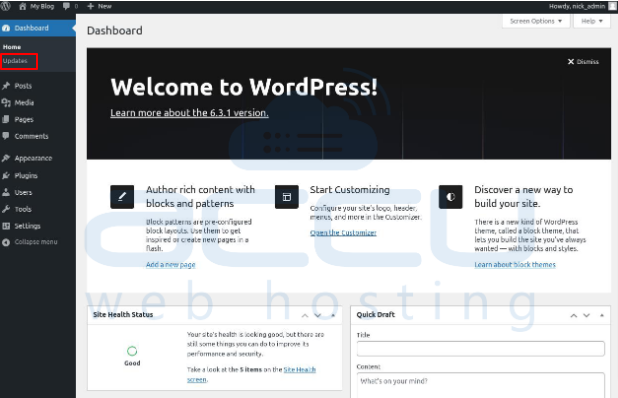
Step 2: Locate the "Updates" tab in the left menu; it will display available updates.
The Updates page displays available updates for WordPress core, themes, and plugins.
Step 3: Click the "Update Now" button next to the new version message, and WordPress will automatically download and install the update.
Step 4: When updates are available for themes or plugins, you have the option to update them one by one by clicking the "Update Now" link next to each theme or plugin. Alternatively, you can select multiple themes or plugins and update them all together.
Step 5: After updating, WordPress will show a success message. Check the "Updates" page to confirm that your WordPress core, themes, and plugins are up-to-date.
Show this interface if you've already updated to the latest version.
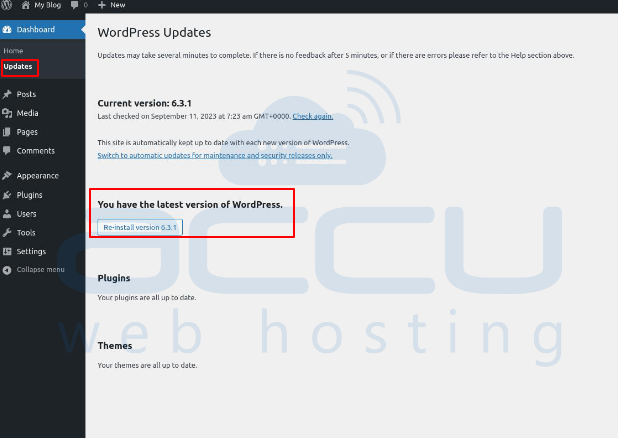
Updating WordPress through the WP Admin Dashboard is user-friendly and recommended for most users.
3) Update WordPress via WP-CLI
SSH access is required to access your WordPress root directory located in the 'public_html' folder.
After configuration, execute the following steps:
Step 1: After SSH access, use the 'cd' command, navigate your WordPress root directory with this command
# cd public_html
To view folder contents, use the 'ls' command. To return to your home directory, simply enter 'cd ~'
Step 2: To see if there's a newer version of WordPress to update, type in this command:
# wp core check-update
Step 3: If there’s a new version of WordPress available, you will see a similar message:
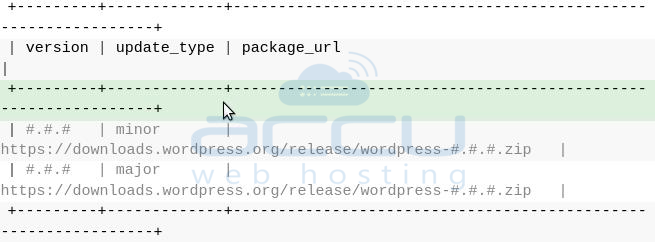
Step 4: If no updates are available, you'll be shown this message:
Success: WordPress is at the latest version.
Step 5: To initiate the update, execute the following command:
# wp core update
Step 6: Please be patient while the process completes, and your WordPress website will update itself automatically.
Now that you've learned how to update the core files using WP-CLI, it's time to upgrade your database. Execute the following commands to update your WordPress plugins and themes:
# wp core update-db
# wp theme update --all
# wp plugin update --all
Step 7: After the update process completes, re-run the previous commands to verify the updates. It should look like this:
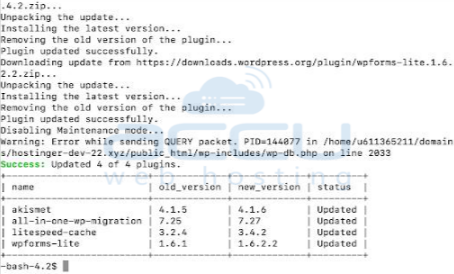
4) Manually update WordPress via FTP
Step 1: If you can't access your WordPress dashboard or encounter permission problems, consider updating the software using an FTP client.
Step 2: Download the latest version of WordPress
Step 3: Extract the .zip file.
Step 4: Use FTP to log in to your WordPress site.
Step 5: Locate the wp-content folder.
Step 6: Right-click the plugins folder and change its name to 'plugins.hold.' This action temporarily disables your plugins.
Step 7: Remove the wp-includes and wp-admin folder.
Step 8: To rename the plugins folder, right-click it and choose ‘plugins. hold.’Step: 9 Remove the 'wp-includes' and 'wp-admin' folders.
Step 10: From the.zip file you extracted earlier, upload the updated wp-includes and wp-admin folders.
Step 11: Upload all new loose files to your public_html folder.
Step 12: Rename the “plugins.hold” file back to “plugins.
Step 13: You are good to go! To perform a quick test, simply navigate to your /wp-admin page. It's possible that you'll be prompted to log in again. After logging in, you should not see any update option for the WordPress core in your dashboard.
Updating your WordPress version is crucial for security and functionality. Remember to backup your site, check compatibility, and update in a controlled environment. Enjoy the latest features and enhancements while maintaining a secure website.
That's all.


