
Comments on a blog can benefit significantly in numerous ways. By converting a monologue into a discussion, they build community.
Although enabling comments can be an excellent way to engage with your audience, many WordPress users disable comments for valid reasons. Some websites don't require a comment section because it can be a security issue.
If you want to disable comments on your WordPress website, you've come to the perfect place. In this article, we'll go through many step-by-step instructions for enabling and deactivating comments on WordPress.
Method - 1: Enable/Disable WordPress Comments on Future Posts
Using this method, People won't be able to comment on upcoming posts on your WordPress site.
Step 1: Log into your WordPress Dashboard.
Step 2: Scroll down to Settings and click on Discussion.
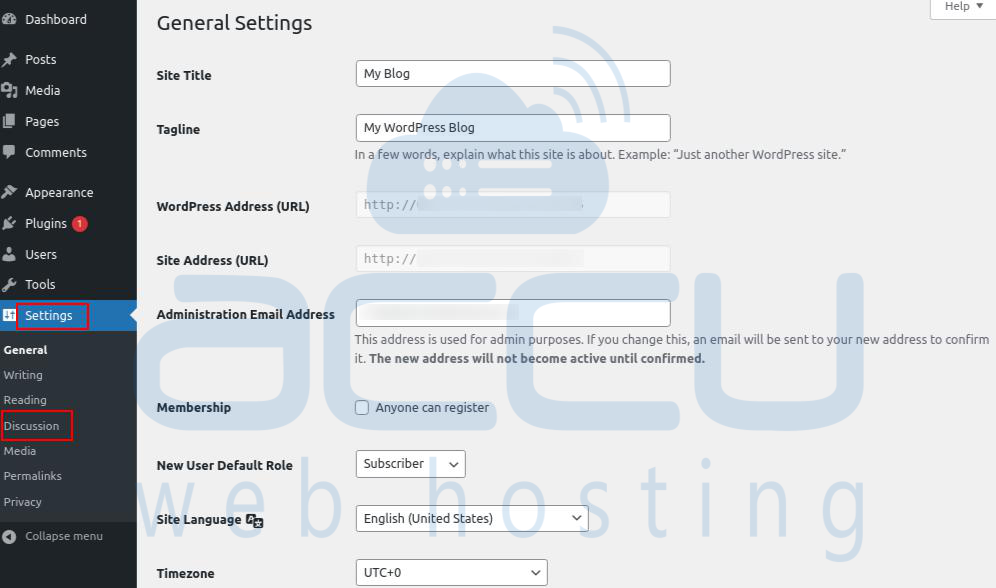
Step 3: Under Default post settings on this page, check the checkbox with the text Allow people to submit comments on new posts.
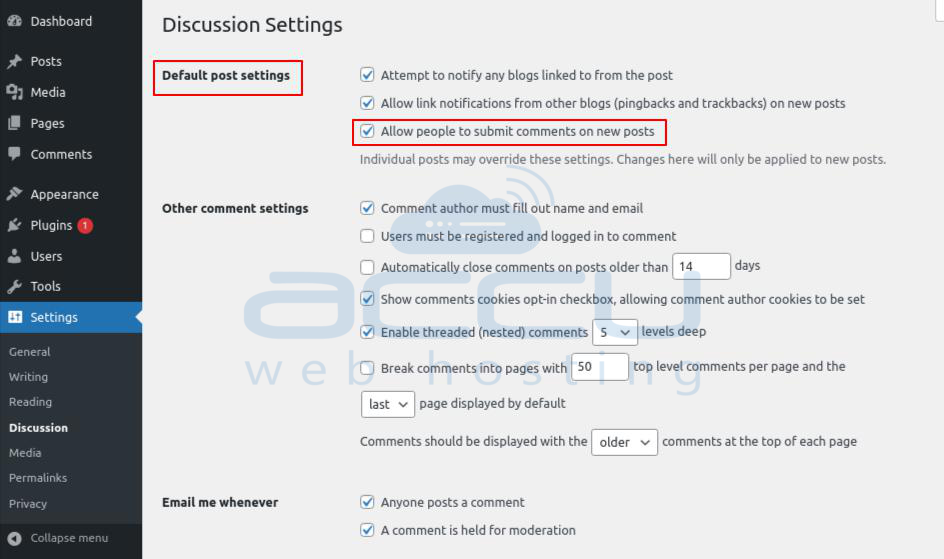
To Disable Comment:
On this page, under the Default post settings option, uncheck the checkbox with the text Allow people to submit comments on new posts.
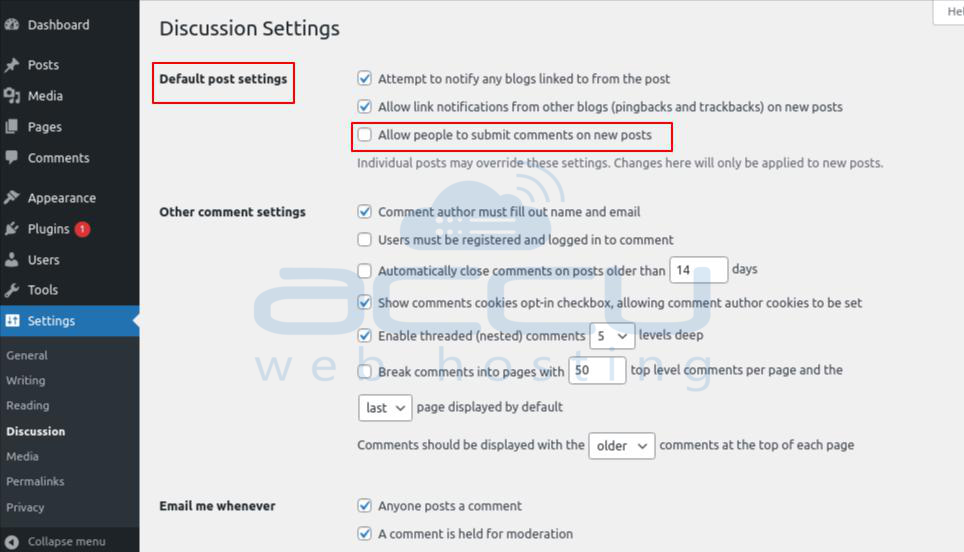
Method - 2: Disable Comments in WordPress on All Published Posts and Pages
Step 1: Go to your WordPress dashboard.
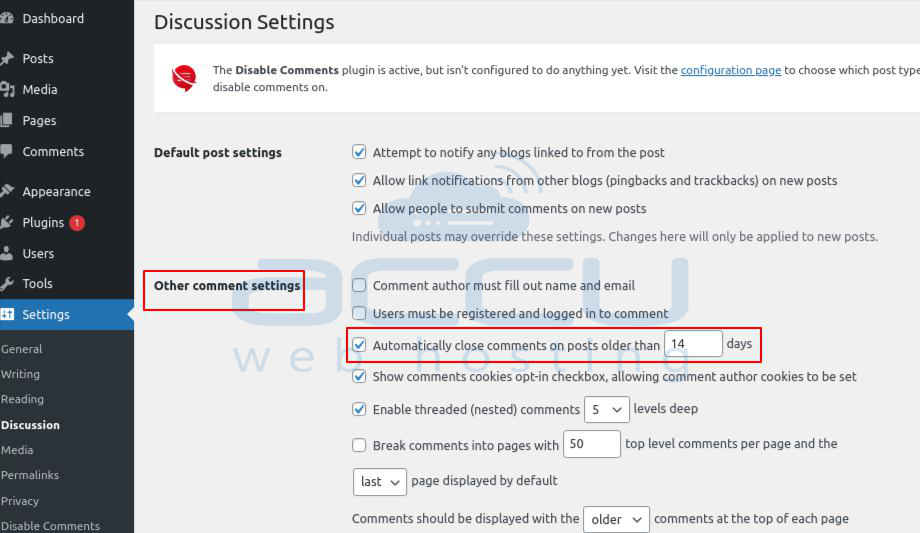
Step 2: Navigate to Settings > Discussion.
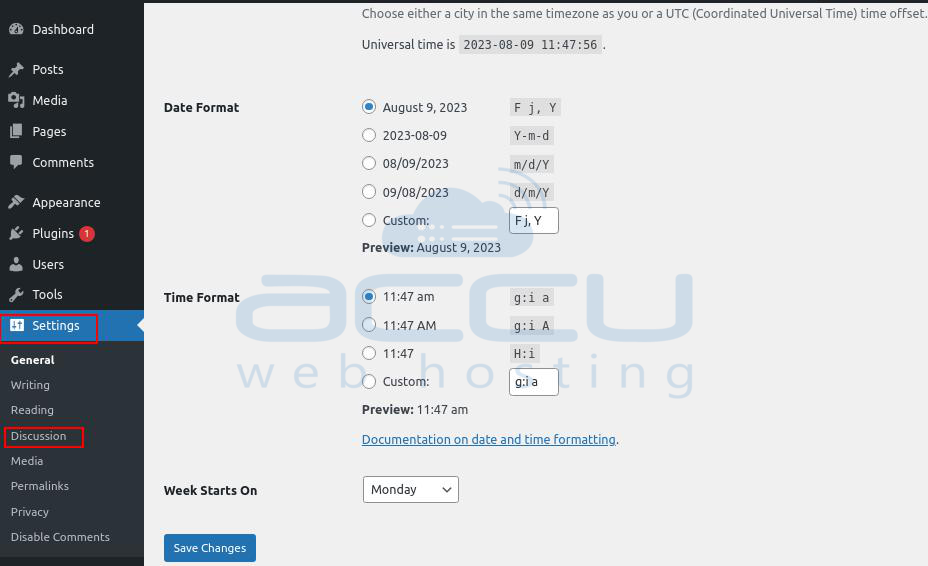
Step 3: Under Other Comment Setting, find Automatically close comments on posts older than ………. days. Fill in the days and click on Save Changes.
Method - 3: Enable/Disable WordPress Comments on specific posts or pages
Here are two ways to enable/disable comments on particular posts and pages.
Option - 1
Step 1: Log into your WordPress Dashboard.
Step 2: Navigate to the Posts/Pages option, and click on All Posts/All Pages.
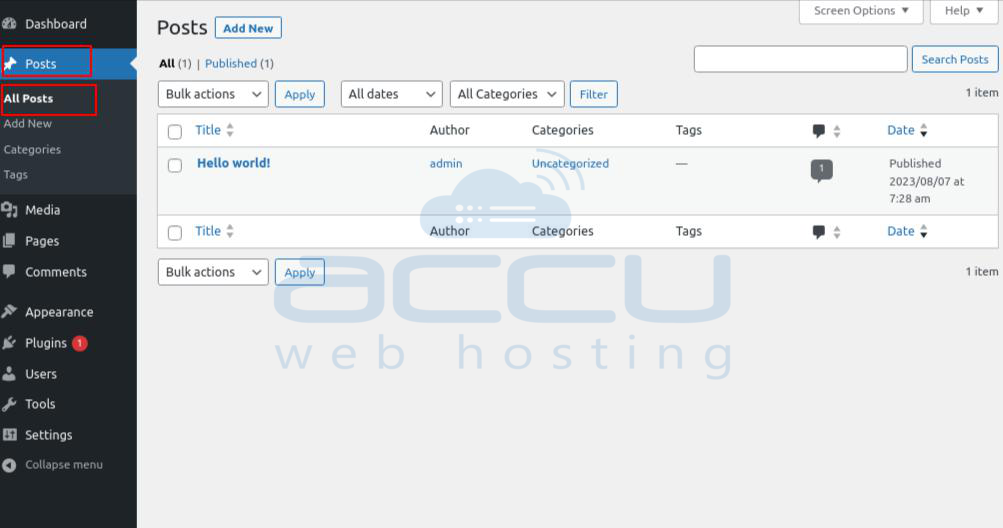
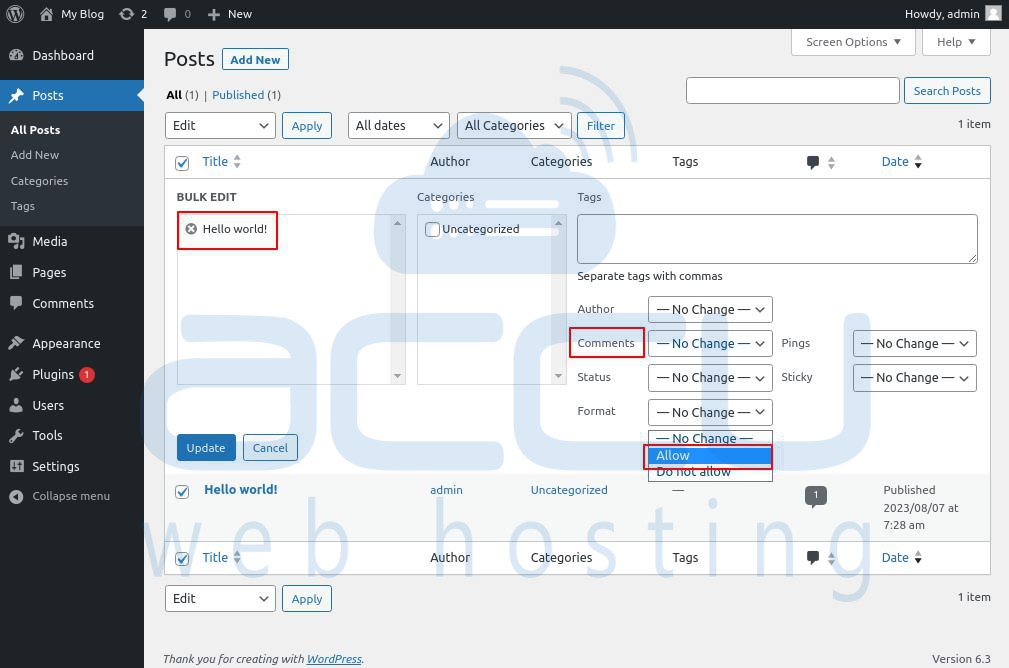
Step 3: Select the post/page where you want to disable/enable comments; then select Edit from the drop-down box with the text Bulk actions.
Step 4: Click on Apply.
Step 5: On this page, in the comment section, select Allow and click on Update.
To Disable Comment:
Select Do Not Allow in the comment section on this page and click Update.
Option - 2
Step 1: Log into your WordPress Dashboard.
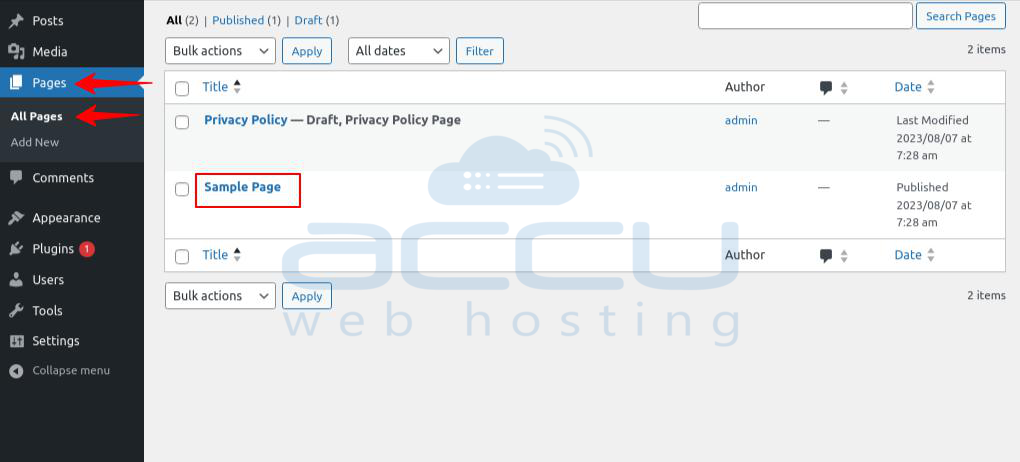
Step 2: Go to the Posts/Pages, and click All Posts/All Pages.
Step 3: Select the post/page you want to disable/enable comments on.
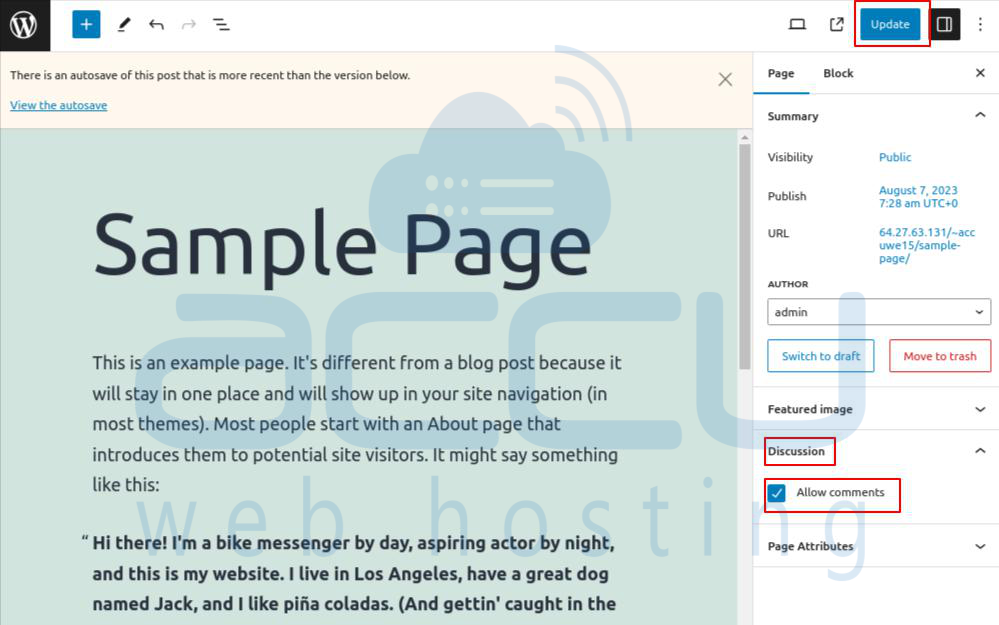
Step 4: Find out the Discussion drop-down menu on that post/page's right side of the page.
Step 5: Check on Allow Comments and choose Update.
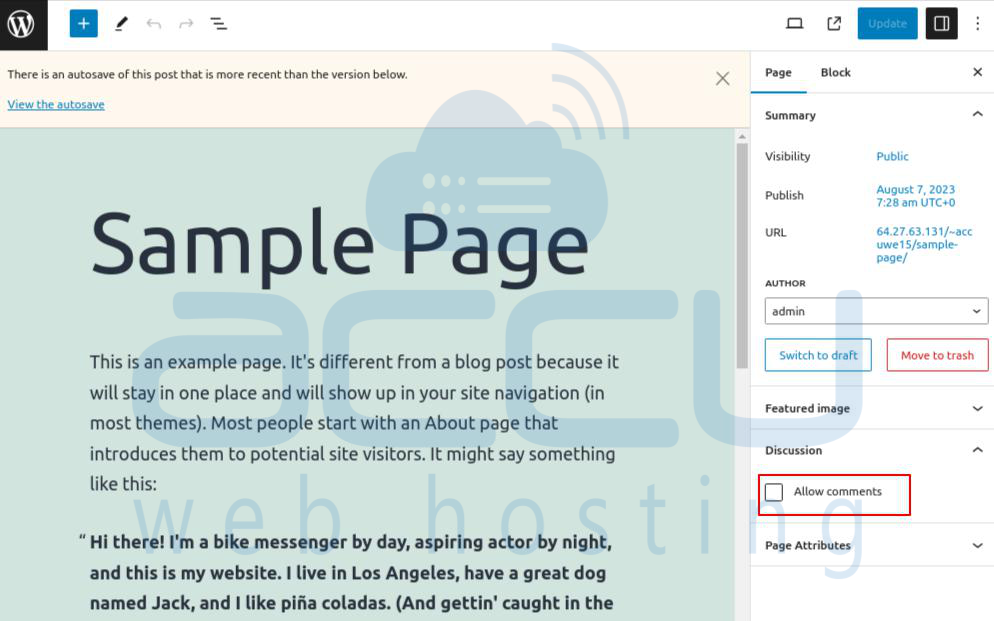
To Disable Comment:
On this page, Uncheck Allow Comments and choose Update.
Option - 3
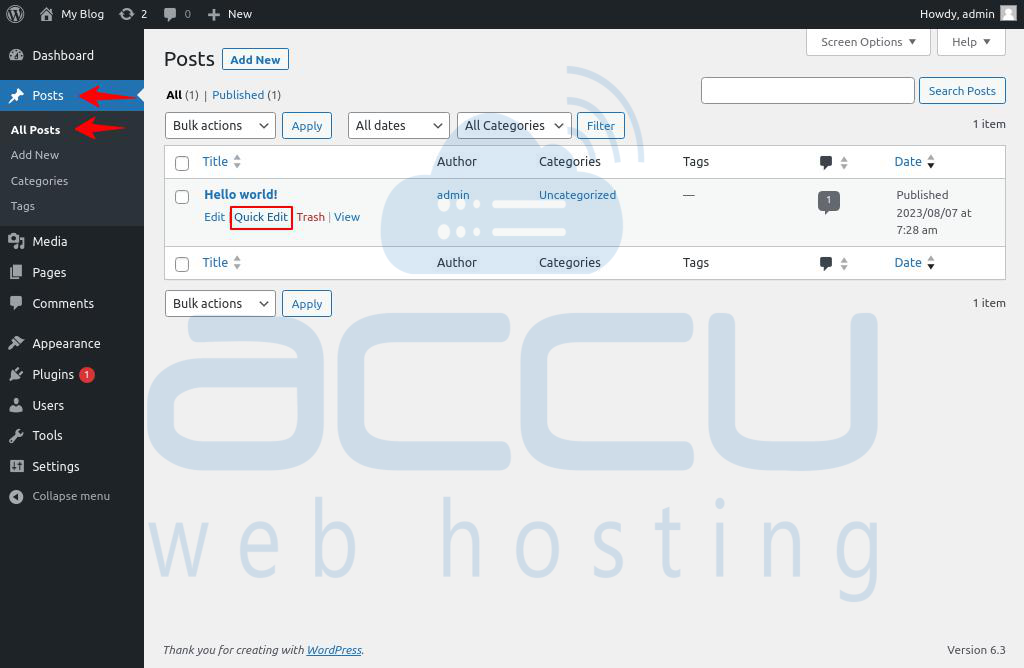
Step 1: Scroll down to Posts/Pages > All/Posts/All Pages.
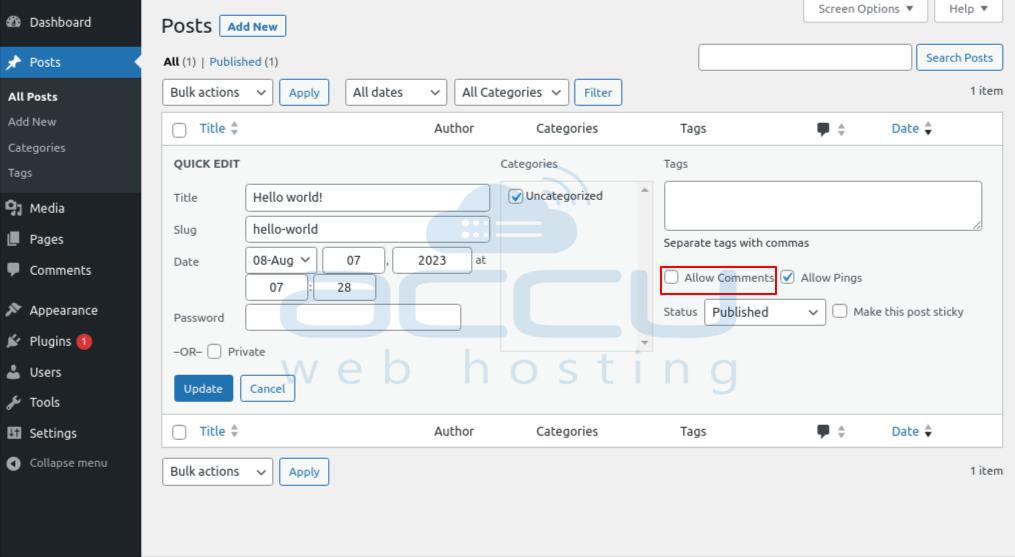
Step 2: Hover on the post/page you want to enable/disable comments on and choose Quick Edit.
Step 3: Check Allow Comments and click on Update.
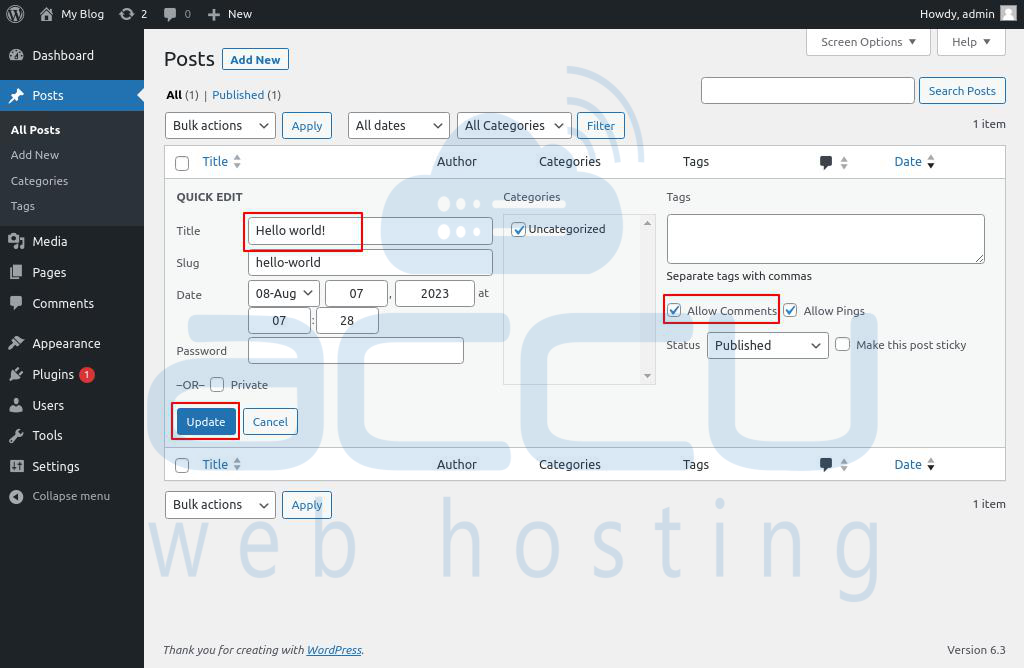
To Disable comments:
On this page, Uncheck Allow Comments and choose Update.
Method - 4: Disable Comments on Media
WordPress produces unique pages for your media files when you upload them to your website. As with a typical post or page, these pages are open to comments.
Option - 1
Step 1: Log into your WordPress Dashboard.
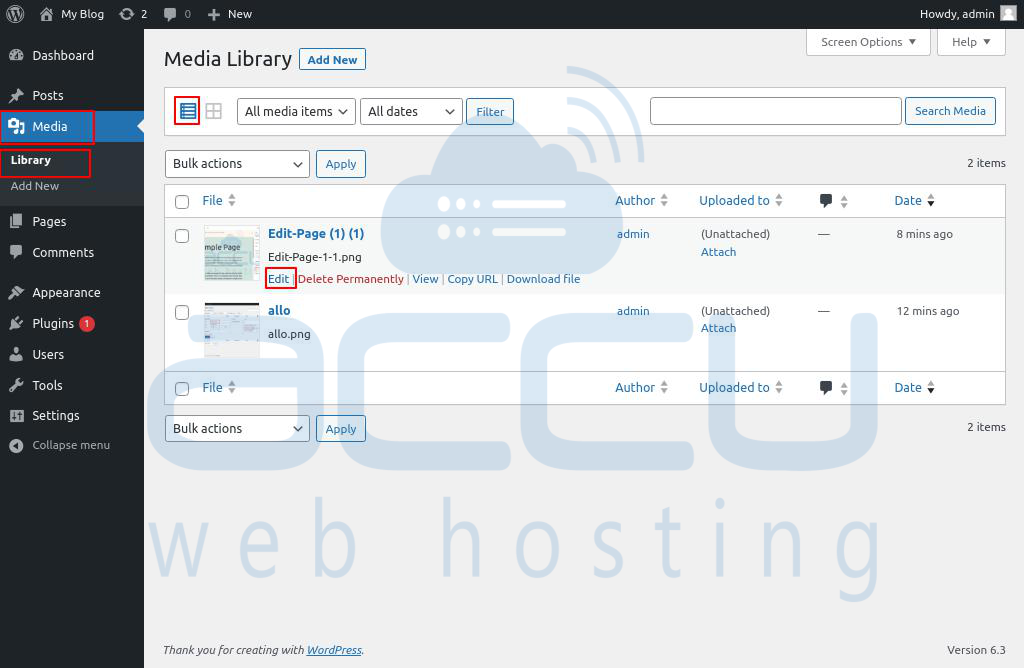
Step 2: Click on Media > Library.
Step 3: Choose your file and click on Edit.
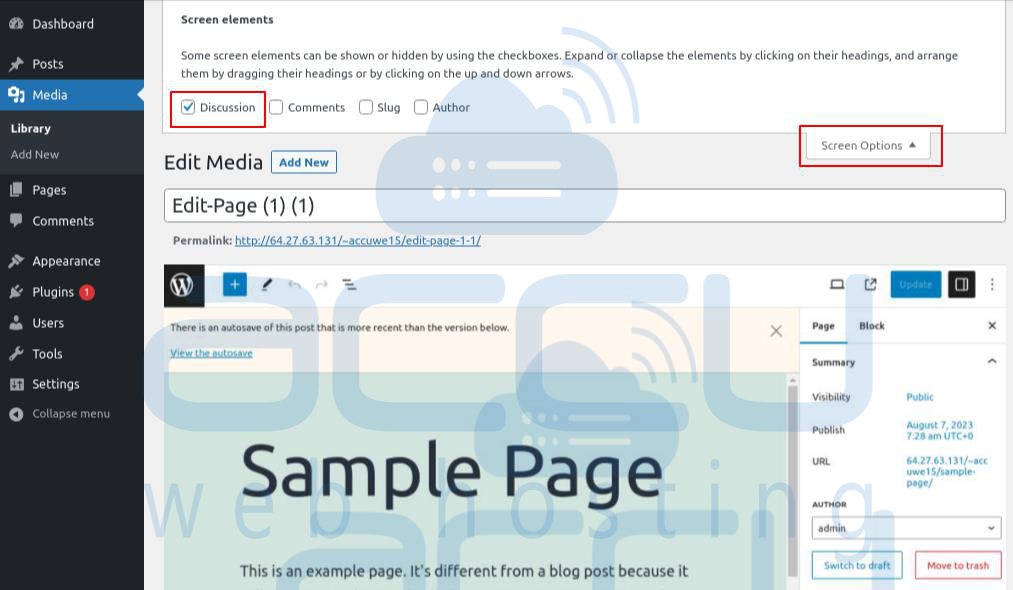
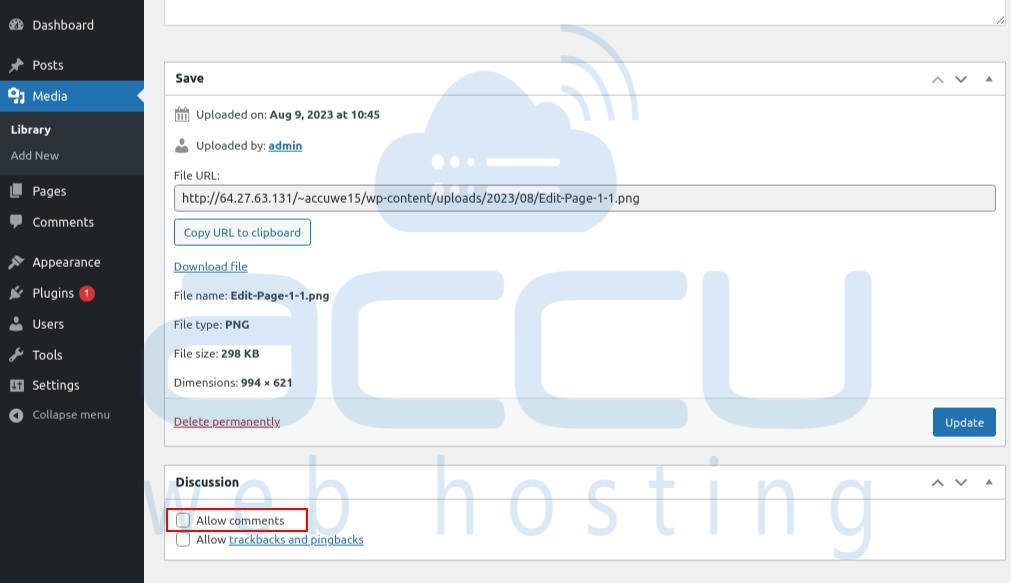
Step 4: Search for Discussion; if you do not find out, then at the top-right side of the page, select the Screen Options dropdown menu and check the Discussion box.
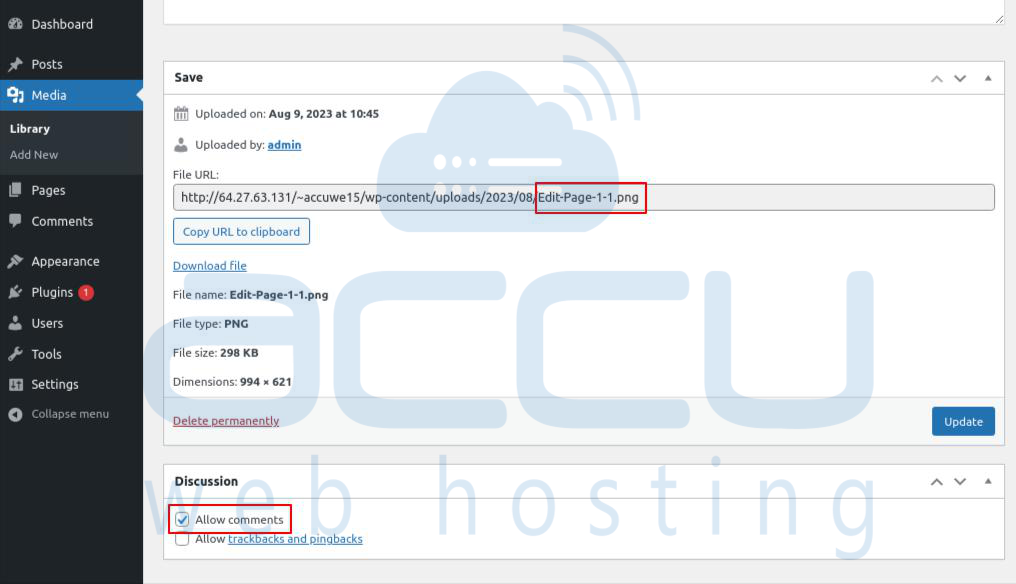
Step 5: Check the Allow Comments checkbox.
To Disable comments:
On this page, Uncheck Allow Comments box.
Option - 2
Step 1: Scroll down to Appearance > Theme File Editor.
Step 2: After that, the right side of the page Selects functions.php.
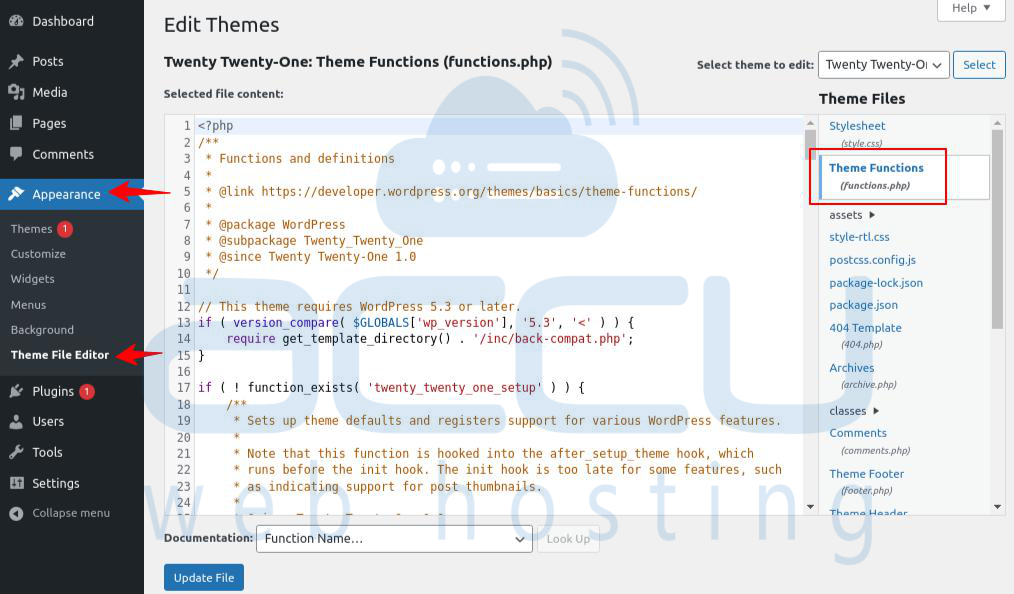
Add the below code to your functions.php file.
function disable_media_comment( $open, $post_id ) {
$post = get_post( $post_id );
if( $post->post_type == 'attachment' ) {
return false;
}
return $open;
}
add_filter( 'comments', 'disable_media_comment', 10 , 2 );
Step 3: After adding the above code, click on Update.
Method - 5: Disable Comments Using a WordPress Plugin
WordPress provides built-in plugins for enabling/disabling comments.
Step 1: Log into your WordPress Dashboard.
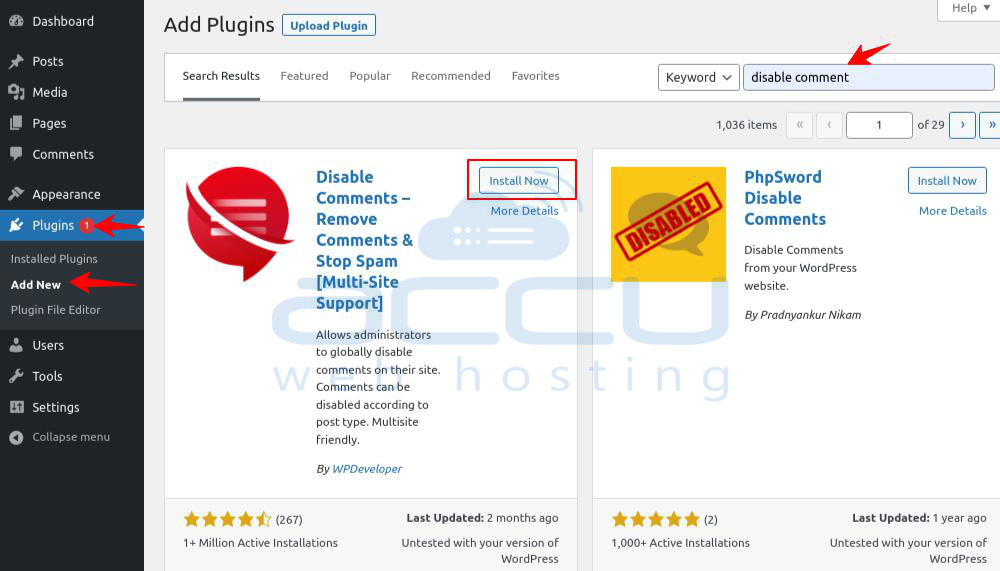
Step 2: Scroll down to the Plugins section, Add New.
Step 3: Search for the plugin (Ex. Disable Comments).
Step 4: After that, click on Install Now.
Step 5: Click on the Active button.
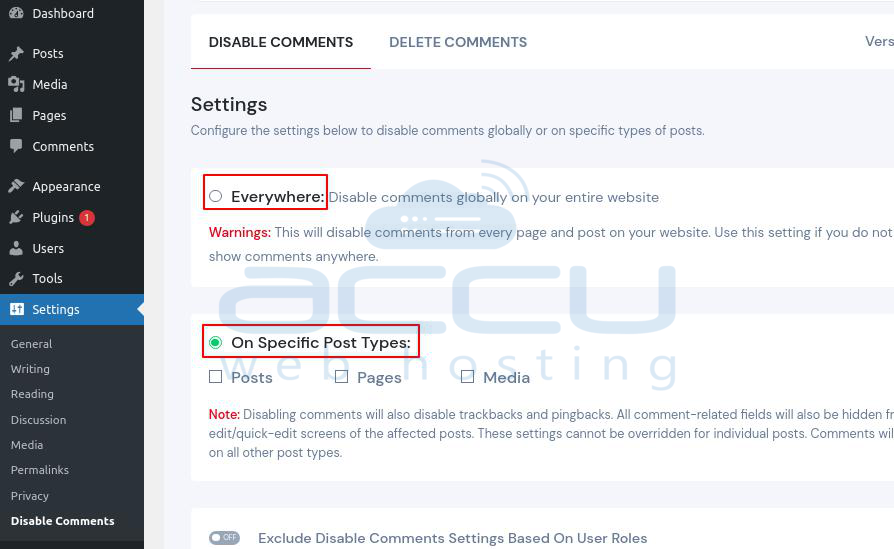
Step 6: Go to Settings > Disable Comments(Your installed plugin).
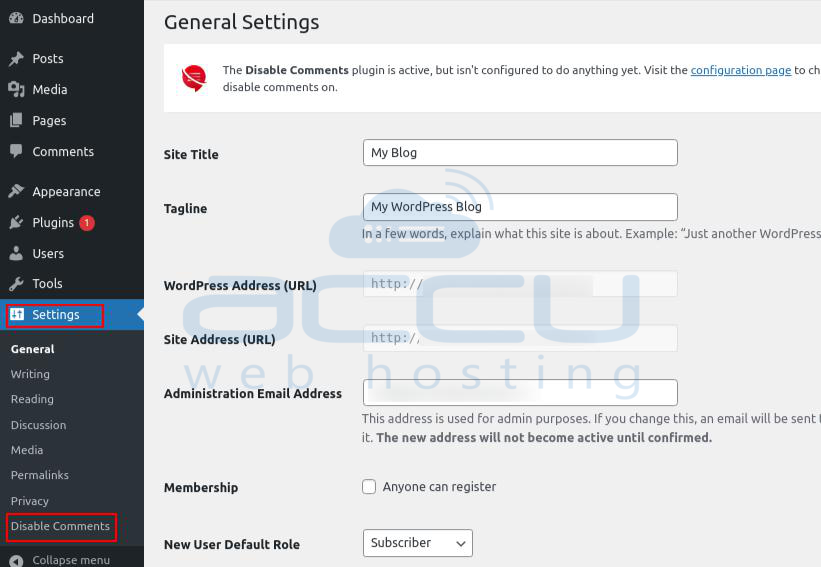
Here you can enable/disable comments Everywhere or On specific Post Types.
Method - 6: Enable or Disable Comments - Using Code
Step 1: Log into your WordPress Dashboard.
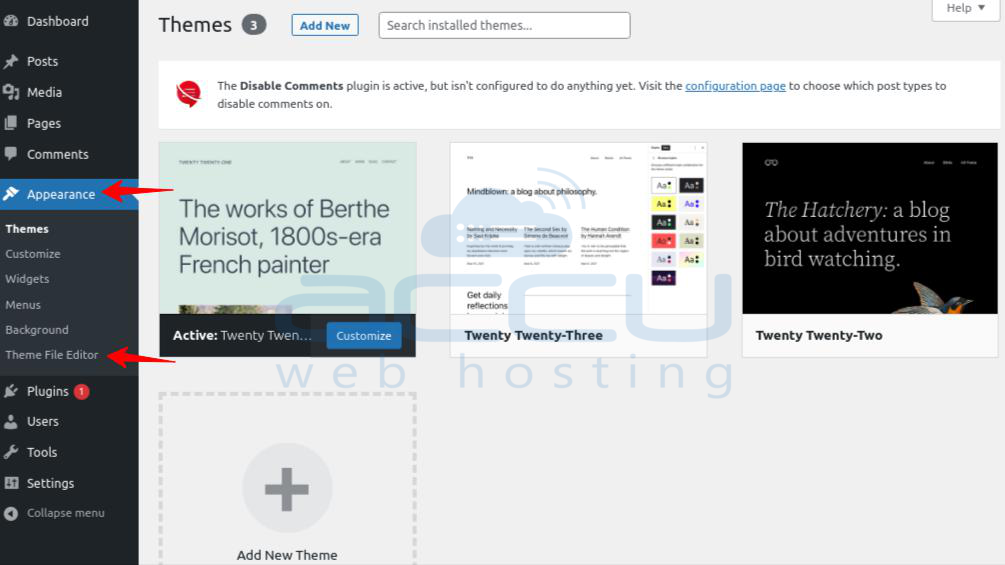
Step 2: Scroll down to Appearance > Theme File Editor.
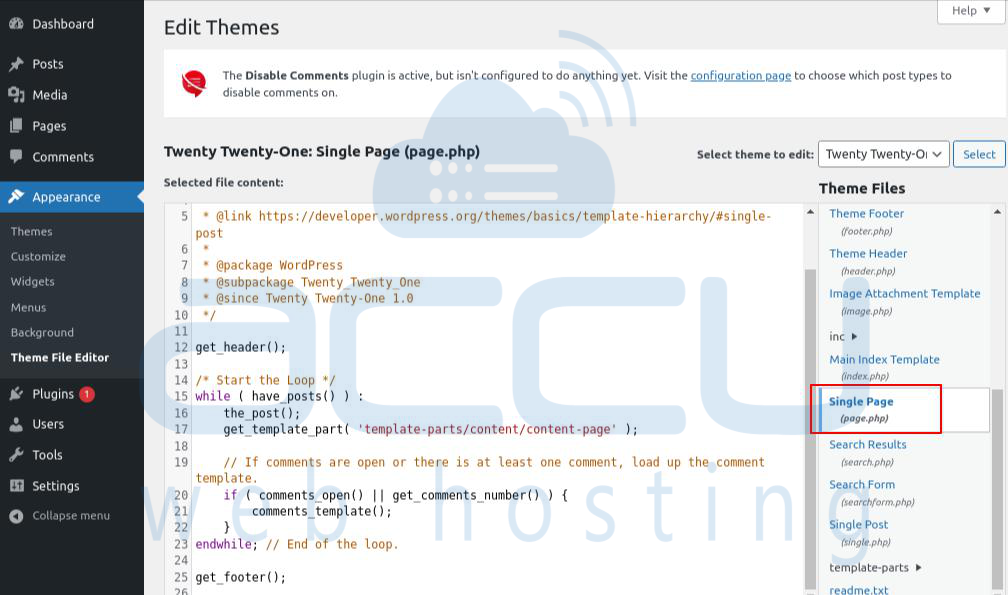
Step 3: Select the page.php file from the right side of the page.
Step 4: Add the below line to the page.php file.
<? php comments_template( '', true ); ?>
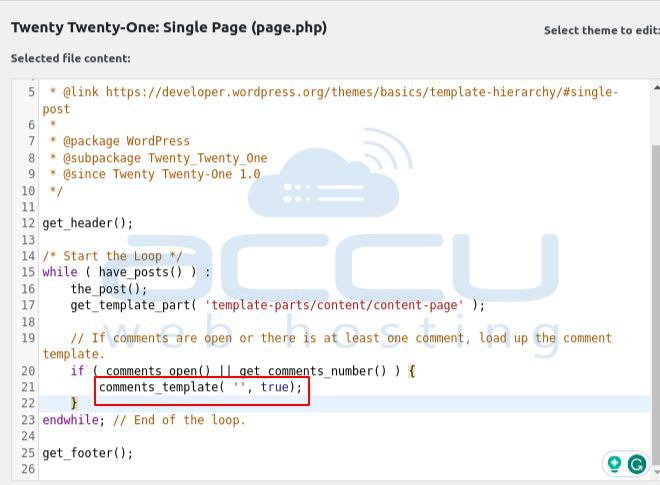
To Disable comments:
<? php comments_template( ); ?>
That's all.


