
WordPress is very popular for making websites because it's easy to use. But because it's widely used, it can be a target for hackers.
For example, the login page for every WordPress site is the same, and hackers can take advantage of this by trying to guess passwords. Security experts say this login page is the most at risk on a website. Hackers use special programs to try many passwords until they find the right one.
To keep your website safe, we'll explain five advanced ways to make your WordPress login more secure and stop hackers from getting in.
Why is it crucial to keep your WordPress admin section safe?
If someone your WordPress account, they can see all your information. This includes personal details of everyone who signed up on your site. If you take payments, it might even include credit card information.
This kind of security breach can harm your reputation a lot, and it might get you in trouble with the law depending on where you live because your website must keep customer info safe.
Even if you don't lose all your customers or get in trouble, fixing things after a cyberattack is very expensive. It's better to avoid that situation.
Some attacks aim at the WordPress admin area, like trying lots of passwords and usernames to get in. WordPress is weak against these attacks because it uses the same username and login web address for every site by default. If you use these defaults, a bad person only needs to guess your password.
You can make some changes to your WordPress login page to protect your account from many types of attacks.
Why Are WordPress Logins Easy to Attack?
WordPress is popular, and that's what makes it a common target for bad people. But what makes it vulnerable to attacks?
Hackers often check things before trying to break into a system. They know that some versions of WordPress have more weaknesses than others, and because WordPress has been around for a while, experts know where those weak points are. You can find the version number on your webpages and in the web address unless you remove it.
Checking your directory, or the list of things on your website, gives hackers useful information. They can see what plugins and themes you've added. Because WordPress uses open-source code, if you keep old or unsupported plugins in your directory, even if you're not using them, it's easy for hackers to get into your code. Once they're in, they can do harmful things like changing your code, taking control of your sessions, or locking you out of your own site.
Hackers can see what's in your directory by looking at folder locations and checking for something like "Index Of" in the response, such as:
/wp-content/
/wp-content/plugins/
/wp-content/themes/
/uploads/
/images/
They can also search for plugins with weaknesses in your directory using different tools. They can actively search using special tools or passively search through normal requests. They do this by examining the code on your website and looking for installed plugins in things like CSS styles, comments, and JS links.
How to Make Your WordPress Login Safer?
Now that you understand why it's essential to have a secure WordPress login, let's talk about how you can do it. We've gathered 16 methods to properly protect your WordPress login page so you don't have to risk the safety of your information or customer details.
1. Avoid using the default admin username
When you set up a new WordPress site, the first user account is automatically named admin. If you keep this username, hackers already have half the information they need to break in—they just need to find or guess your password.
If your username is currently admin, it's strongly recommended to change it. You can do this by going to Users > All Users on your dashboard sidebar and then editing your profile:
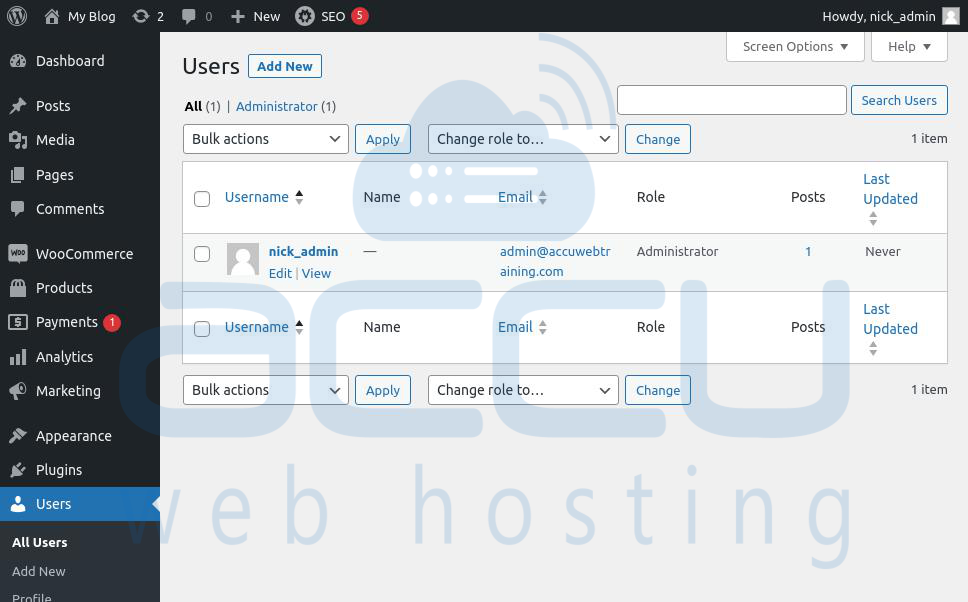
While you're there, make sure to use a strong password with a mix of uppercase and lowercase letters, numbers, and symbols.
Another option is to create a completely random password using WordPress' own generator or a tool like LastPass. To avoid forgetting it, consider using a password manager to store your credentials.
2. Put a Password on Your wp-admin Folder
Right now, anyone can try to access your wp-admin folder and login page without needing a username and password. The wp-admin folder has important files, so it's a good idea to protect it with a username and password.
You should be able to do this extra security step in your hosting control panel. If you use cPanel, find the Directory Privacy option:
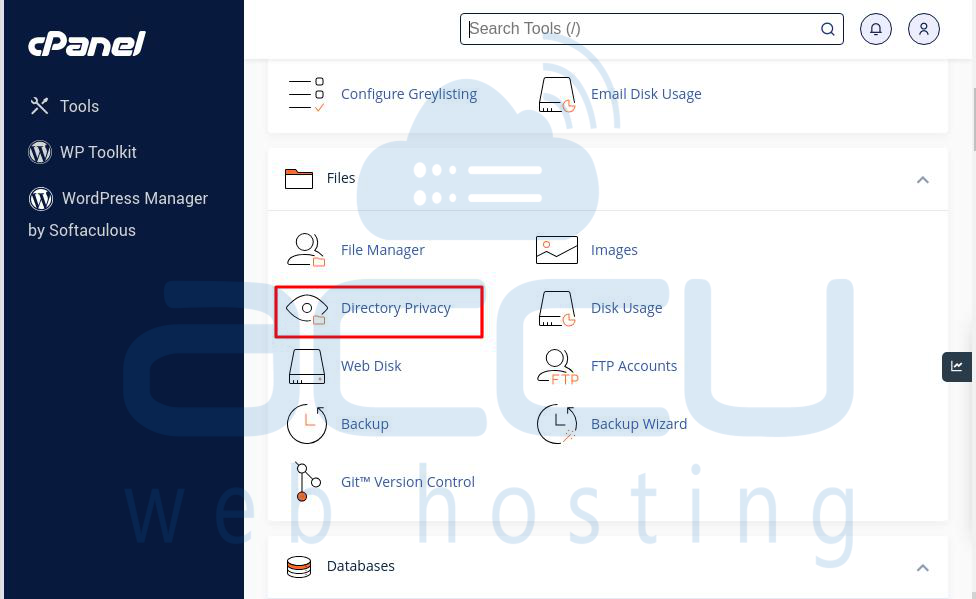
Then, go to public_html / wp-admin. Here, choose the "Password protect this directory" option:
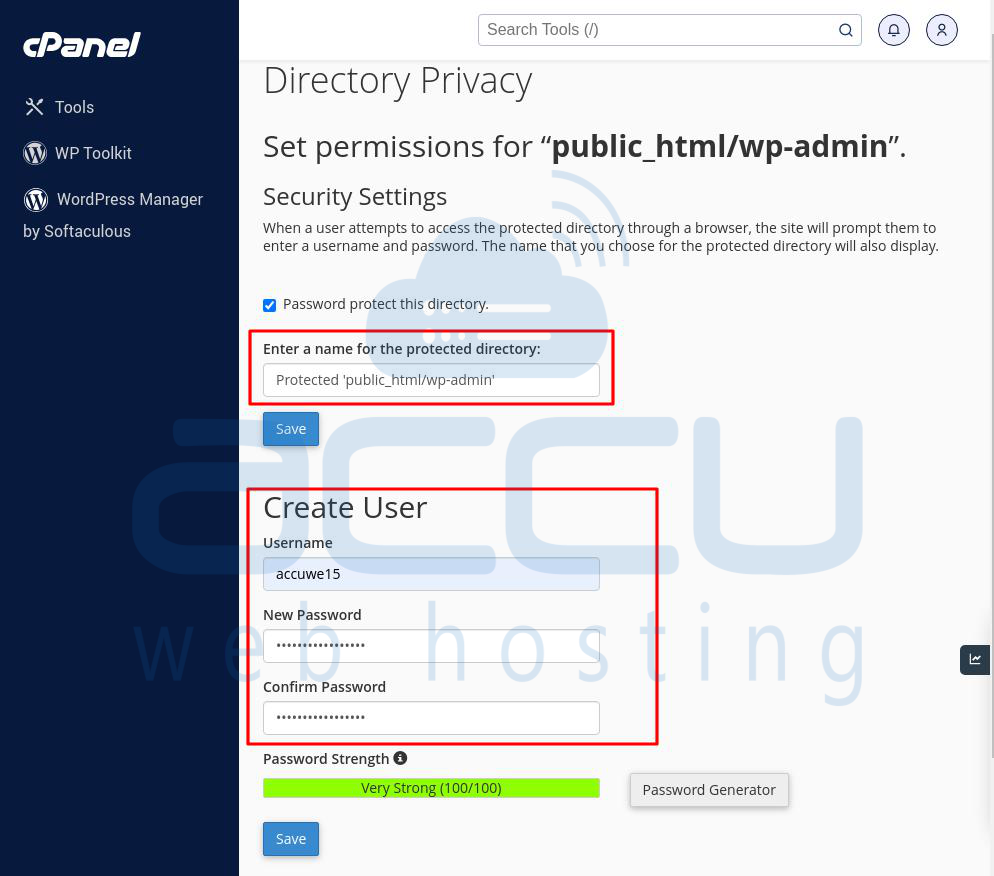
When asked, make up a username and password for your wp-admin folder and click on Save. Now, when someone tries to get into the wp-admin folder, WordPress will ask for this username and password.

3. Make a Unique Login url
You can get to the login page of any WordPress website by adding /wp-login.php to the website's web address. For example, if your website is www.example.com, then your login page is at www.example.com/wp-login.php.
If you're using the default WordPress login address, it's easy for anyone to find it. Even worse, if you're using the standard /wp-login.php address and the default admin username, a bad person already has two out of the three things they need to get into your admin area.
You can make a custom login web address using a plugin like WPS Hide Login. After installing it, go to Settings > WPS Hide Login in your dashboard menu. Then, you can enter a new web address in the "Login URL" field.
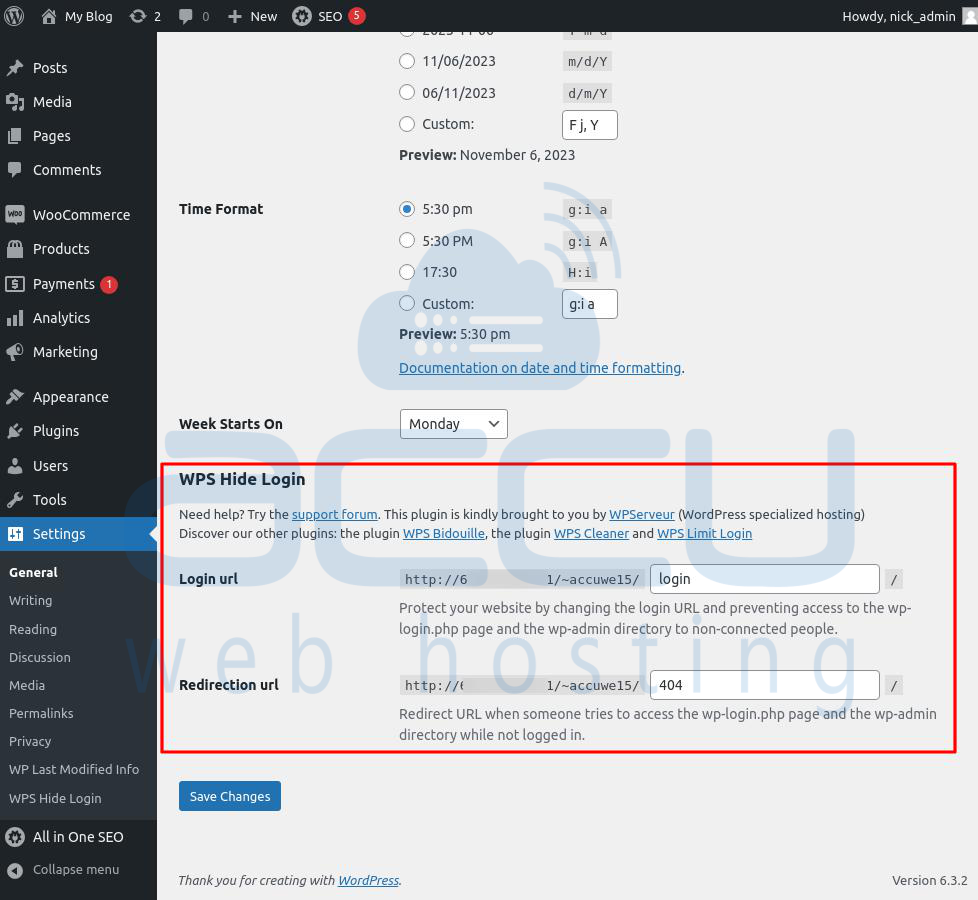
Save your changes, and from now on, your WordPress admin area can only be reached through this new web address. Even if a bad person knows your username and password, they won't be able to find your login page.
4. Stop Too Many Login Attempts
WordPress allows people to try logging in even if they enter the wrong password many times. This can make your website an easy target for repeated password guessing. Hackers might use a program to try hundreds or even thousands of passwords.
You can stop this by using the Wordfence Security plugin. After installing it, go to Wordfence > All Options. Then, under Firewall Options, choose Brute Force Protection:
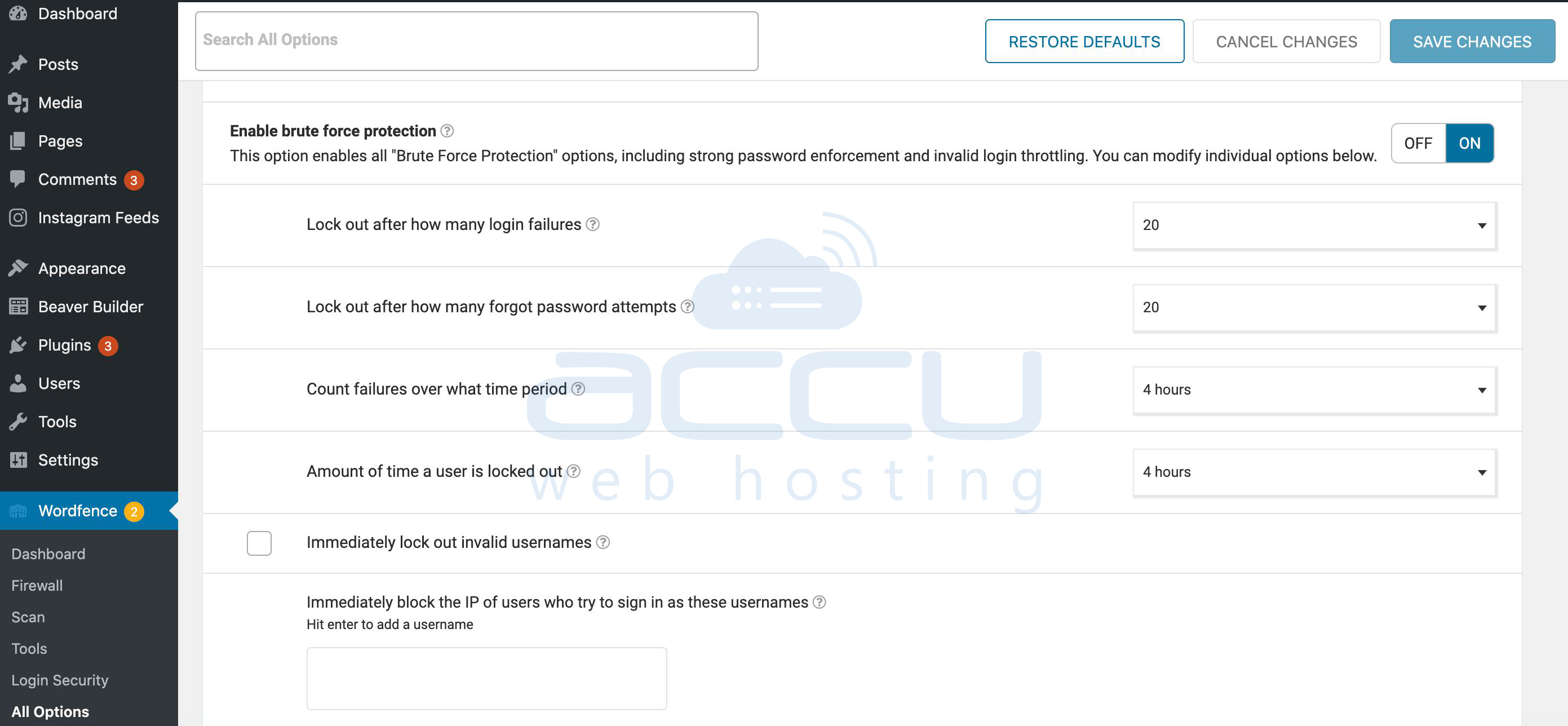
Now, make sure to turn on the "Enable brute force protection" option. You can also decide how many failed login attempts WordPress should allow before blocking the IP address causing the trouble.
5. Add Two-Factor Authentication (2FA)
2FA is like a double check for security. It means users have to pass an extra test before getting into your WordPress admin area. You can add this extra security to your WordPress account using a security plugin like Wordfence.
With Wordfence's 2FA, you install an app on your smartphone or tablet. When you try to log in to your WordPress admin area, a security code gets sent to your mobile device.
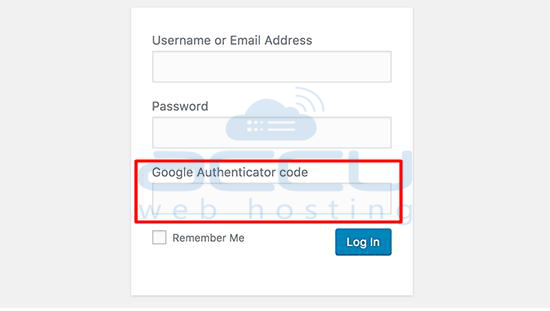
You have to enter this code on your WordPress login screen to prove it's really you. If a hacker doesn't have your phone or tablet, 2FA makes it a lot harder for them to get into your account.
You can also use 2FA to protect your ManageWP account, so attackers can't get into your websites that way either. To turn on this feature, log in to your account and go to your username, then Settings > Security:
ManageWP will guide you through setting up 2FA. They use the Google Authenticator app, which you can get for iOS and Android devices.
6.Use a Website Security Wall
A Website Application Firewall (WAF) keeps an eye on the visitors to your site and stops any strange requests from getting through. You can set up one of these using a plugin like Wordfence.
When you first install the Wordfence Web Application Firewall, it's a good idea to let it learn for at least a week. This way, Wordfence can watch your website and figure out the best way to protect it, while still letting real visitors in.
You can also make the firewall work better by going to WordPress > Firewall > Click here to configure. Wordfence will suggest a setup for your website, but you can pick a different one if you need to.
7. Limit Who Can Log In
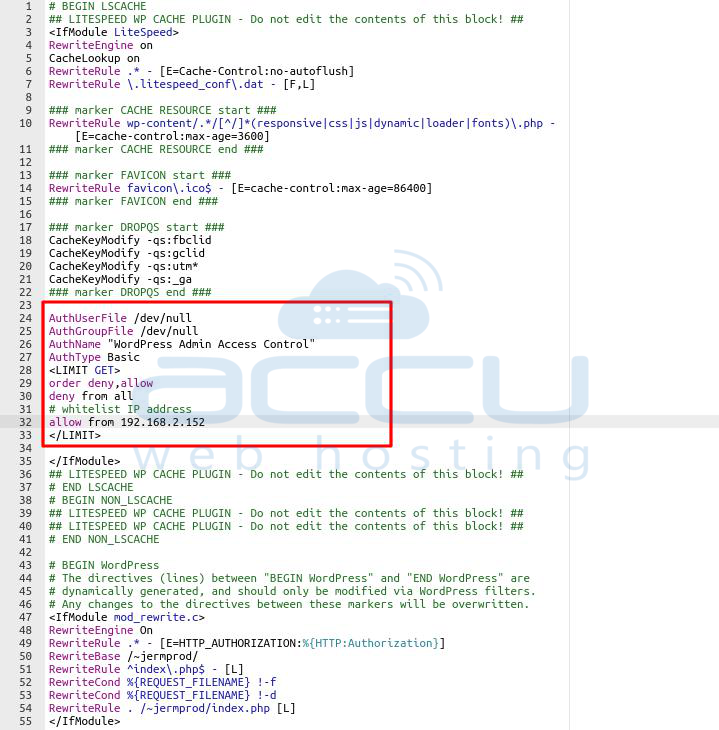
If only a few people need to get into your WordPress admin area, you can stop others from trying by editing a special file called .htaccess. This way, you can block everyone who isn't on a specific list of allowed IP addresses.
Before you edit the .htaccess file, it's a good idea to make a complete backup. You can get to the file using FTP (File Transfer Protocol) or your web host's file manager:
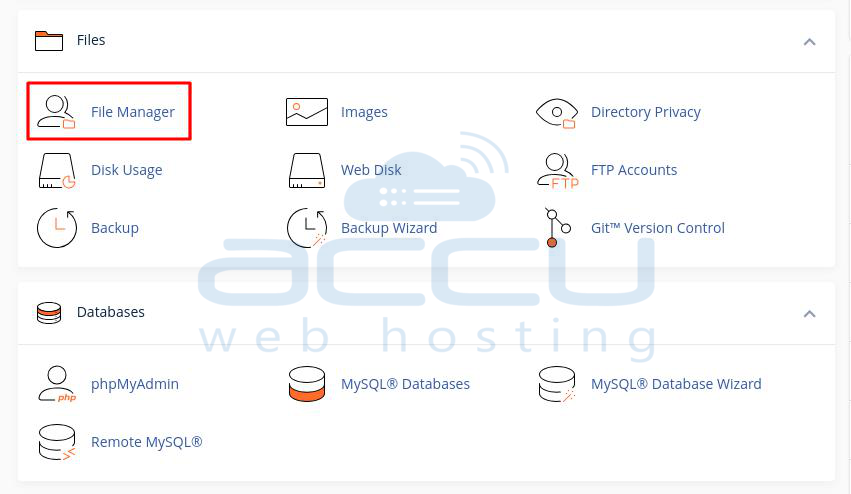
Once you find the .htaccess file and open it for editing, you can add this code:
AuthUserFile /dev/null
AuthGroupFile /dev/null
AuthName "WordPress Admin Access Control"
AuthType Basic
<LIMIT GET>
order deny,allow
deny from all
# whitelist IP address
allow from xx.xx.xx.xxx
</LIMIT>
Be sure to replace xx.xx.xx.xxx with your own IP address and save your changes. Now, only people with the specific IP addresses you listed can get into your WordPress admin area.
8. Automatic Logout
Auto logouts help keep websites safe from people trying to snoop around. When users don't do anything for a while, auto-logouts end their session to protect the website.
By default, WordPress logs a user out after 48 hours once the login session cookie ends. If the user selects "Remember Me," they stay logged in for 14 days. But if you want to end sessions after a period of inactivity, you'll need to add a separate plugin.
These plugins help automatically log out users who have been inactive:
Inactive Logout
iThemes Security
How to turn on auto-logout:
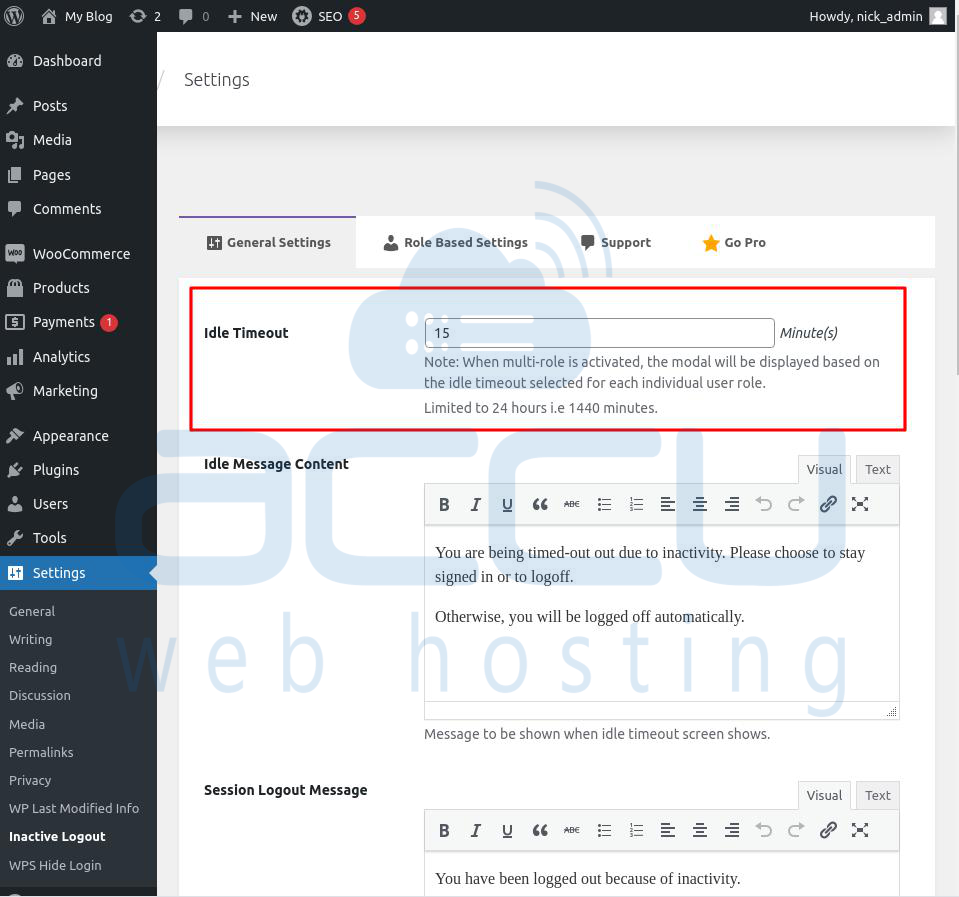
Activate the plugin and go to Settings → Inactive Logout → Basic Management. Set the time for how long someone can be idle before being logged out. There are options to set different times for different types of users, too.
9. Turn Off XML-RPC
XML-RPC is a WordPress feature that lets you publish content from somewhere else. You might want to keep it on if you:
Use the WordPress app
Use the Jetpack plugin
Use trackbacks and pingbacks
While XML-RPC is secure on its own, hackers sometimes use it to try breaking into your site with brute force attacks. If you don't need this feature, it's safer to turn off XML-RPC.
10. Remove old and unused accounts regularly.
Keep an eye on user privileges and make sure they're not suddenly changing. Keep a list of user accounts and get rid of any suspicious ones you didn't create.
Change all your login details often. Use an activity log to see what users are doing. Strange activity could mean someone's hacked an account.
11. Add CAPTCHA to the Login Page
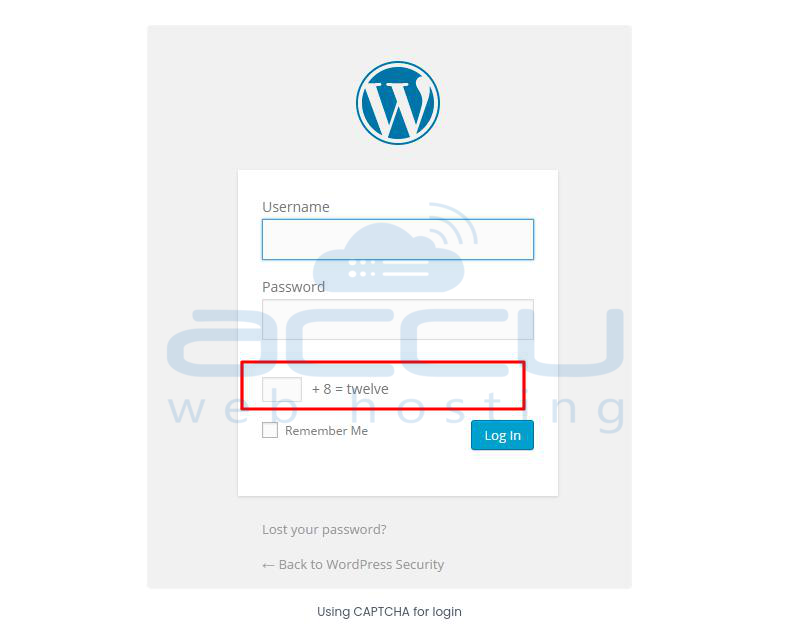
Putting a CAPTCHA on your admin area can stop hacking attempts because it blocks automated scripts from trying lots of passwords on your login page. To set this up, go to your dashboard, then click on Plugins → Add New, and search for 'CAPTCHA'. You'll find various WordPress Plugins to add CAPTCHA to your login page.
I'm using the Captcha plugin by BestWebSoft, which has a high number of active installs and a good rating. This plugin adds a new section to your login page. Once it's on, a CAPTCHA image will appear, and without solving it, no one can log in, even if they know the username and password. This helps stop automated attacks. You can see how the plugin looks in the image below.
Apart from this, you can also try other CAPTCHA plugins like SI CAPTCHA Anti-Spam, Really Simple CAPTCHA, and Math Captcha.
12. Keep WordPress Updated
WordPress often brings out new versions of the software. Each new WordPress release has important fixes for problems, adds new things, and makes the software more secure.
If you use an old version of WordPress on your website, it could have known issues and weak spots that bad people might take advantage of. To solve this, you need to use the latest WordPress version.
For more information about this topic, you can read our guide on why it's important to always use the newest WordPress version.
In the same way, WordPress plugins are often updated to add new features or fix problems, including security issues. Make sure your WordPress plugins are also up-to-date.
13. Stop Showing Login Hints
When someone tries to log in and fails, WordPress shows errors that let them know if it was the username or the password that was wrong. These hints can be used by someone trying to hack in, like in brute force attacks.
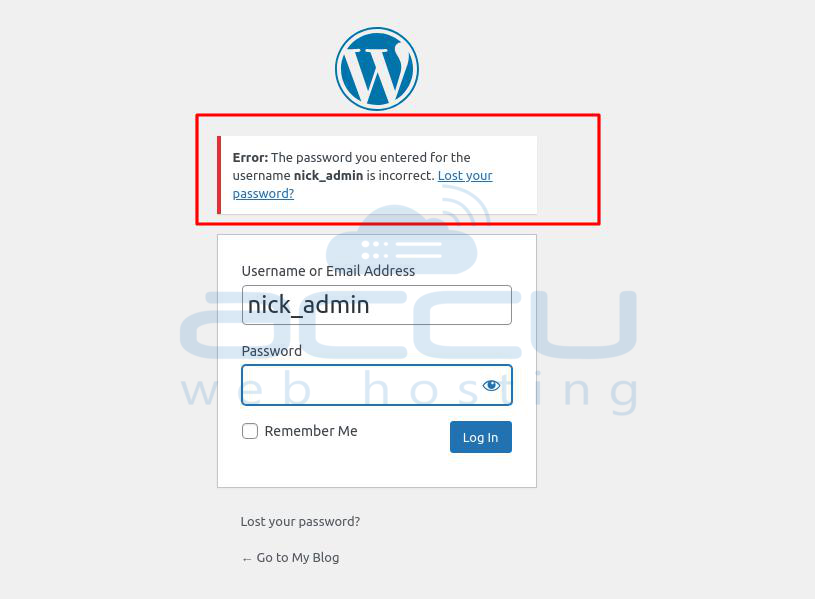
You can hide these hints easily by adding this code to your theme’s functions.php file or using a code snippets plugin like WPCode (recommended):
function no_wordpress_errors(){
return 'Something is wrong!';
}
add_filter( 'login_errors', 'no_wordpress_errors' );
For more information, check our guide on how to add custom code in WordPress without causing problems for your website.
14. Conceal Your WordPress Login Username
Another way to boost security is to hide your WordPress login username. While we focus a lot on creating a strong password, your username is also important. Often, it's visible to everyone, giving hackers a chance to cause trouble.
The quickest method to keep your username hidden is to prevent it from showing up in blog posts and author archives.
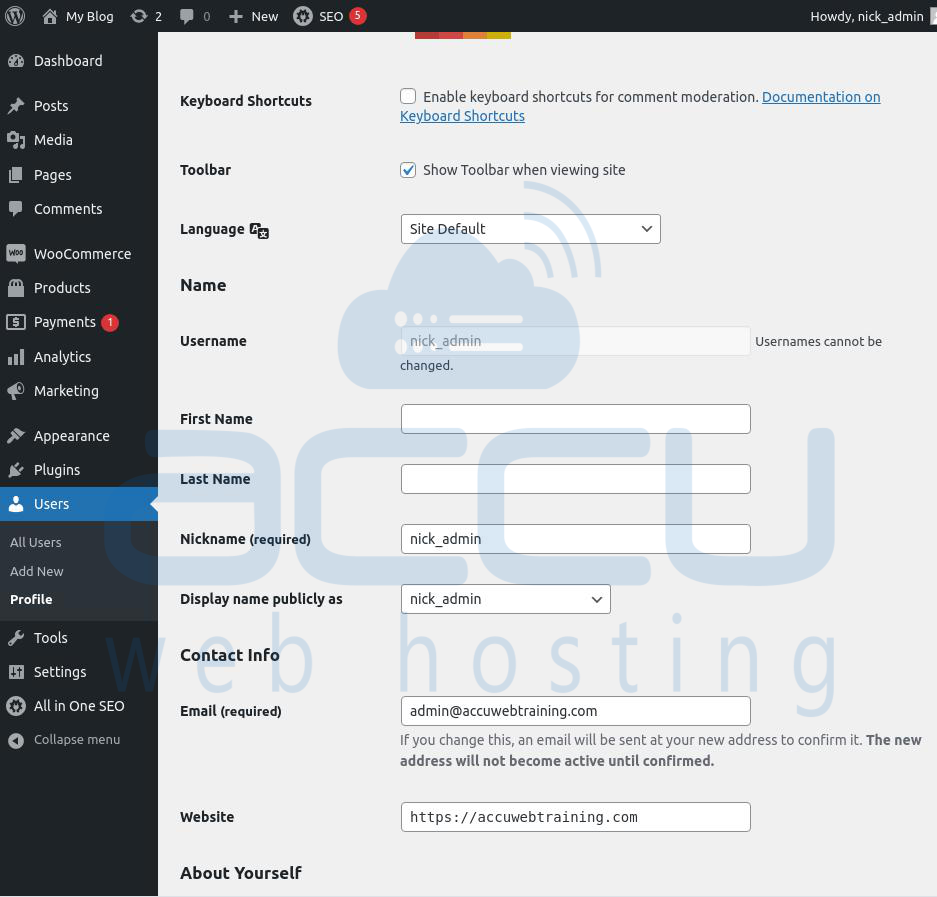
To hide your username in blog posts, go to Users → Profile → Nickname while you're logged into WordPress. Change the nickname so that visitors can't see your username. Instead of "nick_admin," they'll see your first name, full name, or another nickname you choose.
To hide your username from appearing in author archives, you'll need an SEO plugin like Yoast SEO.
Install Yoast and go to the SEO → Search Appearance → Archives menu in the WordPress dashboard. You can turn off author archives here. Save the changes.
15. Hide Your WordPress Version Number
To enhance the security of your login page, consider hiding the WordPress version number. This can make it harder for hackers to find potential weaknesses. You can easily remove it.
Find the functions.php file and (after backing up your site) add this line of code to the file:
remove_action('wp_head', 'wp_generator');
Conclusion:
Hackers want to get into your WordPress admin area, but you can do things to defend your website against their attacks. Doing this can stop harm to your reputation, legal trouble, and costly fixes for your site.
To protect your website, information, and visitors, we suggest making it really hard for hackers to get into your login page. You can do this by changing the usual wp-login web address to a unique link, using a WAF, and restricting logins to specific IP addresses if possible.


