
What are WordPress Auto Updates?
WordPress features that automatically check for any new updates. For security purposes, WordPress automatically upgrades the core WordPress software. It might also update a plugin or theme to address a potential security concern.
Sometimes it may cause problems, and the most severe problem with auto updates is that they sometimes crash your website. Website crashes may occur due to incompatibilities between the code of your plugins and themes.
Pros:
- If the user checks for any updates, it takes time, so auto-updates reduce time and effort.
- Changes to your website are more in your hands.
- You may prevent website errors and functional issues by ensuring that all of your plugins and themes are compatible with new upgrades.
Cons:
- Another issue with auto-updates brings unwanted features and changes to your site.
- You can overlook crucial security updates, leaving your website open to attack.
- To disable themes and plugins on your website, please follow the instructions provided in the following article: Themes & plugin
Types of WordPress Auto Updates
Core updates: contains WordPress core files.
Theme updates: Update related to your installed Theme in your WordPress
Plugin updates: Update related to your installed plugin in your WordPress
Translation file update: WordPress supports various languages, and translation updates help them.
How to turn off Auto update: No Plugin
Step 1: Add code to your wp-config file
Go to cPanel > public_html > wp-config.php
Add define( 'WP_AUTO_UPDATE_CORE', false ); to wp-config.php file.

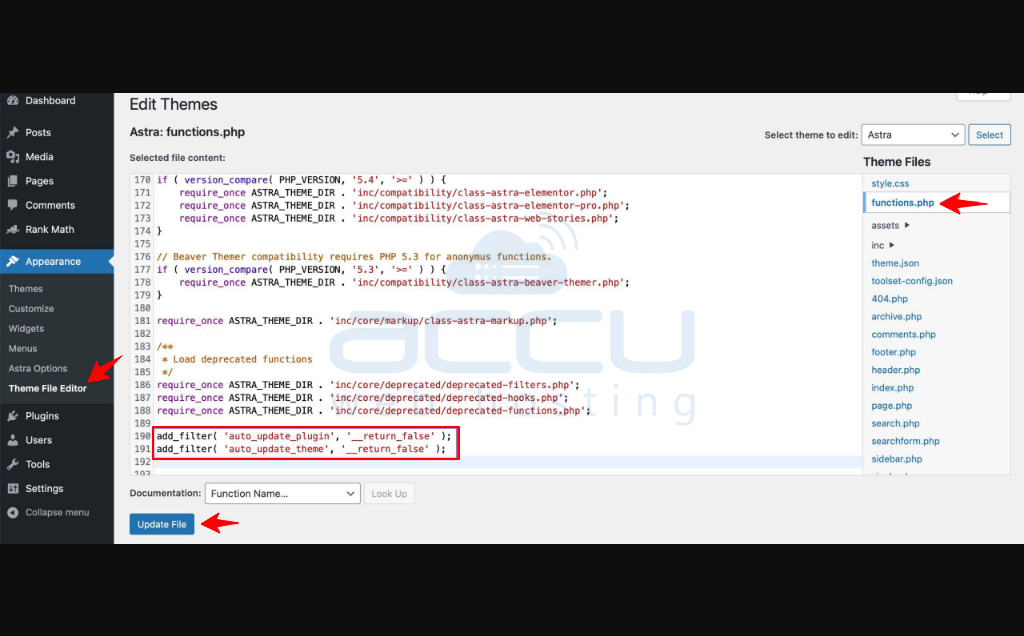
Step 2: Disable auto update by adding filter code
To turn off automatic updates from your plugins and themes, add code to your theme, select your theme, and open the function.php file.
To access function.php, go to Dashboard > Appearance > Theme Editor and choose your function.php file.
add_filter( 'auto_update_plugin', '__return_false' );
Turn off updates for the theme and add the following code :
add_filter( 'auto_update_theme', '__return_false' );
How to turn off auto updates: with a plugins
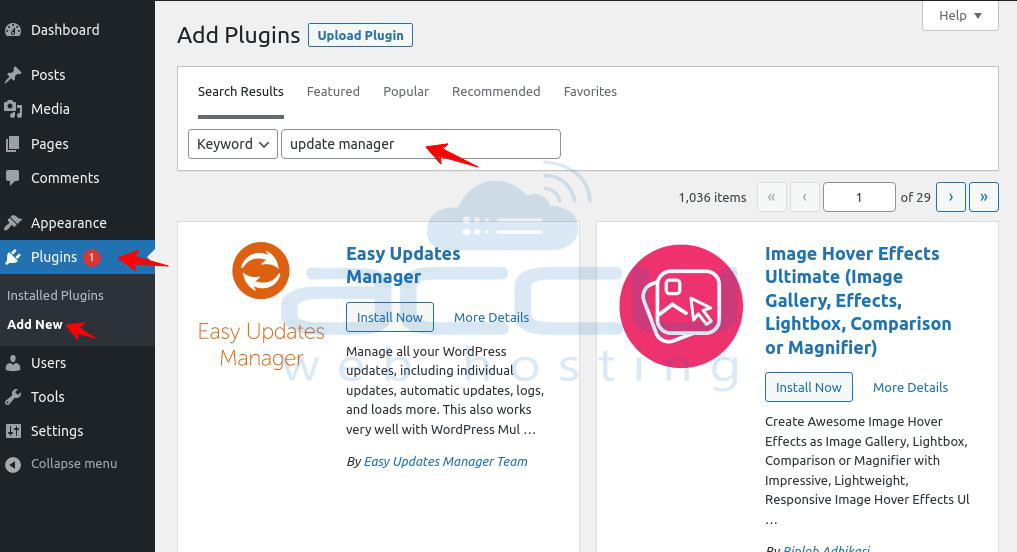
Step 1: Download an update manager plugin
There are several WordPress plugins that manage updates.
With this solution, you can easily manage updates for all of the WordPress elements on your website, including the core files, themes, and plugins. Additionally, it functions with multisite WordPress installations.
To install the update manager plugin, go to the Dashboard > Plugins > Add New > search for update manager plugins. Click on Install and activate them.
Step 2: Configure your update option
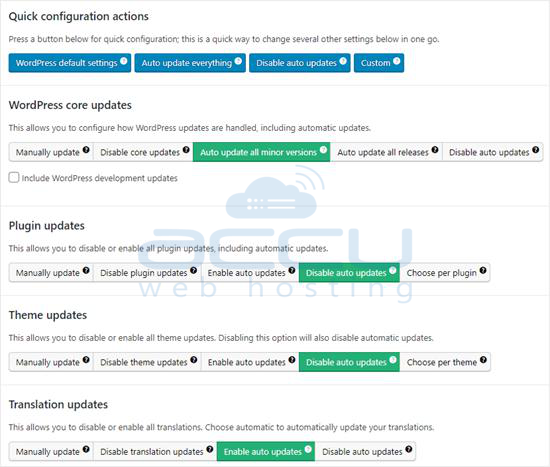
Go to the Dashboard > Updates Options to turn off all the updates.
You will be redirected to your Updates Manager plugin settings after doing this. Toggle the "Disable all updates" option to stop all updates.

Step 3: Disable Specific Plugins and themes
WordPress allows disabling of specific plugins and themes.
Go to your WordPress Dashboard > Plugins > Installed Plugins, choose the plugin you want to disable and click Disable auto-updates.
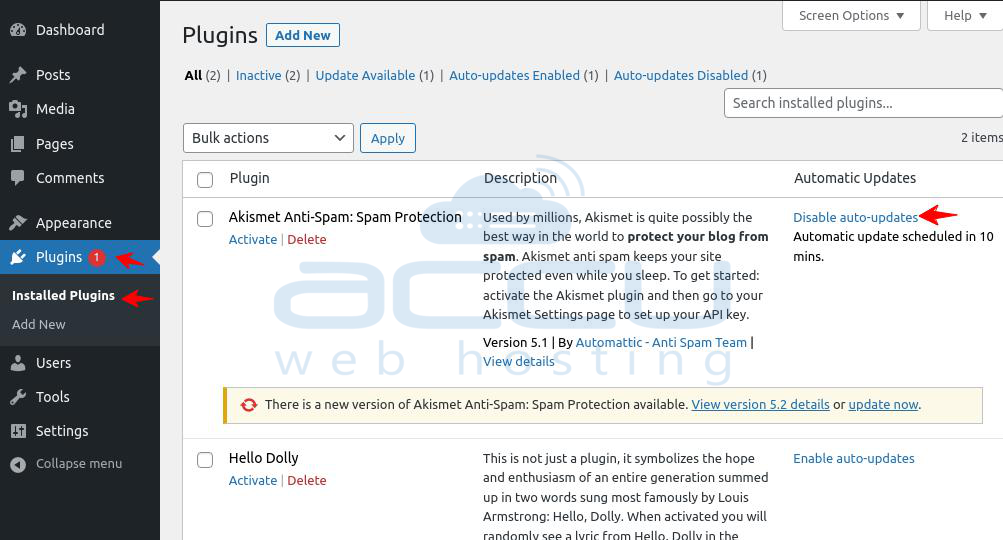
To turn off specific themes, navigate to WordPress Dashboard > Appearance > Themes > Select your theme, and click Disable auto-update.

To keep your website secure and perform well, regularly update your plugin, themes, and other updates. Before any updation, take a backup of your data to avoid data loss.
That's all.


