
Introduction on Error HTTP status code 406 is not acceptable:
When working with web applications and APIs, encountering HTTP status codes is a common occurrence. One such status code is 406 "Not Acceptable," which indicates that the server cannot fulfill the request because the client's requested content format is not available or acceptable. In this article, we will guide you through the steps to resolve the HTTP status code 406 and ensure smooth communication between clients and servers.
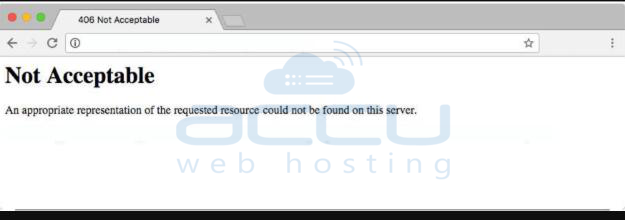
Understanding the HTTP Status Code 406:
The HTTP status code 406 is part of the HTTP response status codes family. It occurs when the server cannot generate a response matching the criteria defined in the "Accept" header field sent by the client. The "Accept" header specifies the media types (e.g., JSON, XML) that the client can handle or desires in the response. If the server does not support or cannot deliver the requested media type, it responds with a 406 status code.
What is the main cause of HTTP status code 406 is not acceptable?
The main cause of the HTTP status code 406 "Not Acceptable" is typically due to a mismatch between the requested content format specified by the client and the available or supported formats on the server side.
When clients communicate with servers, they include an "Accept" header in their request. This header specifies the media types or content formats that the client can handle or prefers in the response. The server examines this header to determine if it can provide a response in a format that aligns with the client's preferences.
When the server cannot produce a response in any of the requested media types or when the requested formats are not supported or available, it will send back a 406 status code as a response. This status code indicates to the client that the server cannot fulfill the request based on the provided content format preferences.
It's worth noting that receiving a 406 status code doesn't necessarily indicate an error. Instead, it signifies that the server lacks the capability to provide the desired content format or that the client's requested format is not supported.
Now, let's dive into the steps to resolve this Error:
It's a good idea to create a backup of your website or application before attempting to fix a 406 error. When you make modifications to your website's source code, it can occasionally result in additional problems. Hence, it is crucial to create backups of your database and site files to guarantee that they can be restored if the need arises.
Safeguarding your data through regular backups ensures its availability and provides a safety net in case any unforeseen circumstances occur. Having a backup acts as a safety net in case any issues arise during the code changes. Be sure to perform a comprehensive backup that includes everything from the database and application to the media elements and site files. This gives you a complete copy of your website or application to refer to when you need it.
Now that we have a better understanding of why the 406 error occurs, let's see the most effective ways to fix this error and prevent future recurrences.
These methods involve addressing various causes, including those on the client side (where a user makes a mistake or the device isn't functioning properly), server-side causes, and issues related to the platform, such as problematic plugins. By examining each of these potential causes, we can identify the specific source of the 406 error and take appropriate actions to resolve it.
1. Ensure that the URL is accurate and valid
If you ever come across a 406 error, the first thing you should do is check if the URL you entered is accessible. Often, this error occurs due to a wrong URL format or a small mistake you might have made. Make sure the URL you use does not contain spaces or other illegal characters. By double-checking the URL for any inconsistencies, you can potentially resolve the 406 error and get things back on track.
To fix the problem, start by verifying the URL you previously used that caused the error. You can try typing it again or experiment with a different subdomain on the website to see if the issue is specific to just one page that is not displaying correctly.
Although a 406 message is technically classified as a client-side error code (even though it's commonly associated with platform or server issues), it's essential to begin by checking if anything is amiss on the client side. Taking this step is the initial action you should prioritize to identify the underlying cause of the problem.
2. Rollback to Your Recent CMS updates.
If you made any recent updates to the content management system like Wordpress and encountered the 406 Not Acceptable error, it's worth considering reverting back to the previous version of the system that you had installed. This means going back to the version you had before the update, which may help in resolving the issue.
Likewise, if you have recently upgraded any extensions or modules, they could potentially cause server-side problems. In such cases, reverting back to the previous versions of those extensions or modules might be beneficial in resolving the issue.
If you wish to revert WordPress to a previous version, there is a user-friendly solution available. You can utilize a plugin called WP Rollback, which simplifies the process and allows you to easily roll back WordPress to the desired previous version.
You can follow the below steps to rollback your Wordpress version:
Step 1: Log in to your WordPress dashboard.
Step 2: Go to the "Plugins" section to your Wordpress dashboard.
Step 3: Now search for the WP Rollback plugin in the search box and install it.
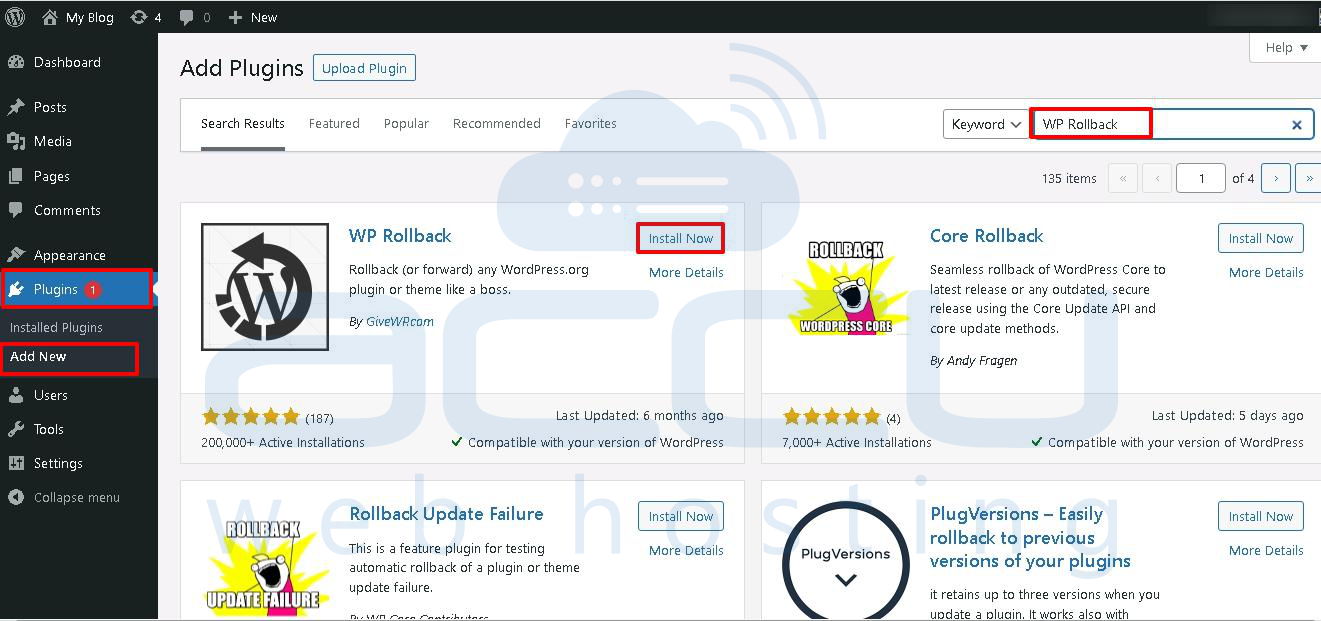
Once this plugin is installed, it will let you through the all-installed Plugins tab.
Step 4: Search for the WP Rollback plugin and click on the "Rollback" link under this plugin.
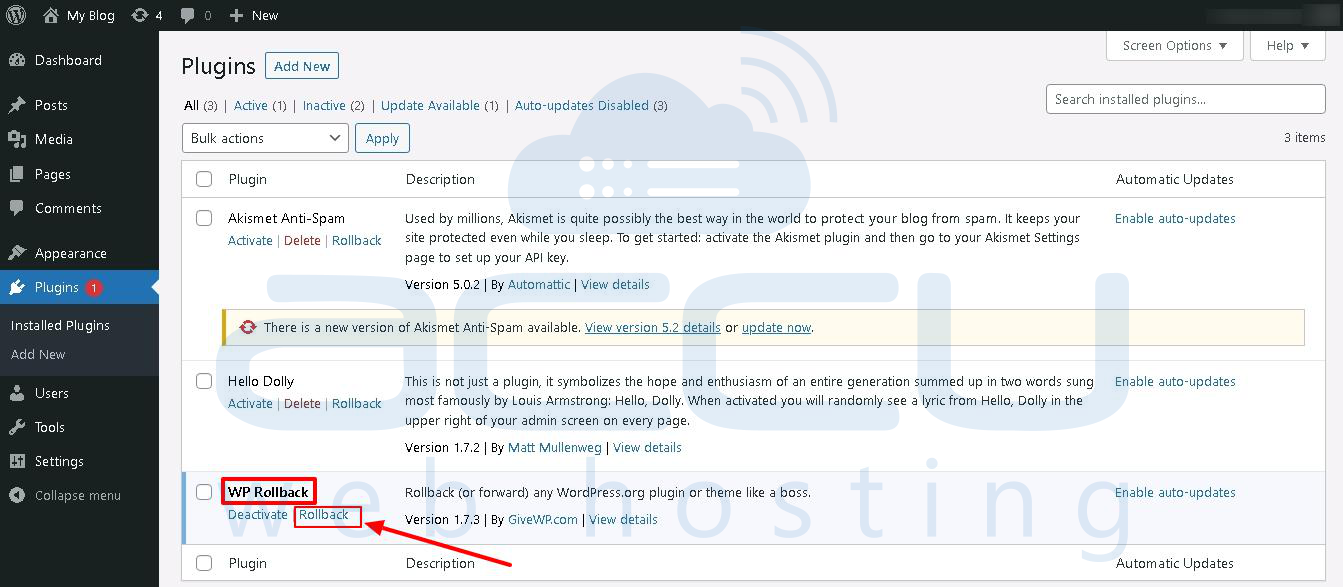
Step 5: Now, select the version that you want to Roll back to.
Step 6: Click on the "Rollback" button.
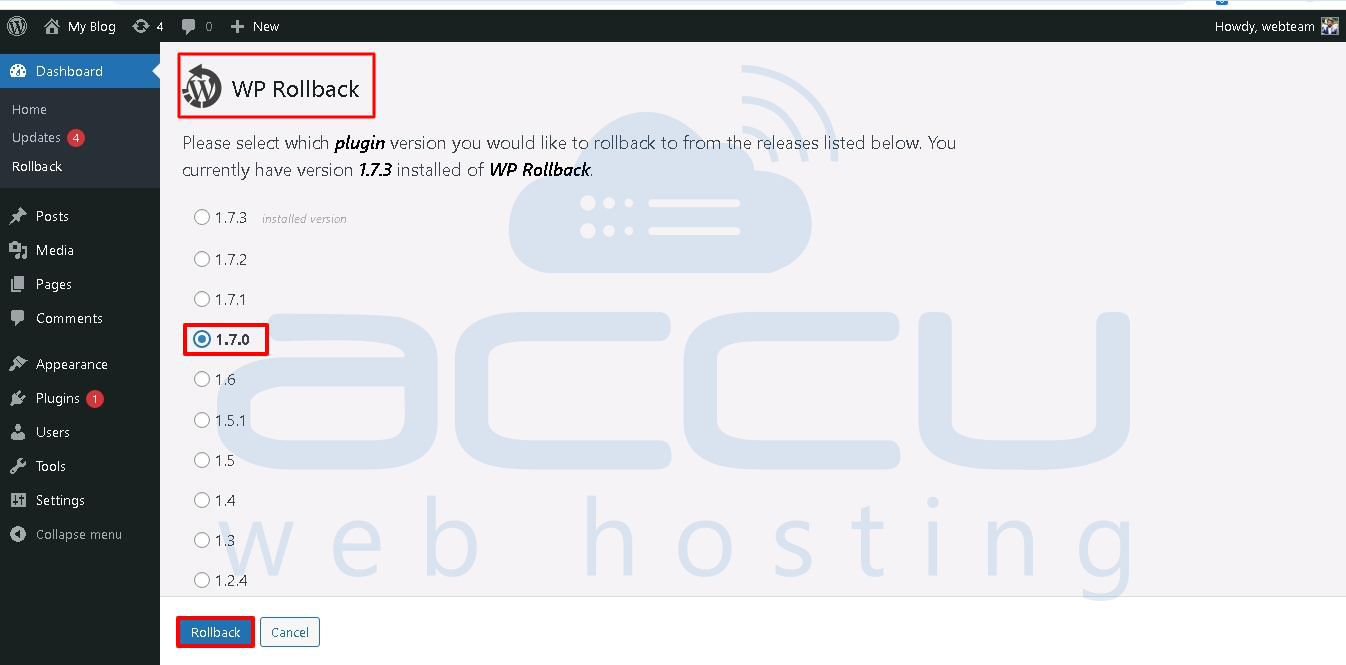
You can follow the same steps for rolling back the Wordpress, plugin, or Theme versions.
When working with a content management system (CMS), it's important to keep its components like plugins and themes updated. However, sometimes these updates can cause issues, and it becomes necessary to rollback to a previous version to identify the source of the problem.
Before making any updates or modifications, it is crucial to create a backup of your website. Having a backup ensures that you have a duplicate of your data in case anything goes awry, thereby safeguarding against potential data loss. Taking this precautionary step ensures the safety of your website and its content.
3. Try uninstalling and then reinstalling the plugins, themes, or extensions
Using reliable and high-quality plugins and themes typically minimizes the occurrence of such issues. However, there are cases where conflicts can still arise and create problems.
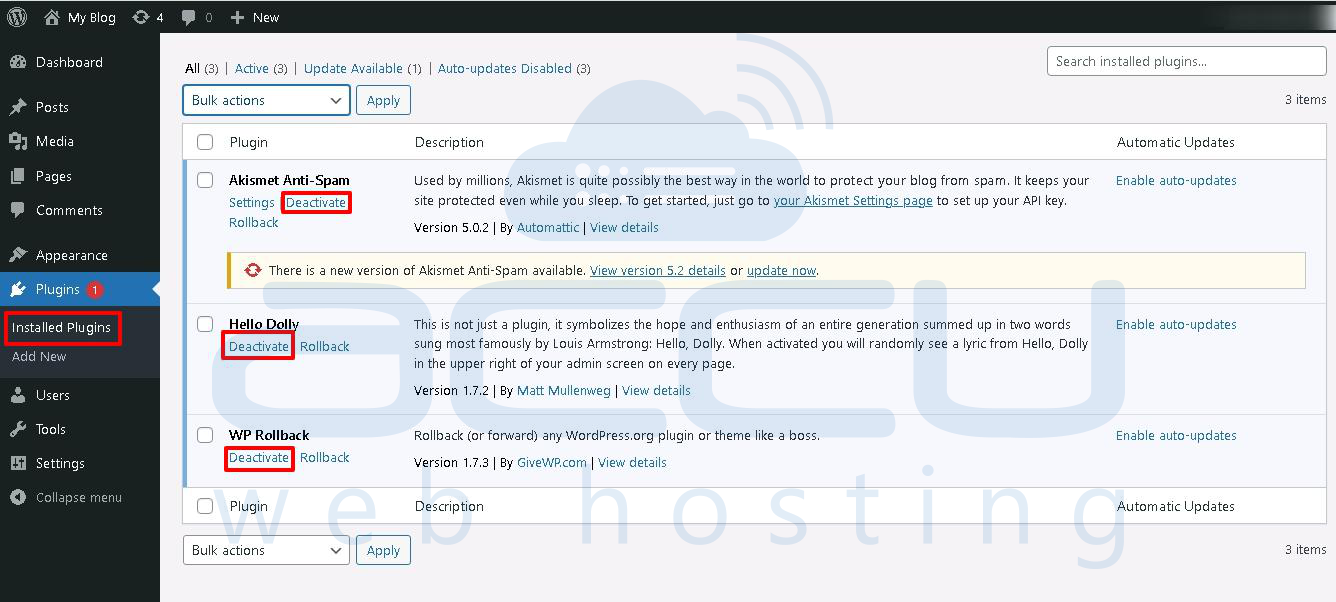
In such situations, we recommend disabling all plugins to determine the cause of the problem.
By deactivating all the plugins, you can check if the error disappears. Then, one by one, reactivate the plugins to identify which one is causing the problem. This step-by-step the process helps pinpoint the specific plugin responsible for the issue and allows you to address it accordingly.
Once you have deactivated each plugin, verify if the 406 error has disappeared. If it has, you have identified the problem plugin. However, if the error persists even after deactivating all the plugins, try reinstalling the plugin or theme that was originally causing the issue and proceed with uninstalling the next one. This iterative process helps narrow down the specific plugin or theme causing the 406 error.
4. Ad blockers and firewalls
Ad blockers and firewalls can sometimes disrupt website access, leading to a 406 Not Acceptable error. If you have an ad blocker enabled, consider temporarily disabling it to see if it resolves the issue. This step allows you to identify if the ad blocker is causing the problem and helps determine the appropriate course of action.
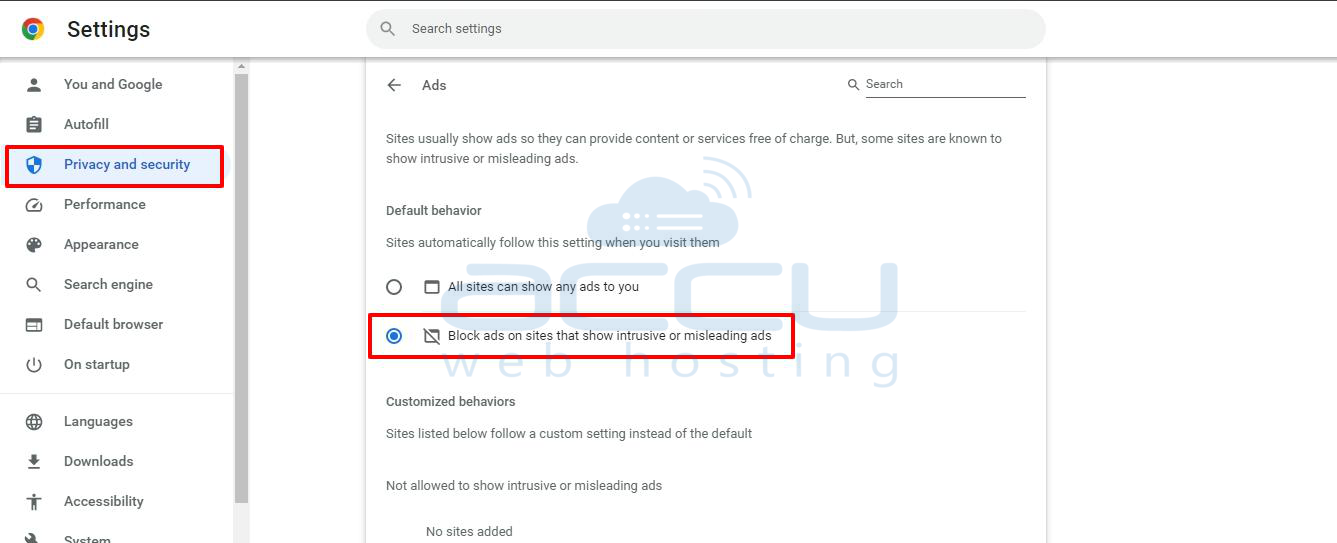
If you have a firewall installed on your computer or network, turn it off temporarily and see if that solves the problem.
If you have an ad blocker enabled in your browser, you can also temporarily disable it. This will allow you to see if these security measures are causing conflicts and determine if they are causing the issue you are experiencing. After taking these steps, test your website again to see if the 406 Not Acceptable error is resolved.
If the error still persists even after disabling the ad blocker or firewall, it's time to explore other potential solutions to address the issue.
5. Browser settings and Clear cache and cookies:
As you may be aware, cache and cookies can often be the main cause behind various errors. In the case of a 406 error, it's possible that the issue stems from outdated data stored in your browser's cache. To address this, try clearing your browser cache and performing a hard refresh of the page. This action can help ensure that you're loading the most up-to-date version of the website and may potentially resolve the 406 error.
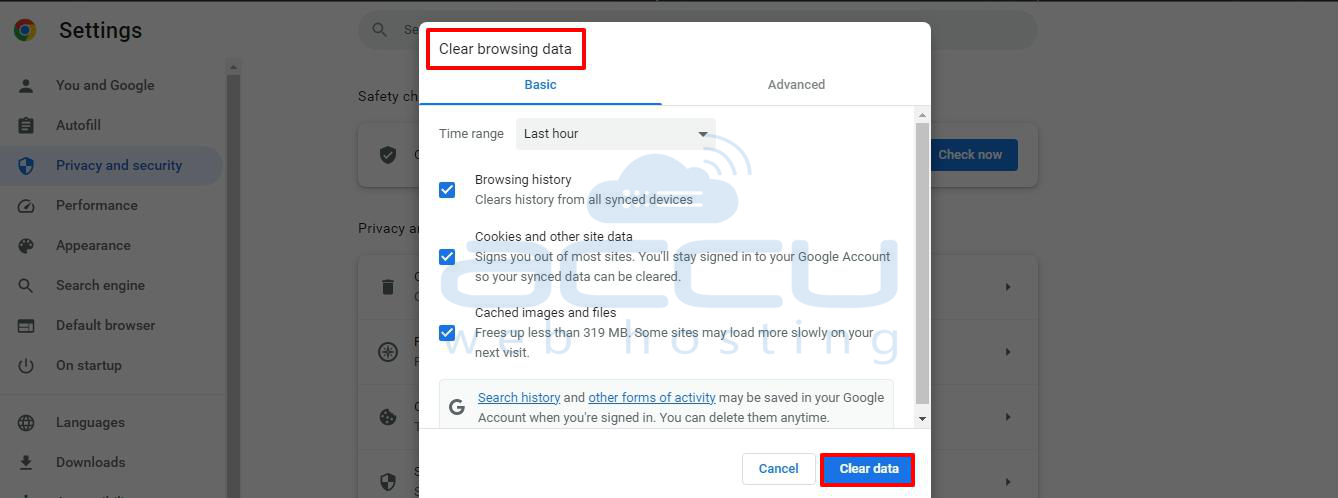
You can try accessing the resource using a different browser or device as an alternative. Different browsers may have varying default settings for request headers, such as the Accept header, which could potentially cause the issue and restrict access. To check this, if you're currently using Chrome, switch to another browser such as Safari or Firefox.
Using a different browser can help determine if the problem is specific to the browser you were using previously. If the issue persists in multiple browsers, it indicates a server-side issue and should be investigated further.
6. Look through the Error Logs
Now, let's shift our focus towards resolving issues that pertain to the server side, rather than those associated with the client side or CMS. These tips will be helpful if you're not using a CMS or if you're sure that the 406 error is not connected to your CMS or client machine.
To check from the server side, the first thing you can do is to revie the logs generated by the server. Regardless of the type of web application, CMS or web design system, all logs with important information are saved. These logs can provide insights into what might be causing the 406 error.
If you are on the Linux environment and using the cPanel, you can follow the below steps to check the server logs.
Step 1: Log in to your cPanel account.
Step 2: Navigate to the "Metrics" section in the cPanel dashboard.
Step 3: You will see the “Errors” option under the “Metrics” section
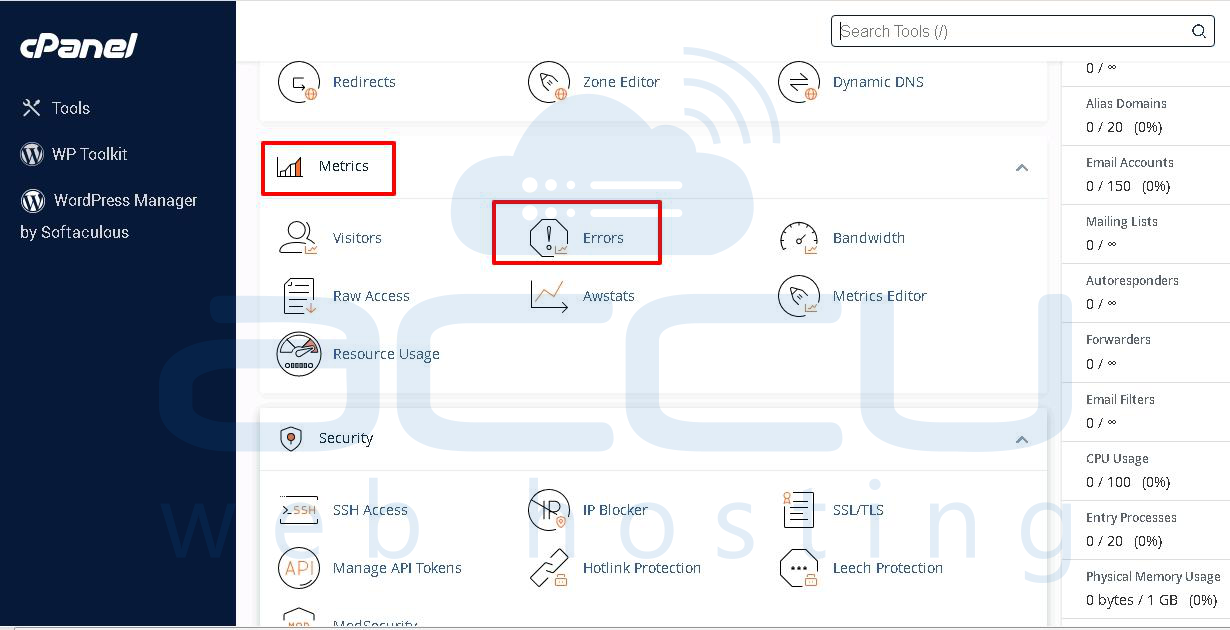
Here, you will see a list of error logs related to your website, if any.
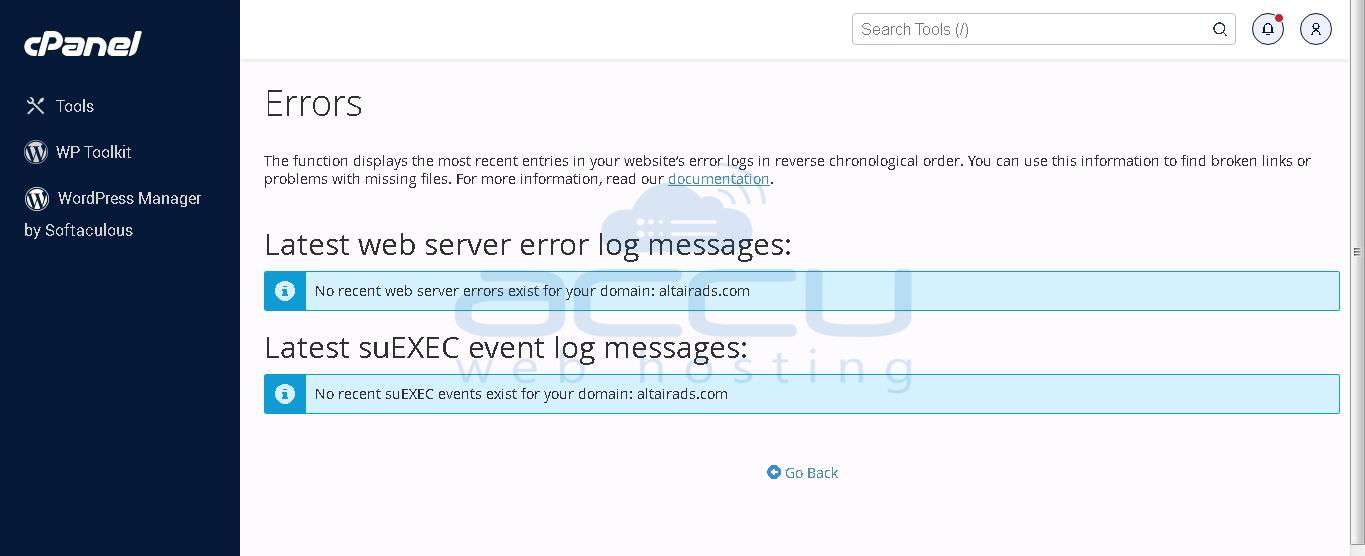
Reviewing the server log allows you to pinpoint any problems in the client's request or the server's response that could be responsible for the 406 error.
Pay attention to the log entries that are specifically associated with the 406 error. These entries may contain details about the client's request headers, the server's response headers, and any error messages generated by the server.
Once you have identified the underlying cause of the 406 error, take the necessary actions to resolve it. This might involve adjusting ModSecurity rules, modifying request headers, clearing the browser cache, or other appropriate measures depending on the root cause of the error.
7. Debug Your Application Code or Scripts
If none of the previous solutions work, there might be an issue with the custom code in your application. To diagnose the problem, you can manually debug your application and carefully analyze both the application and server logs.
To accomplish this, it is advisable to make a duplicate of the entire application on a local development machine. After that, proceed with a systematic debugging process, taking it step by step. This way, you can recreate the specific scenario that triggered the 406 Not Acceptable error and closely examine the application code at the moment the issue occurs. By following this approach, you can gain insights into where the problem may originate and work towards resolving it.
Conclusion:
The HTTP status code 406 "Not Acceptable" occurs when the server cannot fulfill a client's request due to unsupported or unavailable media types. By following the steps outlined in this artic, you can effectively resolve this issue and establish smooth communication between clients and servers. With these practices in place, you can overcome HTTP status code 406 and ensure a better user experience for your web applications and APIs.


