
Learn how to change the author of a WordPress post using Quick Edit or the post editor. Step-by-step guide for easy author management.
Why Change a Post Author in WordPress?
There are many scenarios where you may need to update the author of a WordPress post—for example, when assigning articles to a different team member, correcting authorship, or reassigning blog posts after a contributor leaves. WordPress makes this process simple.
Method 1: Change Author Using Quick Edit
Step 1: Log in to your WordPress Admin Dashboard.
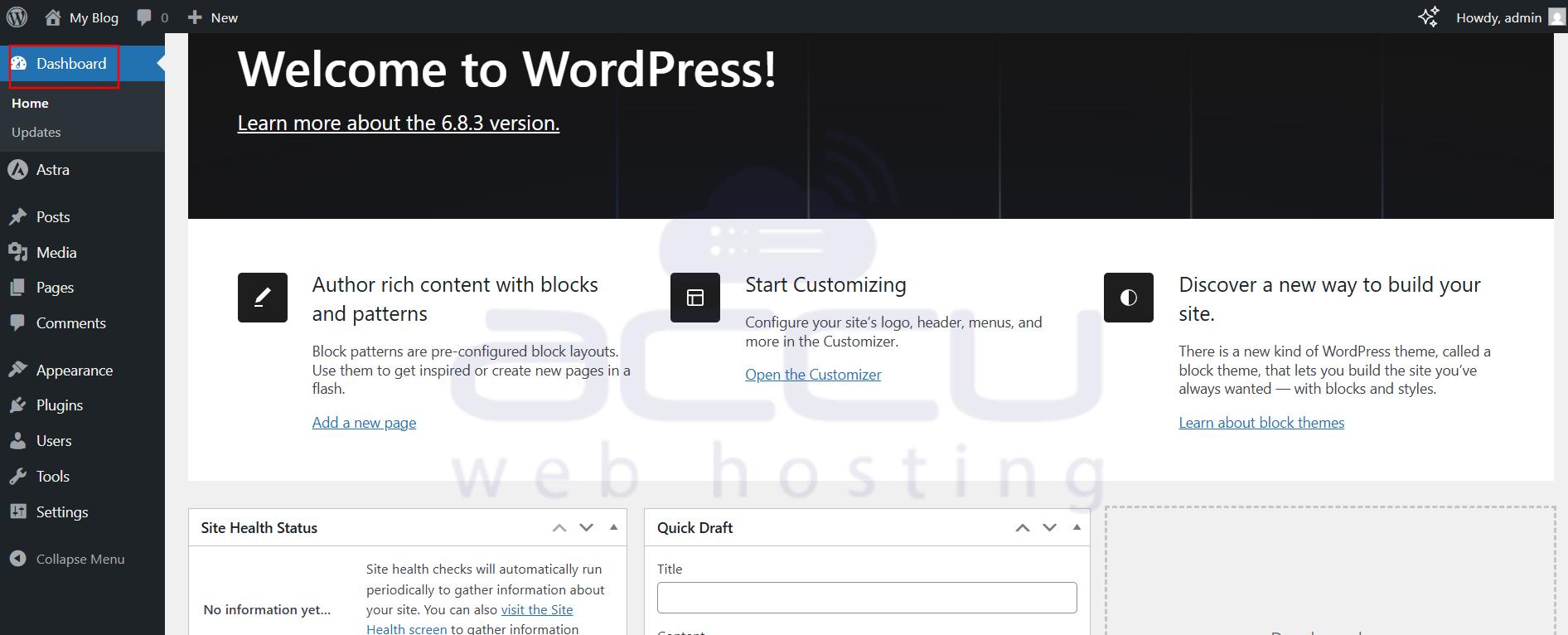
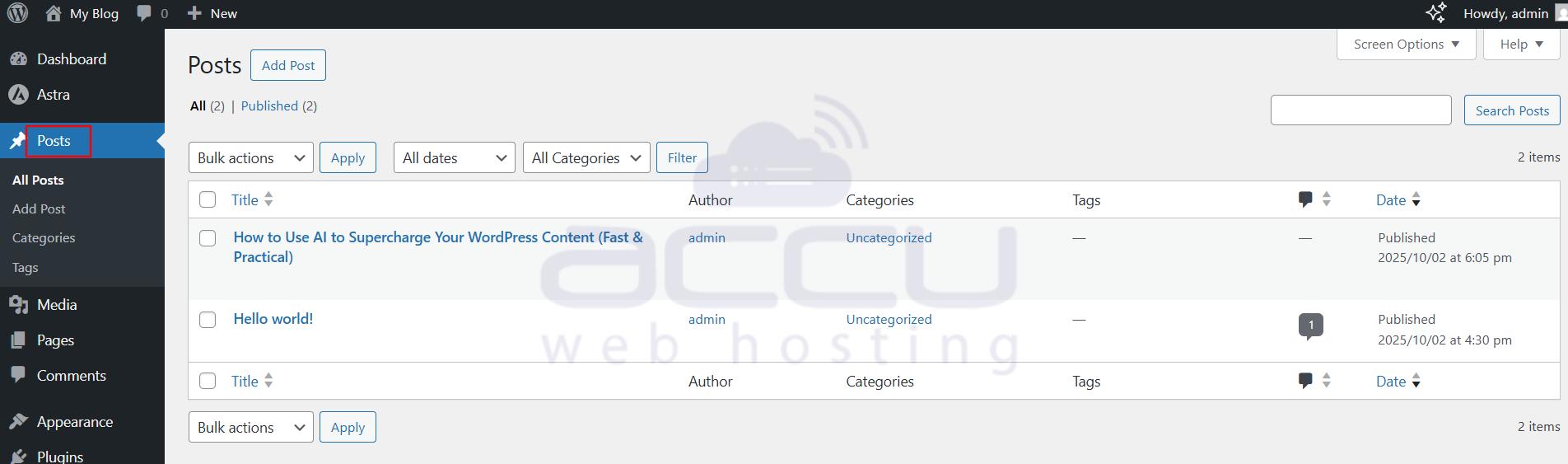
Step 2: Navigate to Posts > All Posts.
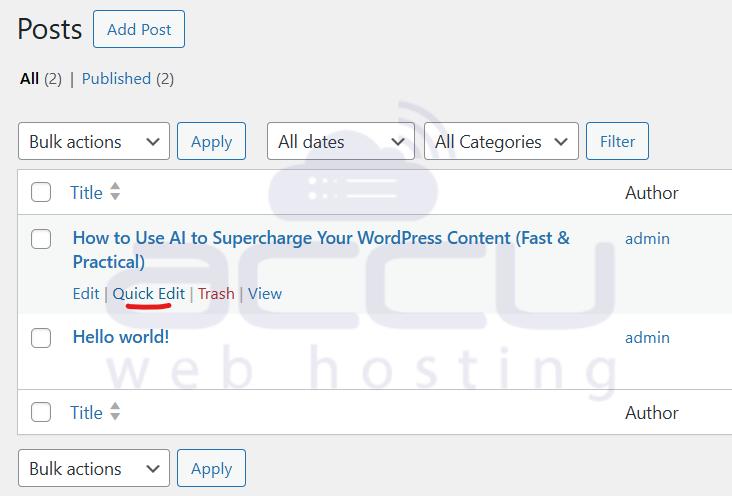
Step 3: Hover over the post you want to update and click Quick Edit.
Step 4: Locate the Author dropdown menu.
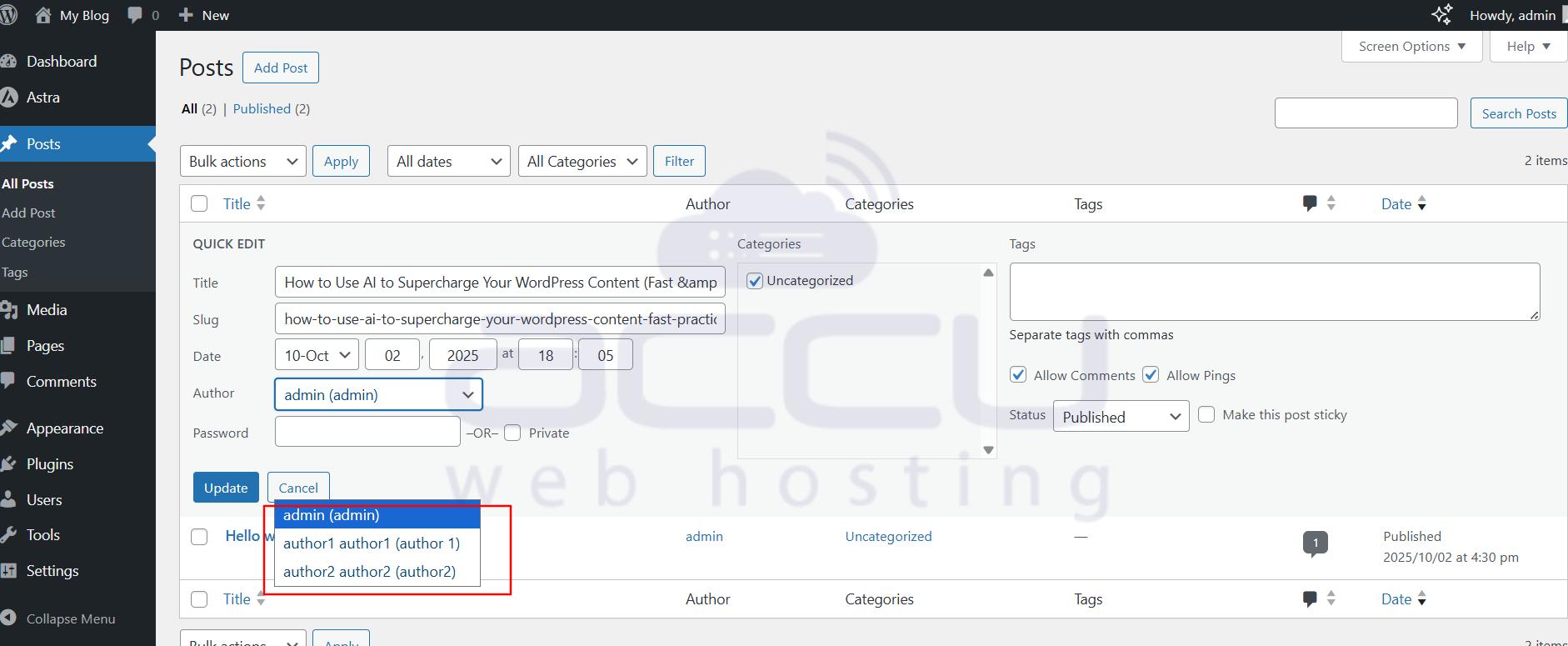
Step 5: Select the new author from the list.
Step 6: Click Update to save the changes.
This is the fastest method when you only need to change authorship for one or two posts.
Method 2: Change Author from the Post Editor
If you’re editing a post, you can also update the author directly from the editor.
Step 1: Open the post in the WordPress block editor or the Classic Editor.
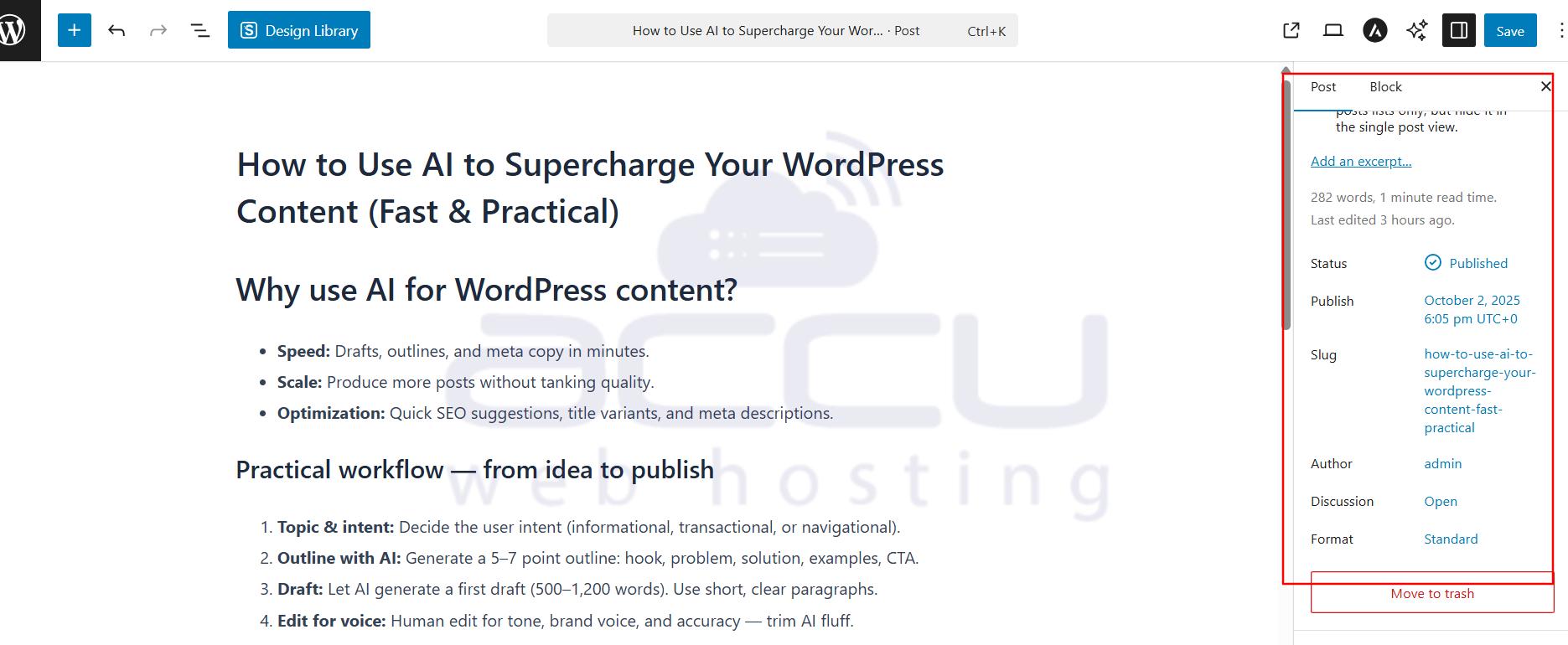
Step 2: In the right-hand sidebar, find the Post settings panel. Locate the Author dropdown field.
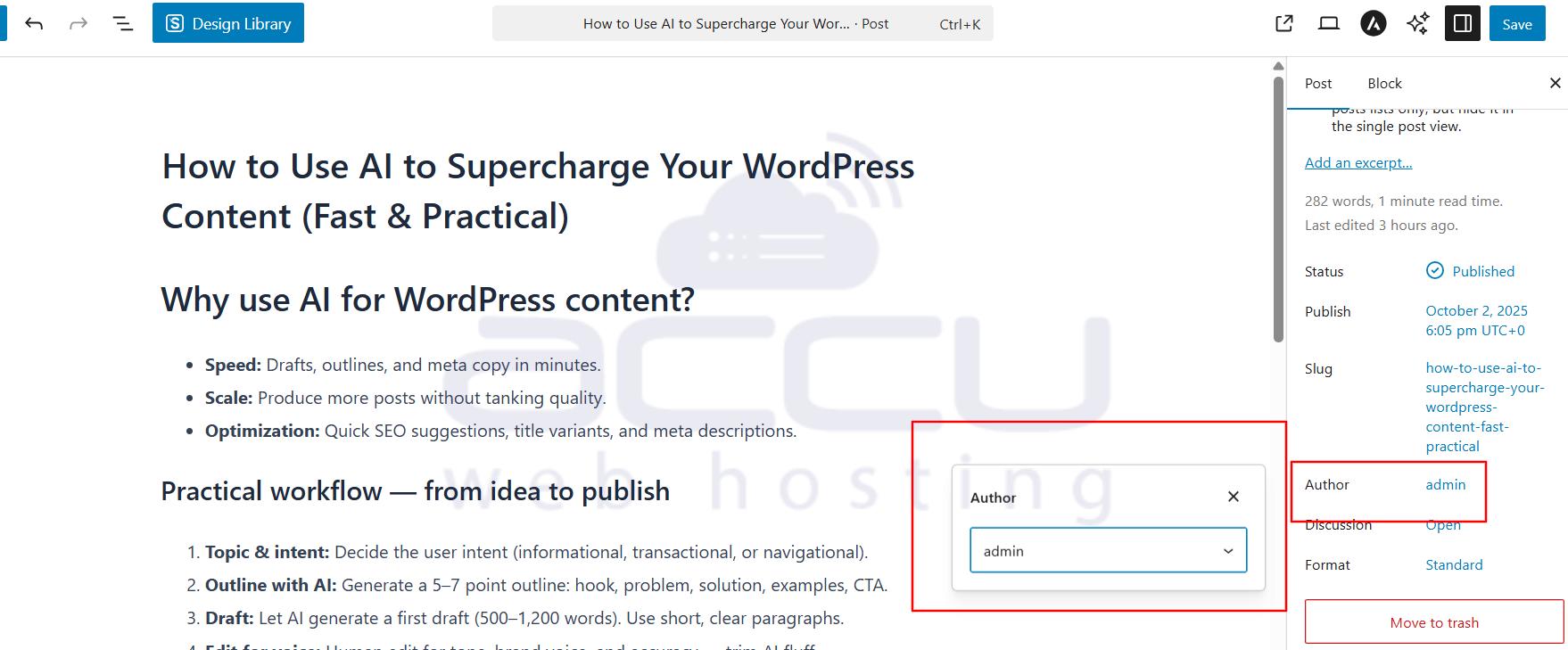
Step 3: Select the desired author.
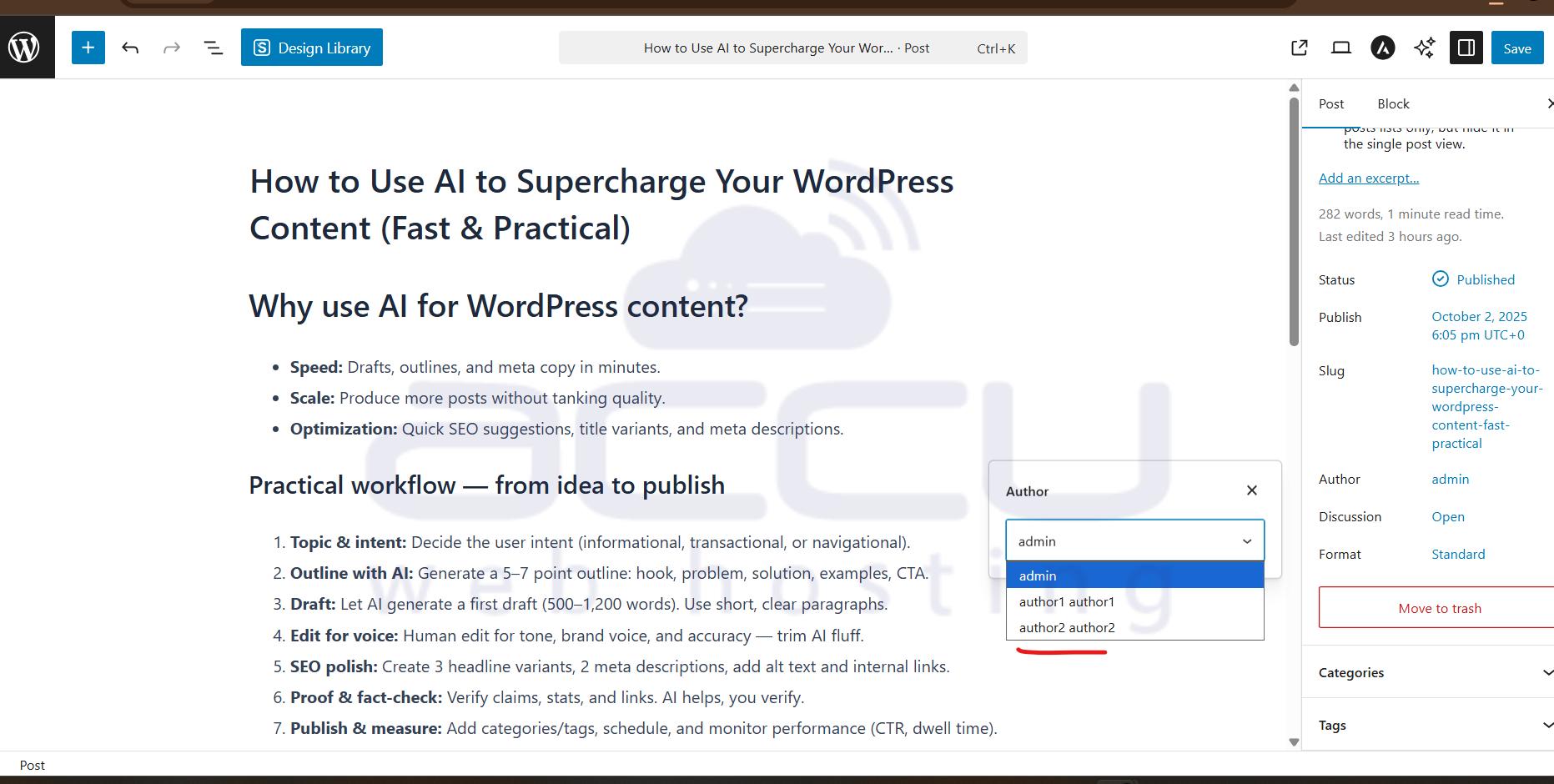
Step 4: Click Update/Publish to apply the changes.
Method 3: Bulk Change Post Authors
If you need to reassign multiple posts to a new author:
Step 1: Go to Posts > All Posts.
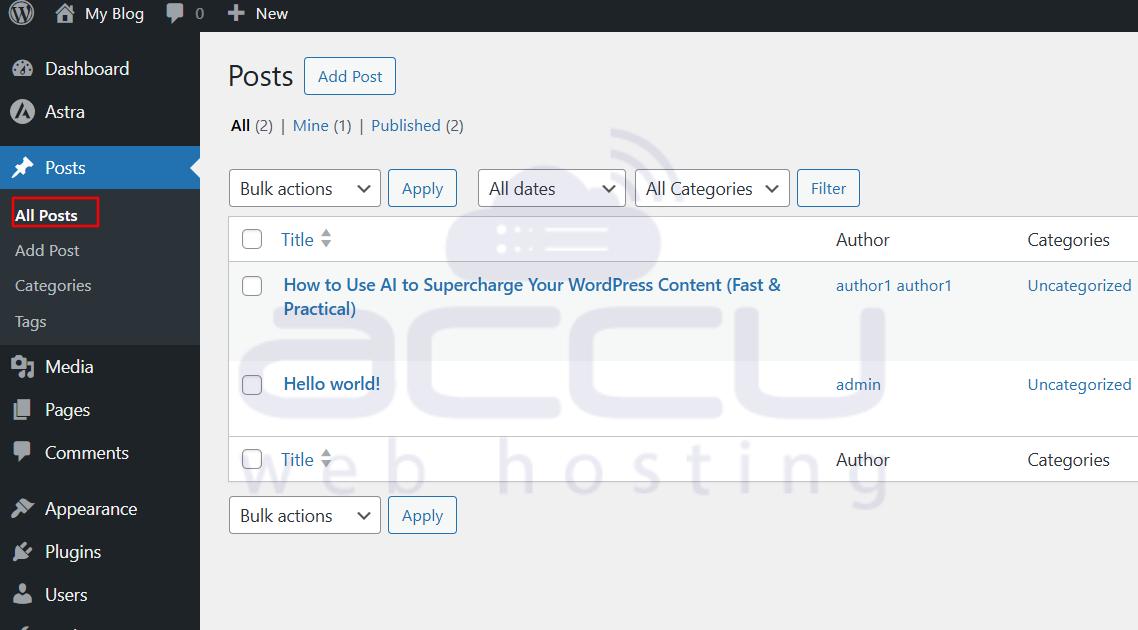
Step 2: Check the boxes next to the posts you want to update.
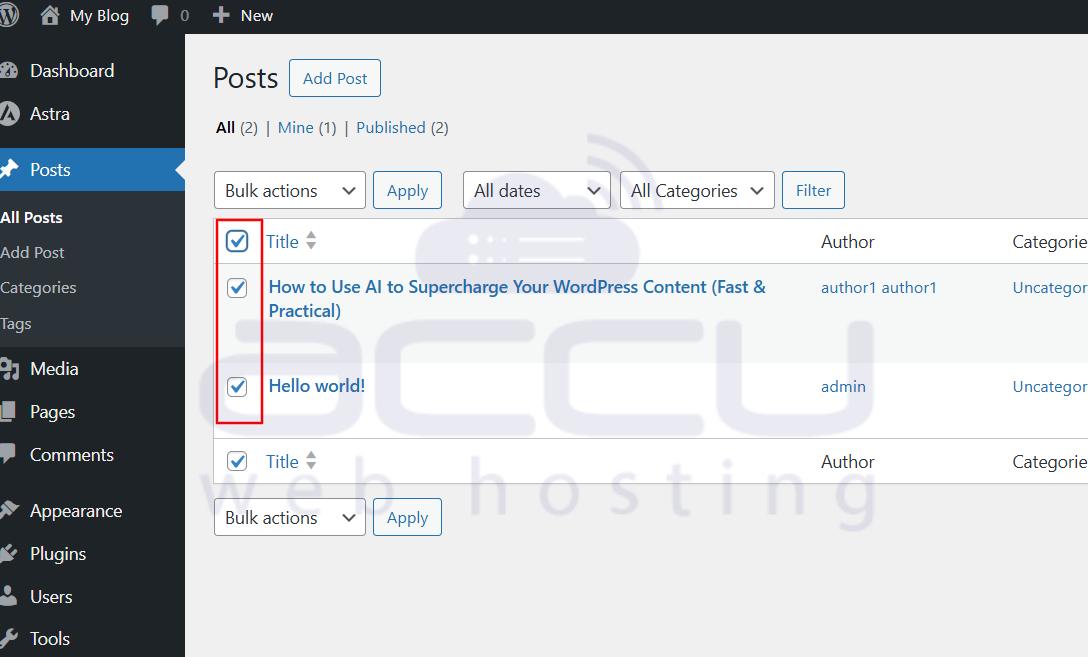
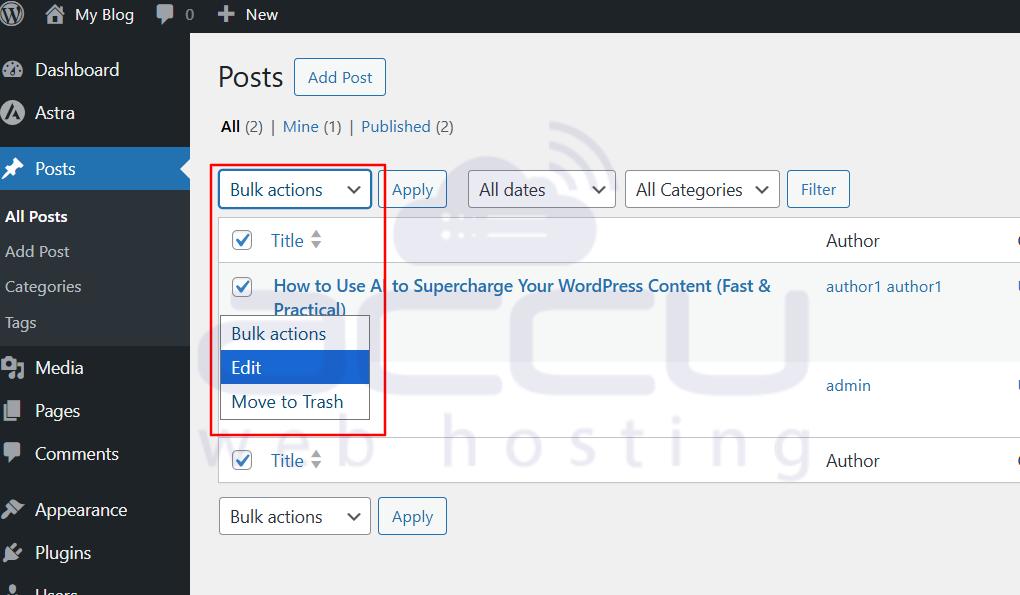
Step 3: From the Bulk Actions dropdown, select Edit and click Apply.
Step 4: Choose the new author from the Author dropdown.
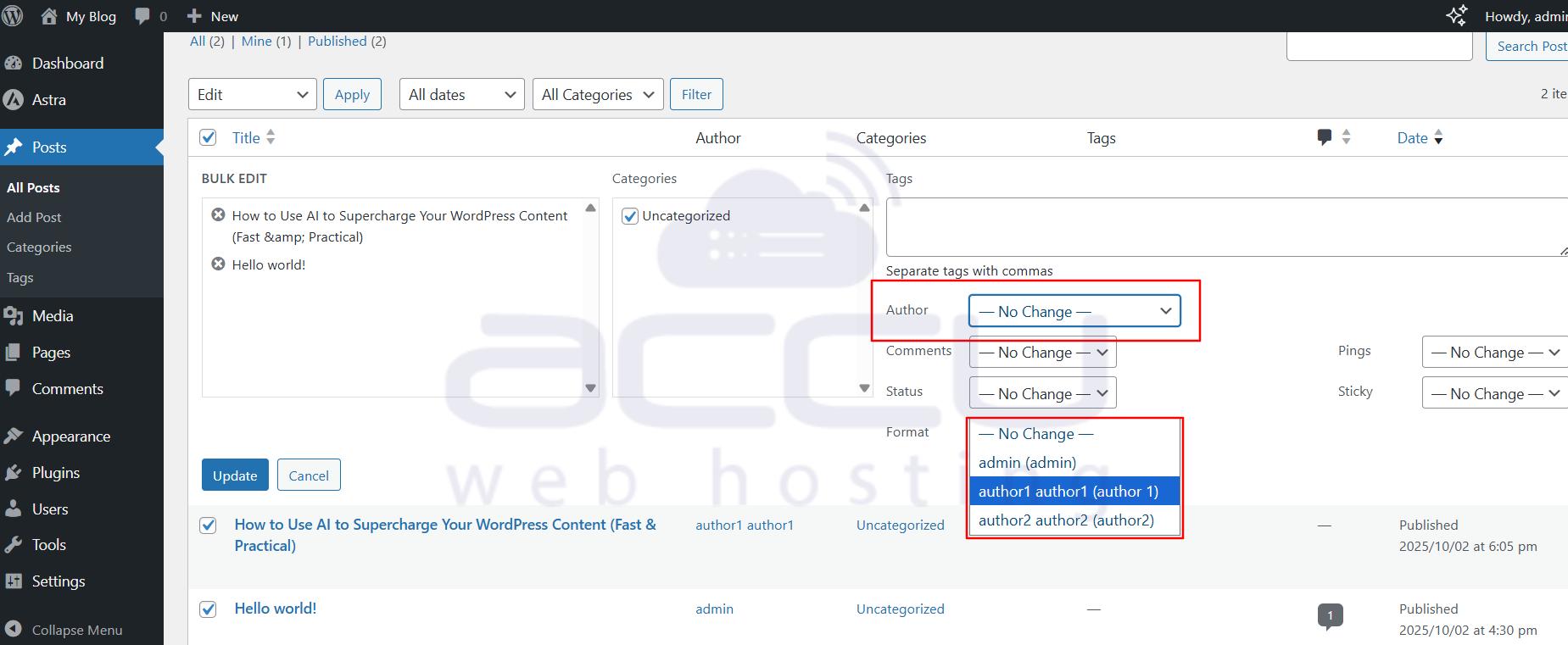
Step 5: Click Update to save.
Conclusion
Changing the author of a post in WordPress is quick and straightforward. Whether you use Quick Edit, the post editor, or bulk edit, WordPress gives you flexible options to reassign content ownership.


