
Introduction:
A permalink is a “permanent link” used to redirect users to their webpage. It should typically not be modified, as this could destroy links to the associated page.
Permalinks are made up of your site's domain name and a slug. Make sure your permalinks are both user and SEO-friendly.
For example, https://demo.com/ is a website URL, https://demo.com/blog, is a blog here, and https://demo.com/blog/page1 is a single post that follows a permalink structure.
Why are WordPress permalinks important?
There are many reasons why permalinks in WordPress are important.
1. Site navigation and management
-> Permalinks act as signs and doorways, guiding users to the right content.
-> They help keep your website links organized.
-> Permalinks aid in tracking traffic and analyzing user behavior.
2. Search engine optimization (SEO)
-> Permalinks tell search engines what a post or page is about.
-> Including keywords in permalinks can improve search ranking.
-> This helps your website connect with people searching for related content.
What should you do before changing the WordPress permalinks?
The internet changes quickly, and websites often need updates and redesigns, which can involve changing permalinks. To make sure the transition is smooth, follow these steps:
Back up your WordPress site
-> Always back up your site before changing permalinks to avoid losing data because losing data can cause stress, disrupt your business, and be expensive to fix.
Method - 1: Change the Permalink Post or Page: using Permalink settings
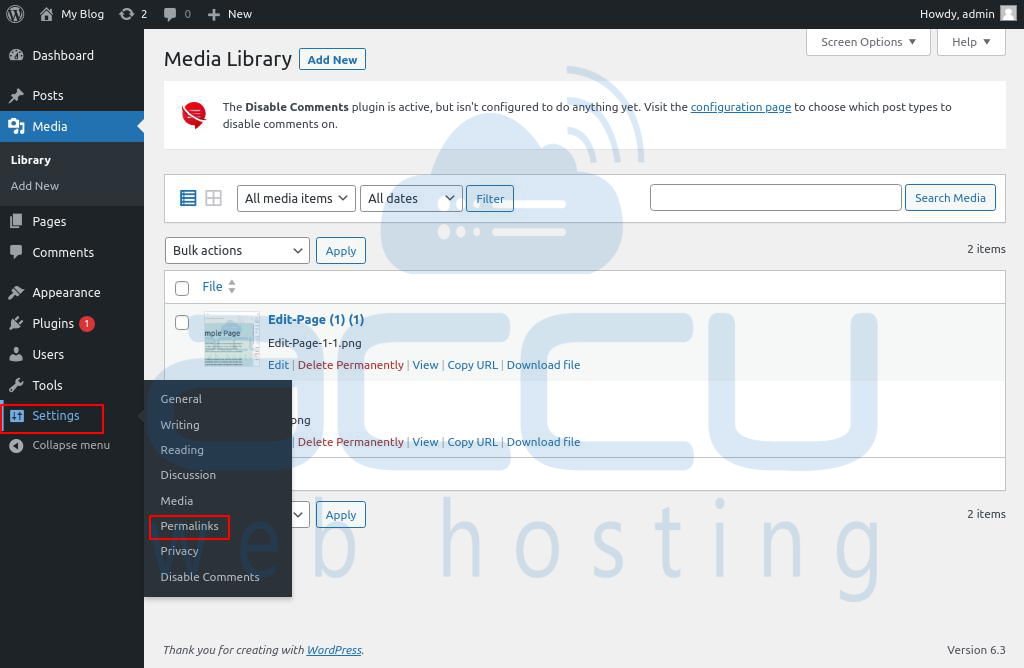
- Log into your WordPress Dashboard.
- Navigate to Settings, and choose Permalinks.
- Find the Permalink structure and choose the radio button with the Custom Structure text.
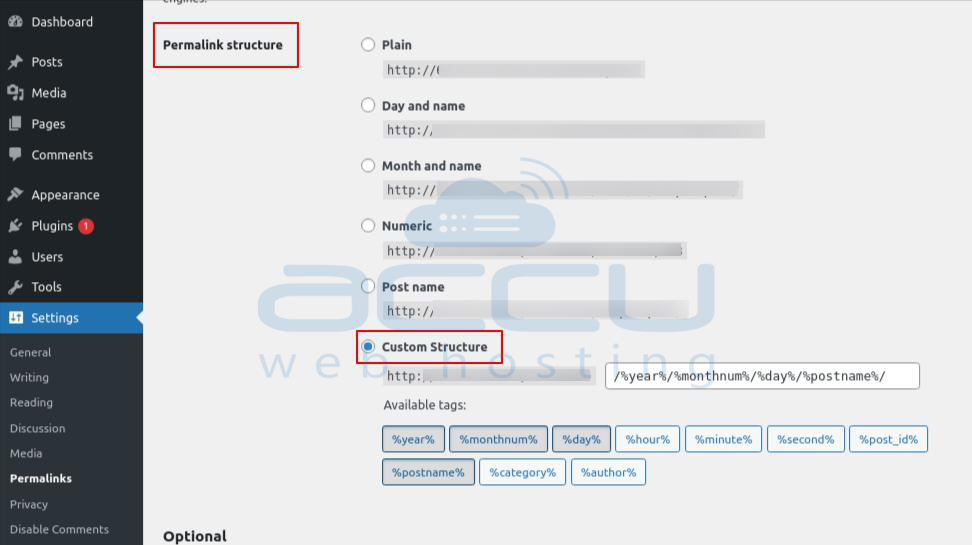
- Click on Save Changes.
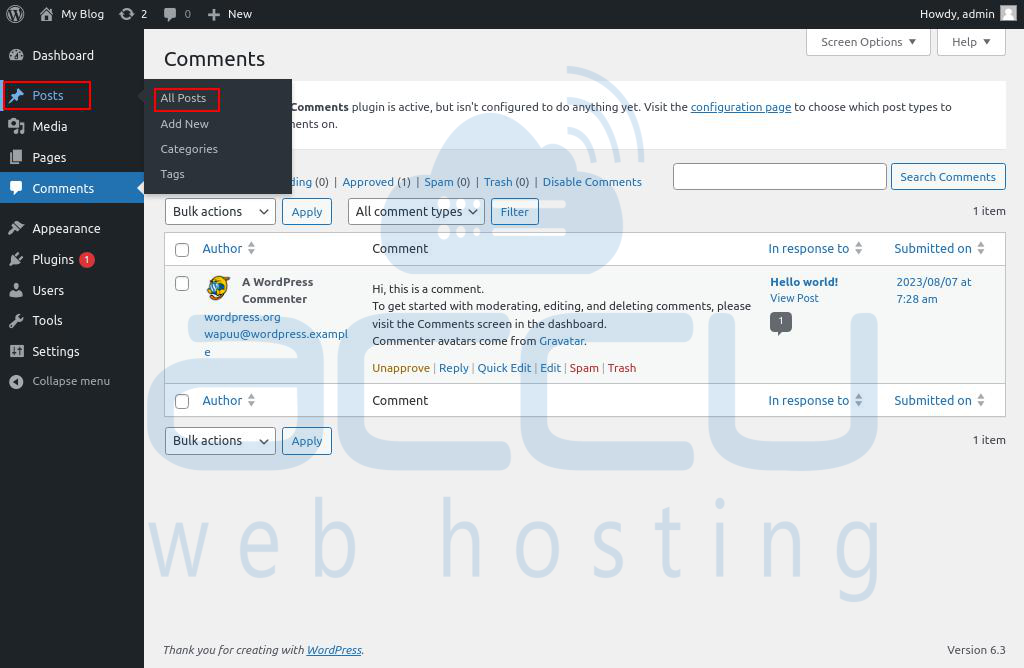
- Now go to the page/post > select All Posts/All Pages.
- Select the page/post you want to change permalink.
- At the right side of the page, search for the URL and click on that.
- You will find the Permalink option, where you can modify/change your post or page URL.
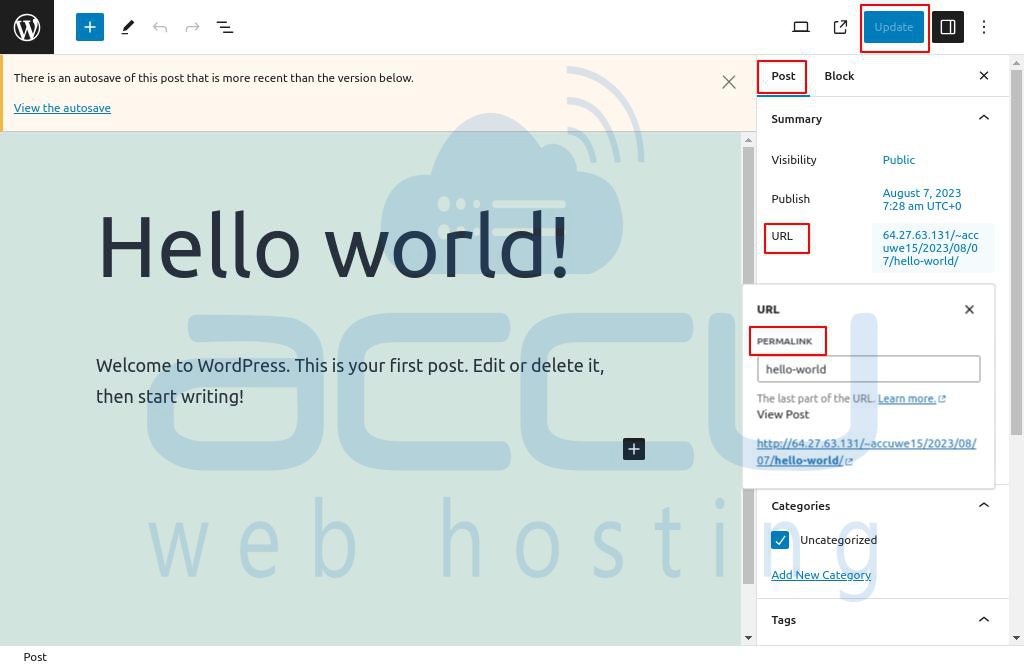
- Click on the Update button.
Method - 2: Change the Permalink Post or Page: using the Quick Edit option
- Log into your WordPress Dashboard.
- Go to the posts/pages > All Posts/All Pages.
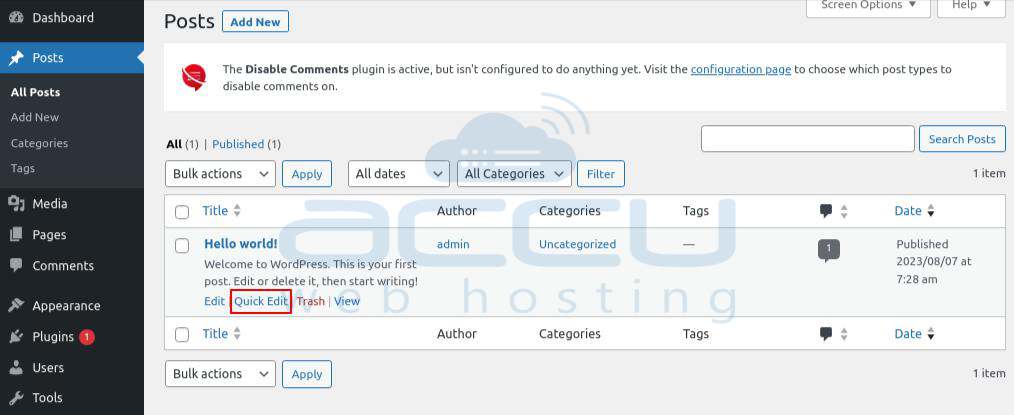
- Select the page/post and click on the Quick Edit option.
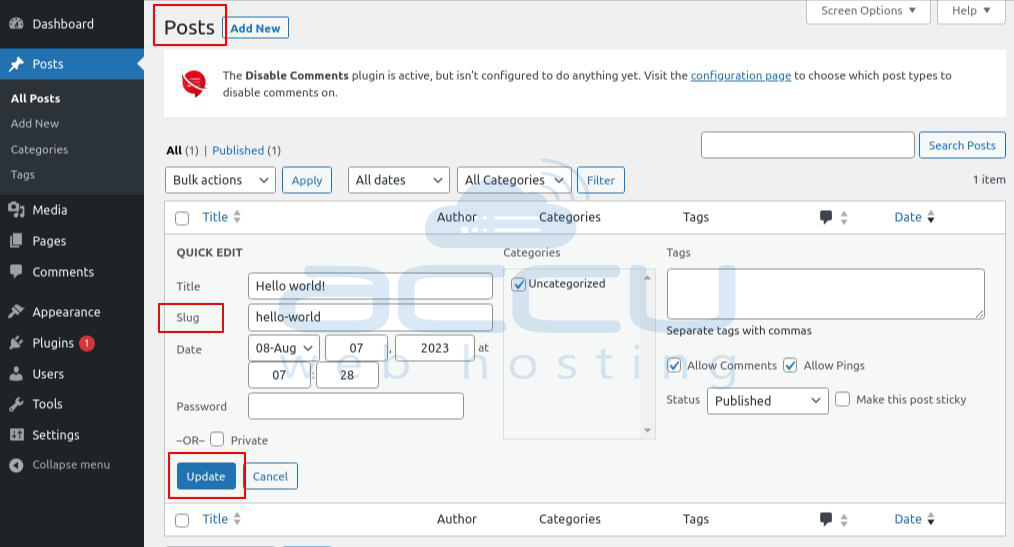
- Change the Slug, which is the permalink.
- After changing the permalink, click on Update.
Method - 3: Change the Permalink Post or Page: using the Edit option
- Log into your WordPress Dashboard.
- Navigate to Posts/Pages > All Posts/All Pages.
- Select the page where you want to change the permalink.
- Click on the Edit option.
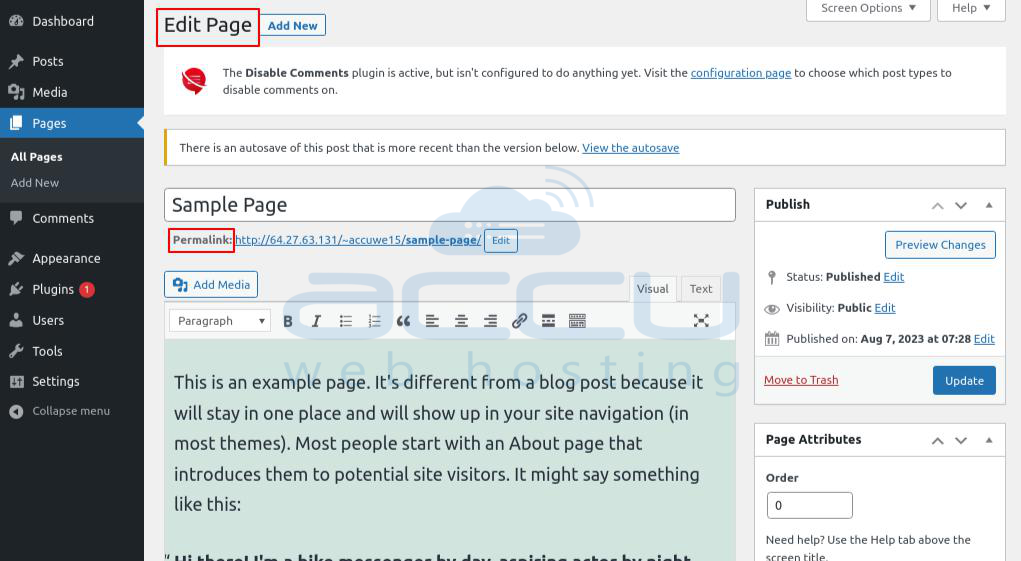
- Similarly, you can update Posts as well
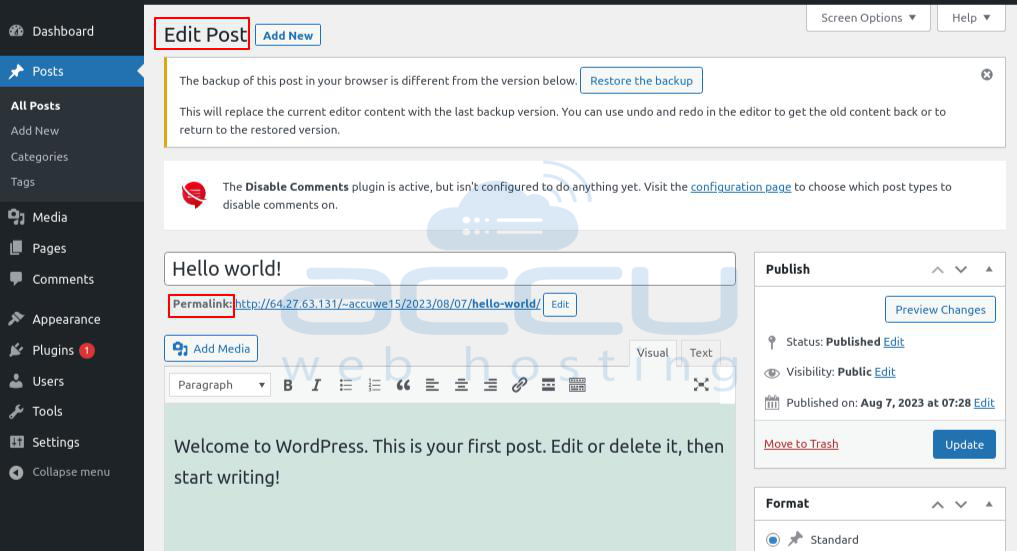
- To save changes, choose the Edit button.
Method - 4: Change the Permalink Post or Page: using the WordPress plugins
- Log into your WordPress Dashboard.
- Go to Plugins, and select Add New.
- On that page, search for a plugin (Ex. Permalink Manager Lite).
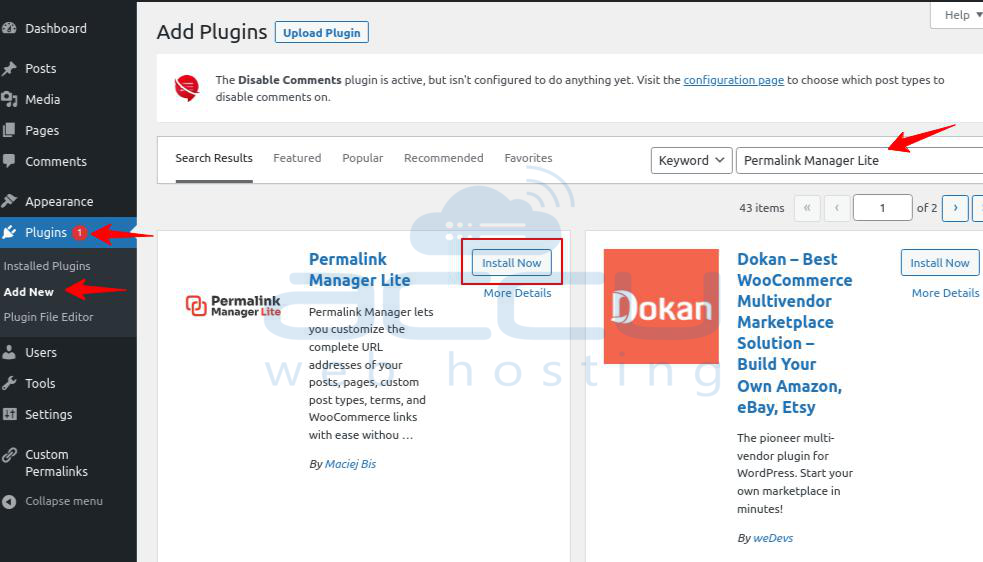
- Click on Install Now and then Activate.
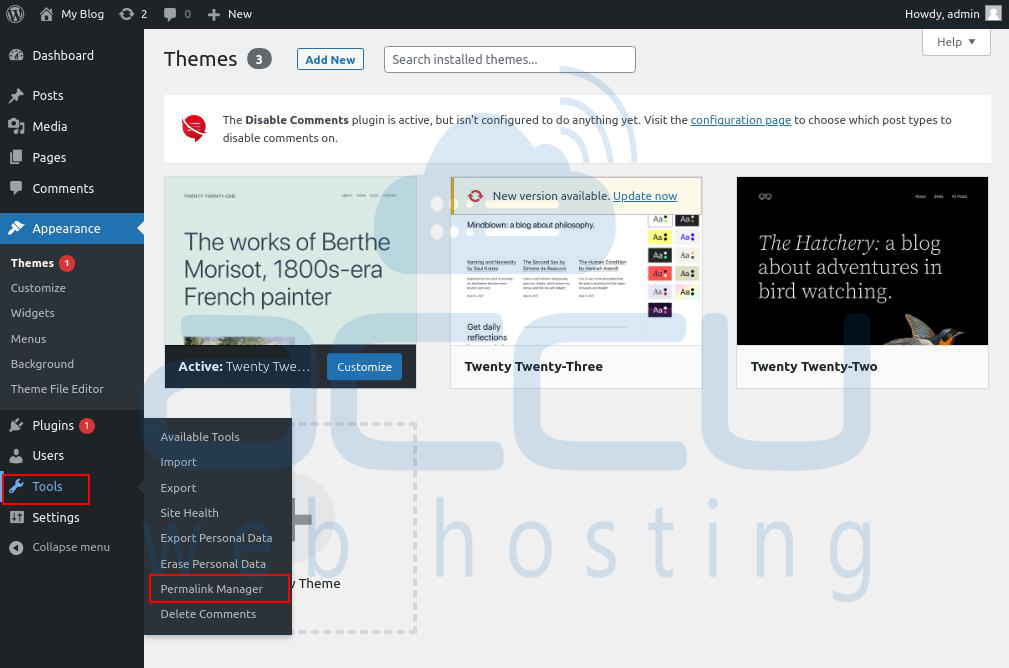
- After that, move to Tools > Permalink Manager.
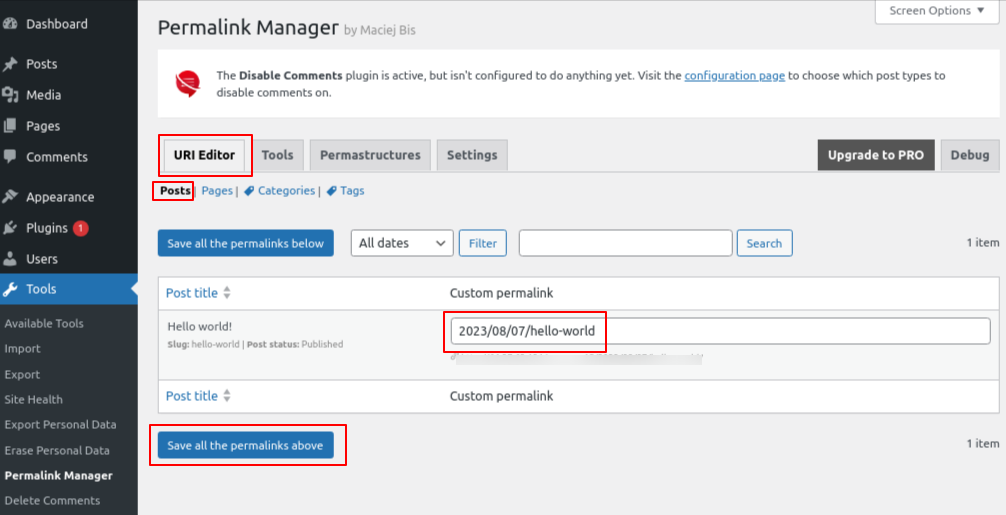
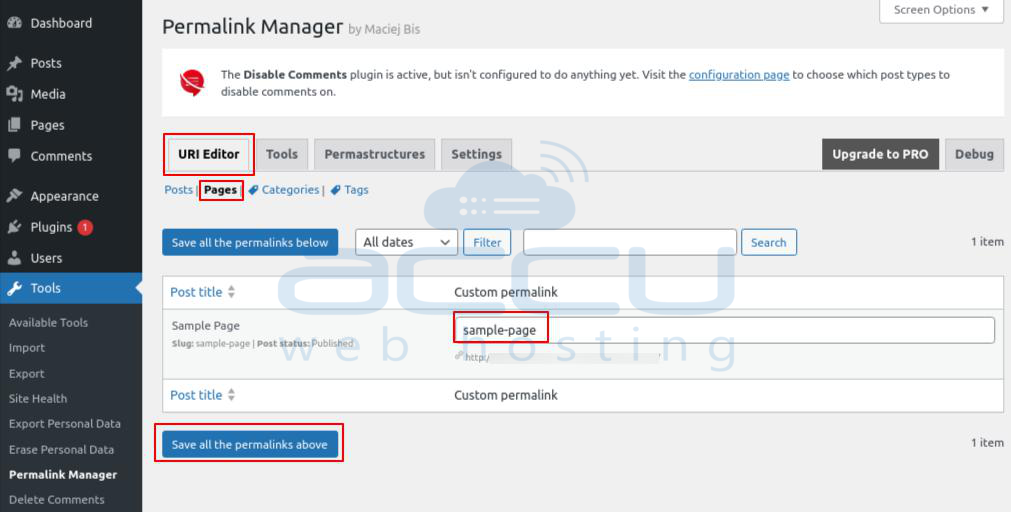
- On that page, select URL Editor, which allows you to change the permalink of an individual post or page.
- After changing the permalink, click on Save all the permalinks above.
Conclusion:
Optimizing your WordPress post and page permalinks is crucial for enhancing your website's user experience and search engine optimization (SEO). You can easily change permalinks by following the steps outlined in this article. It's important to select a permalink structure that is clear and SEO-friendly and to test and route updated URLs correctly. Creating clean and user-friendly URLs boost your website's visibility and enhance its overall performance.


