
If your site is hosted on WordPress, you may have faced the cURL Error 28 that occurs due to the timeouts when transferring data between your site and a server. This problem has different reasons, including firewall limitations, plugin inconsistencies, and obsolete software. Here, we are going to discuss the best ways to solve it.
What Is the cURL Error 28 in WordPress?
Client URL, or cURL, is a command-line tool that transfers data between servers via URLs. cURL is utilized within the REST API to allow the site to access and transmit data between the server and database. requests,
cURL plays a crucial role in tasks like fetching updates, interacting with APIs, and sending data to third-party services. Without it, essential features like automatic updates, payment gateway connections, and data retrieval wouldn’t function effectively.
cURL Error 28 occurs when data transfer fails, making the site inaccessible. This timeout issue is often caused by firewall restrictions, incorrect SSL configurations, plugin conflicts, or outdated software.
What Causes cURL Error 28: Connection Timed Out
cURL Error 28: Connection Timed Out is triggered when a WordPress website does not get a timely response from another server. The most frequent reasons are:
Firewall Problems: An outgoing cURL request could be blocked by a firewall, assuming it's suspicious behavior.
Plugin Conflicts: Certain plugins might send too many requests or respond very slowly, resulting in timeouts.
Incorrect SSL Configuration: Misconfigured SSL settings can prevent valid requests from being processed.
Outdated Software: Running old versions of PHP can cause compatibility problems and timeouts.
Low Server Timeout Limit: If the server's timeout is set too low, it may not provide sufficient time for data transfer.
DNS Problems: Misconfigured DNS settings can hinder proper communication between servers, resulting in connection failures.
How to Fix cURL Error 28: Connection Timed Out?
1. Temporarily Turn Off Your WordPress Plugin Firewall
Firewall plugins are crucial for protecting your WordPress site from malicious attacks by adding an extra layer of security. However, they can sometimes block legitimate requests or actions, leading to errors or access issues. Temporarily disabling the firewall allows you to determine if it is the source of the problem.
The steps may vary based on the firewall you use. Here’s an example of the Wordfence firewall plugin.
Follow these steps to turn off the Wordfence firewall in WordPress:
- Log in to WordPress – Access your WordPress dashboard.
- Go to Wordfence Settings – In the left menu, click on Wordfence > Firewall.
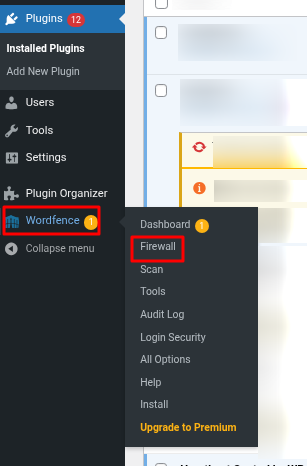
- Disable Firewall Protection – Look for the Web Application Firewall Status section and set it to Disabled.
- Save Changes – Click Save to apply the changes.
- Test Your Site – Check if the issue is resolved.
- Re-enable the Firewall – Once testing is done, go back and turn the firewall to see if it causes the error again. In that case, try using a different firewall plugin or reach out to the plugin developers for support.
2. Disable Other WordPress Plugins
Some plugins may be causing the connection timeout error. To find the plugin, you'll need to disable all plugins and reactivate them individually. Follow these steps:
- In your WordPress dashboard, go to Plugins > Installed Plugins.
- Check the box next to Plugin Name to select all.
- From the Bulk Actions dropdown, choose Deactivate, then click Apply.
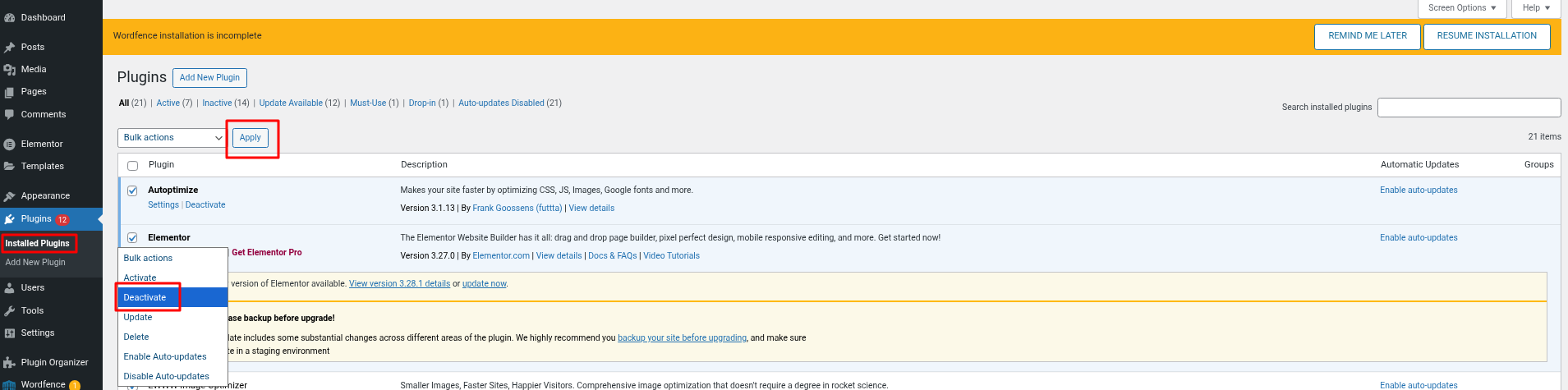
- Reload your website to see if the issue is resolved.
- Go back to the Plugins page.
- Activate each plugin one at a time, refreshing your site after each activation.
- If the error returns, the last activated plugin is likely the cause.
- If a specific plugin causes the issue, try updating it or replacing it with an alternative.
If the error blocks access to your WordPress admin dashboard, you can disable plugins manually using an FTP client like FileZilla or your host’s File Manager.
- Navigate to your site's root directory and find the plugins folder.
- Rename the folder (e.g., plugins-disabled) to deactivate all plugins.
- Once you regain access, rename it back and reactivate plugins one by one to identify the issue.
3. Check Your SSL Configuration
An SSL certificate (Secure Sockets Layer) encrypts data between a user’s browser and your server, ensuring secure communication via HTTPS.
If your SSL certificate isn’t set up correctly, it may block valid cURL requests, leading to cURL error 28. To check for issues, scan your domain using an SSL checker like Qualys.
If any errors are found, re-install your SSL certificate or contact your web host for support, especially if your hosting plan includes a free SSL certificate. Many providers, like AccuWeb Hosting, offer free SSL with all web hosting plans, ensuring secure connections without extra cost.
4. Verify Your DNS Settings
DNS misconfigurations can also trigger cURL error 28 by preventing your domain from resolving correctly.
To check your DNS settings, use ping, dig, or nslookup commands if you have SSH access to your server. If the issue lies with the DNS server itself, you’ll need to contact your hosting provider. Server-side issues can cause requests to time out before they are processed.
Since DNS resolution is managed by your host, the best approach is to raise a support ticket. Their team can help troubleshoot the issue and ensure any necessary DNS updates take effect properly.
5. Check cURL Version and Adjust Timeout Settings
Keeping the cURL version updated and adjusting timeout settings helps maintain optimal performance and prevents issues like cURL error 28: Operation Timed Out.
To check if your website is running the latest cURL version, follow these steps:
- Log in to your WordPress dashboard.
- Go to Tools > Site Health.
- Click on the Info tab.
- Expand the Server section.
- Look for the PHP version and cURL version fields.
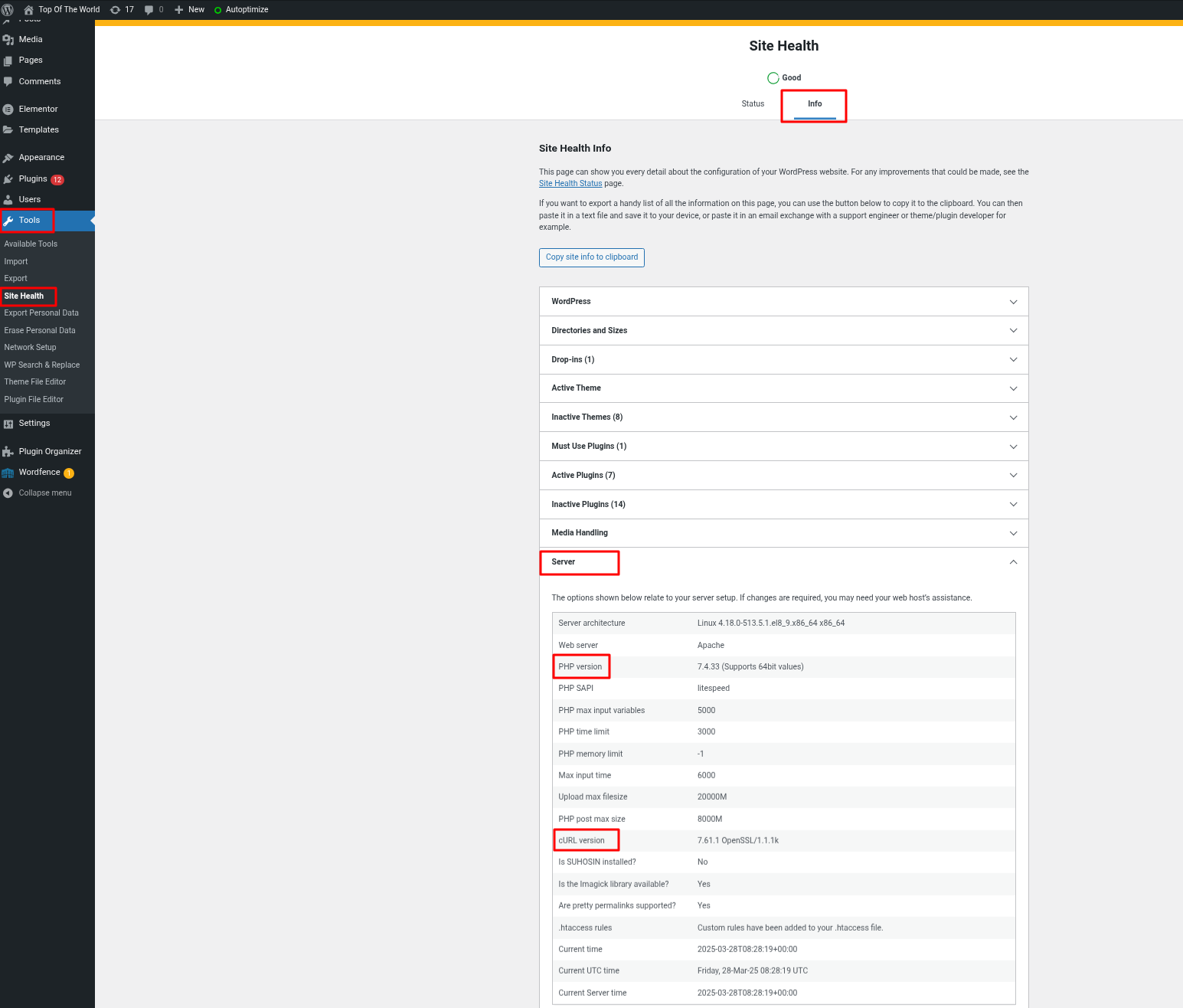
- If your cURL version is outdated, contact your Web hosting provider to update it.
- If your WordPress version is outdated, update it from Dashboard > Updates.
Adjust Timeout Settings
If your site often encounters cURL timeout errors, consider increasing the timeout limit.
You can do this by adding a custom timeout parameter in your theme’s functions.php file or using a custom plugin.
(Note: Some hosting providers restrict the ability to modify timeout settings.)
For instance, setting the timeout to 60 seconds allows more time for slow responses. After making this change, test your site to ensure everything functions properly.
6. Contact Your Hosting Provider
If you’ve tried all the fixes in this guide but still see cURL error 28: connection timed out, don’t worry—there’s one more step you can take.
Reach out to your web host for help. A reliable provider like AccuWeb Hosting can assist in troubleshooting the issue. When contacting support, share as many details as possible about the error so they can quickly find a solution.
Conclusion
Seeing cURL error 28: connection timed out while working on your WordPress site can be frustrating. Luckily, there are several ways to fix it.
Start with simple solutions like temporarily disabling your firewall and deactivating plugins. Next, check your SSL and DNS settings and review your server resource limits. If the issue persists, reaching out to your web host for support is the best next step.


