Several large-scale WordPress wp-login.php brute force attacks have become common due to many compromised IP addresses worldwide.
But you can implement any of the options mentioned in this article to secure your WordPress Admin area.
Method 1: Allow the WordPress Admin access from a specific IP
Step 1: Log in to your cPanel account.
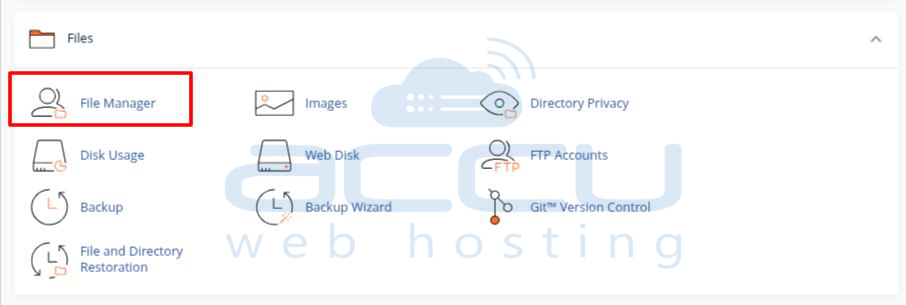
Step 2: Find the Files category and click on the File Manager icon.
Step 3: Click on Settings at the top right corner.
Step 4: In the pop-up tab, select the Document Root for your domain and be sure the checkbox next to Show Hidden Files is checked.
Step 5: Click on the Save button.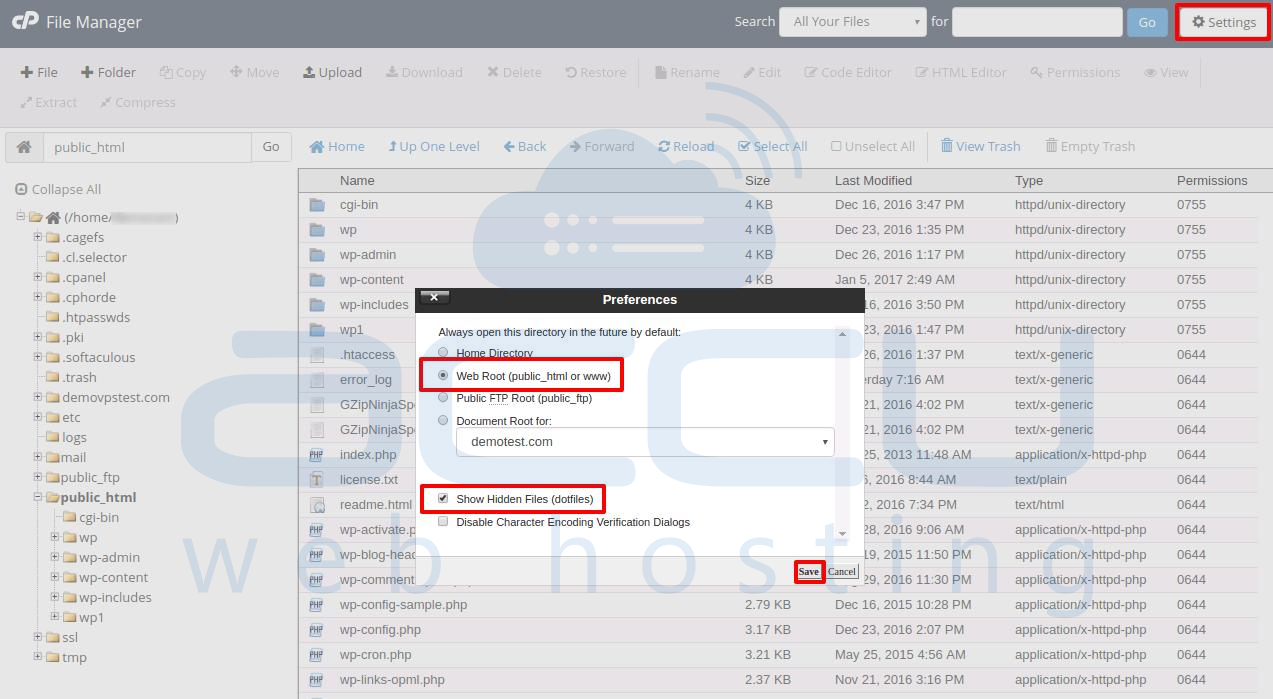
Step 6: Now, look for the .htaccess file and right-click on it. This brings up a menu.
Step 7: Find and click on the Code Edit option.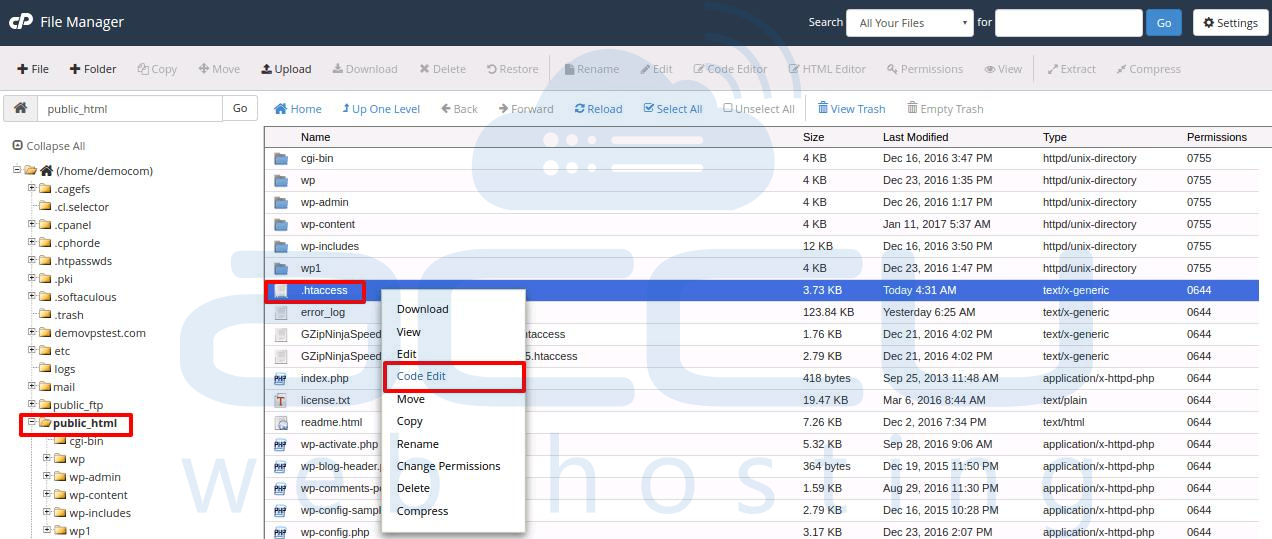
Step 8: In the pop-up window, click on Edit, and the file will open in an editor.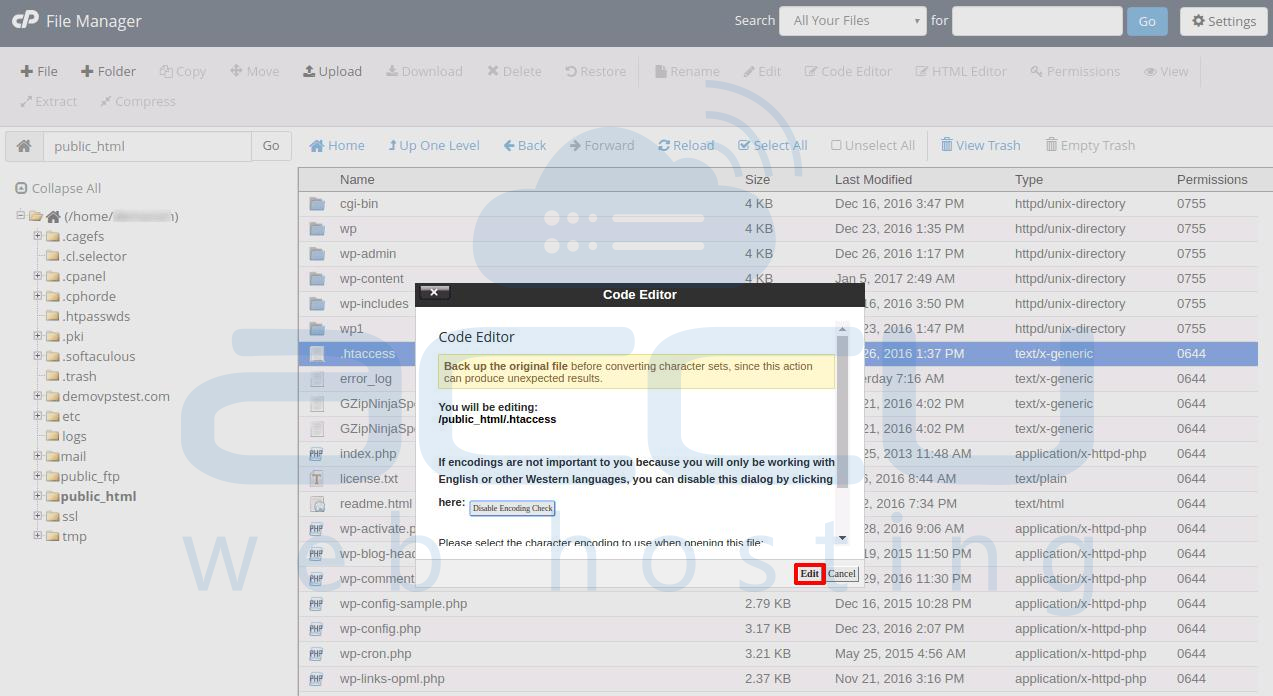
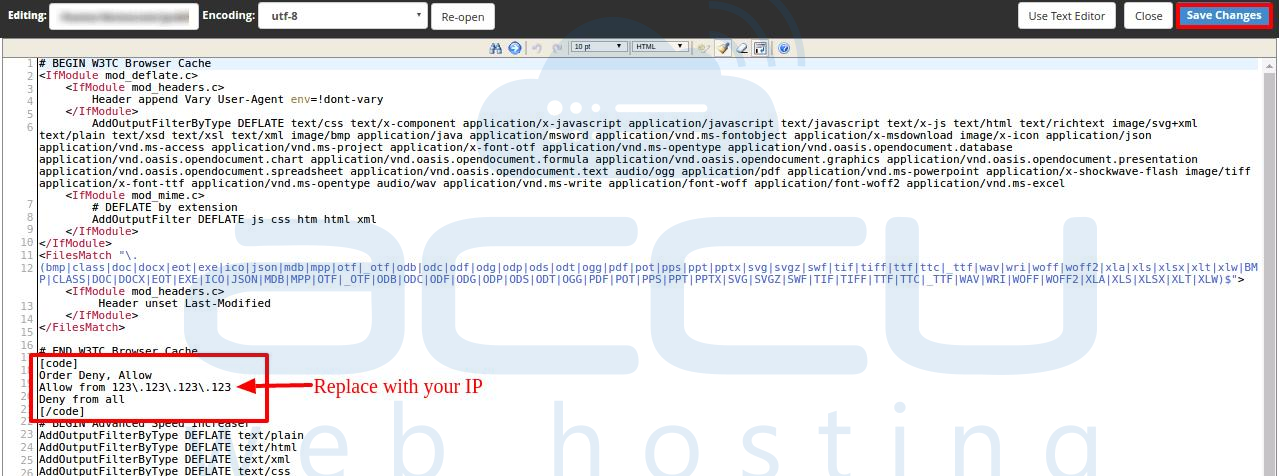
Step 9: Enter the code:
[code]
Order Deny, Allow
Allow from 123\.123\.123\.123
Deny from all
[/code]
This code will allow access from a single IP address; replace 123\.123\.123\.123 with your IP address.
Step 10: To get your IP address, click here.
Step 11: Once the code is added, click on Save Changes.
Method 2: Change WordPress Admin URL
Step 1: Log in to your WordPress Admin dashboard.
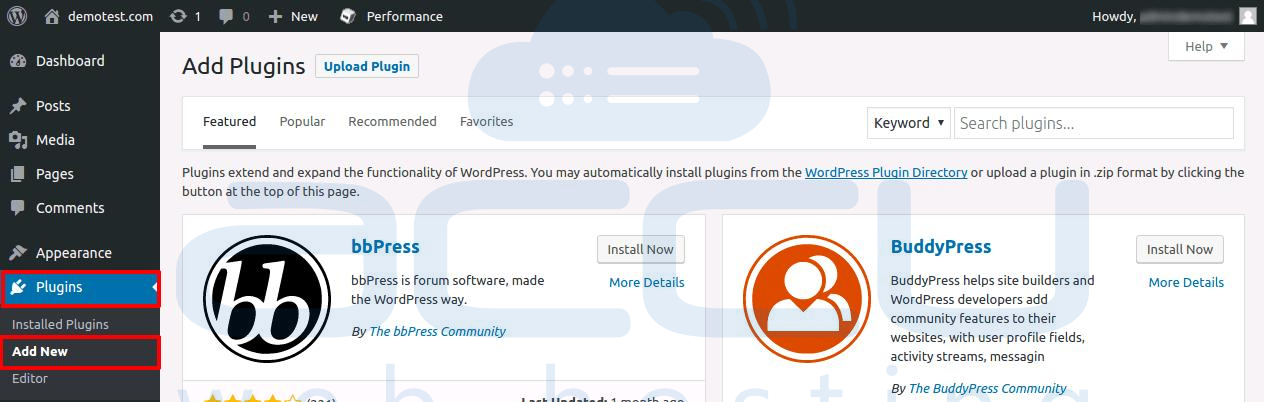
Step 2: Go to Plugins and click on Add New.
Step 3: Search for Plugin Protect Your Admin. It will display the list of plugins.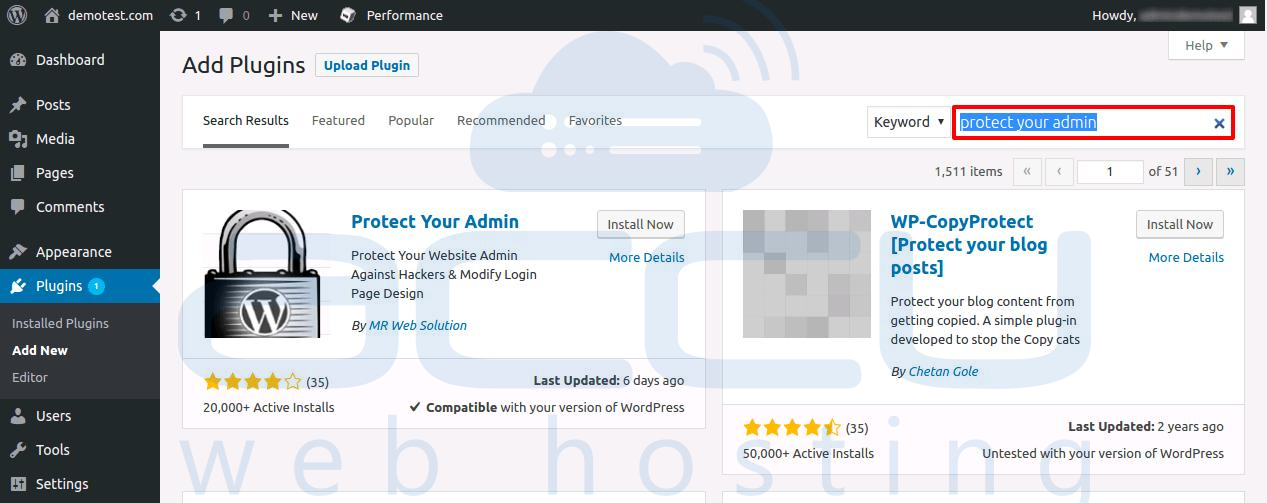
Step 4: Click on Install Now right beside the Protect Your Admin plugin. It will install the plugin.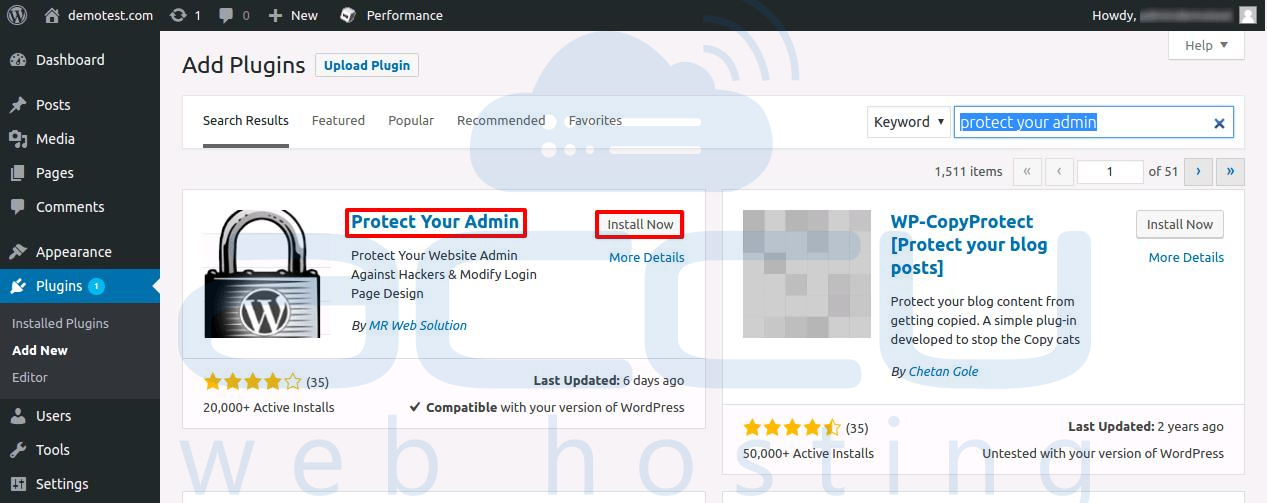
Step 5: Once the plugin is installed, click on Activate, and you will get redirected to the installed plugin page.
Step 6: Click on Settings on the Protect Your Admin plugin.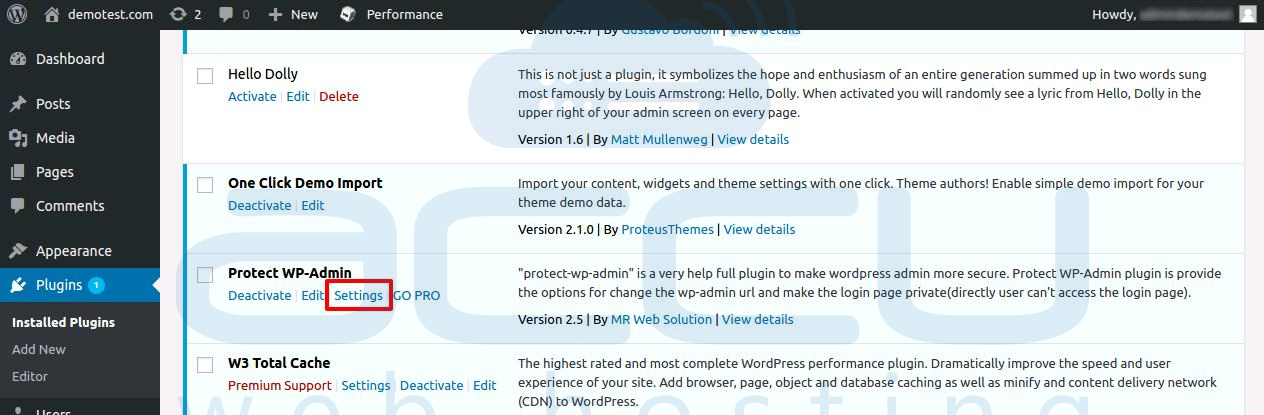
Step 7: On the settings page, click on the check box Enable.
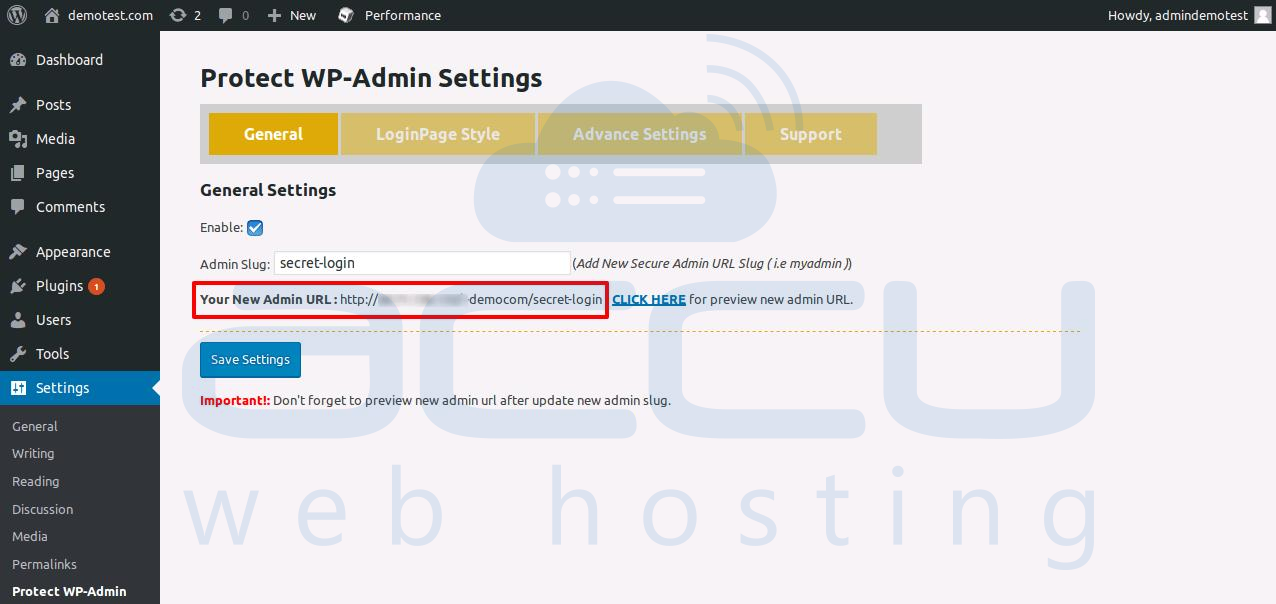
Step 8: In the Admin Slug box, you can input any Slug, which will be used to access your WordPress admin login page.
We are using secret-login here as an example.
Step 9: Click on Save Settings.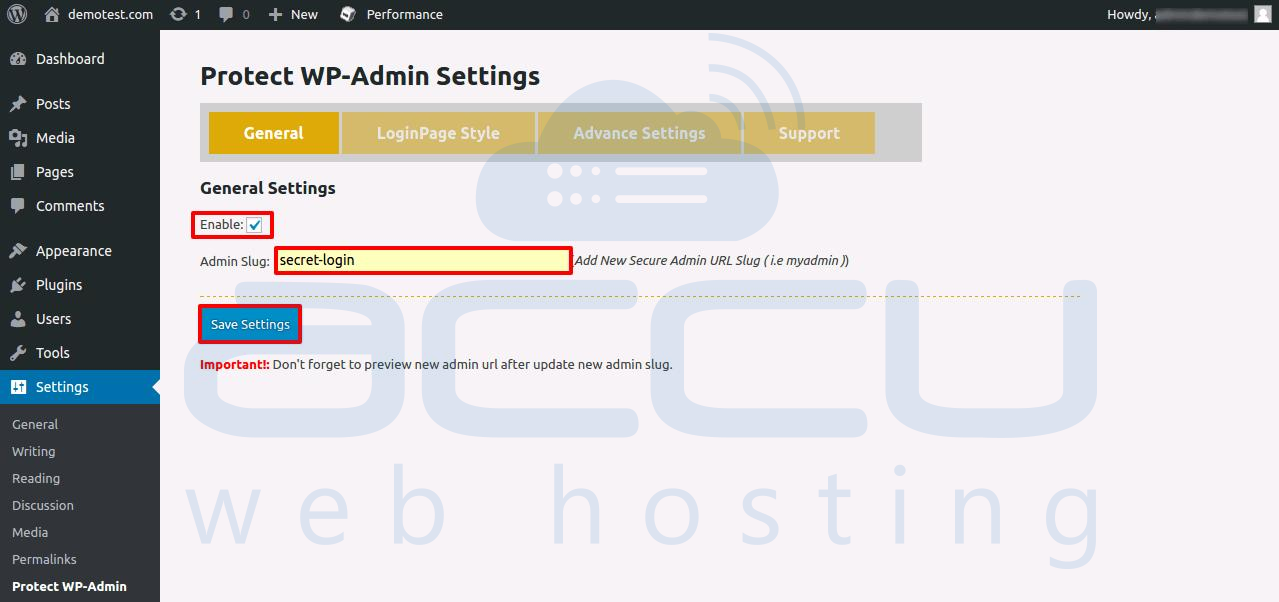
Step 11: Once you click on Save Settings, you will receive a pop-up message.
Step 12: Click on OK.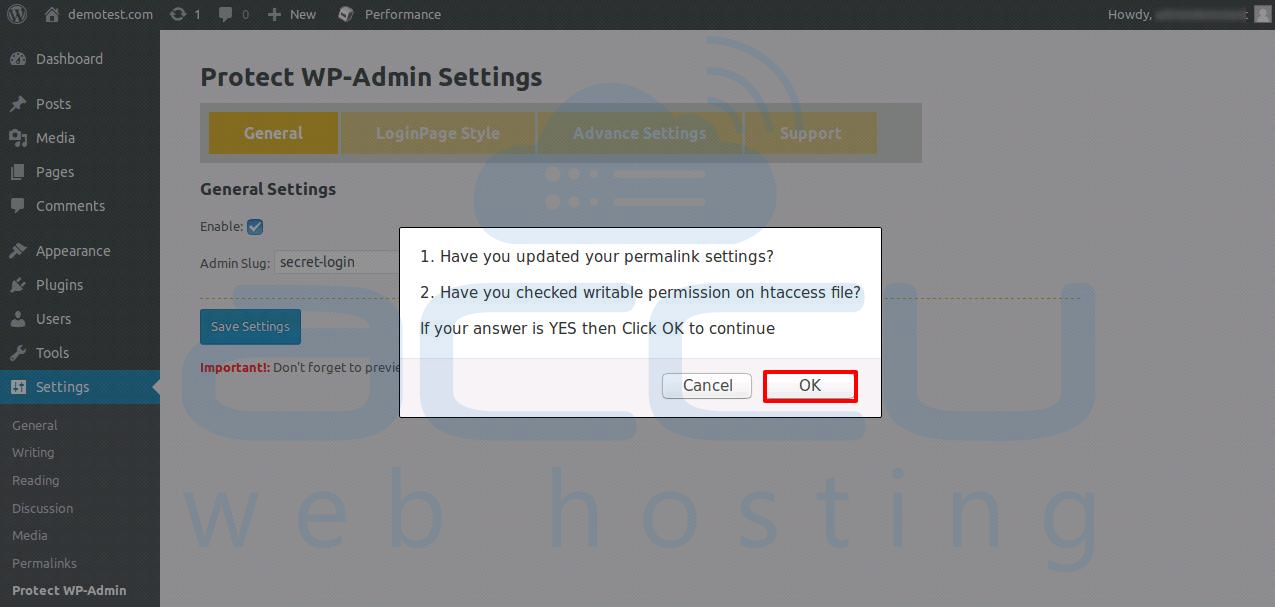
Step 13: You will get your new WordPress admin login URL.
Step 14: Now, you can access your WordPress dashboard using the new URL.