
Upgrading a Magento store is a routine process for maintaining security, improving performance, and accessing new features. However, many store owners experience a 500 Internal Server Error immediately after the upgrade. The HTTP 500 Internal Server Error is a generic server response that indicates the server encountered an unexpected condition and could not complete the request.
Unlike other errors, it does not provide a specific explanation of the problem. Therefore, troubleshooting requires checking several possible causes including permissions, PHP configuration, missing extensions, or plugin conflicts. This guide explains step by step solutions to fix Magento 500 Internal Server Error using only cPanel access, which is common for many shared hosting environments.
Understanding Magento 500 Internal Server Error
Before fixing the problem, it is important to understand why it occurs.
A 500 Internal Server Error in Magento appears when the web server fails to process a request due to configuration or runtime issues. It may occur after:
- Upgrading Magento
- Installing extensions
- Changing server configuration
- Updating PHP versions
- Modifying file permissions
- Editing the .htaccess file
Because Magento is a complex PHP-based ecommerce platform, even a small configuration problem can cause the server to stop executing scripts.
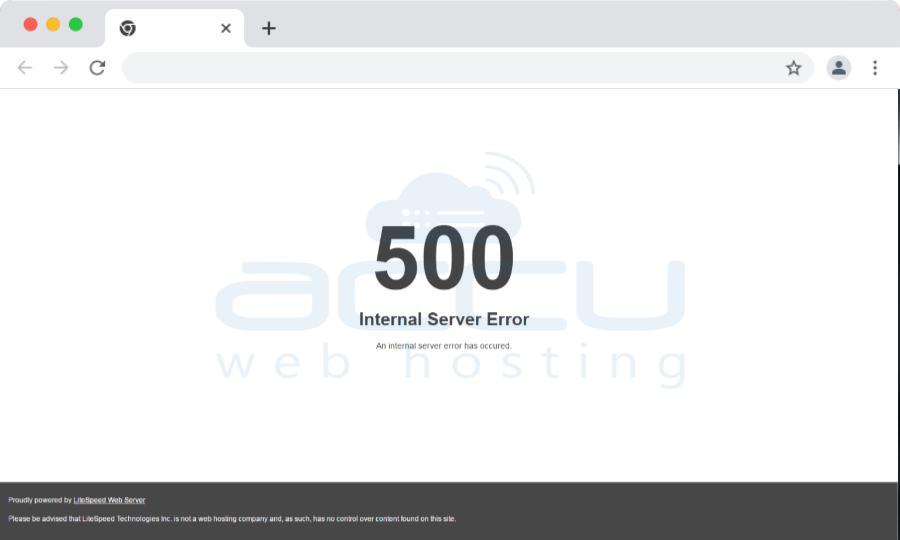
Common symptoms include:
- Blank white page
- “500 Internal Server Error” message
- Admin panel not loading
- Website not accessible
- Checkout or product pages failing
To resolve the problem, administrators need to inspect several areas including file permissions, PHP memory limits, extensions, and server logs.
Common Causes of Magento 500 Internal Server Error
The most common reasons include:
1. Incorrect file permissions
2. Insufficient PHP memory limit
3. Broken .htaccess configuration
4. Magento maintenance mode enabled
5. Missing PHP extensions
6. Third-party plugin conflicts
7. PHP version incompatibility
8. Missing CURL extension
9. Server configuration errors
10. Corrupted cache or generated files
Each of these problems can be fixed using cPanel File Manager and PHP settings, which are typically available on shared hosting.
1. Set Correct Magento File Permissions
Incorrect file permissions are one of the most frequent causes of Magento errors. After upgrading Magento, the permission of some files may change automatically.
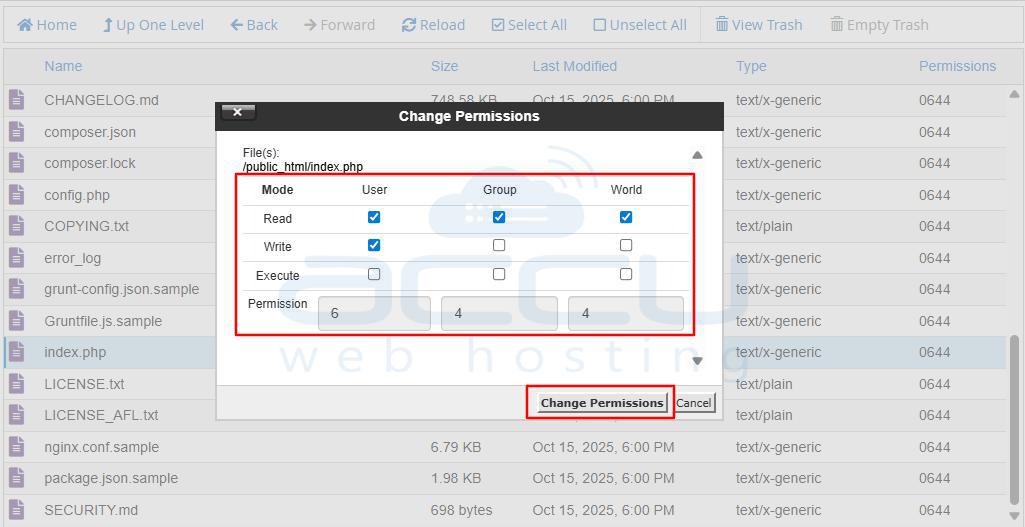
For example, the index.php file permission might change from 644 to 664, which prevents the web server from executing it properly.
Correct Magento Permission Structure
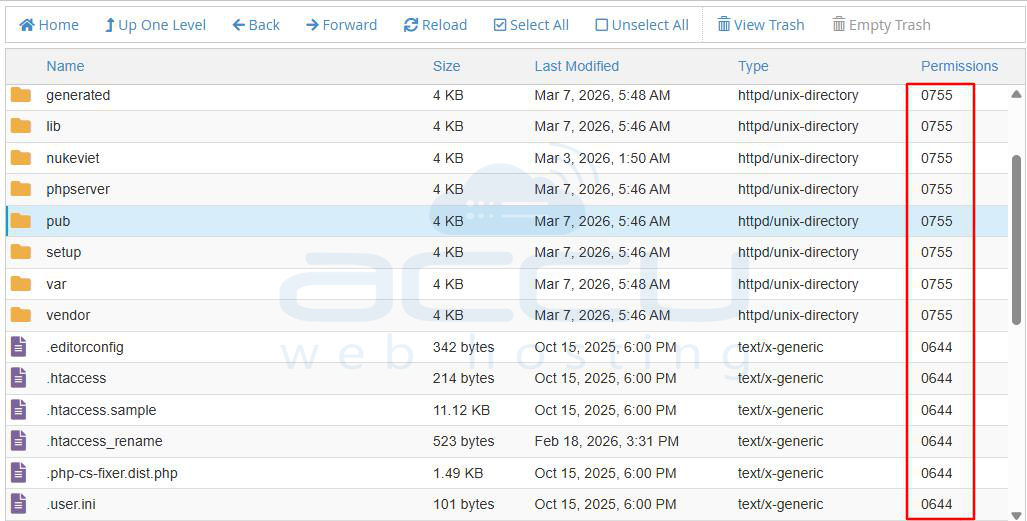
Generally the recommended permissions are:
- Files: 644
- Directories: 755
- Special directories (var, pub/static): sometimes 777 temporarily
Steps to Fix Permissions Using cPanel
1. Log in to cPanel.
2. Open File Manager.
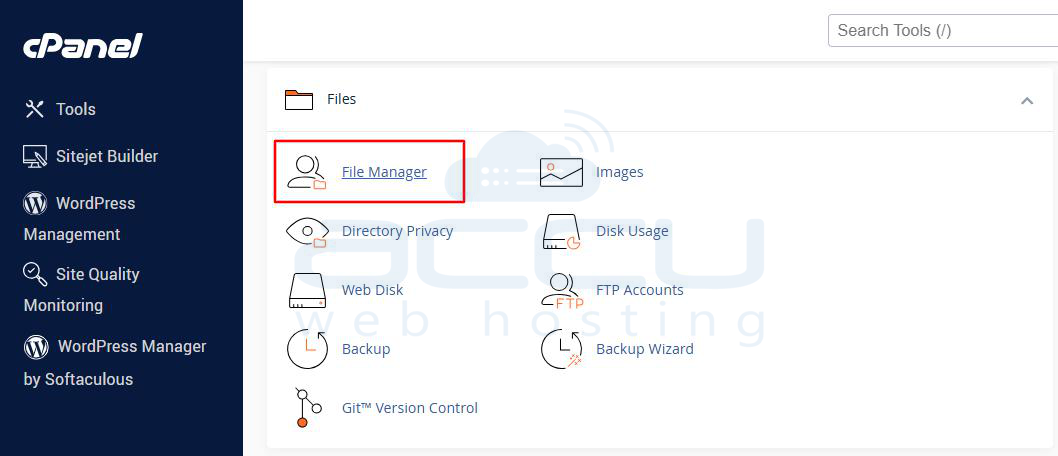
3. Navigate to your Magento root directory (usually public_html or the folder where Magento is installed).
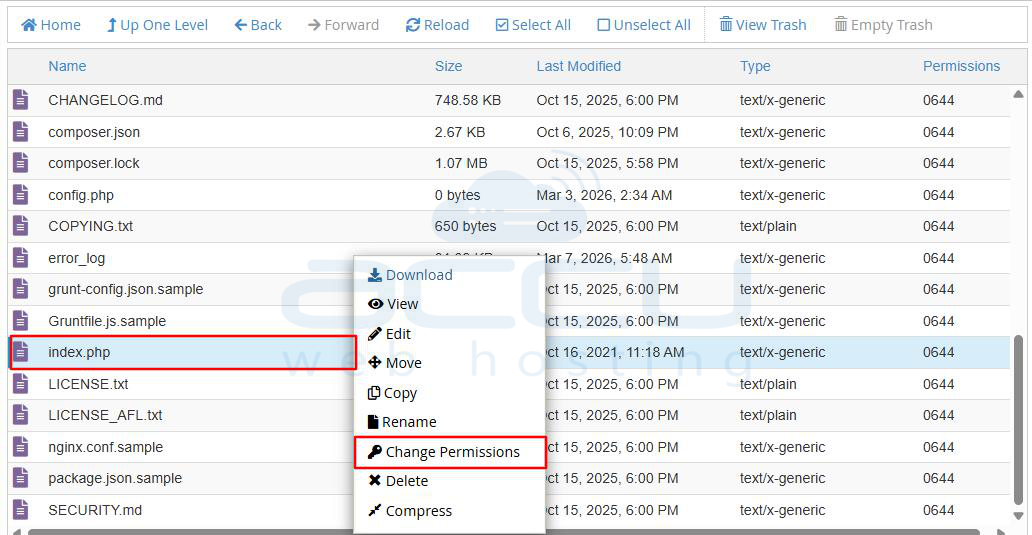
4. Locate the index.php file.
5. Right-click the file and select Change Permissions.
6. Set permission to 644.
2. Increase PHP Memory Limit
Magento requires a significant amount of server memory to run properly. If the memory limit is too low, the server may terminate processes and display a 500 Internal Server Error.
Typical Magento Memory Requirements
Minimum recommended values:
- Small stores: 256MB
- Medium stores: 512MB
- Large stores: 768MB or more
If your store contains hundreds of products, low memory limits can easily cause server failures.
How to Increase Memory Limit Using cPanel
There are multiple ways to increase PHP memory.
Method 1: Edit php.ini
1. Log in to cPanel.
2. Open File Manager.
3. Locate the php.ini file in your Magento root directory.
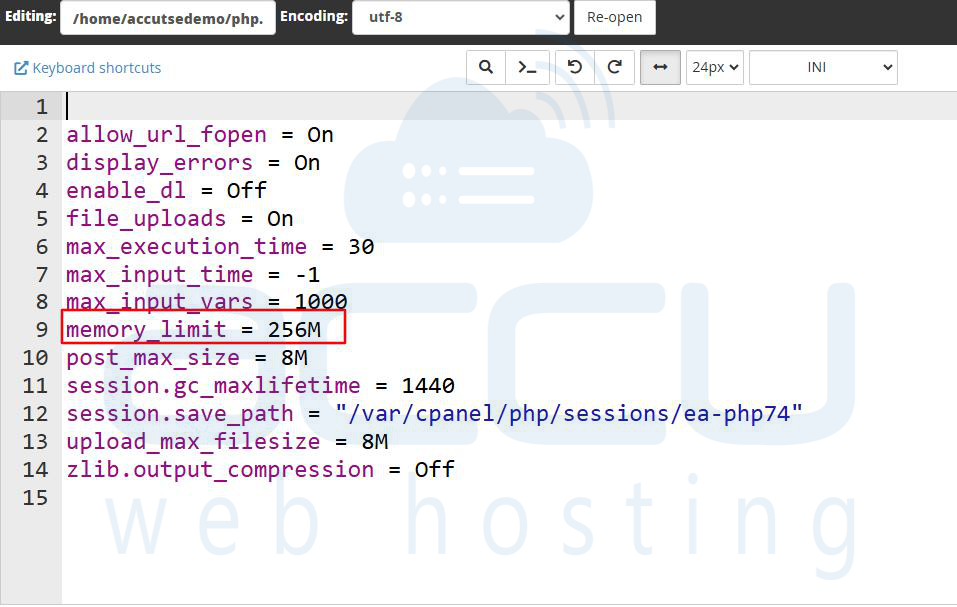
4. Edit the file and add or modify the following line:
memory_limit = 256M
Save the file.
Method 2: Edit .htaccess File
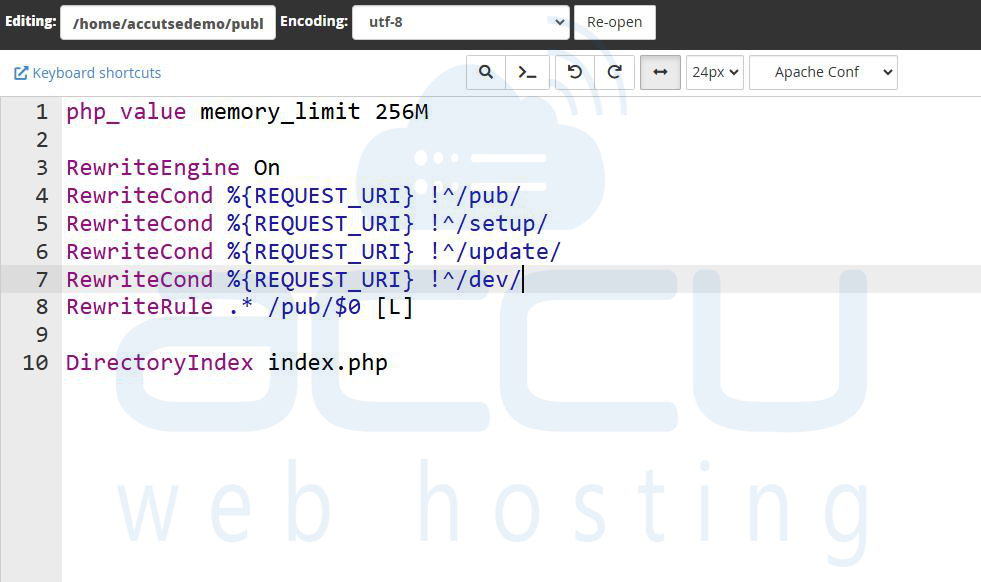
If php.ini is not available, update .htaccess.
Add the following code:
<IfModule mod_php5.c>
php_value memory_limit 256M
</IfModule>
Method 3: Use MultiPHP INI Editor
1. Log into cPanel
2. Open MultiPHP INI Editor
3. Select your domain
4. Change memory_limit to 256M or higher
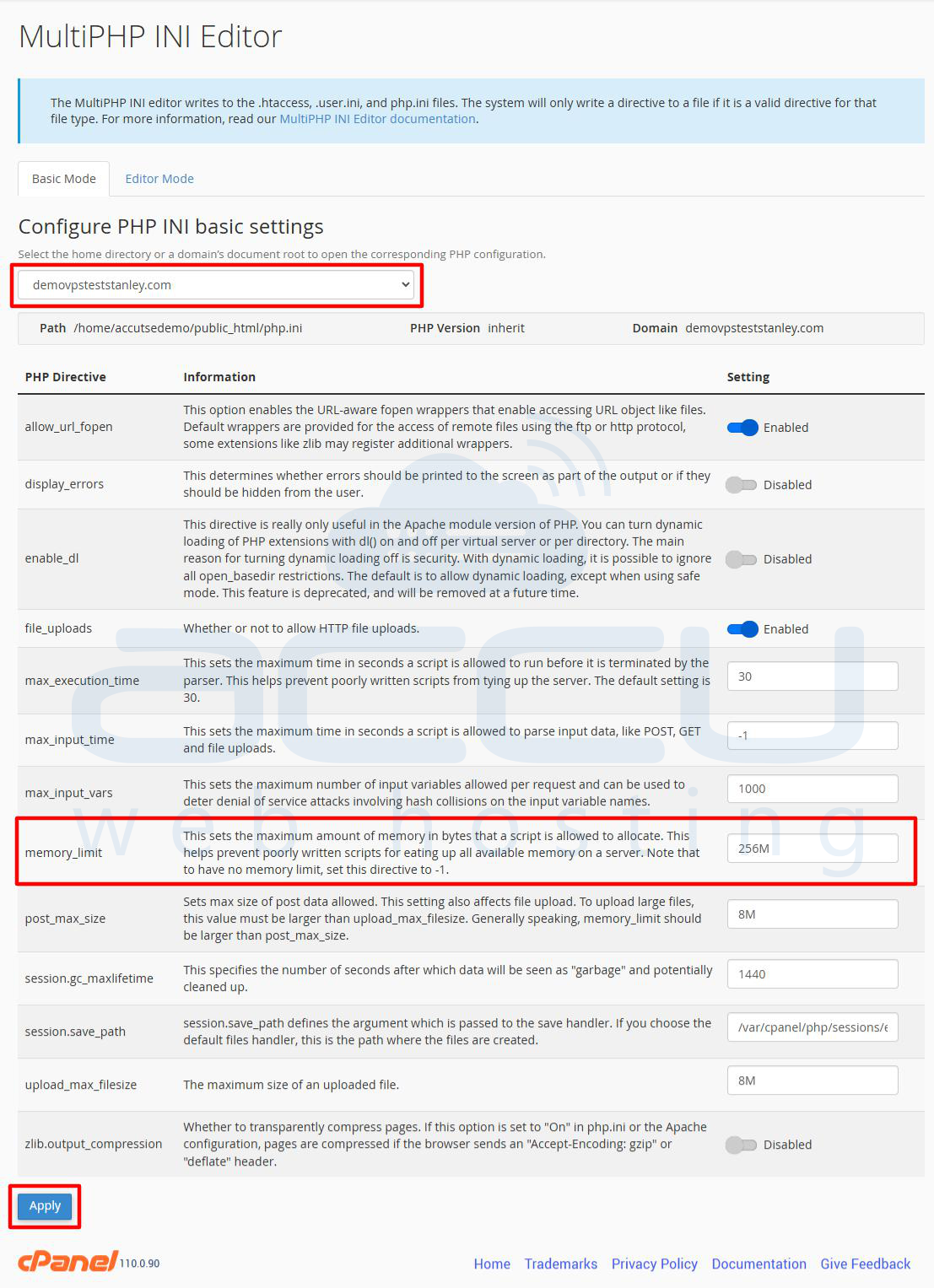
After updating memory settings, refresh the Magento website.
3. Rename or Remove the .htaccess File
The .htaccess file controls server configurations such as redirects, compression, and rewrite rules. During Magento upgrades or plugin installations, the .htaccess file may become corrupted or contain invalid commands.
This can immediately trigger a 500 server error.
Steps to Fix .htaccess Errors
1. Login to cPanel.
2. Open File Manager.
3. Navigate to the Magento root folder.
4. Locate the .htaccess file.
5. Right-click and select Rename.
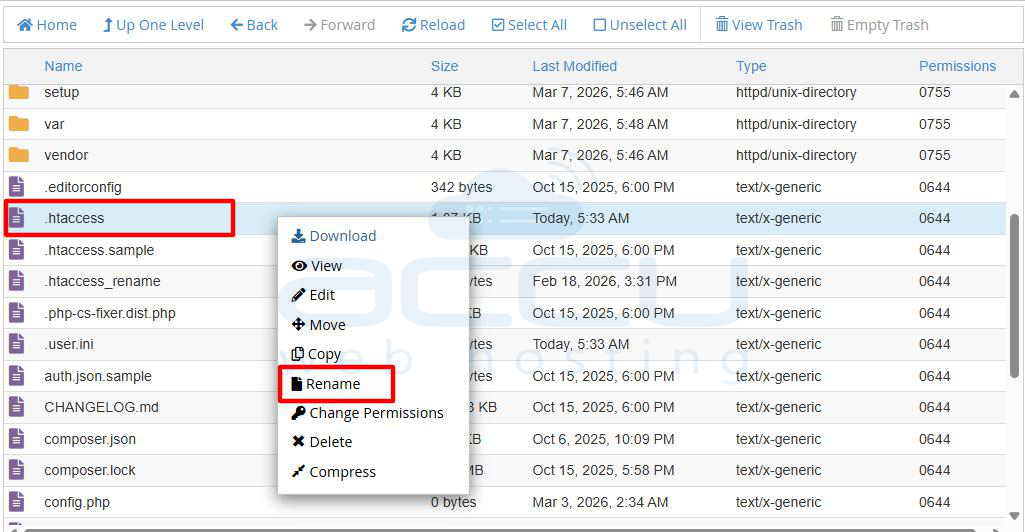
6. Rename it to:
.htaccess_old
7. Refresh your website.
If the site loads successfully, the issue was caused by .htaccess.
You can then restore a clean .htaccess file from the Magento installation package.
4. Disable Magento Maintenance Mode
Magento enables maintenance mode during upgrades or deployments.
When enabled, the website displays a maintenance message and prevents users from accessing the store. However, sometimes the maintenance flag remains active even after the upgrade finishes.
How Maintenance Mode Works
Magento creates a file named:
var/.maintenance.flag
If this file exists, Magento assumes maintenance mode is enabled.
Fix Using cPanel
1. Log in to cPanel File Manager
2. Navigate to the Magento root directory
3. Open the var folder
4. Find the file:
.maintenance.flag
5. Delete the file
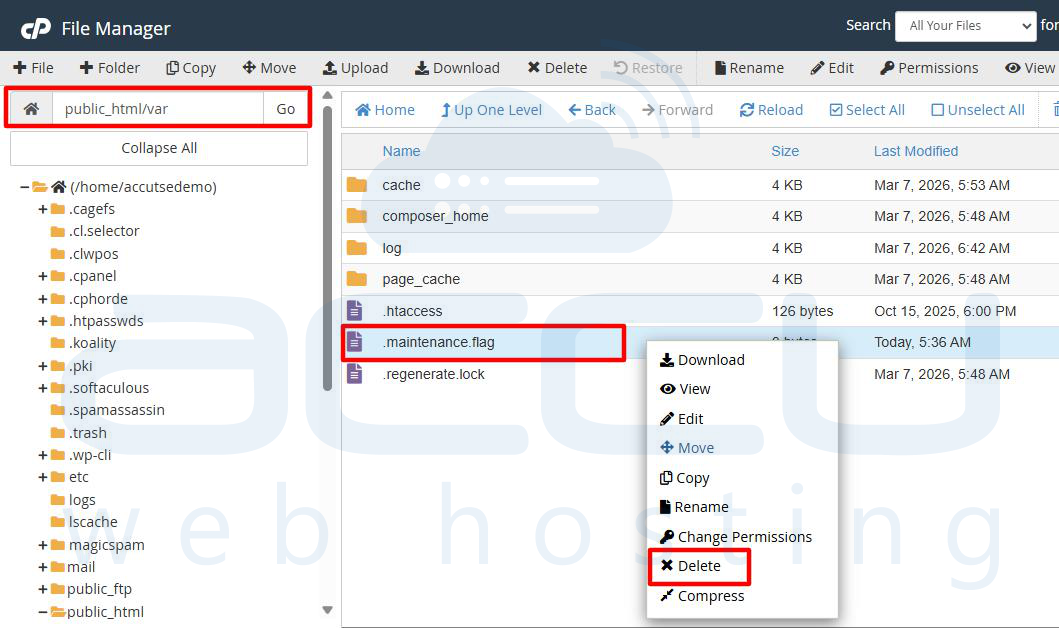
After deleting it, reload your store.
Alternative CLI Command
If terminal access is available:
php bin/magento maintenance:disable
After disabling maintenance mode, clear Magento cache.
5. Identify Missing Magento Modules
During installation or upgrades, Magento requires specific server modules. If your server does not support them, the website may display a 500 error.
Common Missing Modules
Examples include:
- PHP extensions
- Apache modules
- Database drivers
Checking Missing Modules
You can run the Magento Check script.
Upload the script to your Magento root directory and access:
https://yourdomain.com/magento-check.php
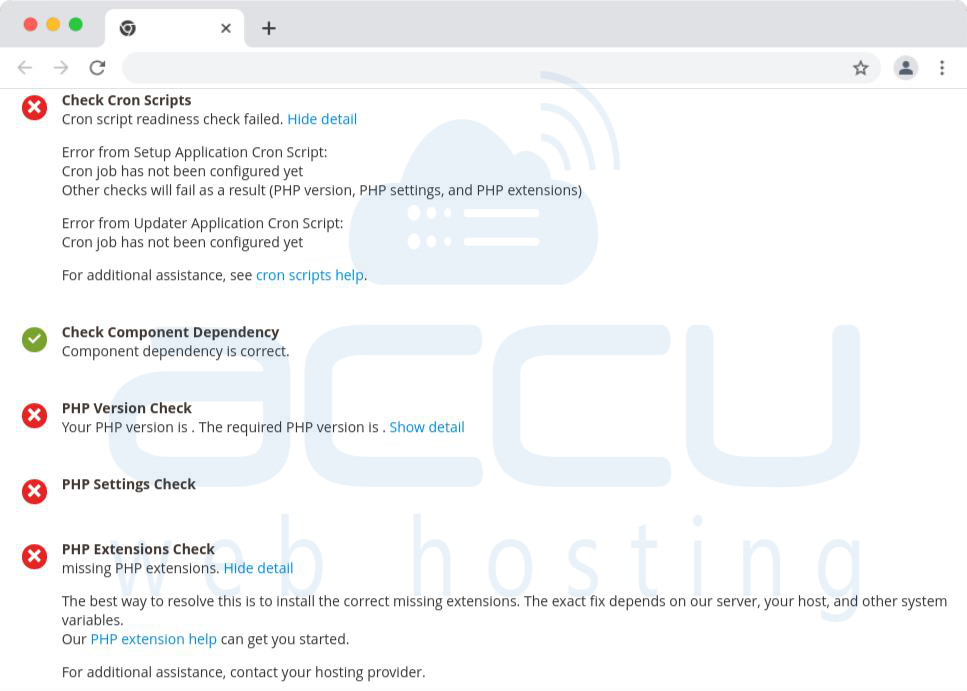
The script will show:
- Missing extensions
- Server configuration problems
- PHP compatibility issues
After identifying missing modules, contact your hosting provider or enable them in cPanel.
6. Fix Third-Party Plugin Conflicts
Magento stores often rely on third-party extensions for features such as:
- Payment gateways
- Shipping modules
- SEO tools
- Marketing automation
However, after upgrading Magento, these extensions may become incompatible.
This can lead to module conflicts, causing server errors.
How Plugin Conflicts Occur
Common reasons include:
- Extension not compatible with new Magento version
- Two modules modifying the same class
- Outdated plugin files
Disabling Extensions
If you can access terminal:
php bin/magento mod:disable Vendor_ModuleName
If terminal is unavailable, you can disable the module manually.
Manual Disable Using cPanel
1. Go to File Manager
2. Navigate to: app/code or vendor
3. Locate the extension folder
4. Rename it
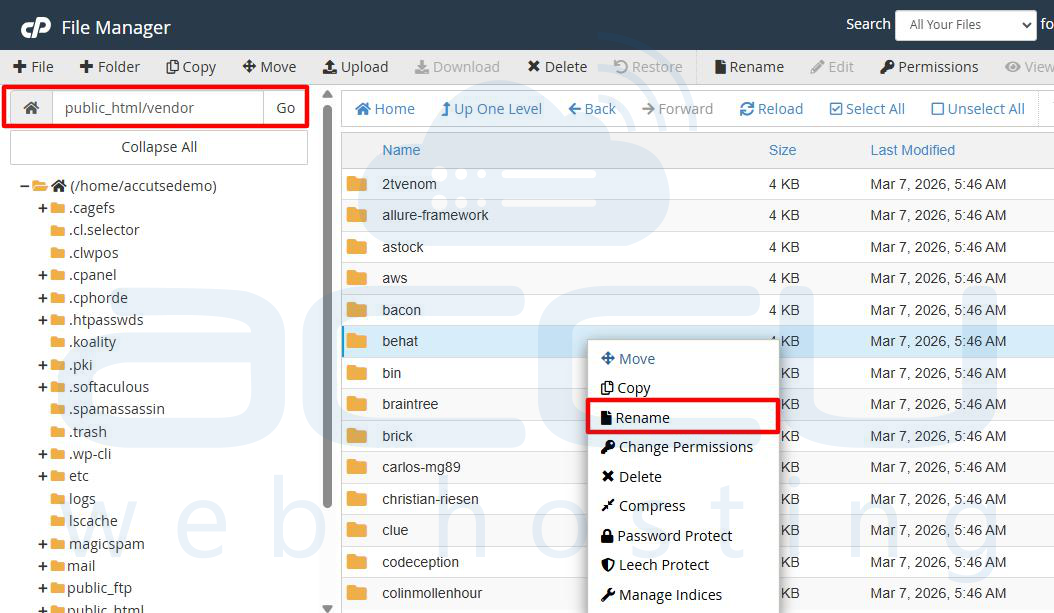
Example:
Vendor_ModuleName → Vendor_ModuleName_disabled
Reload the website to check if the issue is resolved.
7. Fix PHP Version Compatibility
Magento requires specific PHP versions depending on the Magento release. If your hosting server uses an incompatible PHP version, Magento may fail to run.
Example Compatibility
Magento 2.3: PHP 7.3 – 7.4
Magento 2.4: PHP 7.4 – 8.1
How to Change PHP Version in cPanel
1. Log in to cPanel
2. Open Select PHP Version or MultiPHP Manager
3. Choose your domain
4. Select the compatible PHP version
5. Click Apply
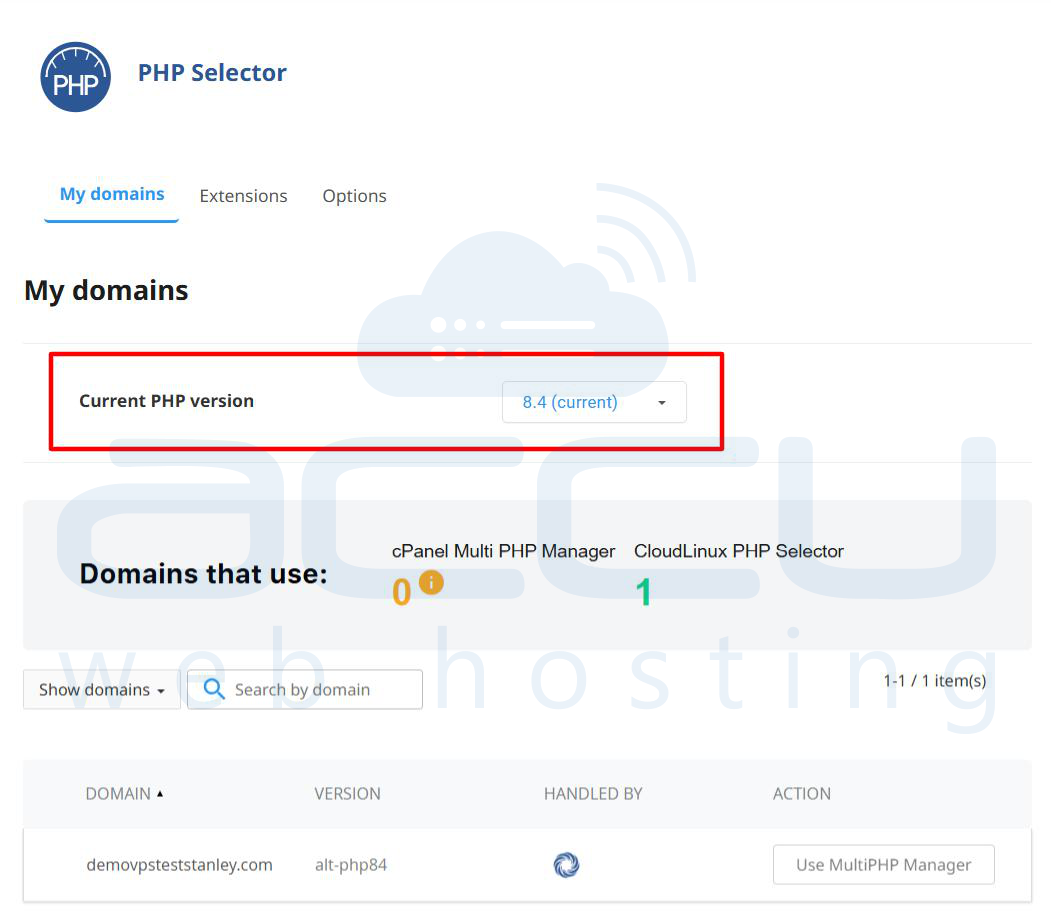
After changing the PHP version, clear browser cache and reload the site.
8. Fix Missing CURL Extension
Magento relies heavily on the CURL PHP extension to communicate with external services such as payment gateways and APIs. If CURL is missing, Magento may fail to process requests.
Symptoms
- Payment gateway errors
- API connection failures
- 500 Internal Server Error
How to Enable CURL in cPanel?
1. Log in to cPanel
2. Open Select PHP Version
3. Go to the Extensions tab
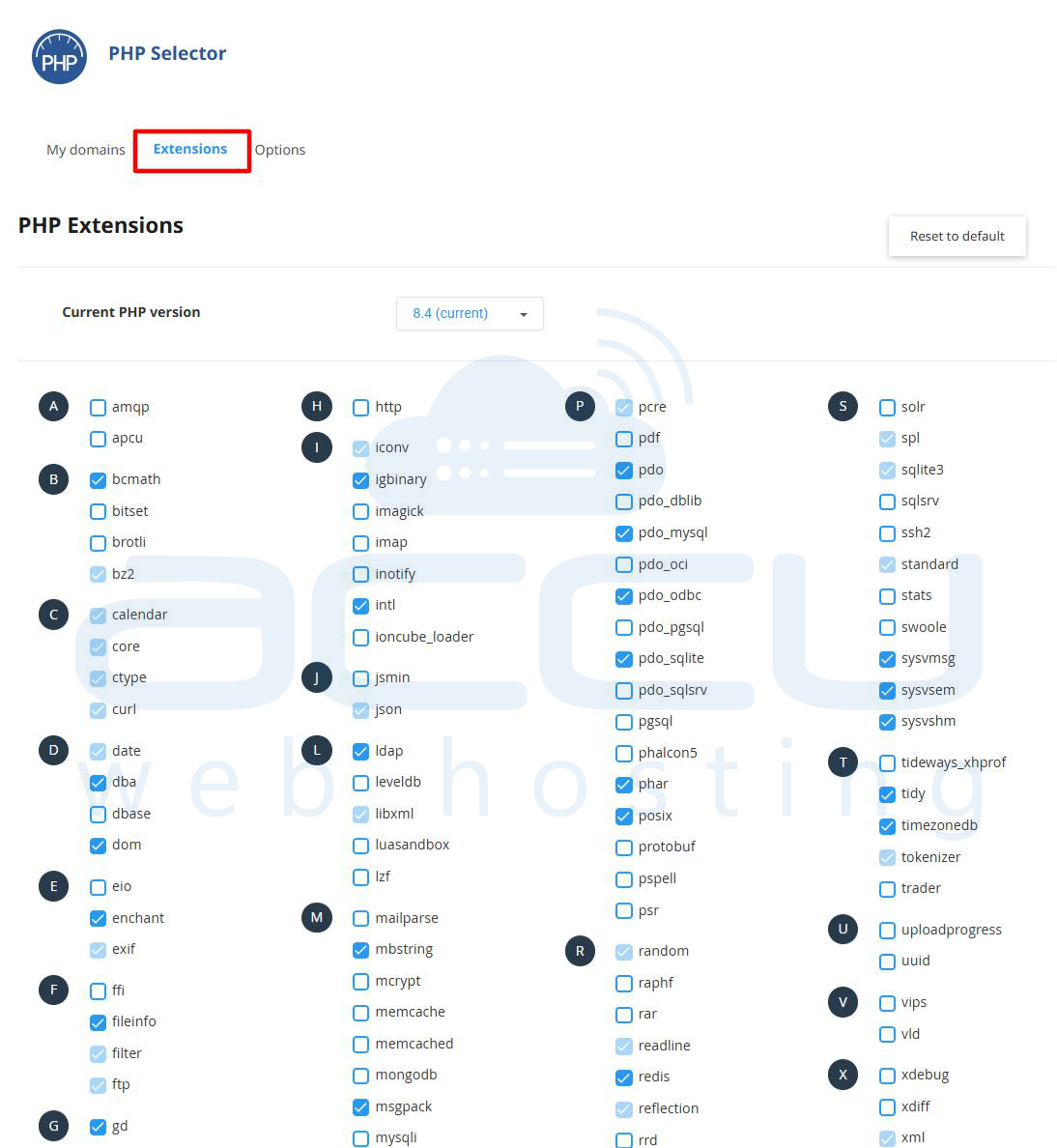
4. Find curl
5. Enable the checkbox
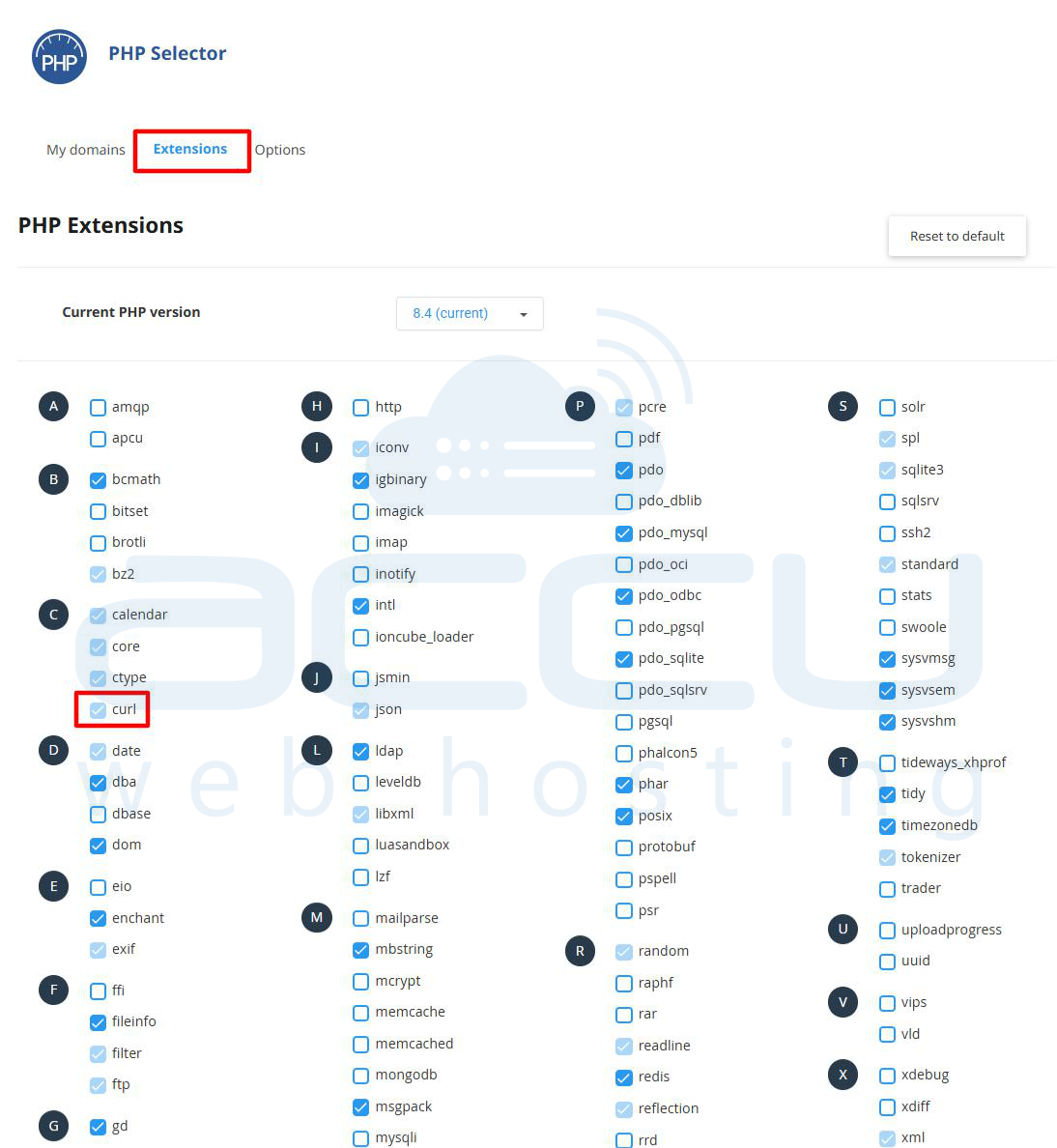
6. Save changes
After enabling CURL, restart the web server if possible.
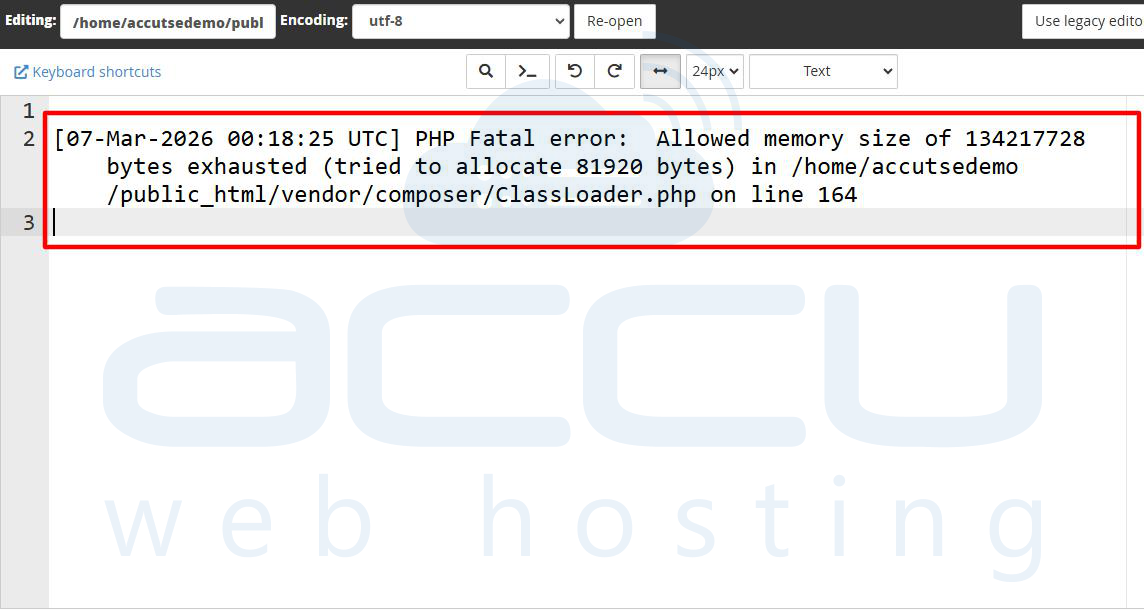
9. Check Server Error Logs
Error logs are the most reliable source for diagnosing Magento issues. They provide detailed messages explaining why the server failed. You will see recent server errors. Open these files using File Manager editor and look for errors such as:
- Fatal errors
- Missing class files
- Extension conflicts
- Database issues
Logs often point directly to the exact file causing the problem.
10. Fix Missing PHP Extensions
Magento requires several PHP extensions to function correctly. Missing extensions can trigger server errors.
Required Extensions
Typical Magento requirements include:
- bcmath, ctype, curl, dom, gd, intl, mbstring, openssl, pdo_mysql, simplexml, soap, xsl, zip
Enabling Extensions via cPanel
1. Login to cPanel
2. Open Select PHP Version
3. Navigate to Extensions
4. Enable required extensions
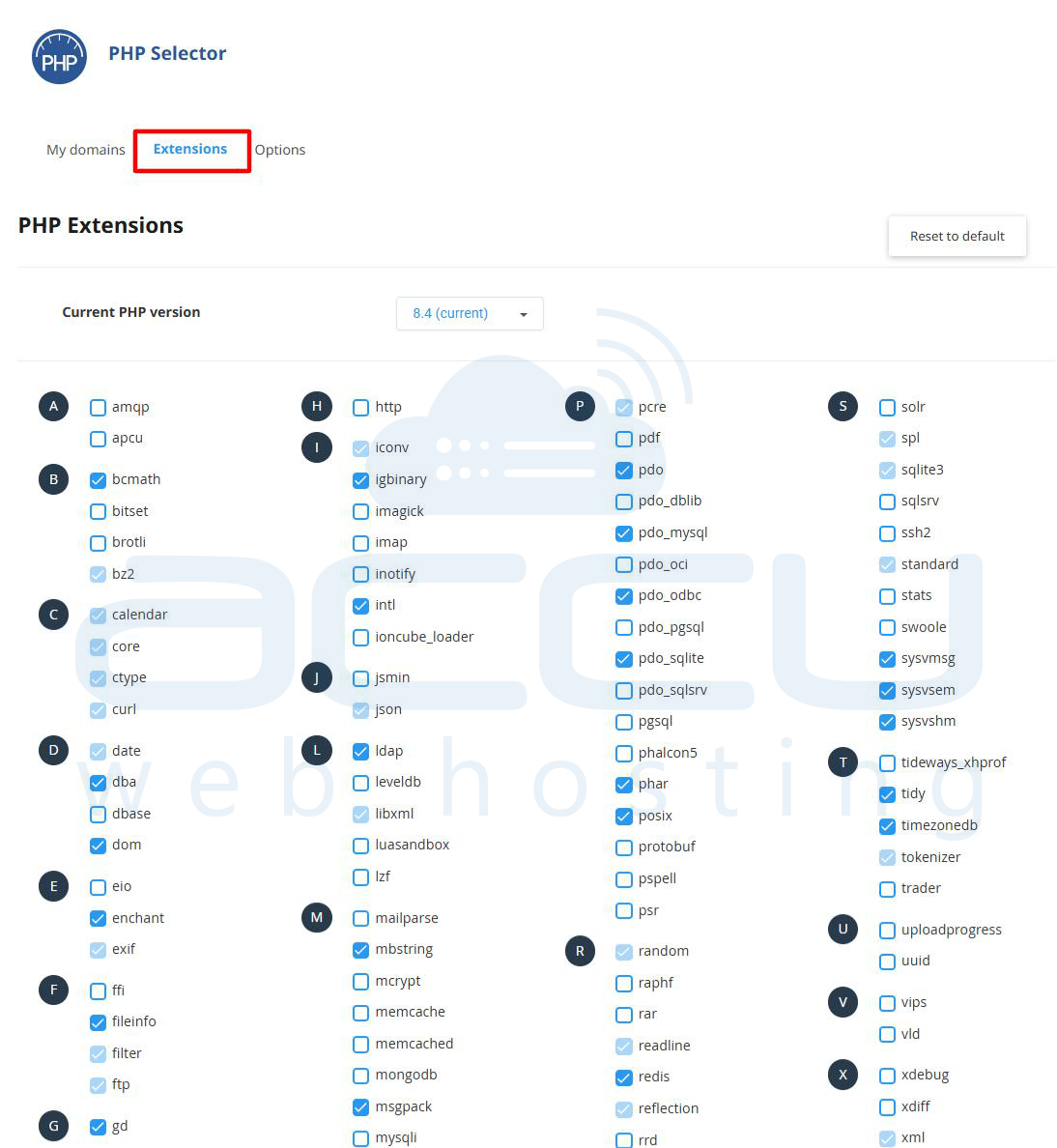
5. Save changes
After enabling extensions, reload your Magento website.
Conclusion
The Magento 500 Internal Server Error is a common issue that often occurs after upgrades, configuration changes, or plugin installations. Although the error message itself is generic, the underlying causes usually relate to file permissions, PHP settings, server configuration, or extension conflicts. Following the troubleshooting steps outlined in this guide will help restore your Magento store quickly and prevent future server errors.


