
Emails are a critical part of online communication, and reliable delivery is essential for businesses. If you encounter the error:
550 5.7.1 This sender is not authorized to send from domain.com
it means your emails are being rejected because the sending server is not authorized for your domain. This issue usually arises due to misconfigured SPF, DKIM, or Mailchannel settings. This guide explains step by step how to resolve it.
1: Check SPF Record
SPF (Sender Policy Framework) ensures that only authorized servers can send emails on behalf of your domain.
Your SPF record should include:
- IP address or hostname of the sending server
- Return-Path / envelope sender used by your mail system
Example SPF record:
v=spf1 ip4:123.45.67.89 include:relay.mailchannels.net ~all
- ip4:123.45.67.89 → Replace with your server’s IP address
- include:relay.mailchannels.net → Authorizes Mailchannel relay
How to verify SPF:
1. Log in to your DNS provider.
2. Go to your domain’s TXT records.
3. Ensure the SPF record includes both your server’s IP/hostname and the Mailchannel relay.
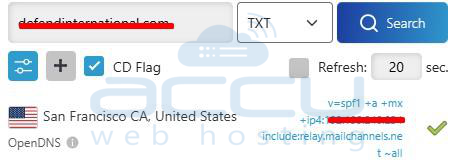
2: Check DKIM Record
DKIM (DomainKeys Identified Mail) authenticates your emails and prevents spoofing.
- Make sure your DKIM record is published in DNS.
- The selector and key must match the sending mail server configuration.
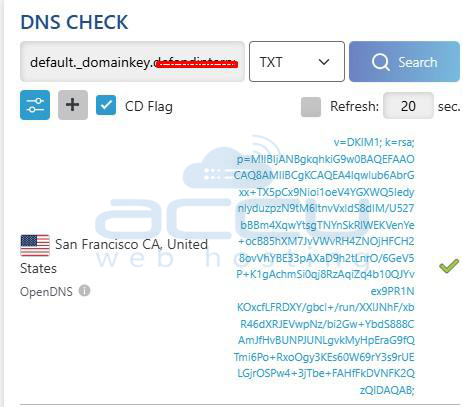
3: Verify Envelope Sender / Return-Path
- Ensure the Return-Path (envelope sender) matches a domain authorized in SPF.
- Mailchannel will rewrite the Return-Path if using its relay, which ensures your emails are accepted by receiving servers.

4: Use Mailchannel Relay
Even if SPF and DKIM are correct, emails sent directly from an unauthorized server will be rejected. You must send emails through Mailchannel’s relay:
1. Use the SMTP server provided by Mailchannel, e.g., relay.mailchannel.net.
2. Authenticate with your account credentials (username/password).
3. Ensure your domain’s SPF includes Mailchannel servers:
v=spf1 v=spf1 include:relay.mailchannel.net +a +mx +ip4:YOUR_SERVER_IPs ~all
4. Mailchannel ensures emails are signed and verified, allowing them to pass SPF/DKIM checks.
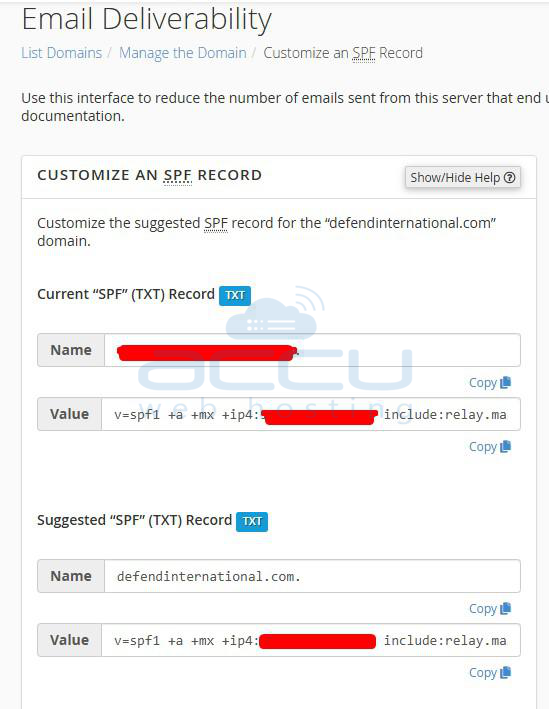
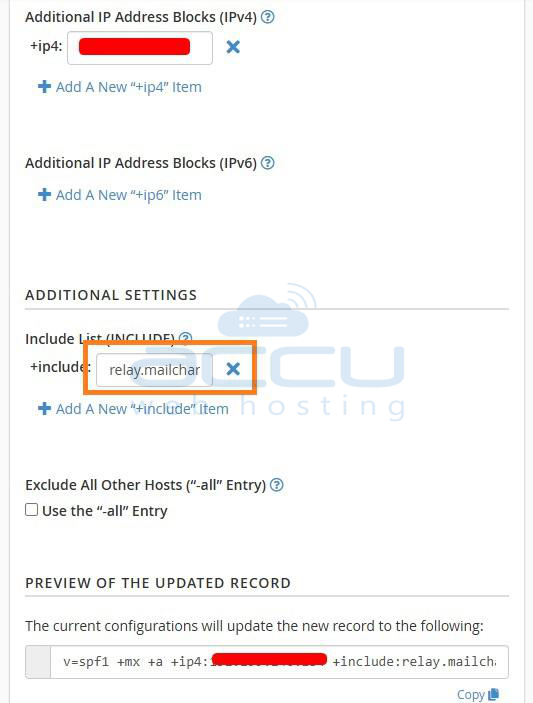
5: Test Sending
- After updating SPF/DKIM and configuring Mailchannel relay, wait for DNS propagation (1–24 hours).
- Send a test email and check headers for:
- SPF: pass
- DKIM: pass
- Return-Path matches authorized domain

Use the Correct SMTP
- Always use the SMTP server provided by your hosting provider or Mailchannel.
- Avoid using third-party servers not listed in SPF, as this will trigger 550 5.7.1.
Conclusion
The Mailchannel error 550 5.7.1 occurs when emails are sent from an unauthorized server, preventing successful delivery. By ensuring that your SPF record includes your server IP/hostname and Mailchannel relay, that DKIM is properly configured, and that the Return-Path or envelope sender matches an authorized domain, you can resolve this issue. Additionally, sending emails through the Mailchannel SMTP relay guarantees that your messages pass SPF and DKIM verification, ensuring reliable email delivery to recipients.


