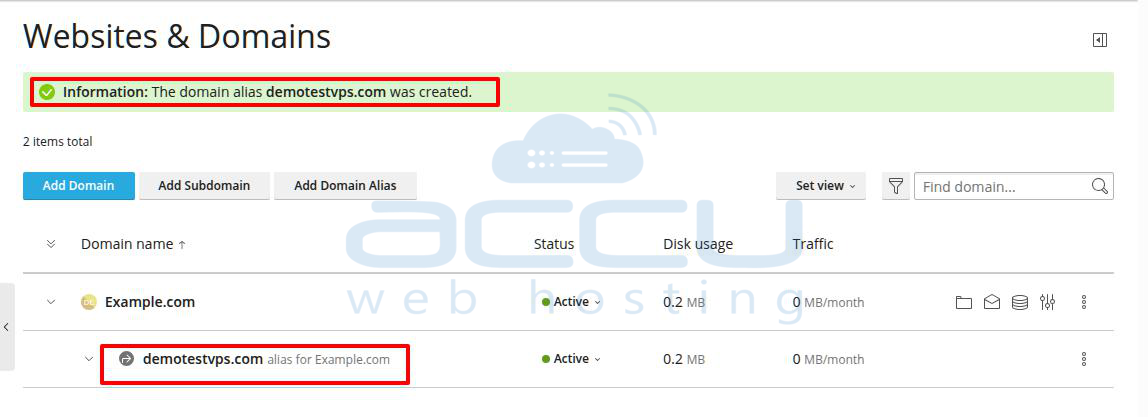
This article describes how to add a domain alias in SolidCP, cPanel, and Plesk panel.
Add Domain Alias/Website Pointer in SolidCP
1. Log in to the SolidCP control panel.
2. If you have a reseller or VPS account, then first click on the All Customers link as shown in the following image.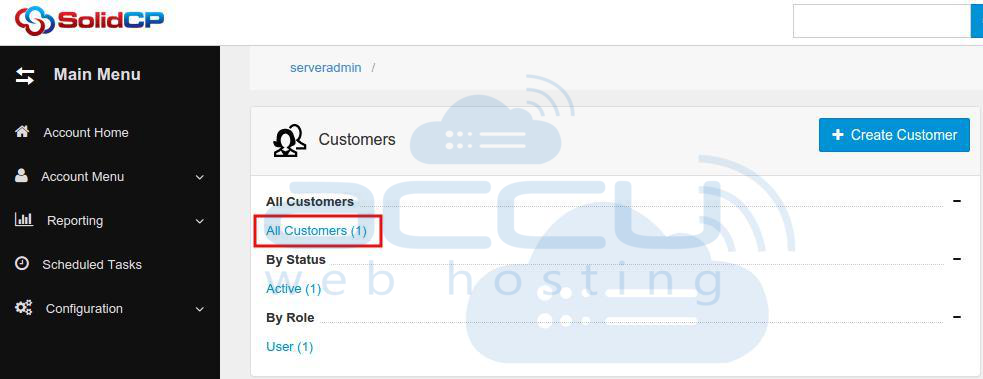
3. In the next screen, you will see the list of all created users. If you have not created any users yet, you'll see the default admin user there.
Next, click the username link under whom you want to add a Domain Alias/Website Pointer.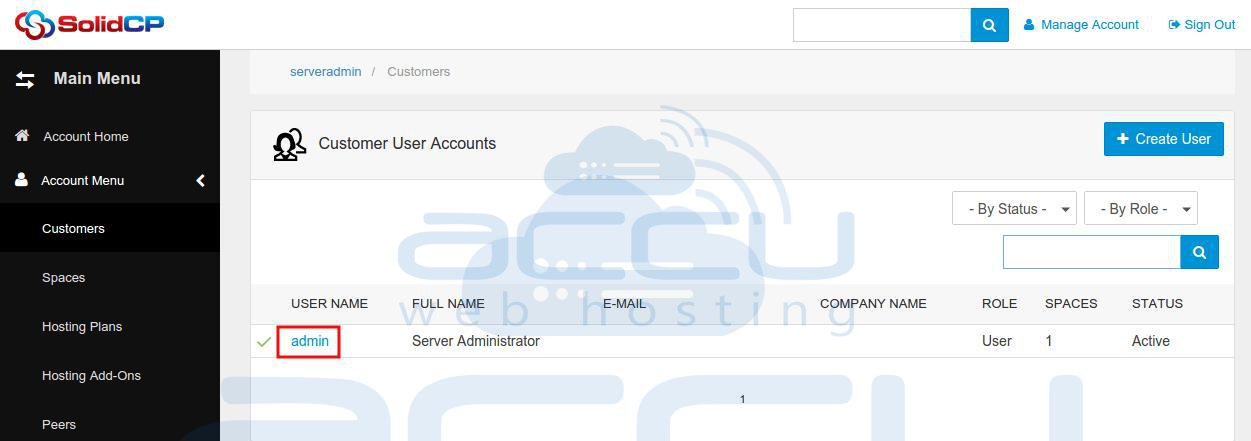
4. You will see icons for all the services you can manage from the SolidCP. Click on the Websites icon under the Web & Applications section to add a Website Pointer.
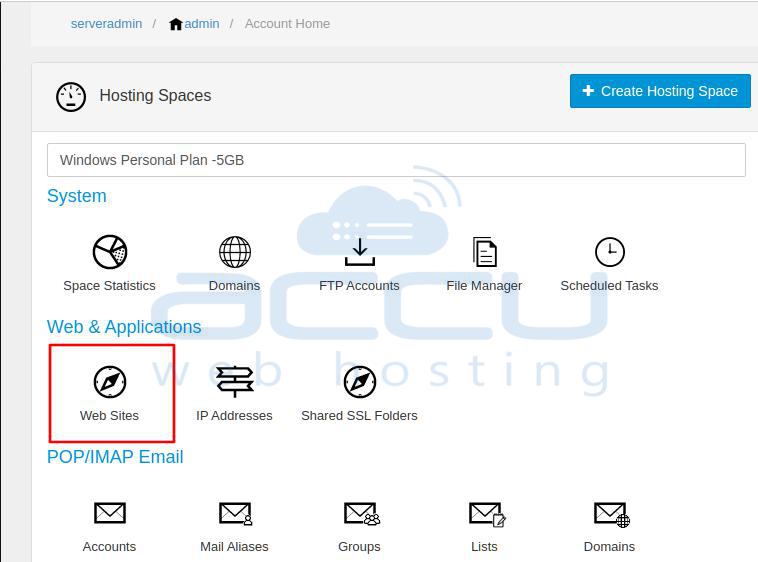
5. Click on the website name for which you would like to add a Website Pointer.
6. At Web Site Properties section, click on the + Add Web Site Pointer button.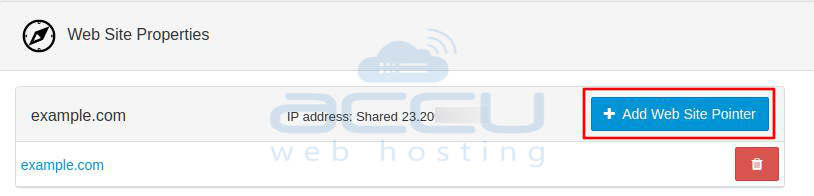
7. Enter the prefix name you want to set in Web site pointer box, select the domain name from drop down.
8. Click on the Add Pointer button.
Example: If you want to create website pointer like staging.example.com.
Enter staging in Web Site Pointer box and select the domain example.com from drop down.

Once website pointer is added, you would see it listed under website properties page.
Add Domain Alias/Parked Domain in cPanel
Add Domain Alias in Plesk Panel
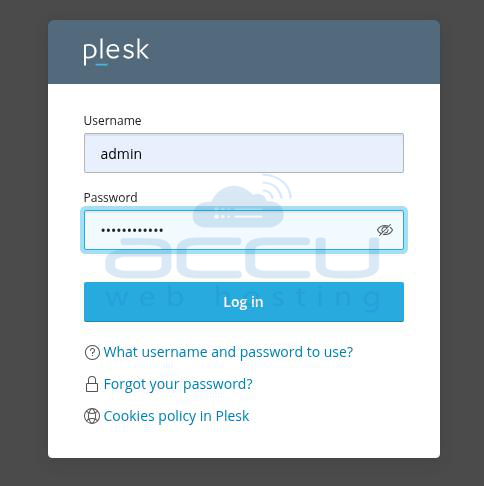
1. Log in to your Plesk control Panel
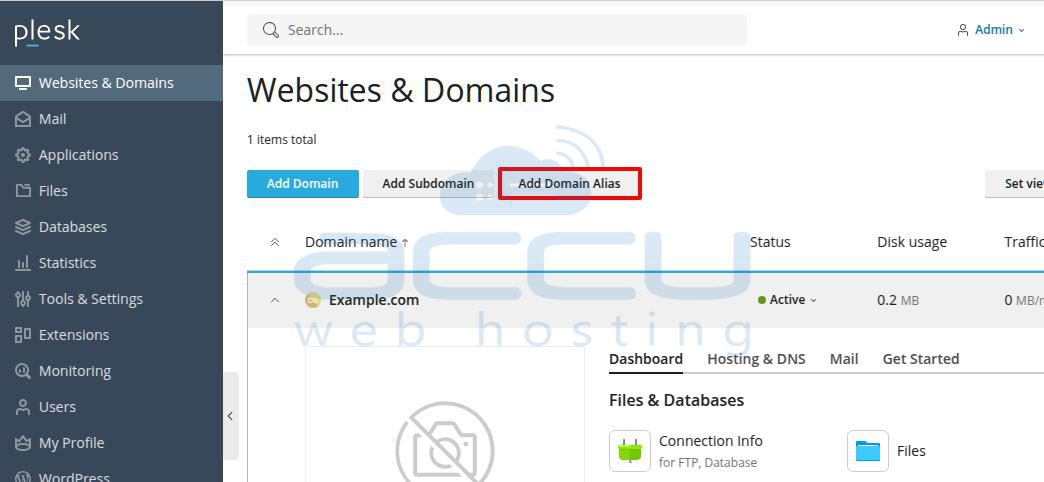
2. Navigate to the Websites & Domains and click the Add New Domain Alias button:
3. Fill out the needed information. The options denoted by a red asterisk are required fields:
Domain alias name: Type the domain name you want to alias for your primary domain.
For the domain: If you have more than one domain, select the Primary one.
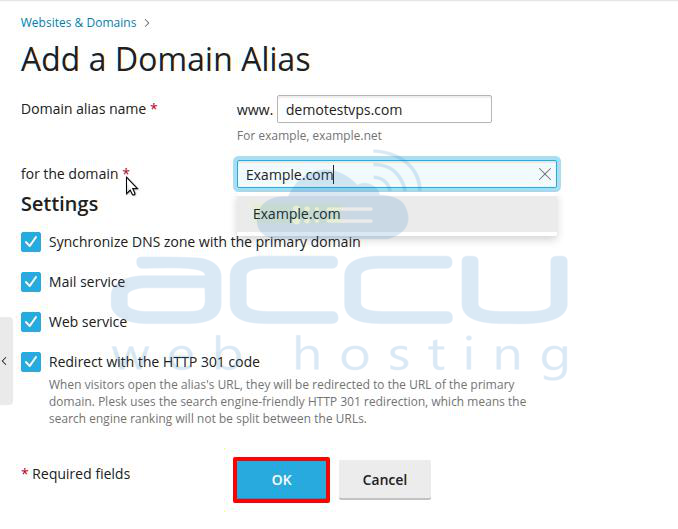
Settings: include the following options: leave it as the default if you are not sure about the right options.
Synchronization of DNS Zone with the Primary Domain:
When this option is enabled, the DNS zone of the domain alias will stay synchronized with the DNS zone of the primary domain. Any changes made to the primary domain’s DNS zone will automatically apply to the alias domain as well.
Mail Service: Plesk does not allow creating separate mailboxes for domain aliases. Instead, it uses the mailboxes of the primary domain.
If you enable the Mail service option, all mailboxes created under the primary domain will also work for the alias domain. Emails sent to the alias domain will be delivered to the corresponding mailboxes of the primary domain.
Web Service: When this option is enabled, the website will open using the alias domain in the browser. If you disable the Web service option, the alias domain will be used only for email, provided that the Mail service option is enabled.
Redirect with HTTP 301 Code: By default, Plesk uses internal redirection for domain aliases. This makes the alias appear as a separate website to visitors and search engines.
As a result, search engines may index the alias separately, which can negatively affect the primary domain’s search rankings.
To prevent this, you can enable Redirect with the HTTP 301 code (Moved Permanently). This ensures that search engines only index the primary domain, helping maintain its search engine ranking.
4. Click on the OK button.