Have you ever noticed that when you type python in your Windows command prompt, regardless of the directory, you can run it. That happens with the help of the PATH variable. It is essential to ensure that Python is accessible from any location within your system. Achieving this requires adding the Windows 10 or 11 PATH environment variable, allowing your system to recognize and execute Python commands without caring for the current directory.
What is the PATH Environment Variable?
The PATH environment variable is a system setting that informs Windows where to search for executable programs when you execute a command at the command prompt or PowerShell. When you include Python in the PATH, you can execute Python from any directory in the command line without providing the full path to the executable.
Why Add Python to the PATH?
Adding Python to the PATH provides several key benefits:
- Run Python from any directory in the command prompt.
- Execute Python scripts quickly without full file paths.
- Seamlessly use Python-related command-line tools.
- That is used to specify the location of Python libraries and its setup requirements on Windows.
Prerequisites
- Windows 10/11 or Windows server system.
- Python installed on your system.
- Administrator access to your computer.
Step-by-Step Guide to Add Python to PATH
In the below screenshot, you can see that if you don't add Python to the path, you won’t be able to access Python from your main directory and will have to type many “cd” commands to go the directory where Python is located and then run it.
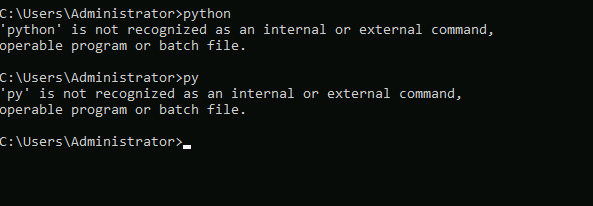
Method 1: During Python Installation
1. Download Python from the official website as per your 64-bit or 32-bit system architecture.
2. Run the Python installer.
3. Critical Step: Check the box that says "Add python.exe to PATH" during installation.
- This option is typically available on the first screen of the installer.
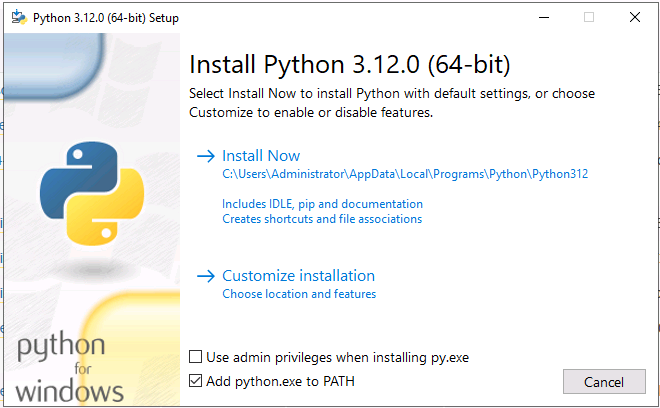
- If you miss this, don't worry – follow the manual method below.
Method 2: Manual Path Addition
Step 1: Find Your Python Installation Path (optional)
1. Open the Command Prompt.
2. Type the following command:
- where python
3. Note the path(s) displayed below. The Normal paths include:
- C:\Users\Administrator\AppData\Local\Programs\Python\Python312
- C:\Python312
- C:\Program Files\Python312
Step 2: Add Python to System PATH
1. Press Windows Key + R.
2. Type “sysdm.cpl".
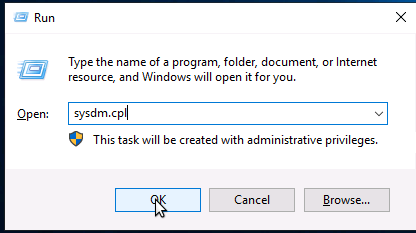
3. Click on "Advanced system settings".
4. Click the "Environment Variables" button.
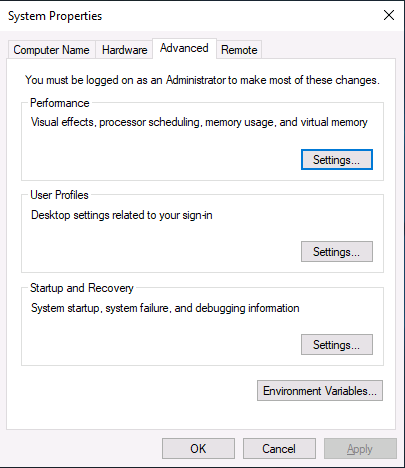
5. Under "System variables", find and select "Path".
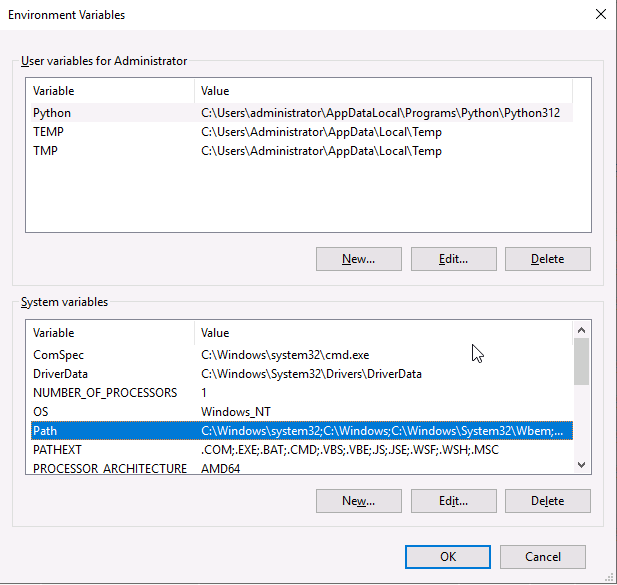
6. Click the "Edit" button after selecting the Path variable.
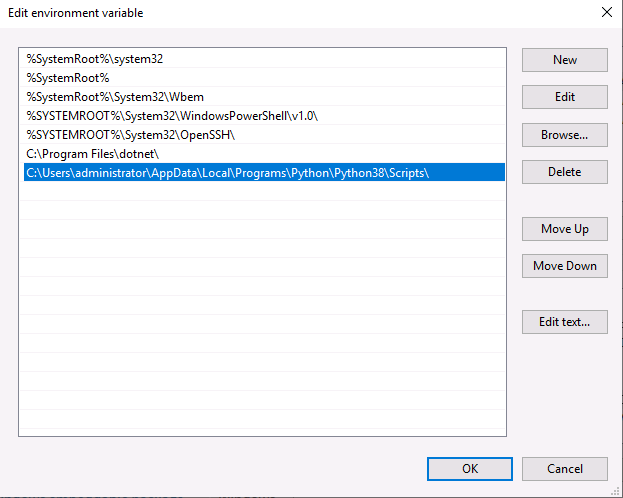
7. You will be shown the option to edit the environment variable. Click "New" to add the below-mentioned paths to the path variable.
8. Add these two paths(as per the version you installed if you installed 3.1, then add 31 at the last, and so on..):
- C:\Users\Administrator\AppData\Local\Programs\Python\Python312*
- C:\Users\Administrator\AppData\Local\Programs\Python\Python312*\Scripts
Step 3: Add Python Launcher to PATH
9. Add path in the User Variables section:
It is necessary for software compatibility and to run custom scripts.
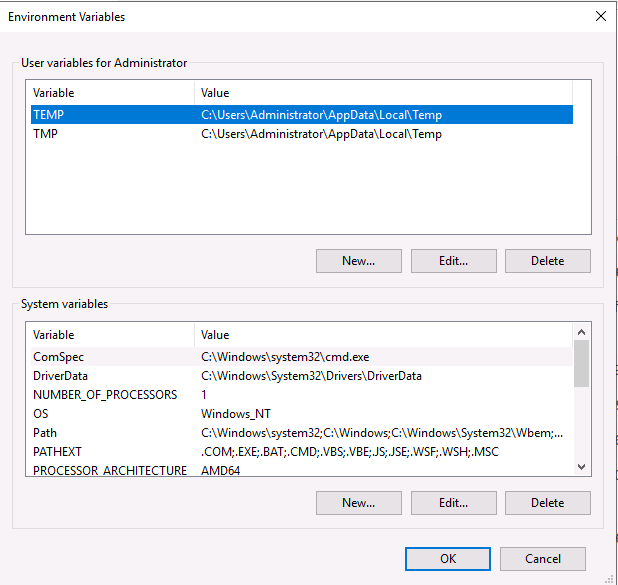
Click “New” and add a new user variable with the following details:
- Variable Value: C:\Users\Administrator\AppData\Local\Programs\Python\Python38\Scripts
- Variable name: Python
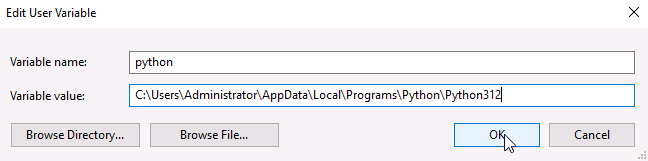
10. Click "OK" on all open windows to save changes.
Step 4: Verify Python PATH
After you have carefully completed adding paths by following the steps, now it's time to verify them:
1. Open a new Command Prompt.
Type py to launch Python. If you have carefully followed the steps, you will see the line as in the below image.

2. Type the following commands:
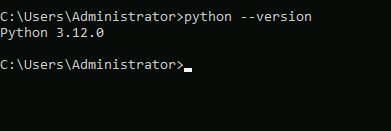

3. If successful, you'll see the Python and pip versions as above.
Troubleshooting Common Issues
Problem: Python Command Not Recognized
- Restart your Command Prompt.
- Verify the exact installation path.
- Ensure you've added both the Python directory and Scripts directory.
Problem: Multiple Python Versions
- Use py launcher to manage multiple versions.
- Specify the version: py -3.10 or py -3.9.
Best Practices
- Always use the official Python installer.
- Keep Python updated.
- Consider using virtual environments for project-specific dependencies.
Additional Tips
- For advanced users: Use tools like pyenv-win for Python version management.
- Regularly check and update your PATH to prevent conflicts.
Conclusion
Adding Python to the Windows PATH is a crucial step in setting up your Python development environment. It provides flexibility and ease of use when working with Python scripts and tools.
